PowerMind Predict User Guide
This page is the full visual tour. Every screenshot is from the live Studio PowerMind Predict UI (project AI Project).
Always check the project in the top bar so you are in the right workspace.
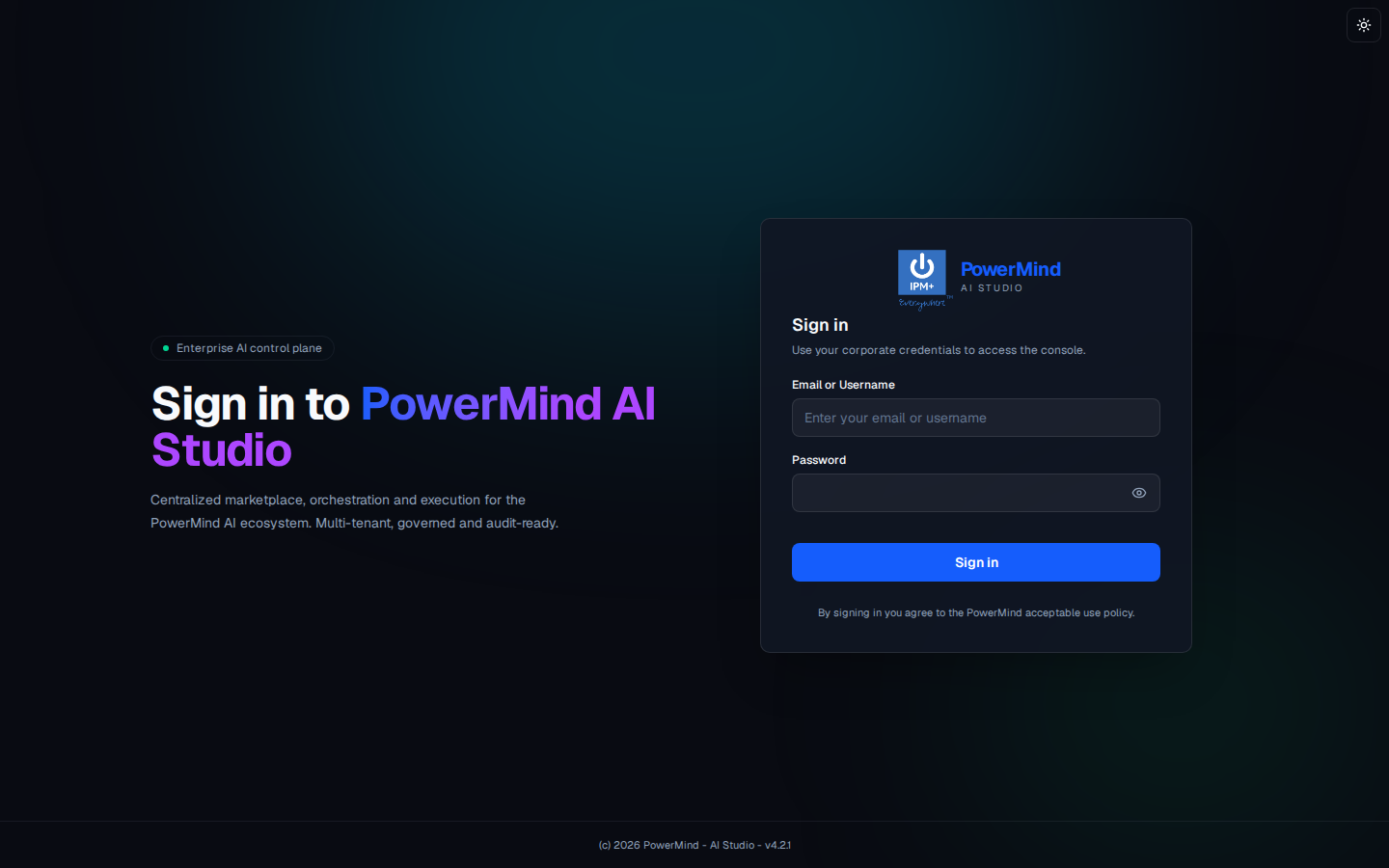
1. Sign in
Corporate username/email and password. Theme toggle is the sun icon, top right.
2. Tool Marketplace (hub)
Left menu groups tools: MLOPS, DATAOPS, LLMOPS, AIAAS. Predict is under AIAAS. Filters at the top: All, MLOps, LLMOps, DataOps, AIaaS.
Cards show Available (Launch) or Not enabled.
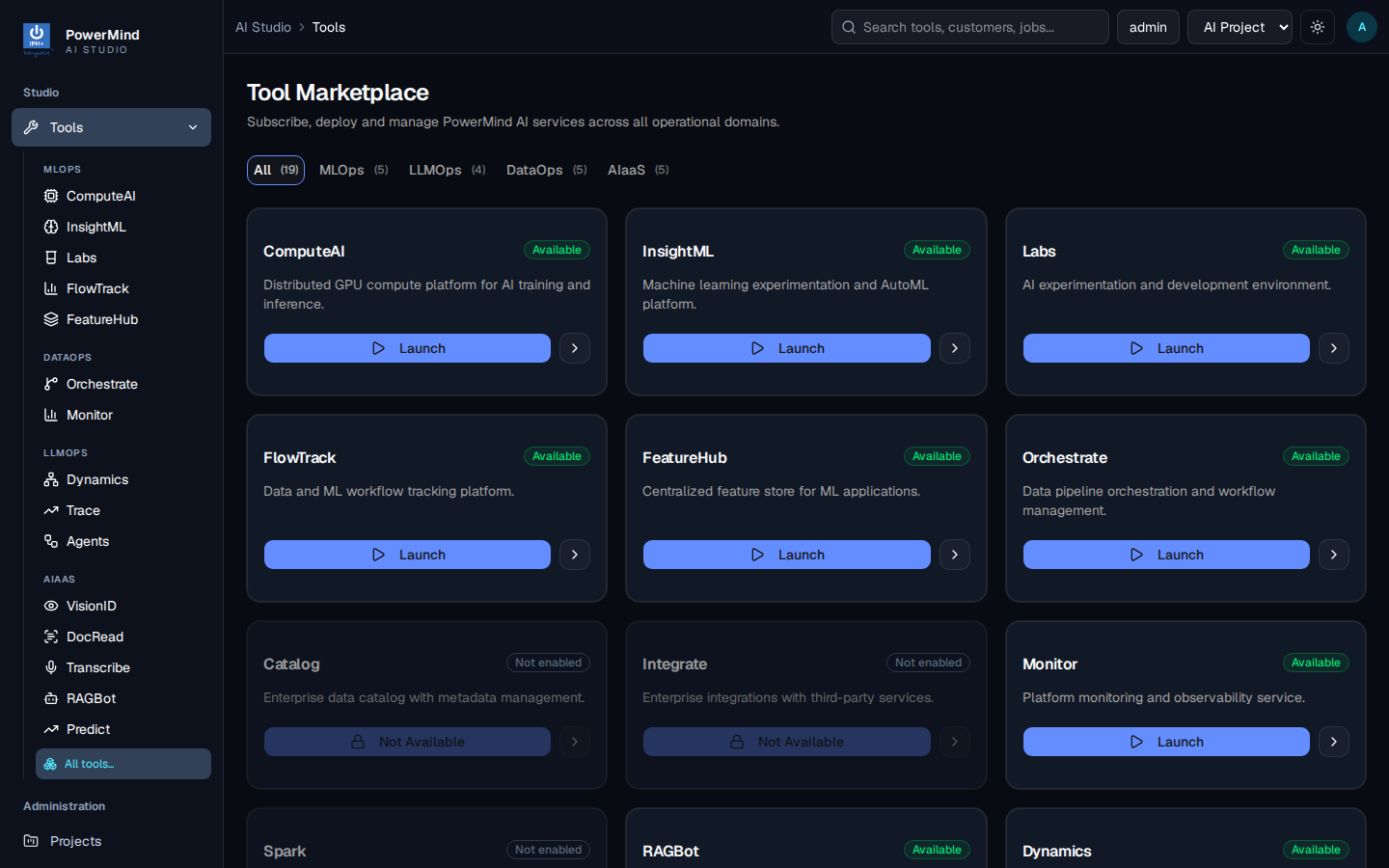
Open Predict from the sidebar or Launch. Header: PowerMind Predict — Forecasting & predictive analytics · AIaaS · v3.1.0. Status line may show Forecast cluster healthy, compliance badges, and region.
3. Dashboard
Tab: Dashboard. Breadcrumb: AI Studio > Tools > predict.
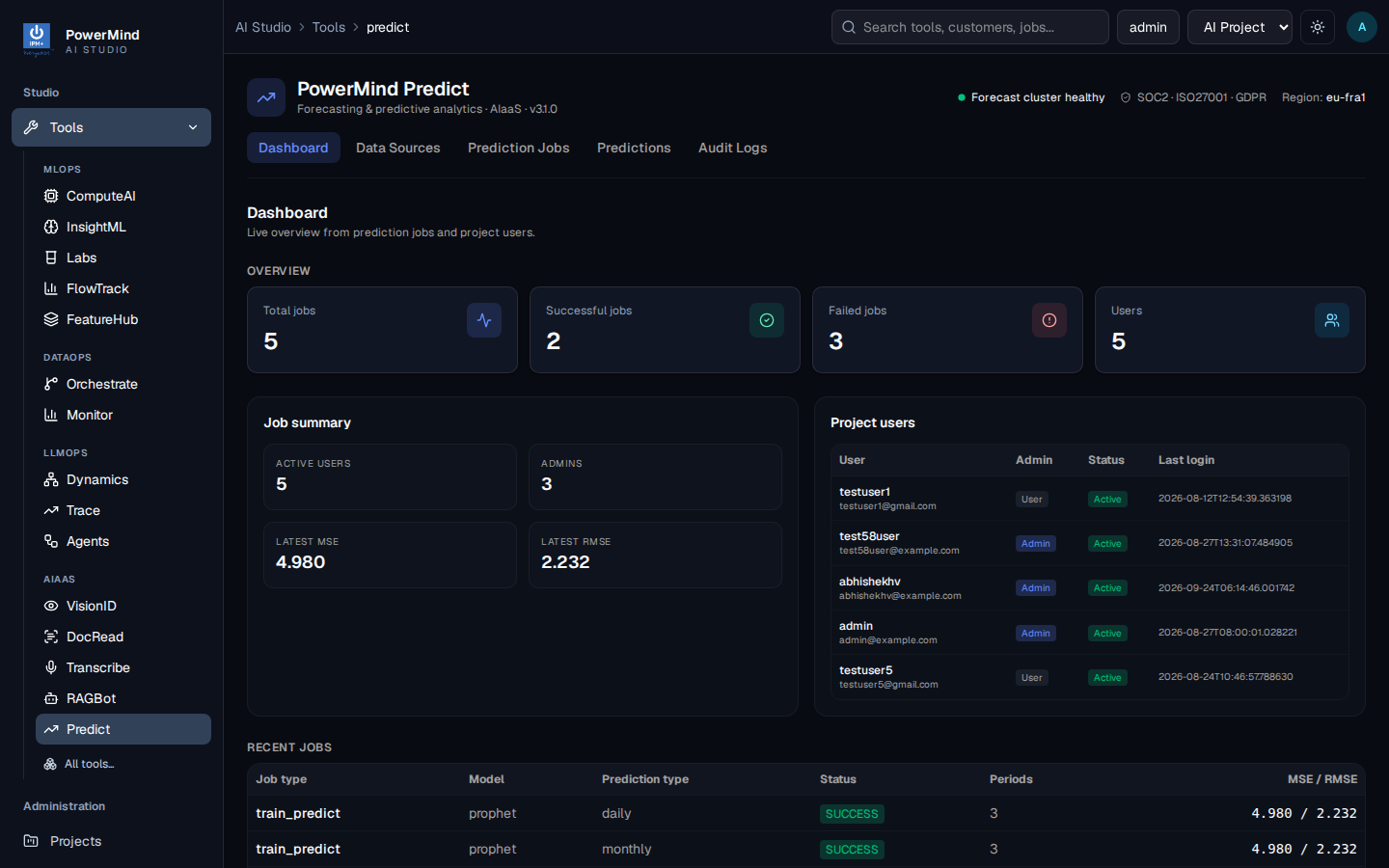
Overview: Total jobs, Successful jobs, Failed jobs, Users.
Job summary: Active users, Admins, Latest MSE, Latest RMSE.
Project users: Username, email, admin flag, status, last login.
Recent jobs: Job type (train_predict), model, prediction type, status, periods, MSE/RMSE.
Use this tab to see health before you run a new forecast.
4. Data Sources
Tab: Data Sources. Breadcrumb: … > predict > datasources.
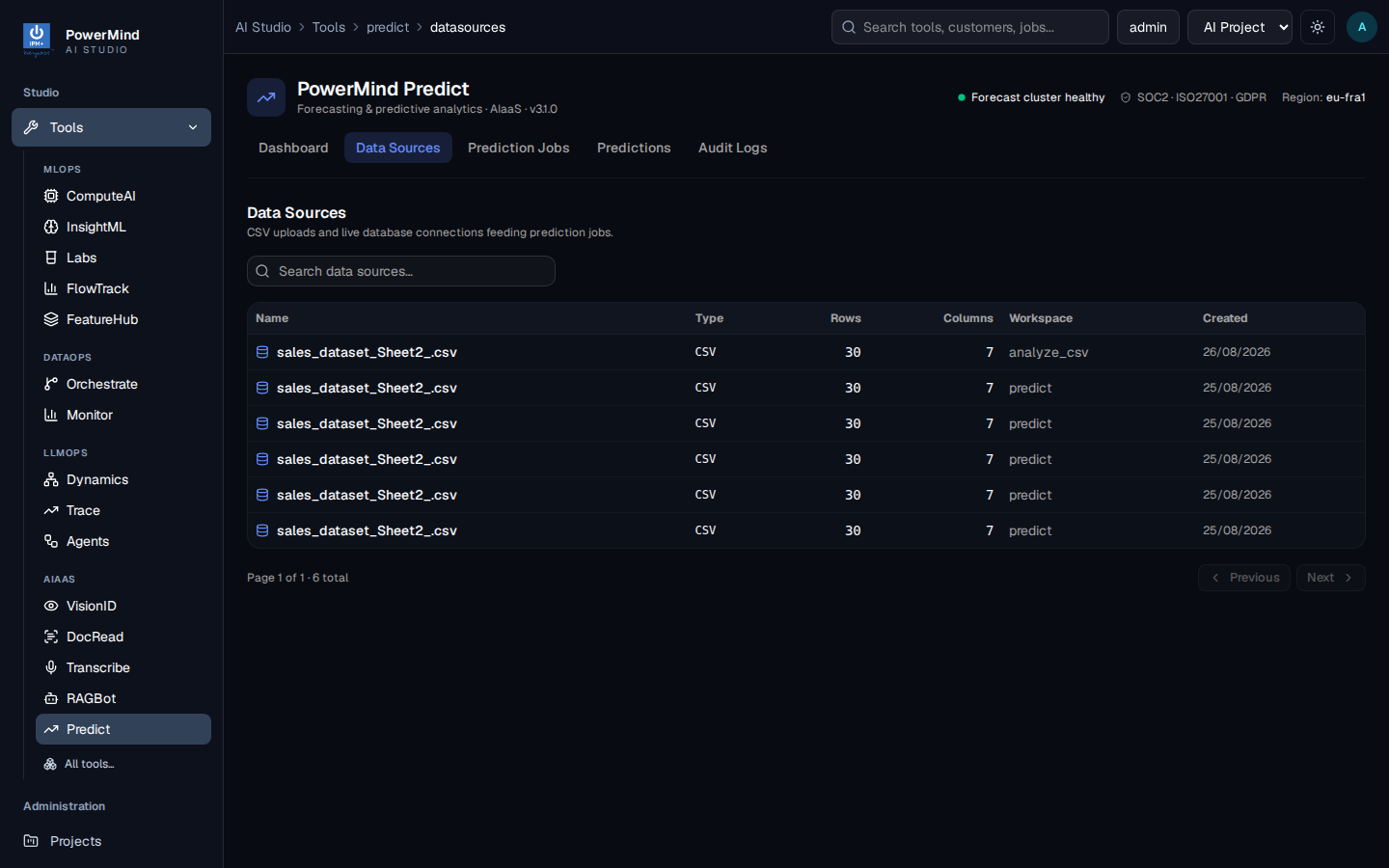
| Column | Meaning |
|---|---|
| Name | CSV filename |
| Type | e.g. CSV |
| Rows / Columns | Shape of the file |
| Workspace | How it was uploaded (analyze_csv, predict, …) |
| Created | Upload date |
Search data sources... filters the table. Pagination at the bottom.
5. Prediction Jobs
Tab: Prediction Jobs. Breadcrumb: … > predict > jobs.
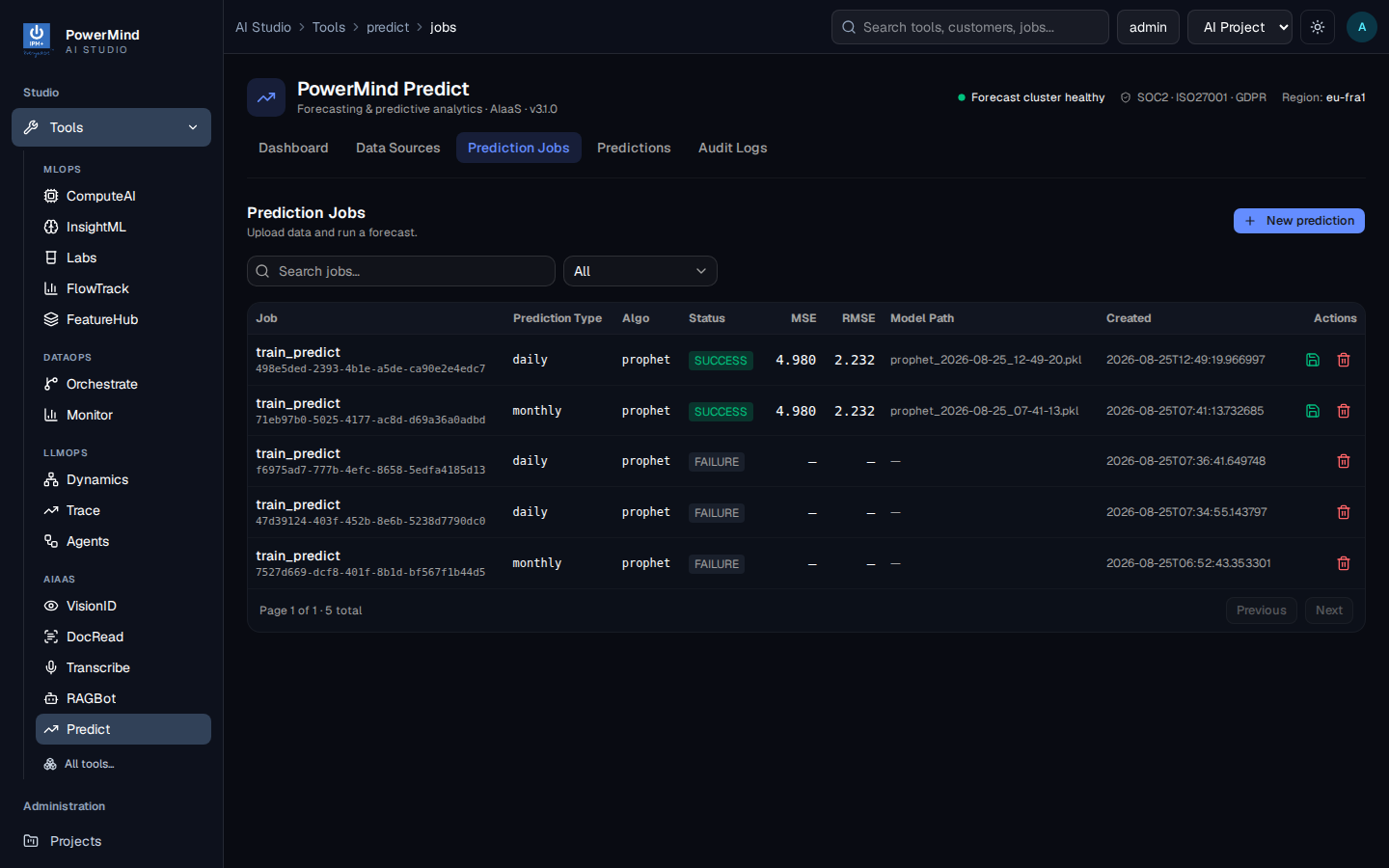
| Column | Meaning |
|---|---|
| Job | Type + job id |
| Prediction type | daily / monthly / hourly |
| Algo | prophet / arima / xgboost |
| Status | SUCCESS / FAILURE / … |
| MSE / RMSE | Error metrics when successful |
| Model path | Saved .pkl path when available |
| Created | Timestamp |
| Actions | View result / delete |
New prediction starts a train+forecast form:
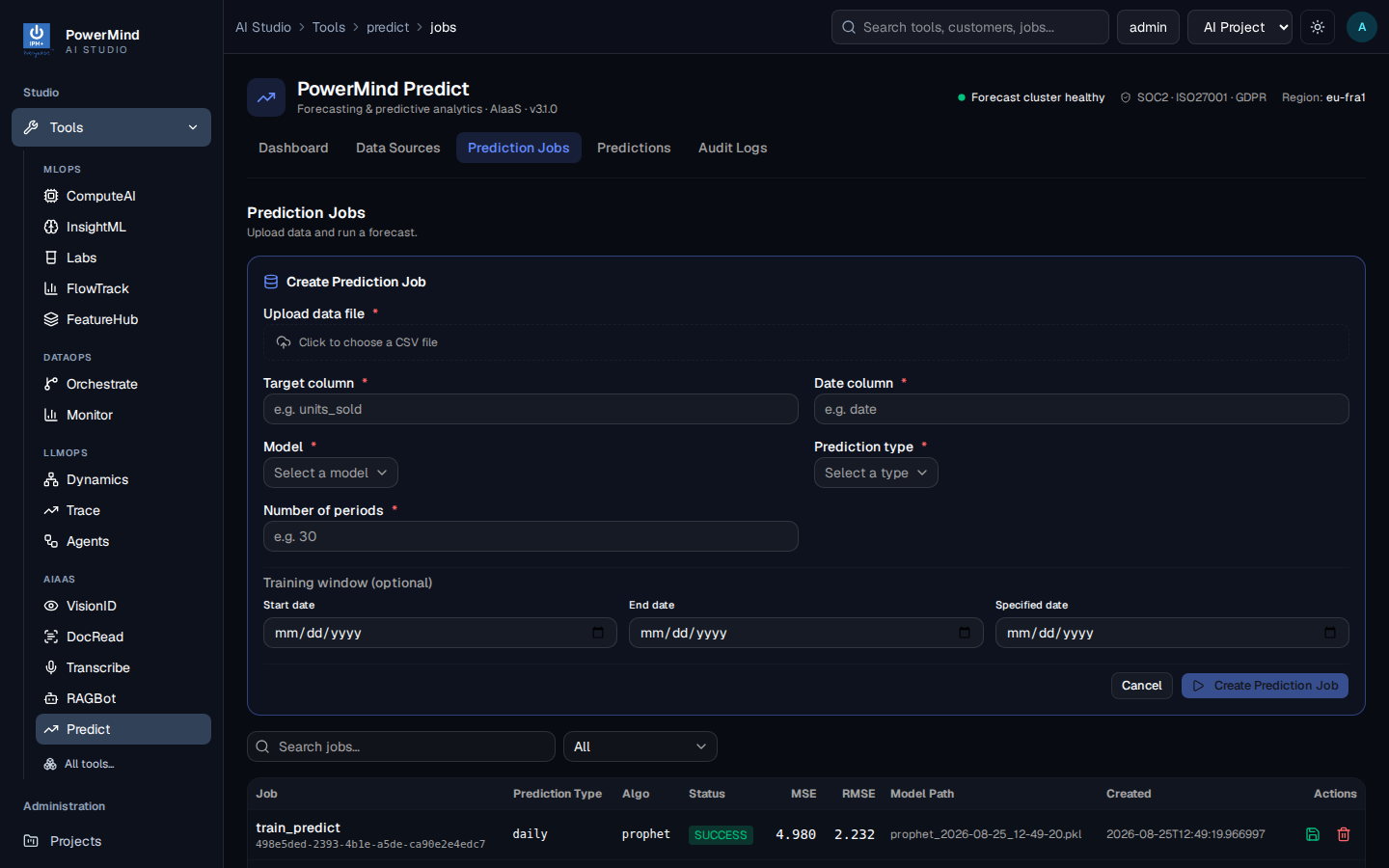
Fill CSV, target/date columns, model, prediction type, periods, then Create Prediction Job. Search jobs... and status filter (All) sit on the toolbar.
6. Predictions (job result)
Tab: Predictions. Breadcrumb: … > predict > predictions.
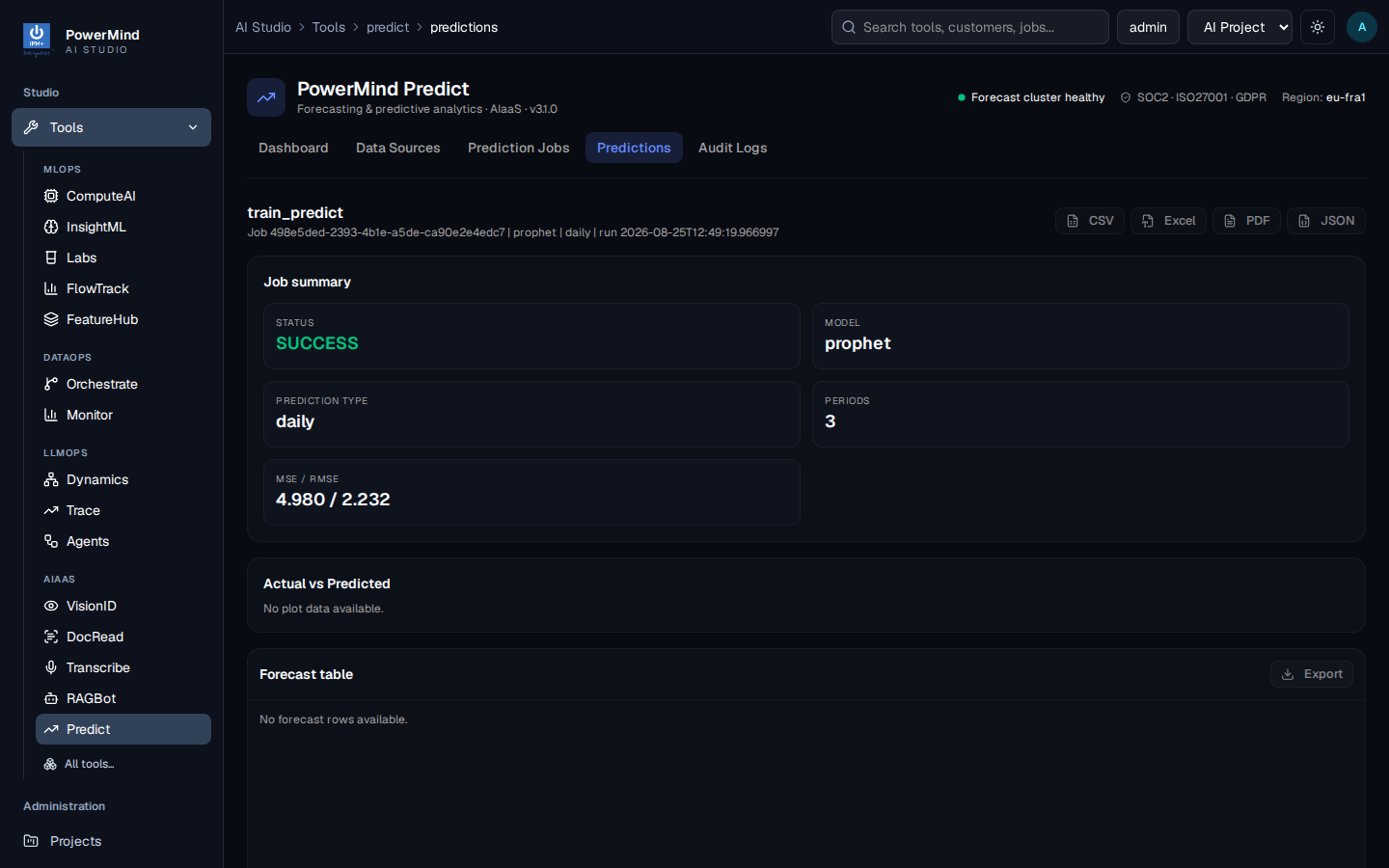
Shows the selected job: status, model, prediction type, periods, MSE/RMSE. Export buttons (CSV, Excel, PDF, JSON) when enabled. Actual vs Predicted and Forecast table fill when the job returned plot/row data.
7. Audit Logs
Tab: Audit Logs. Breadcrumb: … > predict > Audit Logs.
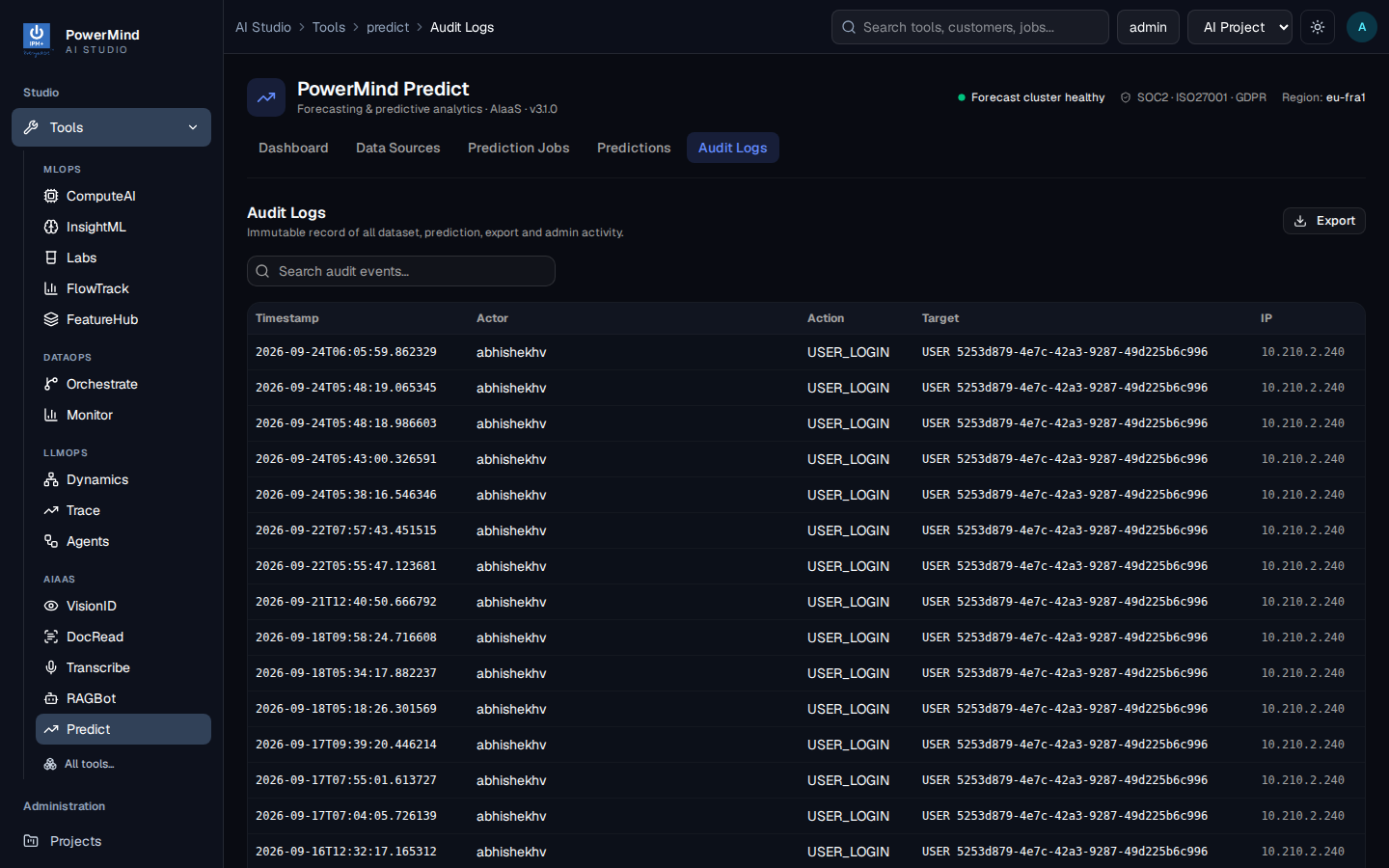
| Column | Meaning |
|---|---|
| Timestamp | When it happened |
| Actor | Username |
| Action | e.g. USER_LOGIN |
| Target | Resource / user id |
| IP | Client address |
Search audit events... and Export are on the toolbar.
8. Swagger (API console)
For authorized integrators, open /docs on the assigned Predict API host. Select Authorize and use the Bearer token supplied for your integration.
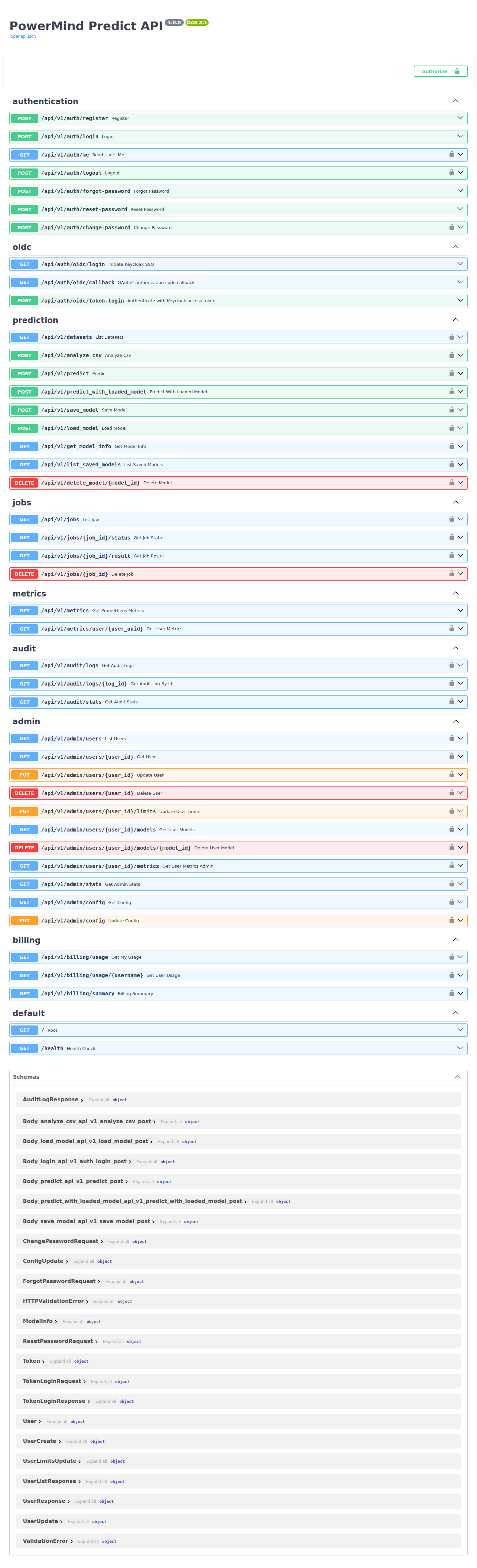
Details: API reference.