PowerMind RAGBot User Guide
This page is the full visual tour. Every screenshot is from the live Studio RAGBot UI.
Always check the project in the top bar (example: AI Project) so you are in the right workspace.
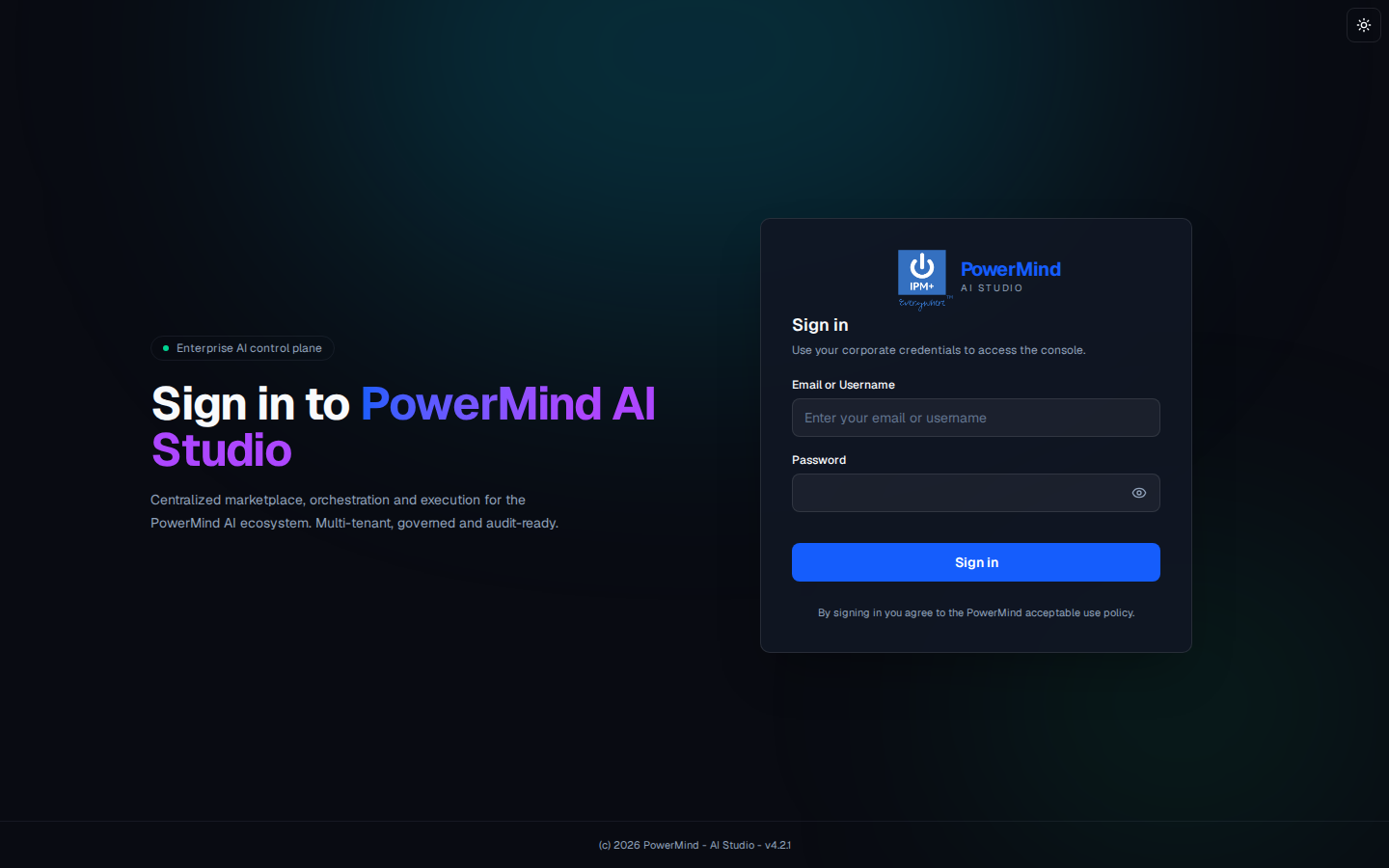
1. Sign in
Corporate username/email and password. Theme toggle is the sun icon, top right.
2. Tool Marketplace (hub)
Left menu groups tools: MLOPS, DATAOPS, LLMOPS, AIAAS. RAGBot is under AIAAS. Filters at the top: All, MLOps, LLMOps, DataOps, AIaaS.
Cards show Available (Launch), External (Open Tool), or Not enabled.
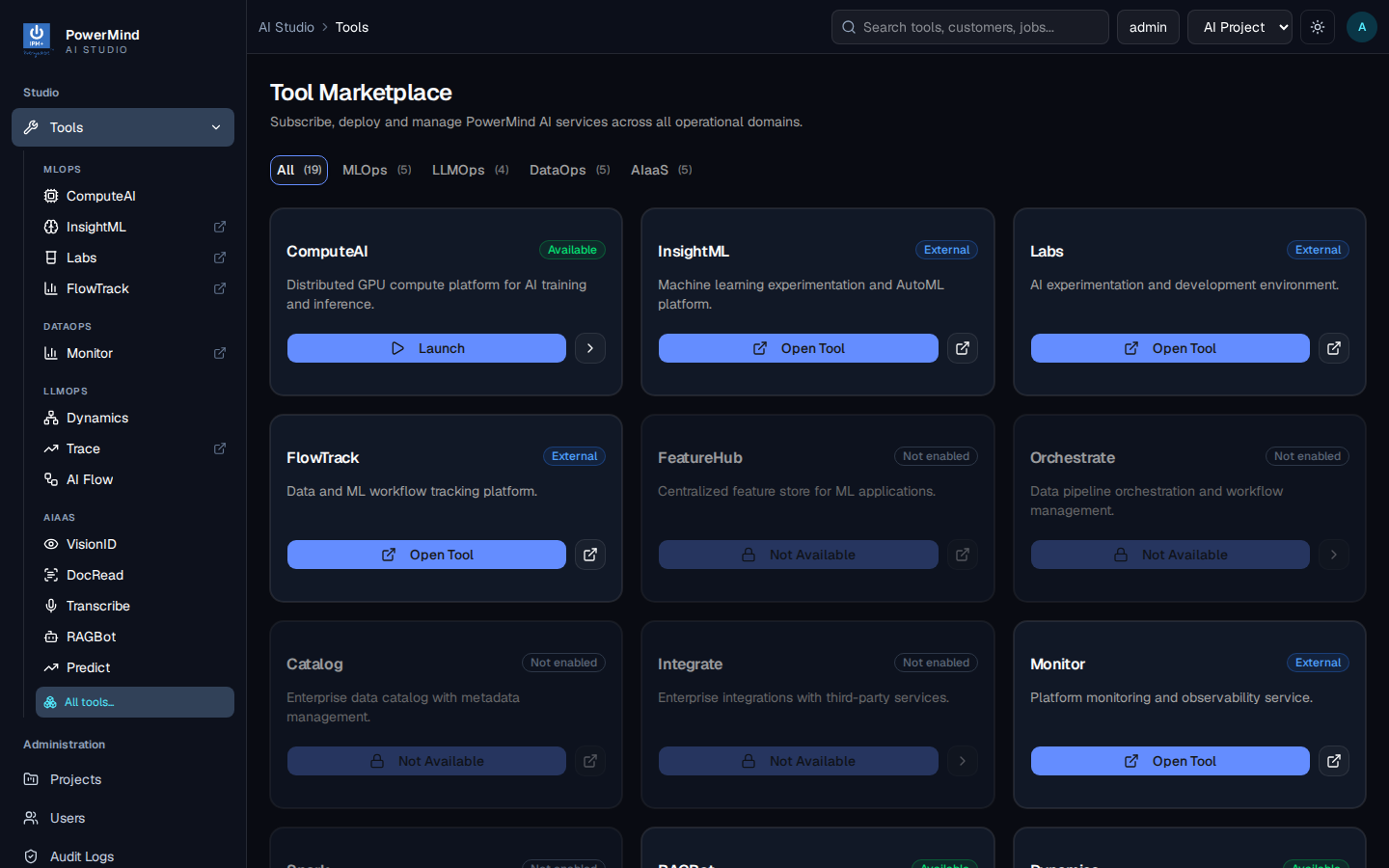
Open RAGBot. Header: PowerMind RAGBot — Enterprise Knowledge Chat · RAG · AIaaS.
3. Dashboard
Tab: Dashboard. Breadcrumb: AI Studio > Tools > ragbot.
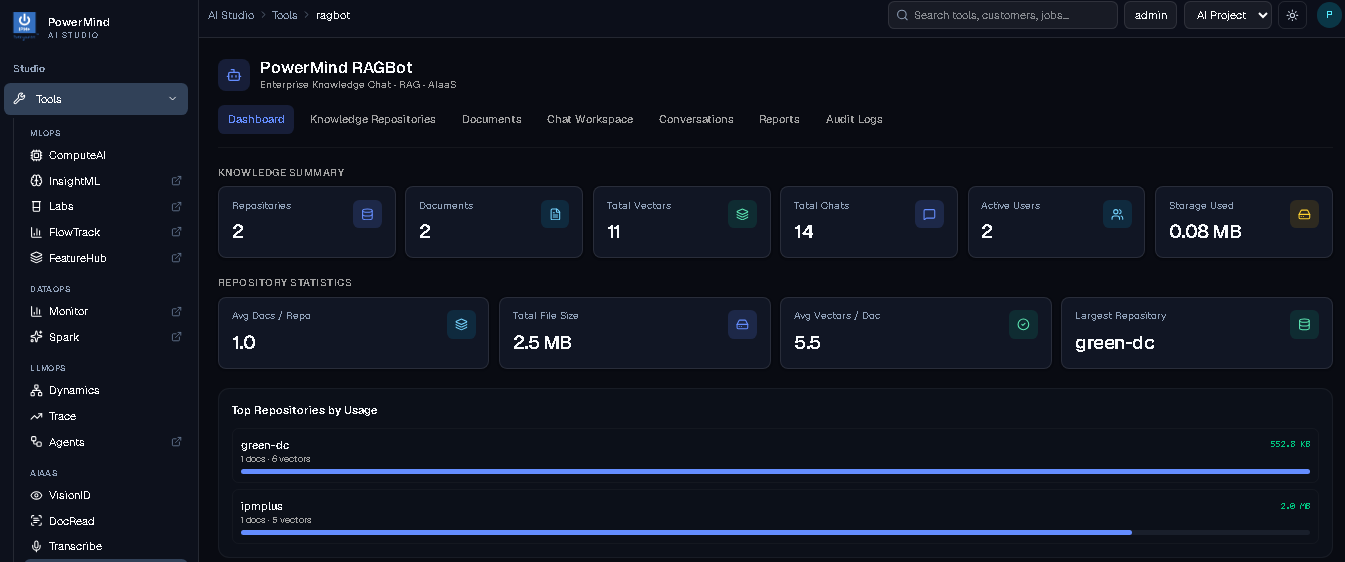
Knowledge Summary: Repositories, Documents, Total Vectors, Total Chats, Active Users, Storage Used.
Repository Statistics: average docs per repo, total file size, average vectors per document, largest repository.
Top Repositories by Usage: named repos with doc count, vectors, and a storage bar (example: green-dc, ipmplus).
Use this tab to see if data is loaded before you chat.
4. Knowledge Repositories
Tab: Knowledge Repositories. Breadcrumb: ... > ragbot > repositories.
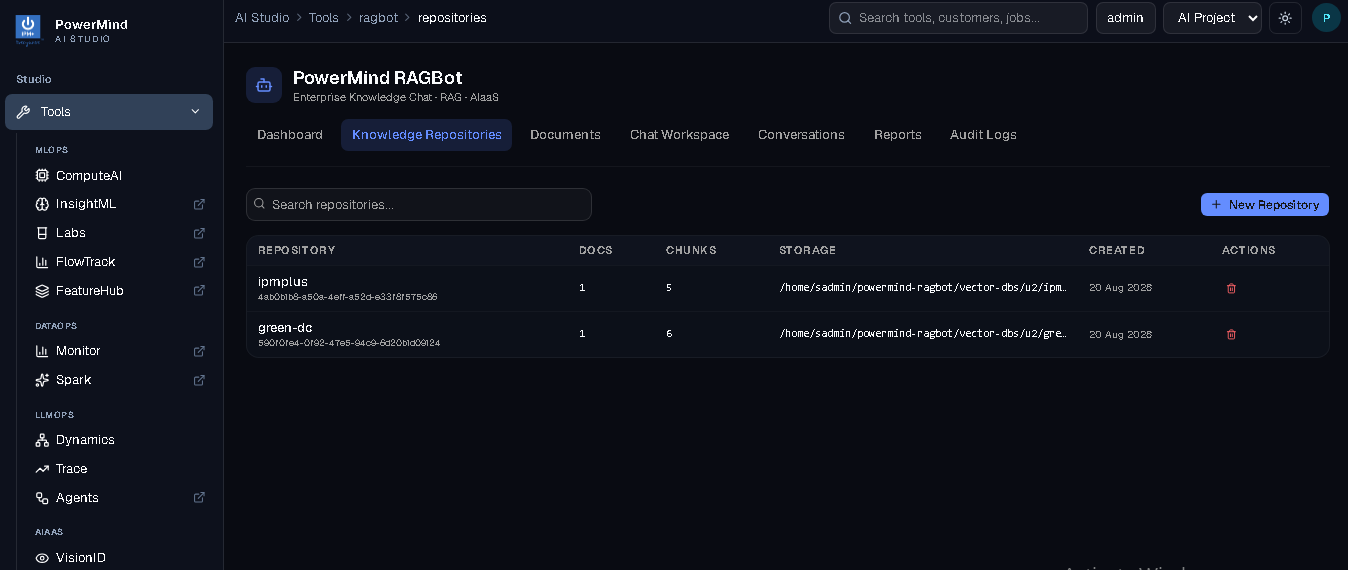
| Column | Meaning |
|---|---|
| Repository | Name + UUID |
| Docs | How many files |
| Chunks | Indexed pieces |
| Storage | Path of the vector store |
| Created | Date |
| Actions | Delete (trash) |
+ New Repository creates an empty collection. Search repositories... filters the table.
5. Documents (upload & index)
Tab: Documents. Breadcrumb: ... > ragbot > documents.
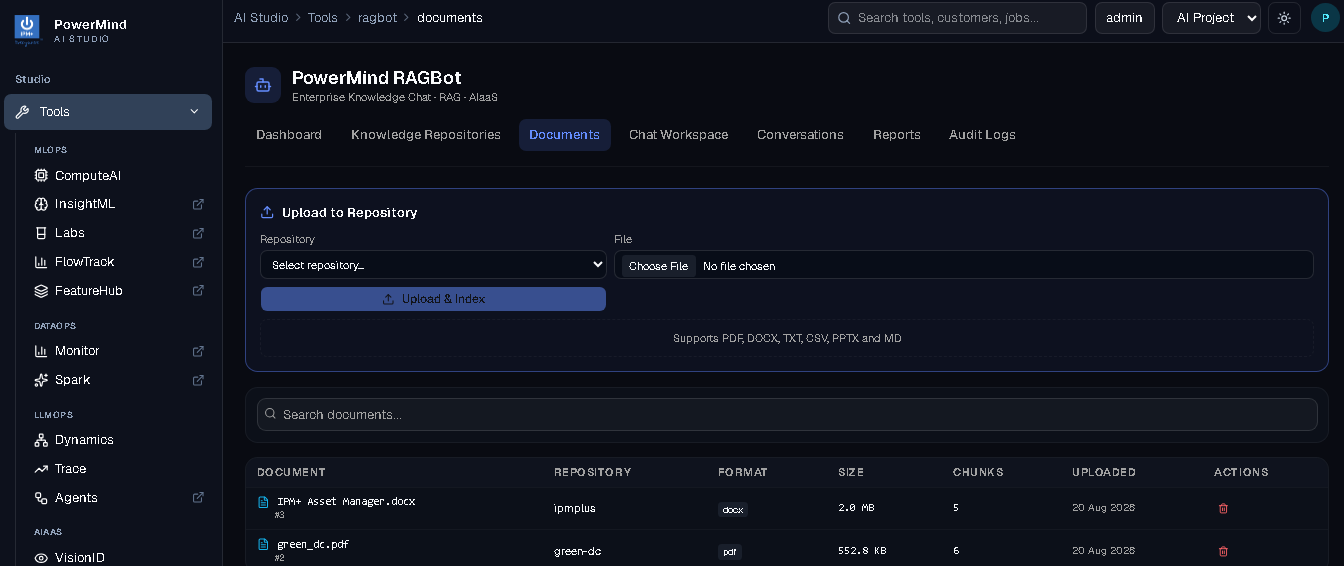
- Select Repository.
- Choose File. Formats shown: PDF, DOCX, TXT, CSV, PPTX, MD.
- Upload & Index.
- Table: filename, id (
#3), repository, format, size, chunks, uploaded date, delete.
Search documents... filters the list. If a file never appears, indexing failed (size limit, quota, or unsupported type).
6. Chat Workspace
Tab: Chat Workspace. Breadcrumb: ... > ragbot > chat.
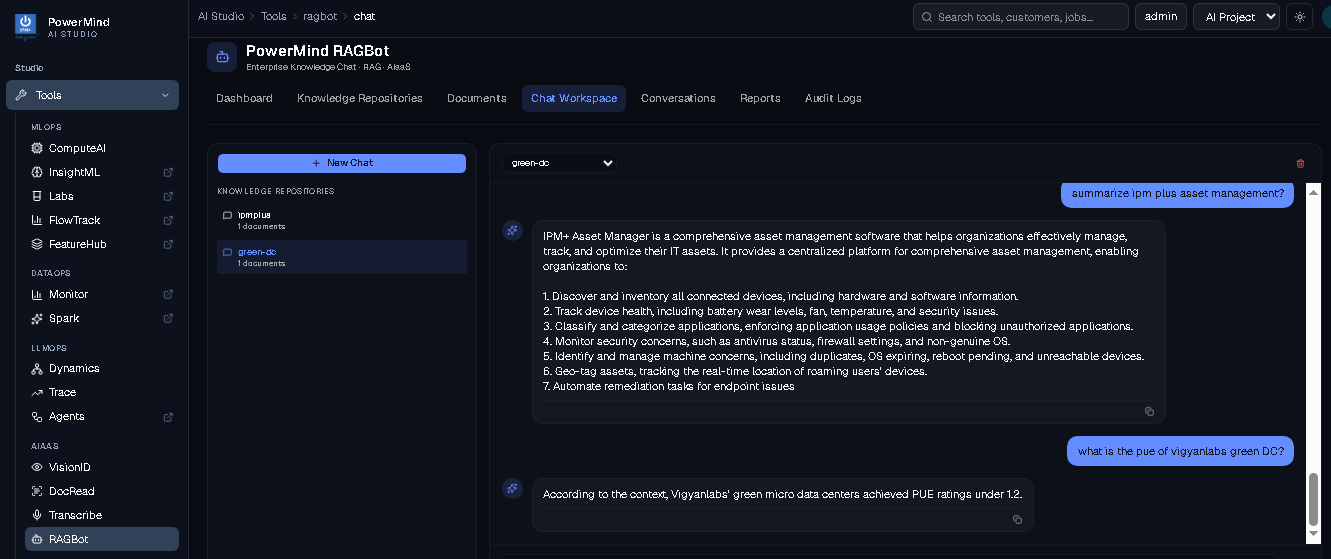
Left
- + New Chat
- List of repositories (doc count), e.g. ipmplus (1 document), green-dc (1 document). Highlighted row is the active knowledge base.
Right - Repository dropdown (must match the left selection). - Trash icon for the current chat thread. - Messages: your question, then the bot answer from that repository’s files.
Example questions that work when the matching PDF/DOCX is indexed:
- summarize ipm plus asset management?
- what is the pue of vigyanlabs green DC?
Always select the repository that contains the file. Asking green-dc about an ipmplus document will not find that content.
7. Conversations (history)
Tab: Conversations. Breadcrumb: ... > ragbot > conversations.
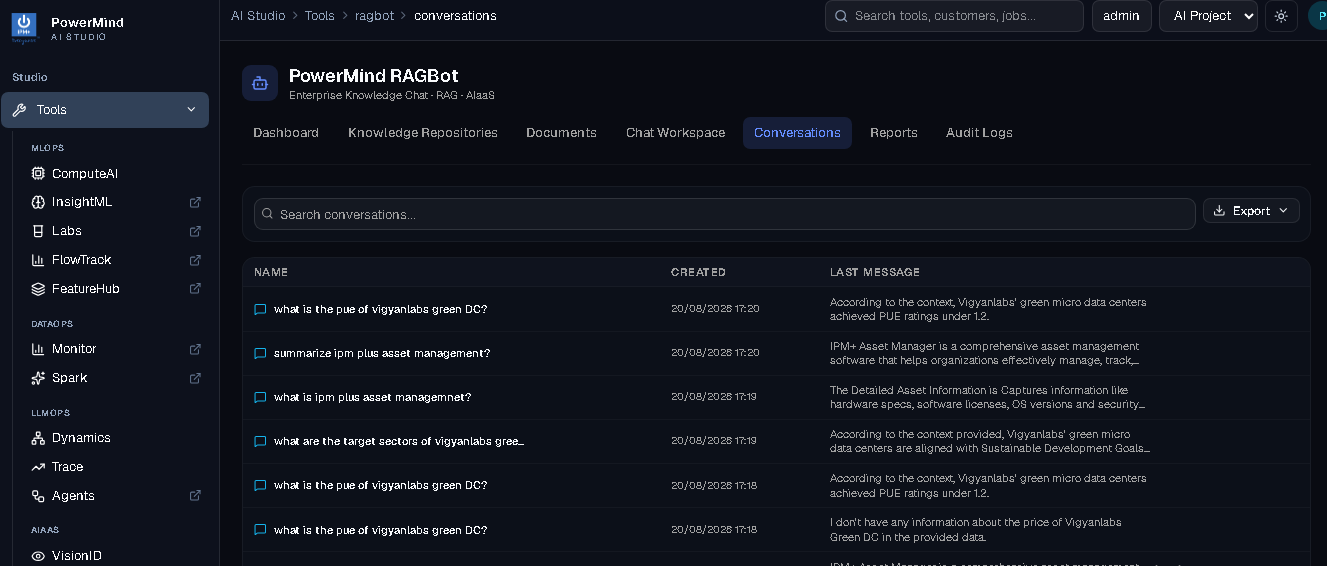
| Column | Meaning |
|---|---|
| Name | The question you asked |
| Created | Date and time |
| Last message | Start of the bot answer |
Search conversations... and Export are on the right of the toolbar.
8. Reports
Tab: Reports. Breadcrumb: ... > ragbot > Reports.
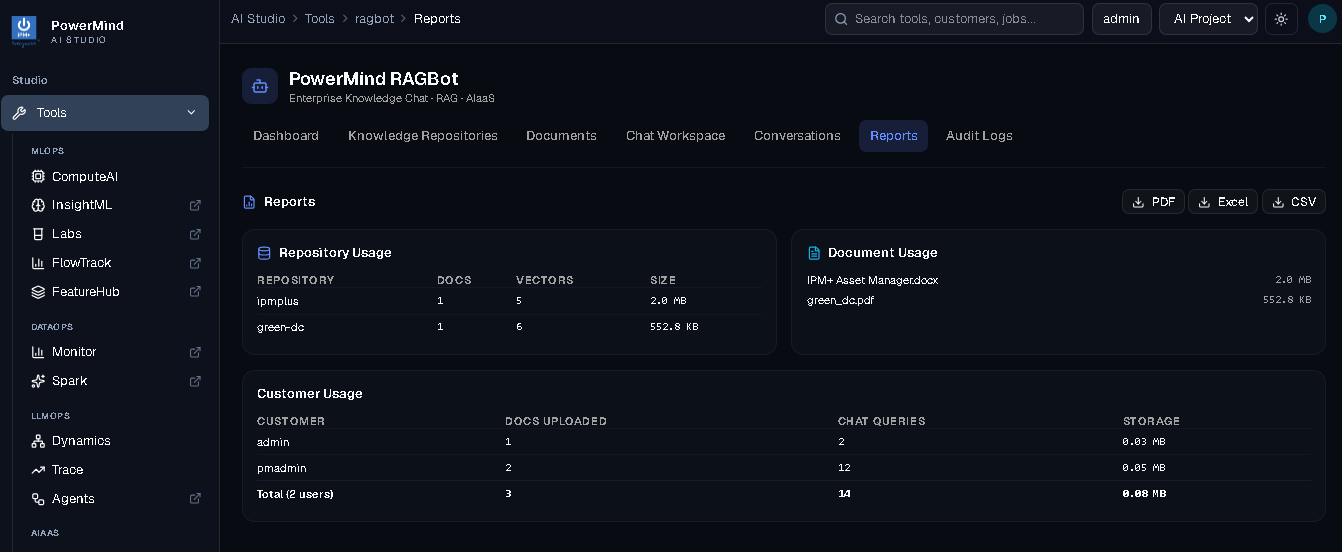
Export buttons: PDF, Excel, CSV.
| Block | What you see |
|---|---|
| Repository usage | Docs, vectors, size per repo |
| Document usage | Each file and size |
| Customer usage | Per user: documents uploaded, chat queries, storage, plus a total row |
This is the usage view (not the Studio “Users” admin page). Studio-wide users live under Administration → Users in the left menu.
9. Audit Logs
Tab: Audit Logs. Breadcrumb: ... > ragbot > Audit Logs.
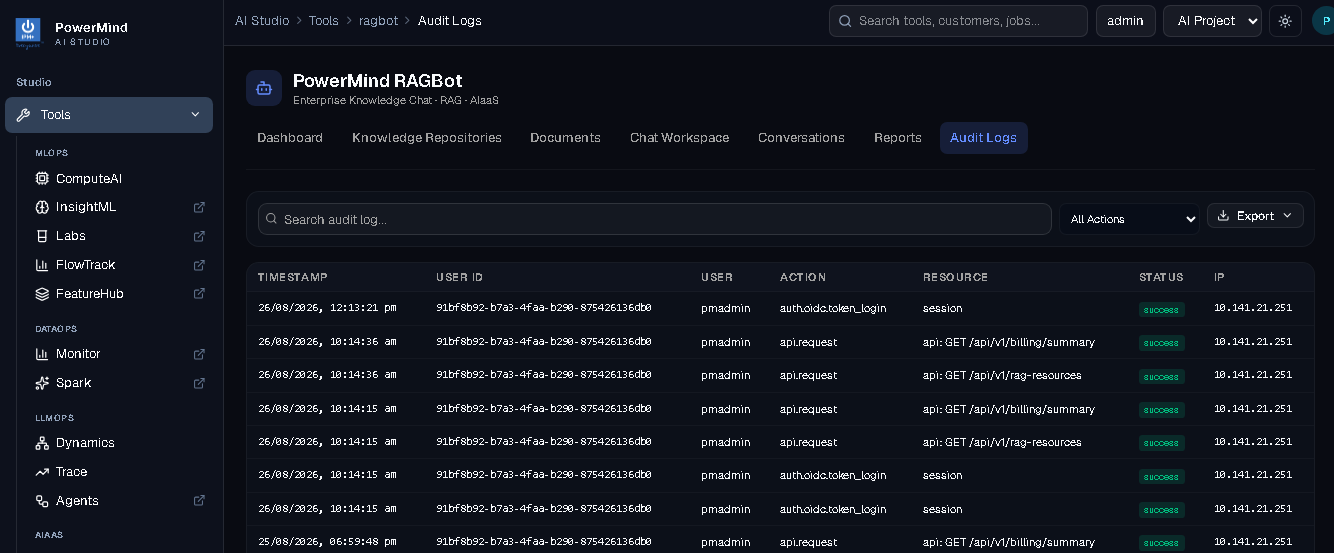
| Column | Meaning |
|---|---|
| Timestamp | When it happened |
| User ID | User UUID (not the integer database id) |
| User | Username (pmadmin, admin) |
| Action | For example, sign-in or api.request |
| Resource | What was touched (session, /api/v1/rag-resources) |
| Status | success / failure |
| IP | Client address |
Search audit log..., All Actions filter, and Export. Rows with no user are probes or calls without a login token.
10. Swagger (API console)
For authorized integrators, open /docs on the assigned RAGBot API host. Select Authorize and use the Bearer token supplied for your integration.
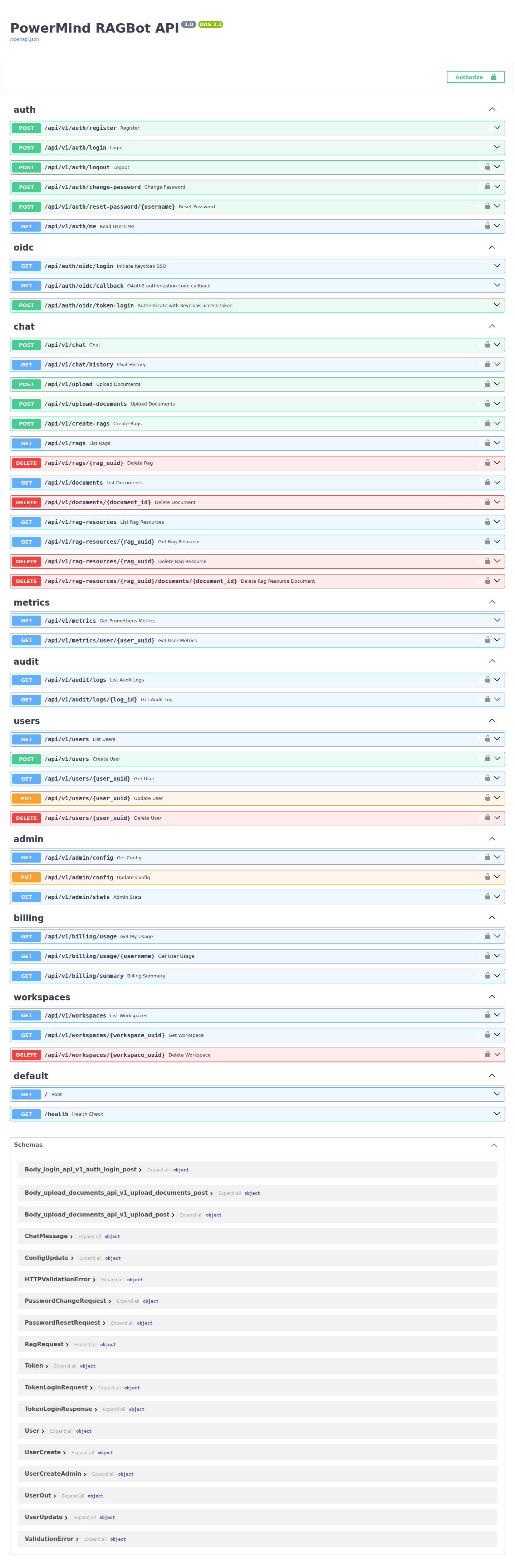
Details: API reference.