Getting Started — First login to first answer
Use this if you have never opened RAGBot. You need a Studio URL from your operator and a username/password (corporate credentials).
1. Sign in to PowerMind AI Studio
Open the Studio URL your team gave you. You should see Sign in to PowerMind AI Studio (footer shows product version, for example v4.2.1).
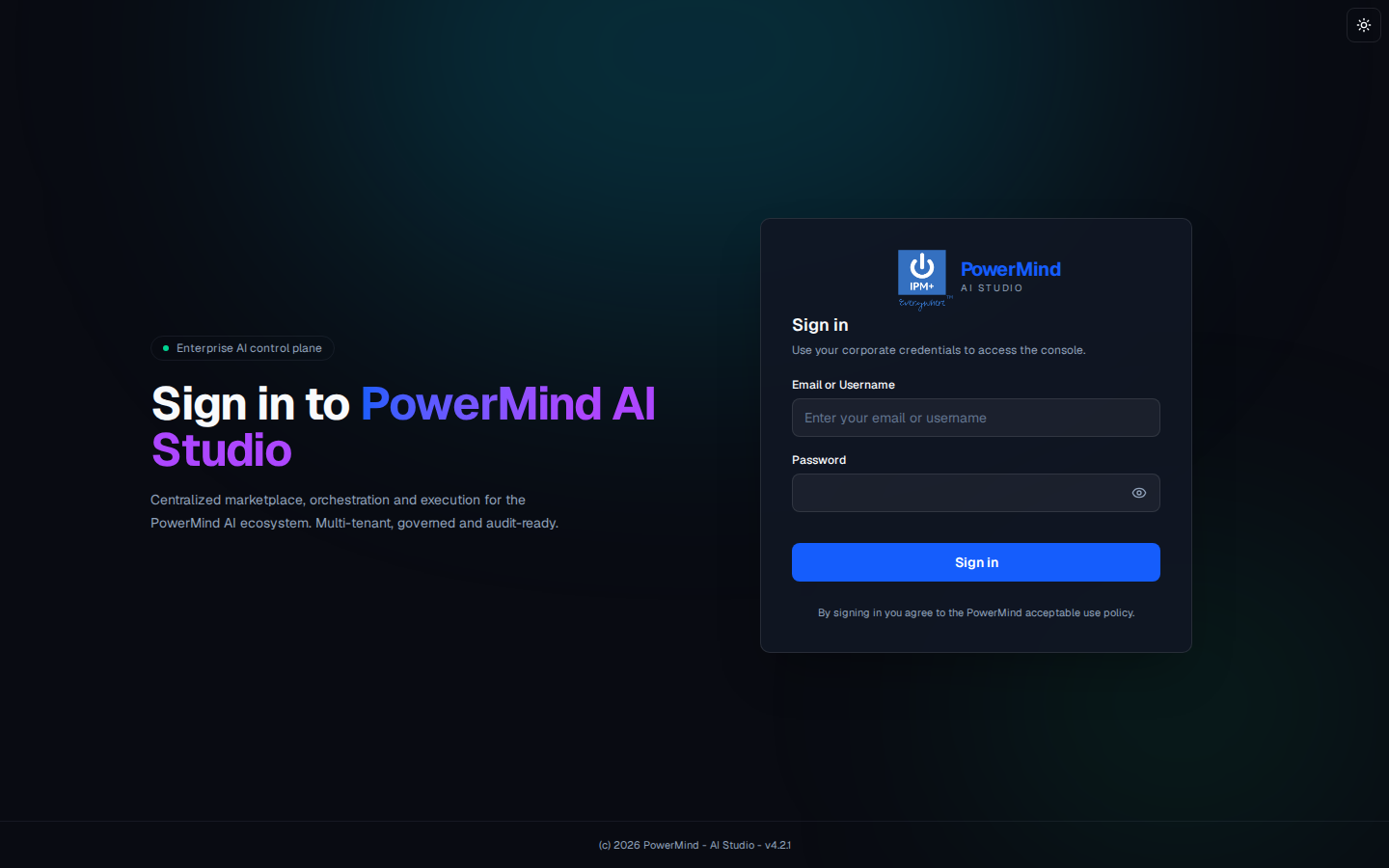
- Enter Email or Username.
- Enter Password (eye icon shows/hides the password).
- Click the blue Sign in button.
- Optional: sun icon (top right) switches light/dark theme.
2. Open RAGBot from the Tool Marketplace
After login you land on Tool Marketplace.
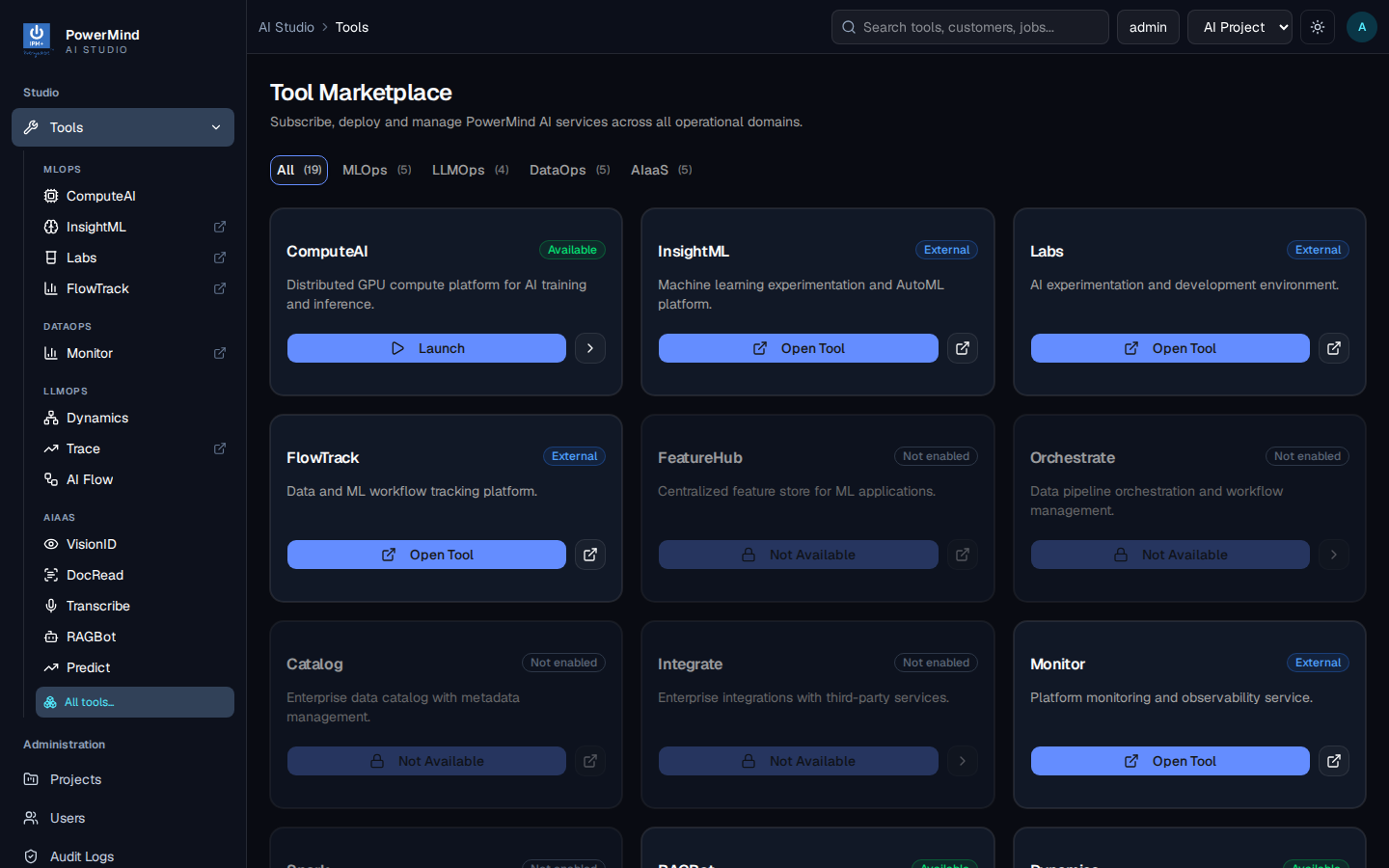
- Confirm the project in the top bar (for example AI Project).
- In the left menu, AIAAS includes RAGBot.
- On the marketplace grid, find RAGBot and click Launch / Open Tool.
- Breadcrumb becomes
AI Studio > Tools > ragbot.
3. Check the Dashboard
You should see PowerMind RAGBot — Enterprise Knowledge Chat · RAG · AIaaS.
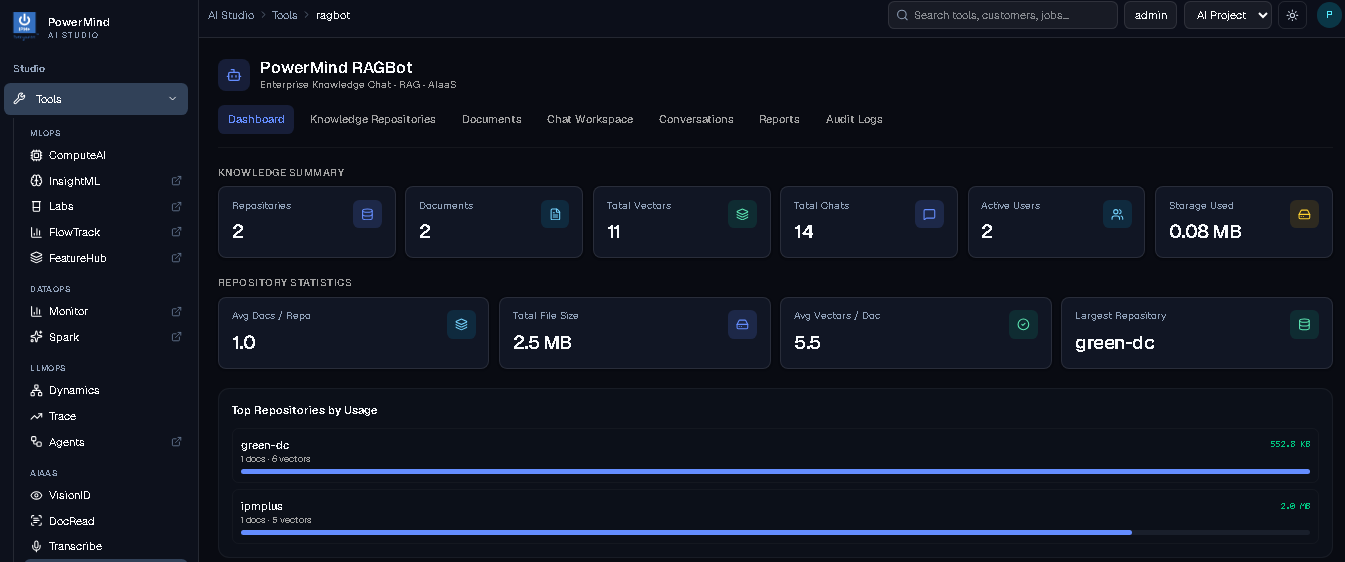
The Dashboard is a snapshot only. It does not upload files. Typical cards: Repositories, Documents, Total Vectors, Total Chats, Active Users, Storage Used, plus Top Repositories by Usage.
4. Create a repository
Open Knowledge Repositories.
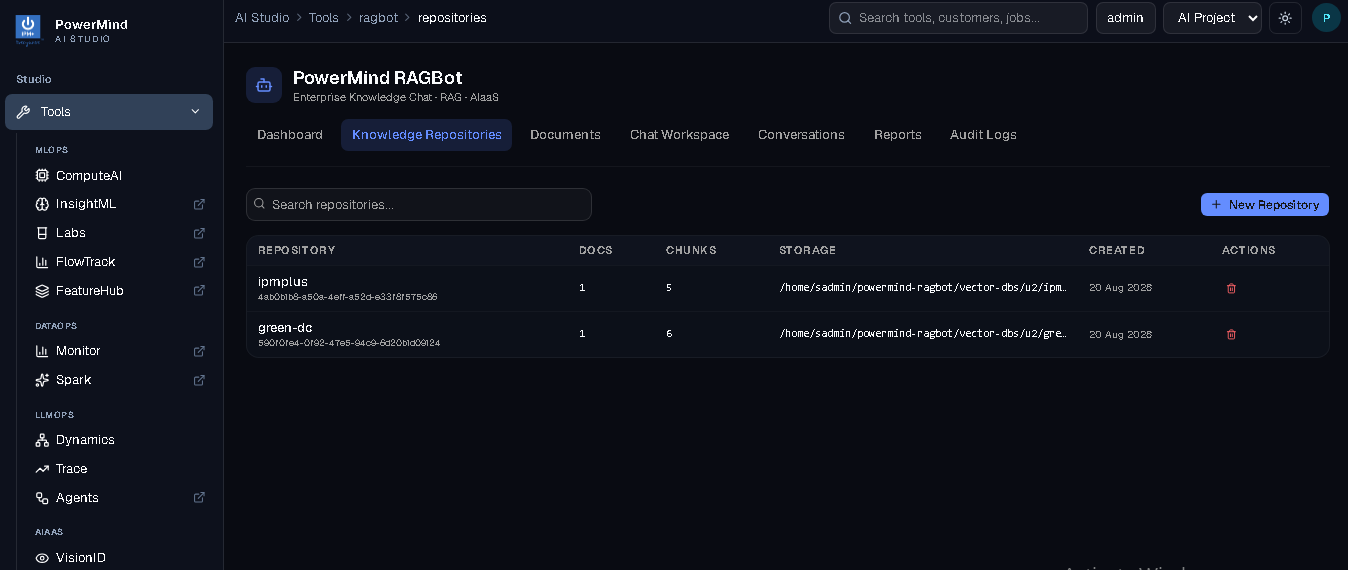
- Click + New Repository.
- Give it a short name (letters, numbers,
_,-), for examplegreen-dcoripmplus. - The table shows name, UUID, docs, chunks, storage path, created date, and a delete (trash) icon.
5. Upload a document
Open Documents.
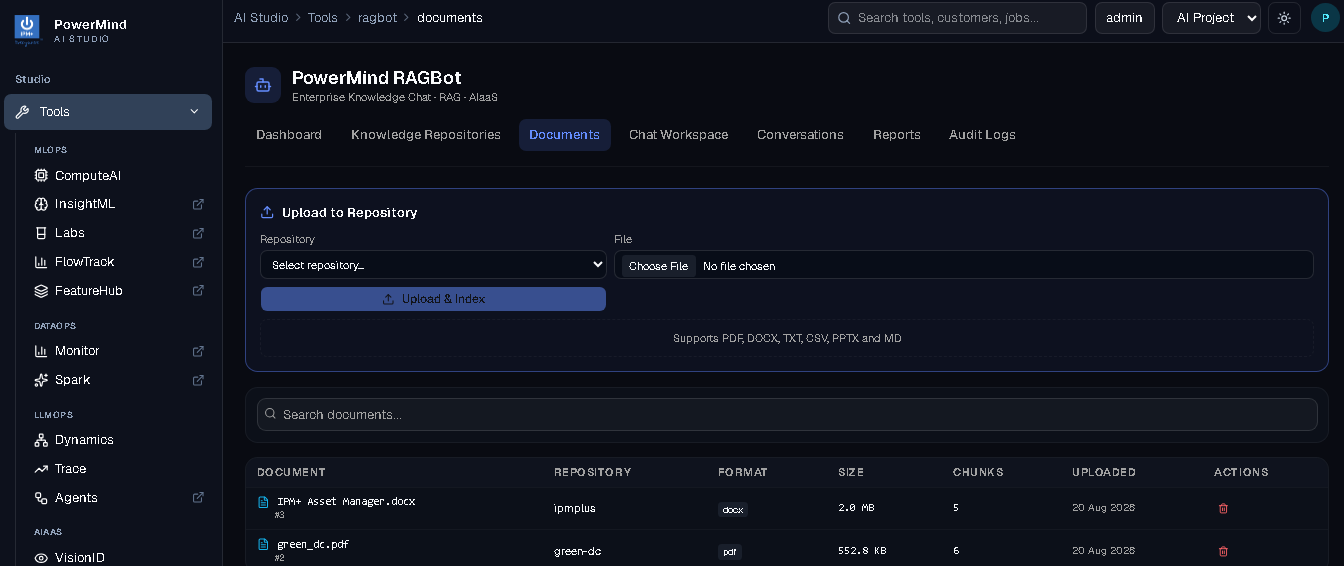
- Select Repository (the one you just created).
- Choose File — the UI lists PDF, DOCX, TXT, CSV, PPTX, MD.
- Click Upload & Index. Wait until the file appears in the table with a Chunks count (that means indexing finished).
- You can search with Search documents... or delete with the trash icon.
6. Ask a question
Open Chat Workspace.
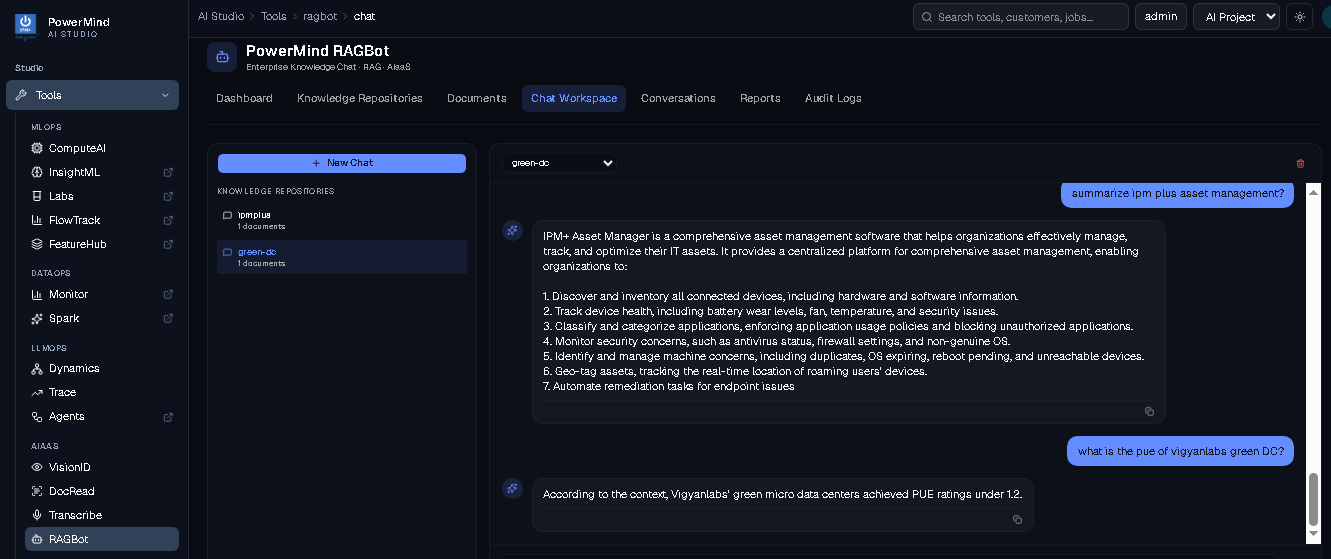
- Click + New Chat if you want a fresh thread.
- Select the repository on the left (and in the dropdown), for example
green-dc. - Type a question in the chat box, for example:
what is the pue of vigyanlabs green DC?summarize ipm plus asset management?- Read the answer. It is based on the files in that repository.
PDF answers can take longer than CSV/short-doc answers, especially if the chat model is running on CPU.
7. Find an old chat
Open Conversations.
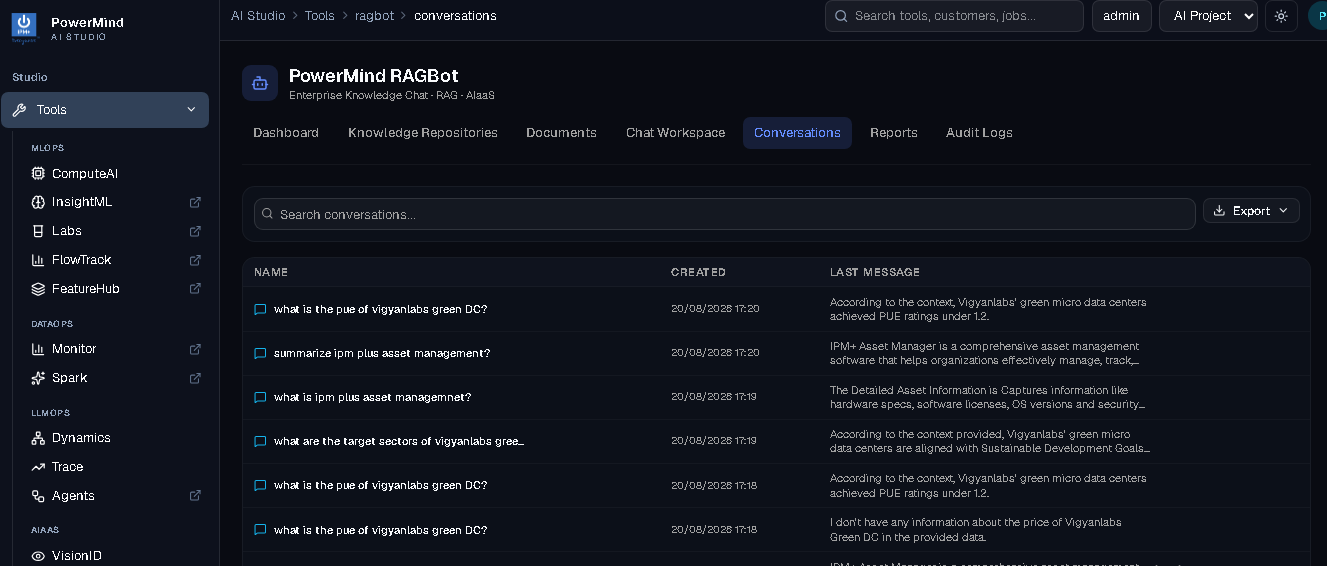
Search with Search conversations... or use Export to download history.
You now know the full user path. For every screen in more detail, see the User Guide.