Getting Started — First login to first run
You need a Studio URL and a username/password from your operator. Bring a CSV with a label column (0/1).
1. Sign in to PowerMind AI Studio
Open the Studio URL. You should see Sign in to PowerMind AI Studio.
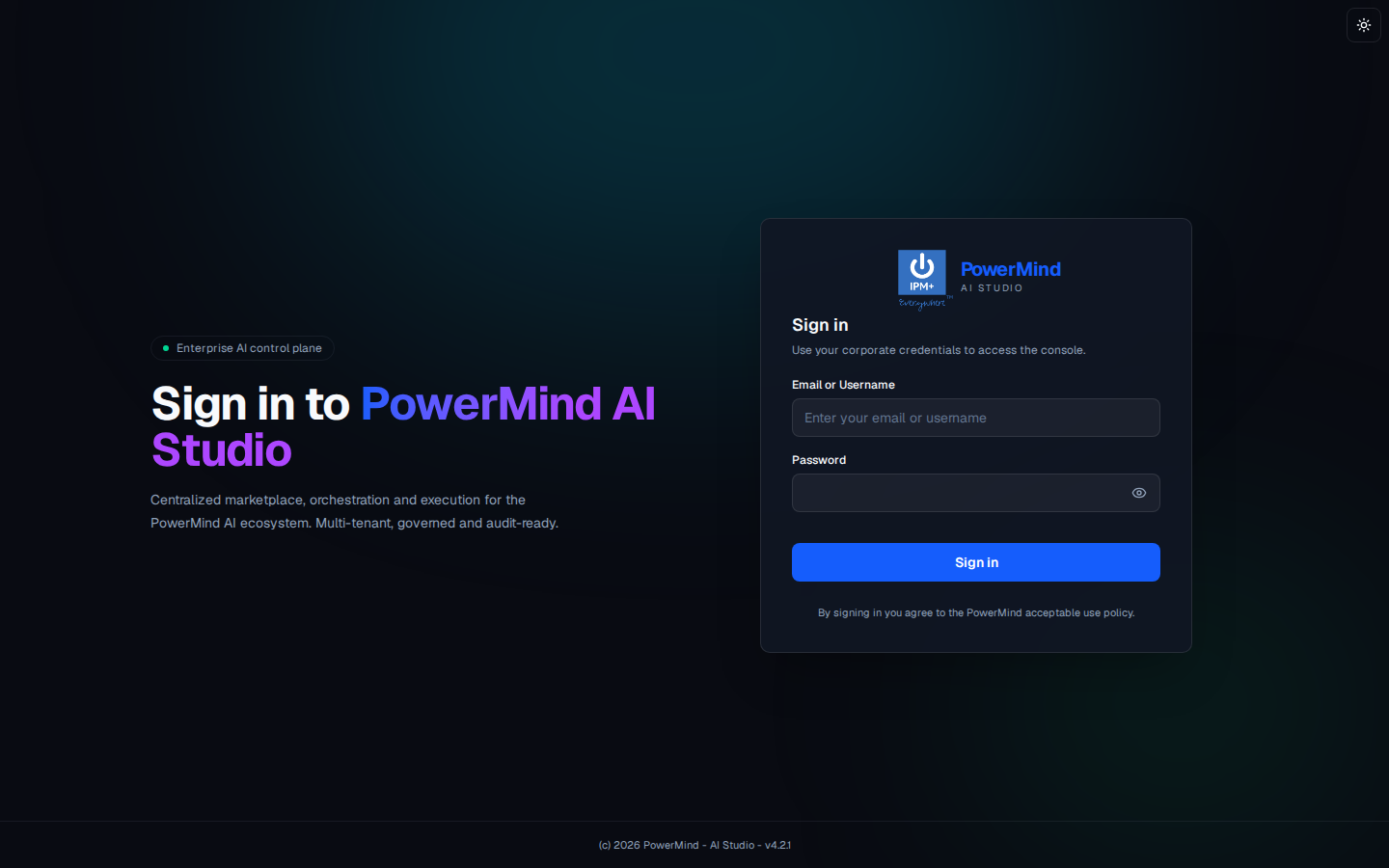
- Enter Email or Username.
- Enter Password.
- Click Sign in.
- Optional: sun icon (top right) for light/dark theme.
That is all you do for login. Studio opens Orchestrate with your authenticated organization account.
2. Open Orchestrate from the marketplace
Confirm AI Project (or your enabled project) in the top bar.
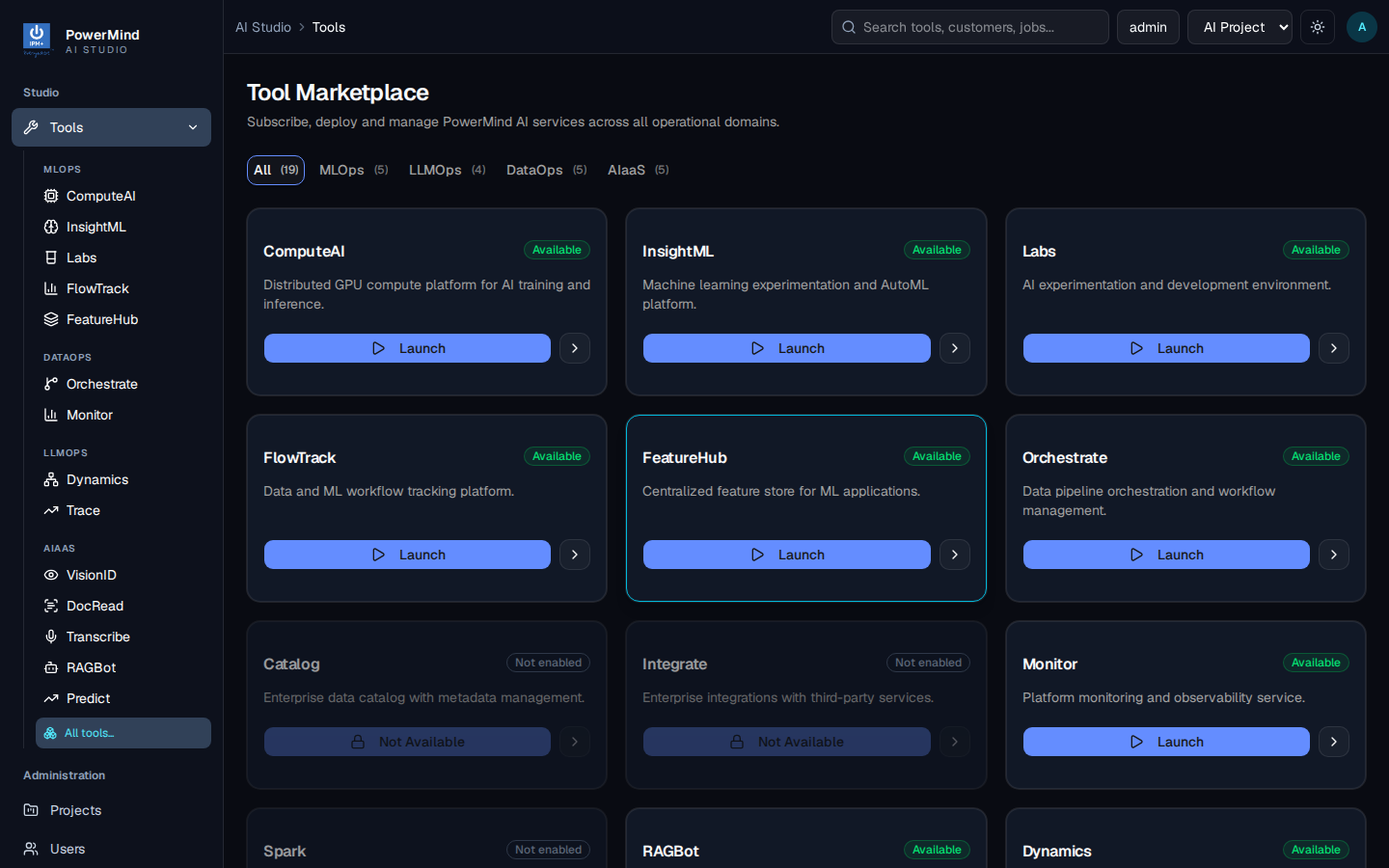
- Left menu: DataOps → Orchestrate, or Launch on the Orchestrate card.
- Header should show Healthy. If it says Unavailable, wait and click Retry.
3. Create a pipeline
Pipelines → + Create Pipeline. This is a form.
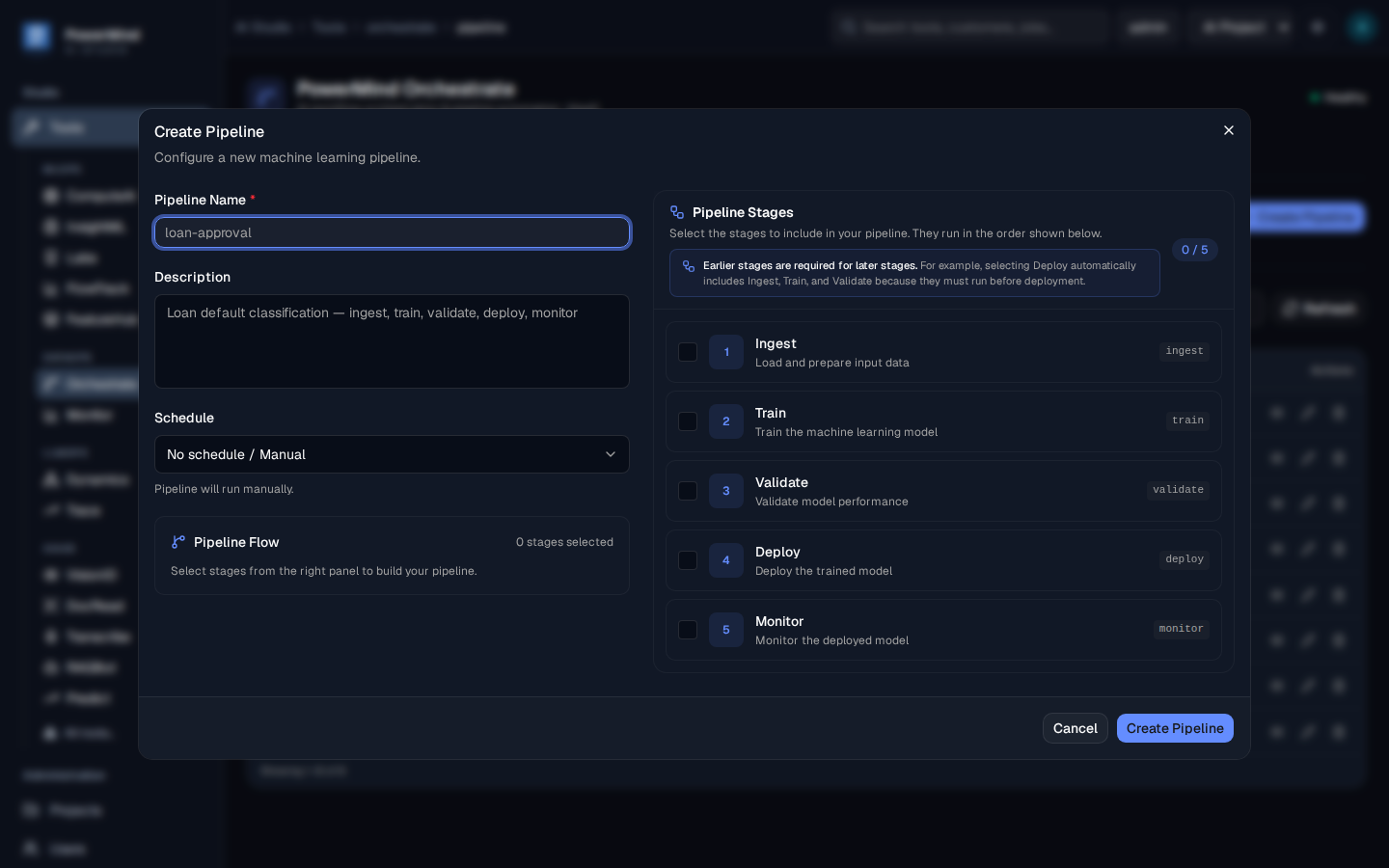
- Pipeline Name — short (example:
claim-risk). - Description — optional.
- Schedule — No schedule / Manual for a first test.
- Tick all five Pipeline Stages.
- Click Create Pipeline. Status becomes Registered.
4. Run it with a CSV
Run Pipeline → pick the pipeline → Upload CSV → Run pipeline.
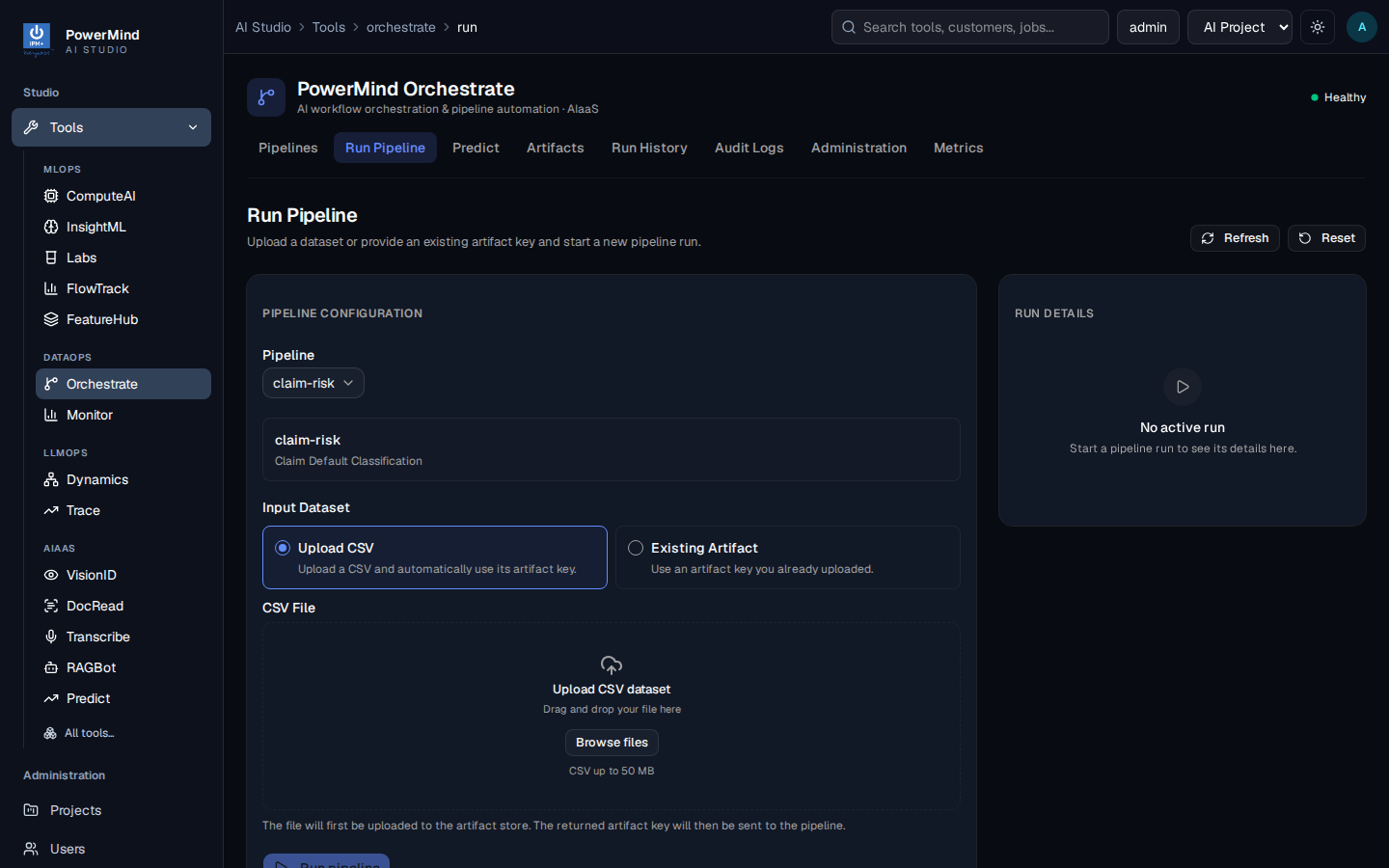
The CSV must include label. The first run can take several minutes. Use Run History if you leave the page.
5. Confirm success
Run History → same pipeline → Success.
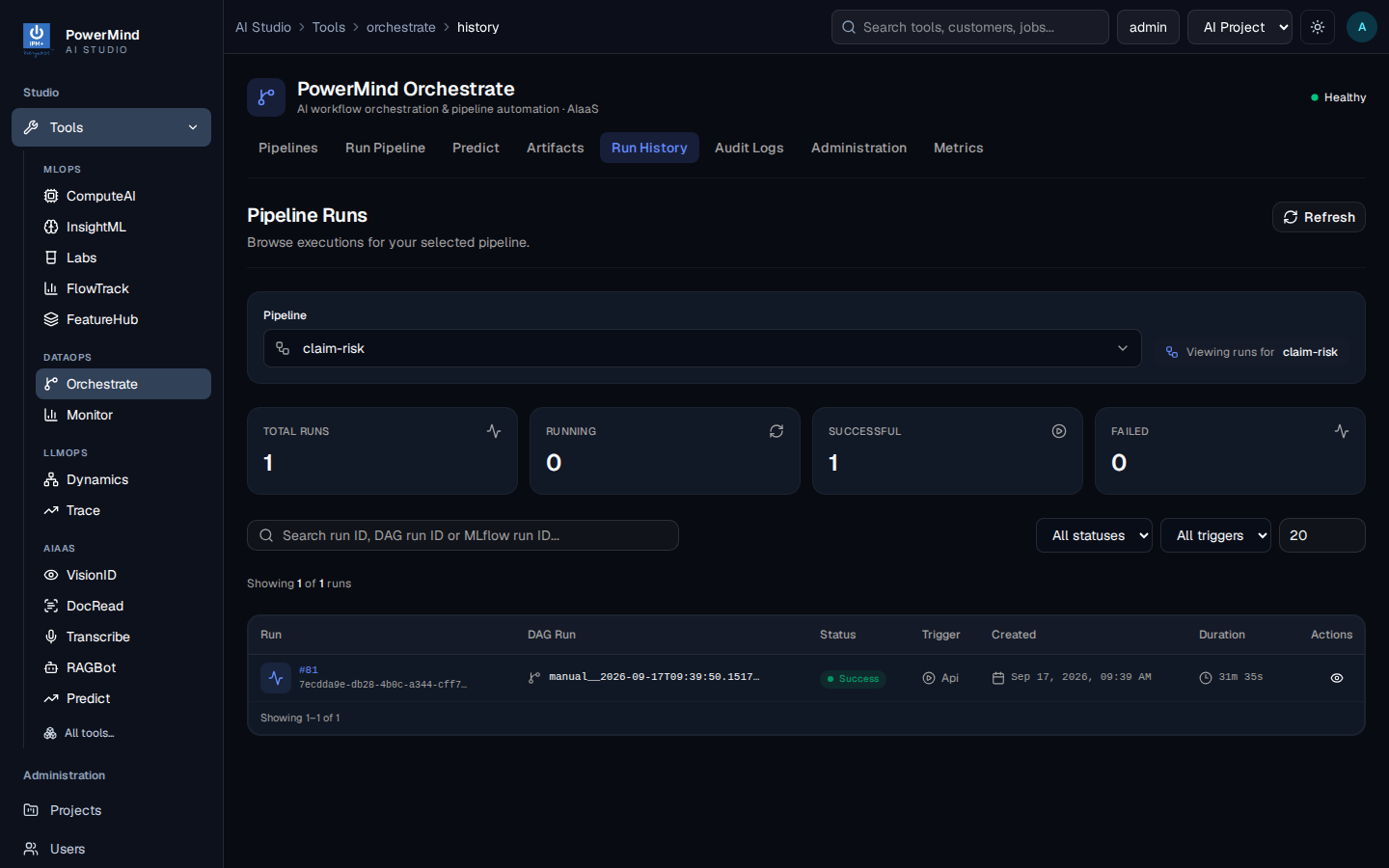
Artifacts should show the saved model and run folders.
6. Try Predict
Predict → same pipeline → JSON rows without label, with the same column names as the CSV.
More screens: User Guide.