PowerMind DocRead User Guide
This page is the full visual tour of live Studio DocRead UI.
Always check the project in the top bar (example: AI Project) so you are in the right workspace.
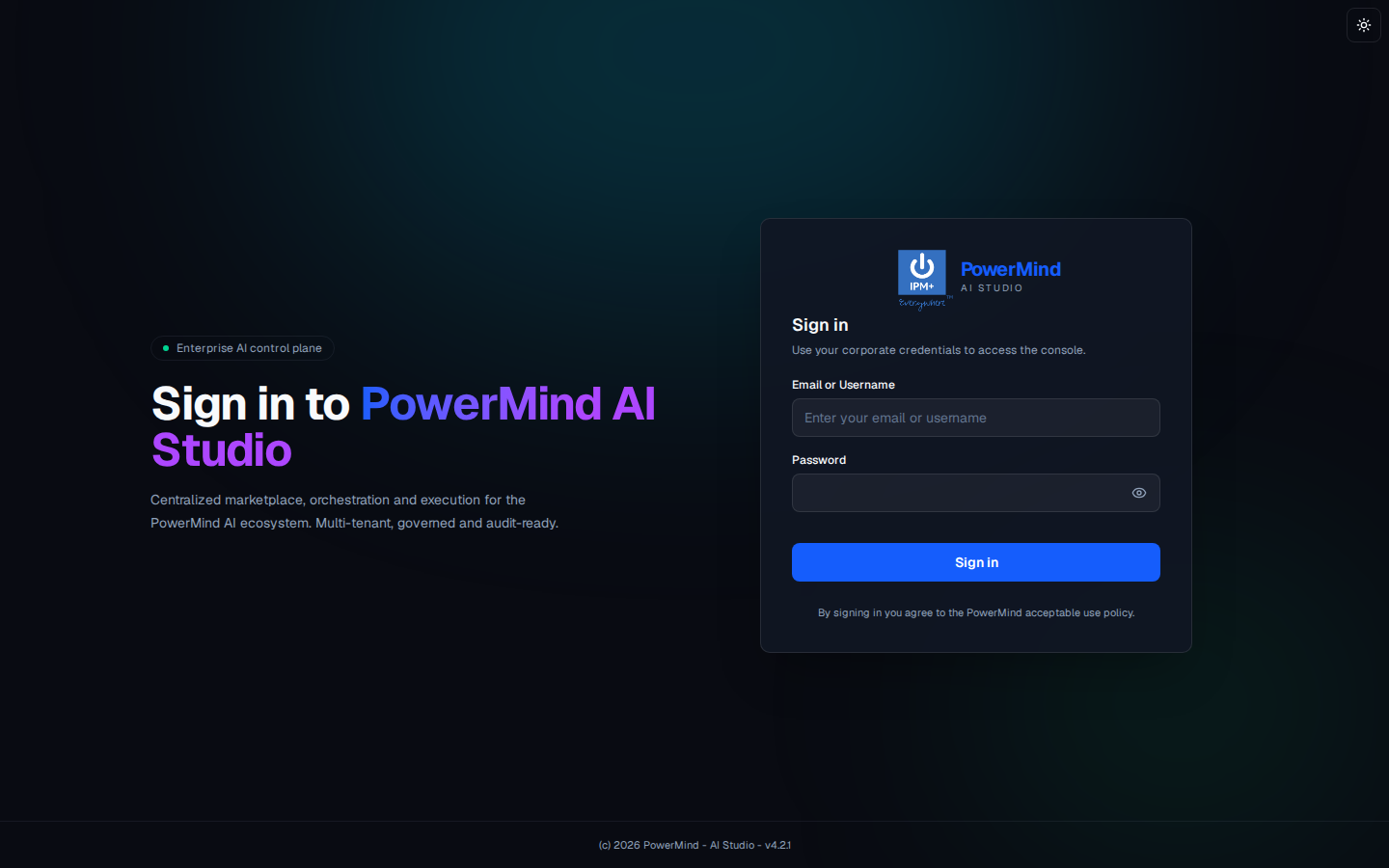
1. Sign in
Corporate username/email and password. Theme toggle is the sun icon, top right.
2. Tool Marketplace (hub)
Left menu groups tools: MLOPS, DATAOPS, LLMOPS, AIAAS. DocRead is under AIAAS. Filters: All, MLOps, LLMOps, DataOps, AIaaS.
Cards show Available (Launch) or Not enabled / Not Available.
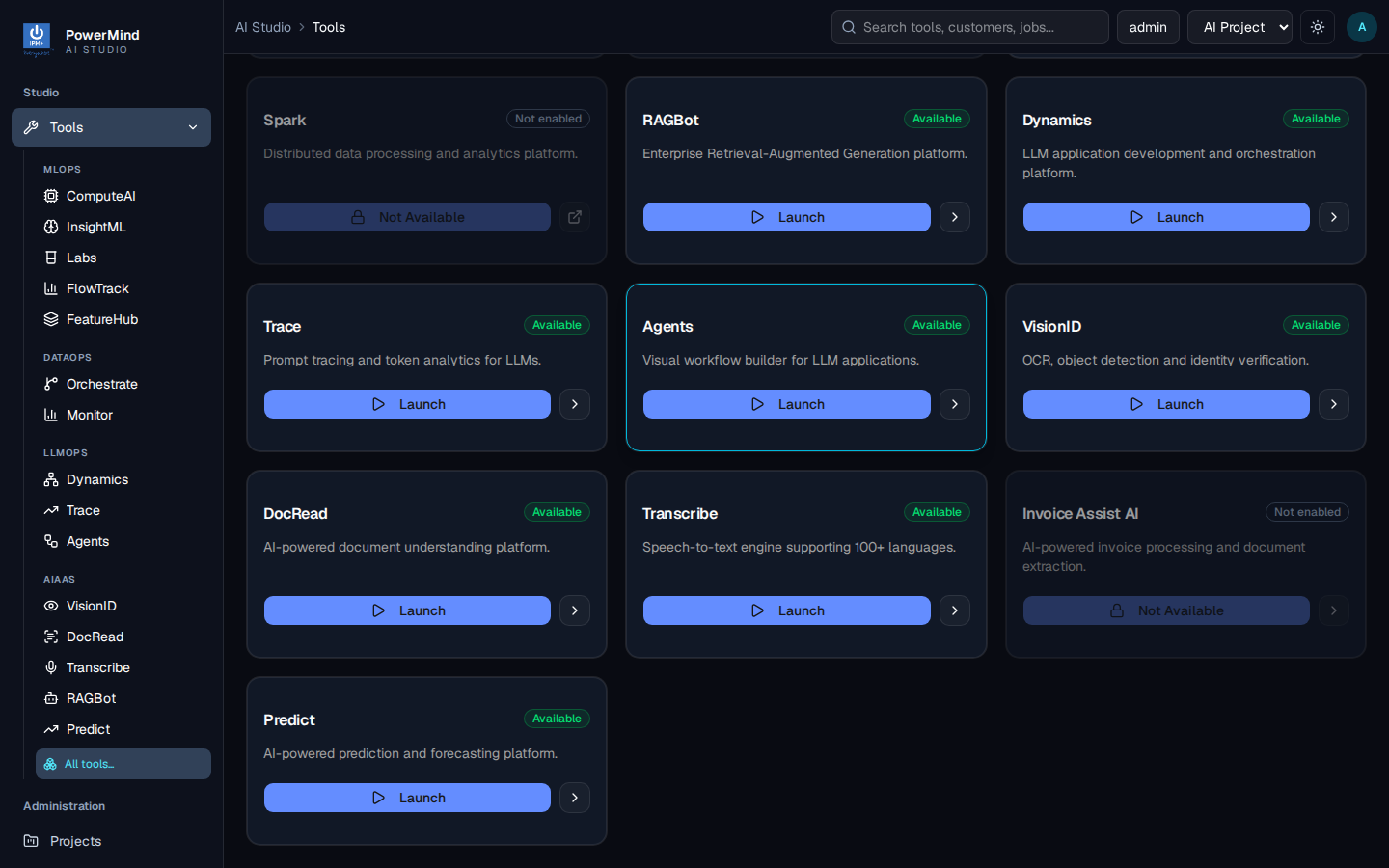
Open DocRead. Header: PowerMind DocRead — Intelligent OCR & document digitization · AIaaS. OCR Cluster Healthy should be green.
3. Dashboard
Tab: Dashboard. Breadcrumb: AI Studio > Tools > docread.
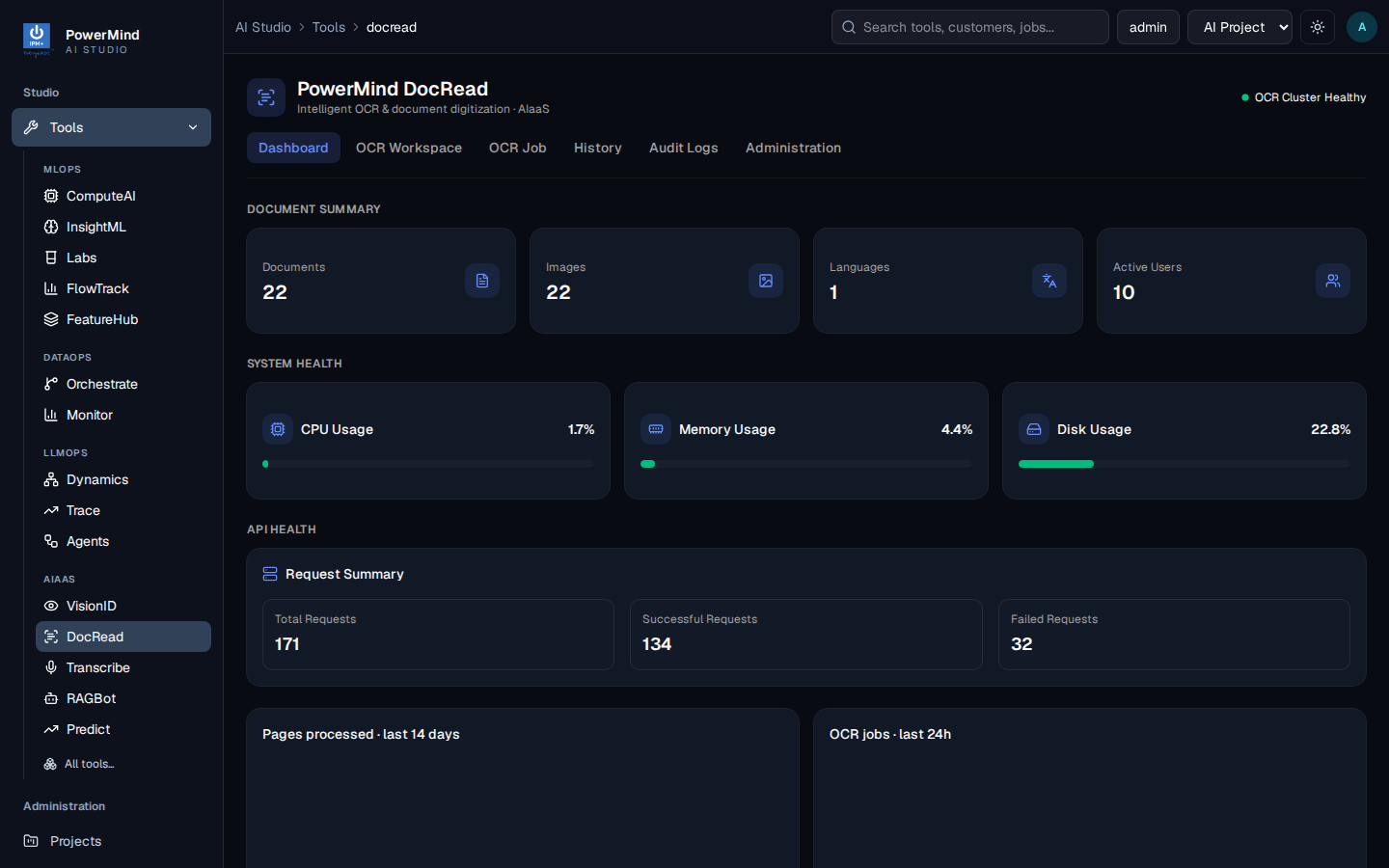
Document summary: Documents, Images, Languages, Active Users.
System health: CPU, Memory, Disk.
API health: Total / Successful / Failed requests, plus pages processed and jobs in the last 24h.
Use this tab to confirm the service is up before you convert a file.
4. OCR Workspace
Tab: OCR Workspace. Breadcrumb: ... > docread > workspace.
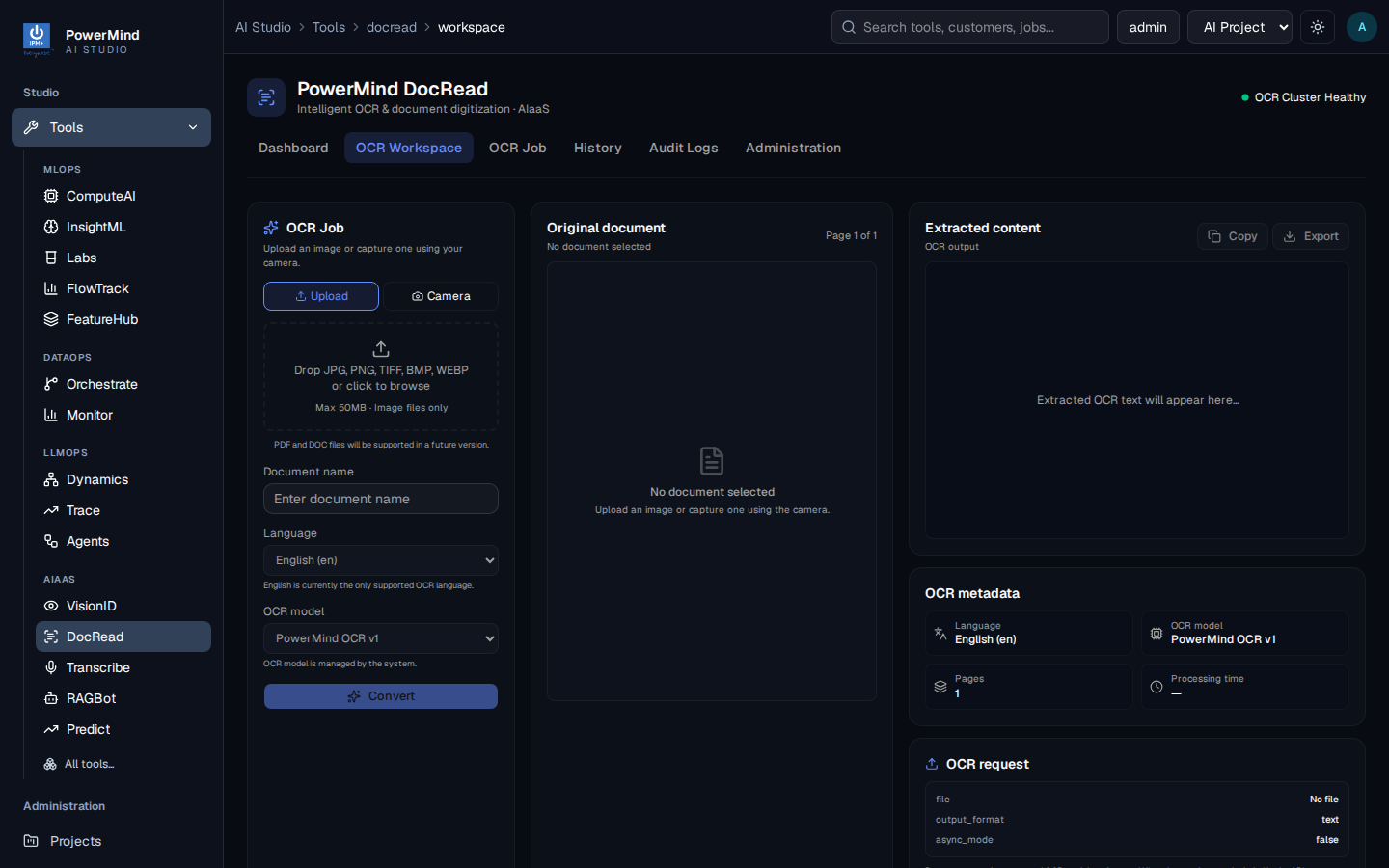
Left — OCR Job
- Upload
- Drop JPG, PNG, JPEG (image files only; max size is shown, for example 50 MB)
- Document name, Language (English), OCR model (PowerMind OCR v1)
- Convert
Middle — Original document preview.
Right — Extracted content with Copy / Export, plus metadata (language, model, pages, processing time) and the API request fields (file, output_format, async_mode).
5. OCR Job (status by UUID)
Tab: OCR Job. Breadcrumb: ... > docread > ocrjob.
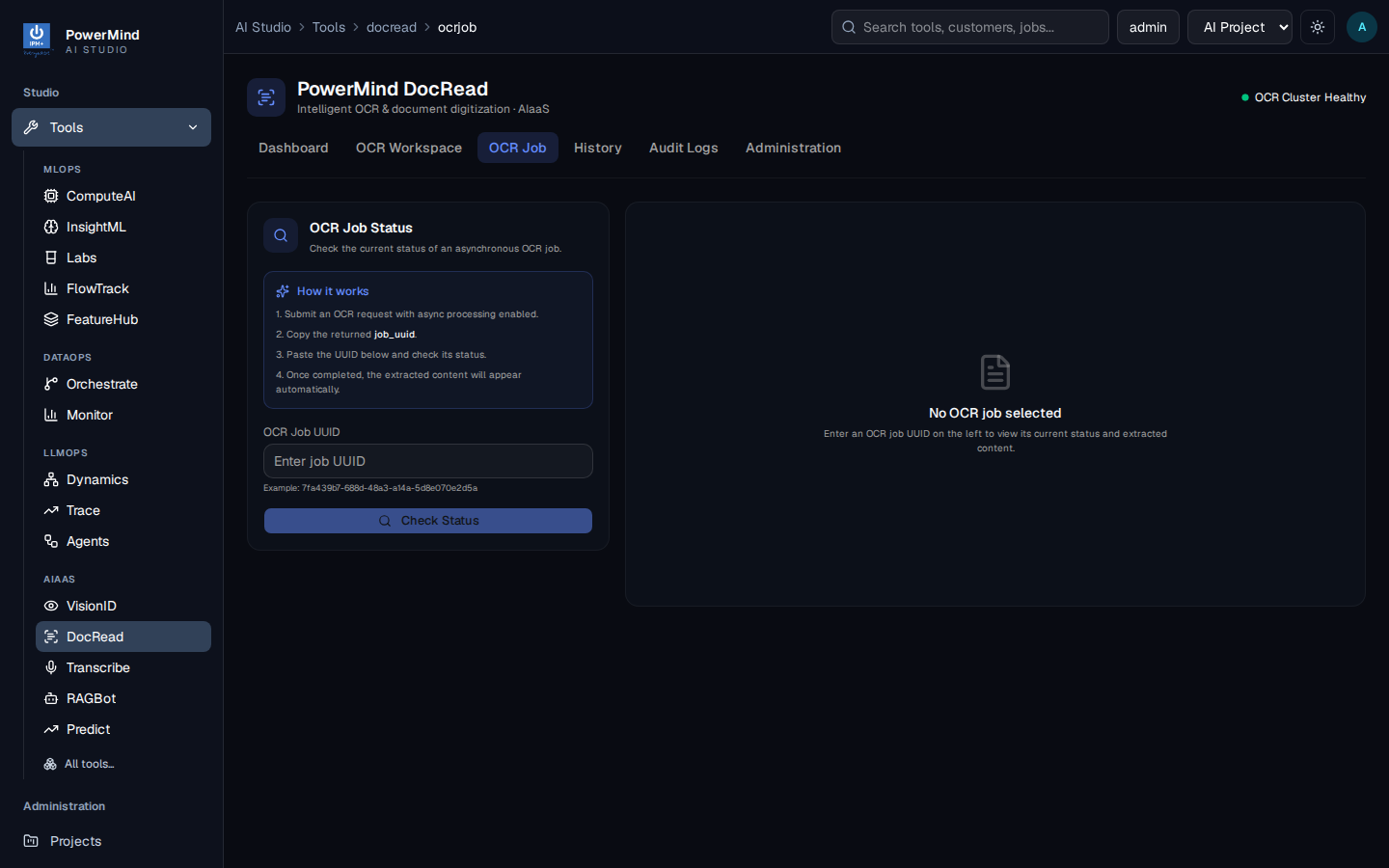
Use this for async jobs:
- Submit OCR with async processing enabled (API).
- Copy the returned
job_uuid. - Paste it and click Check Status.
- When complete, extracted content appears on the right.
6. History
Tab: History. Breadcrumb: ... > docread > history.
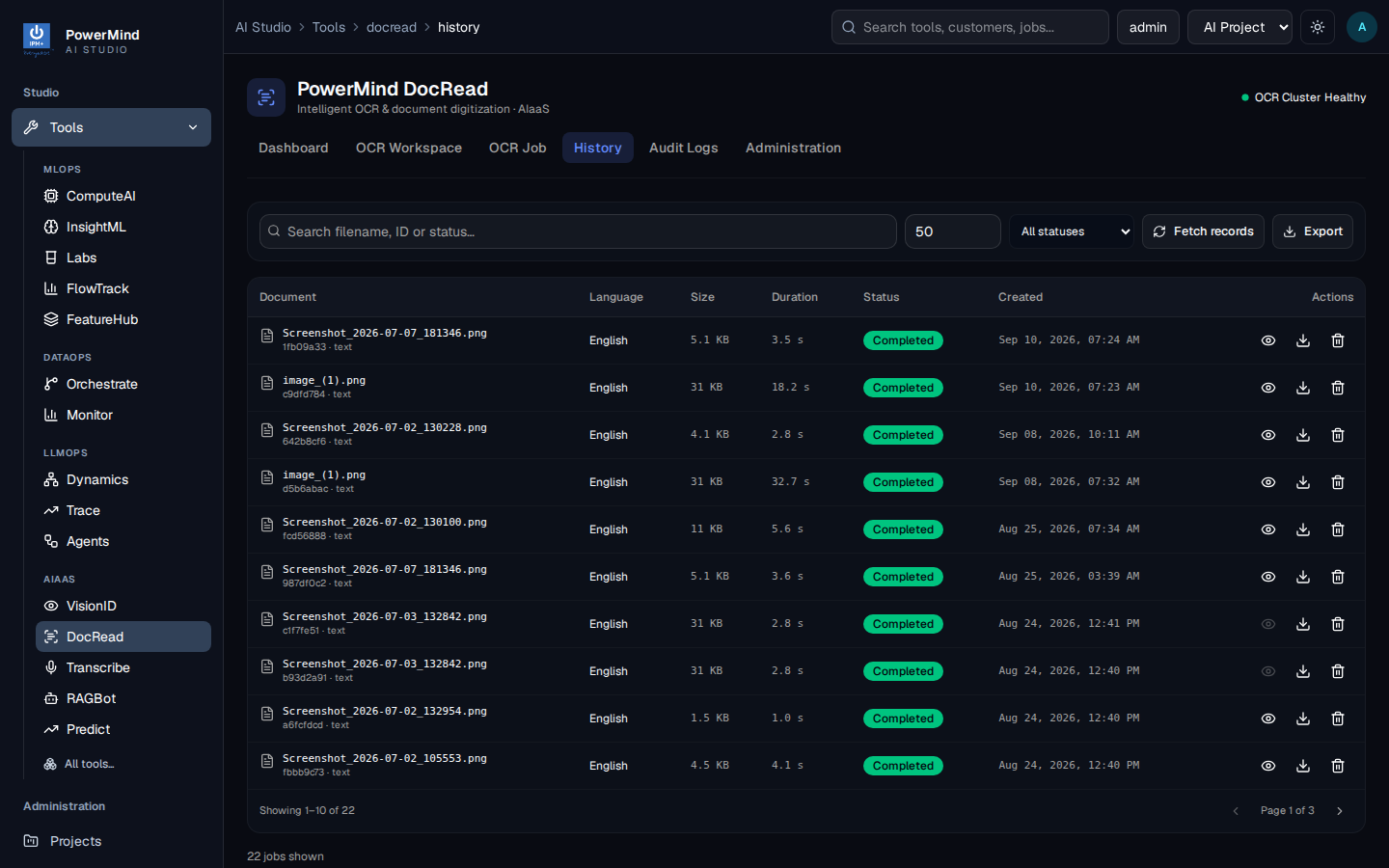
| Column | Meaning |
|---|---|
| Document | Filename and short job id / format |
| Language | Detected / selected language |
| Size | File size |
| Duration | How long OCR took |
| Status | Completed / failed / queued |
| Created | Date and time |
| Actions | View, download, delete |
Search filename, ID or status…, page size, All statuses, Fetch records, Export.
7. Audit Logs
Tab: Audit Logs. Breadcrumb: ... > docread > Audit Logs.
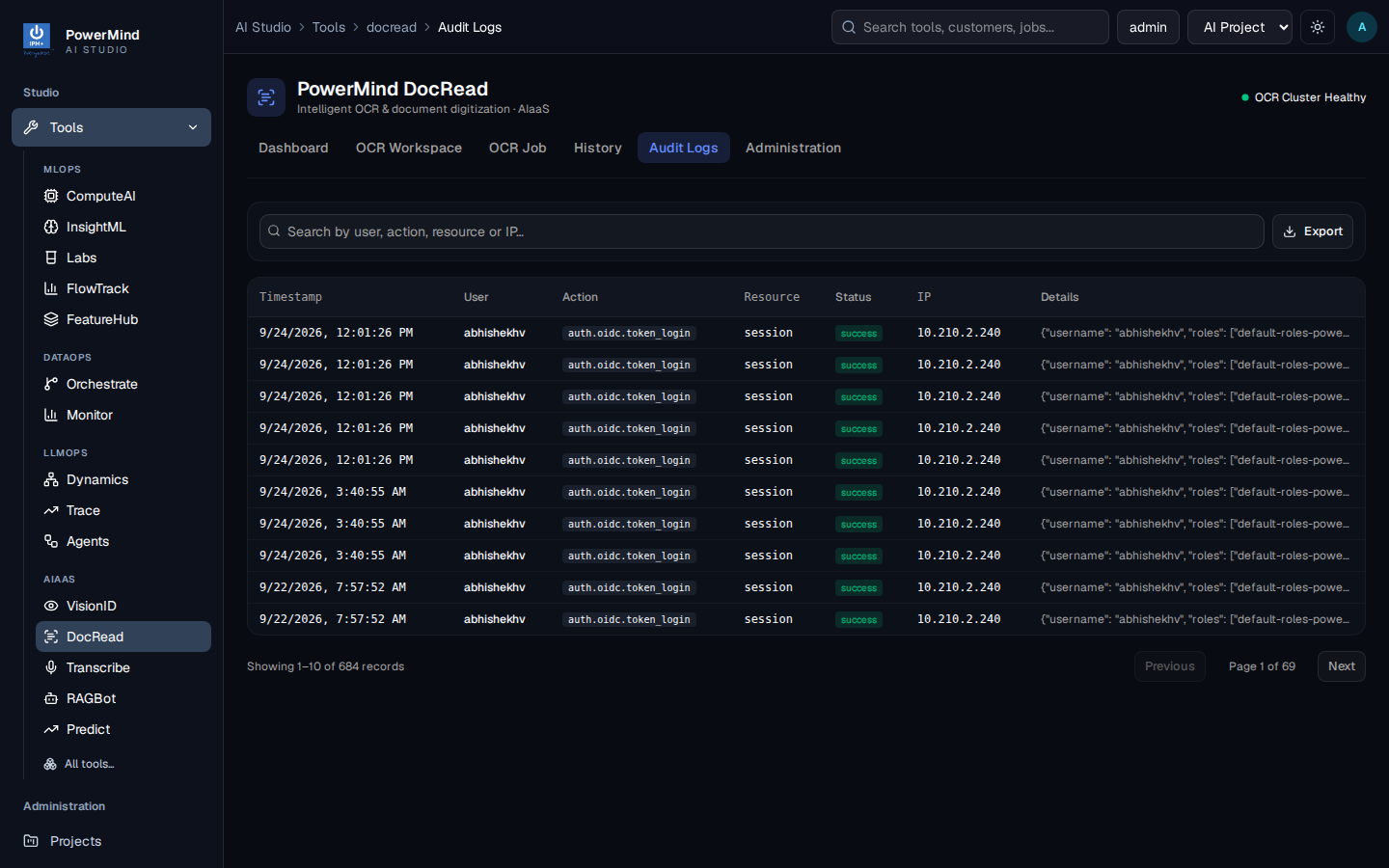
| Column | Meaning |
|---|---|
| Timestamp | When it happened |
| User | Login name |
| Action | For example, sign-in or ocr.process |
| Resource | What was touched (session, job id) |
| Status | success / failure |
| IP | Client address |
| Details | Extra JSON (roles, filename, …) |
Search by user, action, resource or IP… and Export.
8. Administration
Tab: Administration. Breadcrumb: ... > docread > administration.
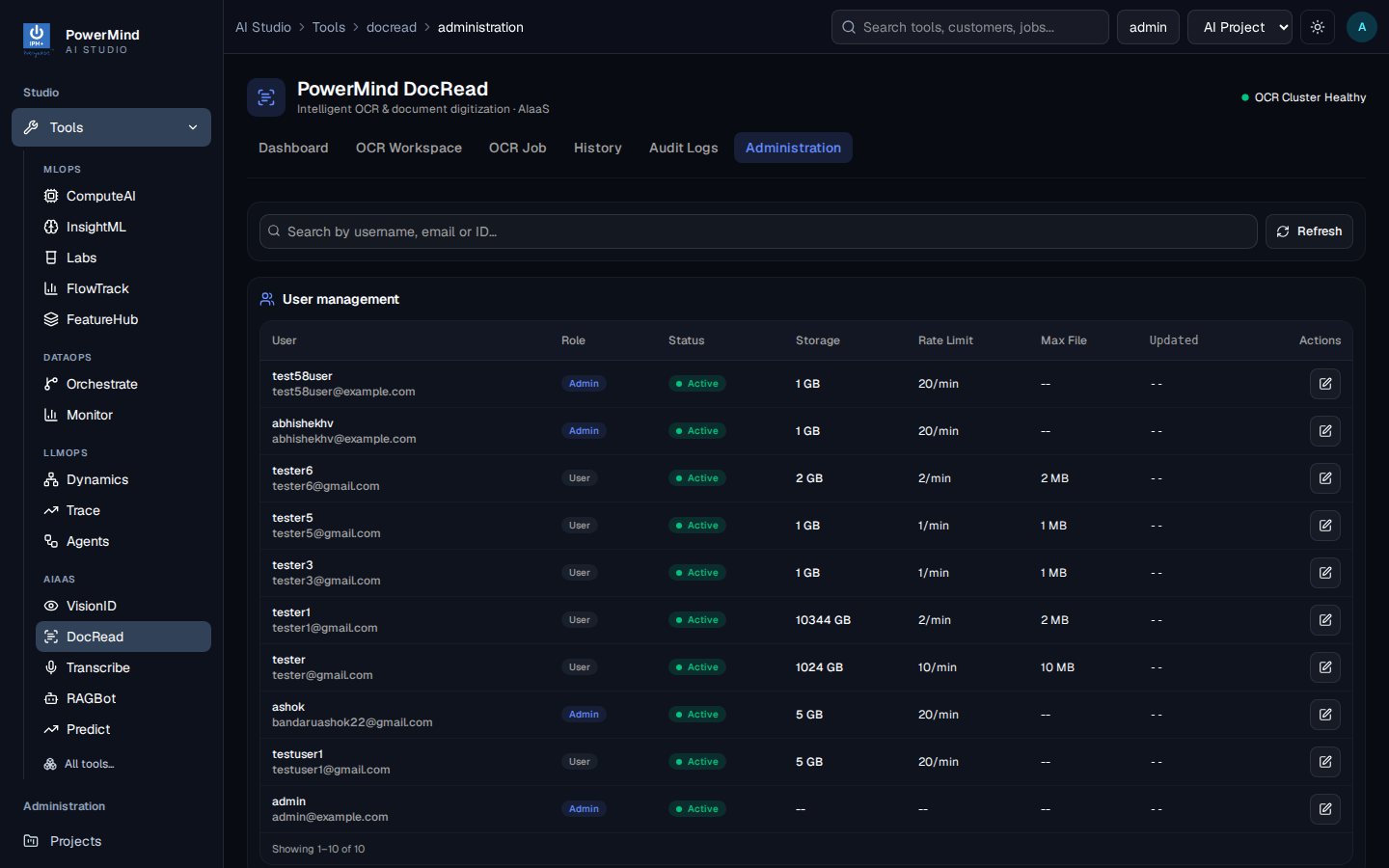
User management: username, email, role (Admin / User), Active, Storage quota, Rate limit, Max file size, edit action.
Search by username, email or ID. Refresh.
Studio-wide users also live under Administration → Users in the left menu (platform, not only DocRead).
9. Swagger (API console)
For authorized integrators, open /docs on the assigned DocRead API host. Select Authorize and use the Bearer token supplied for your integration.
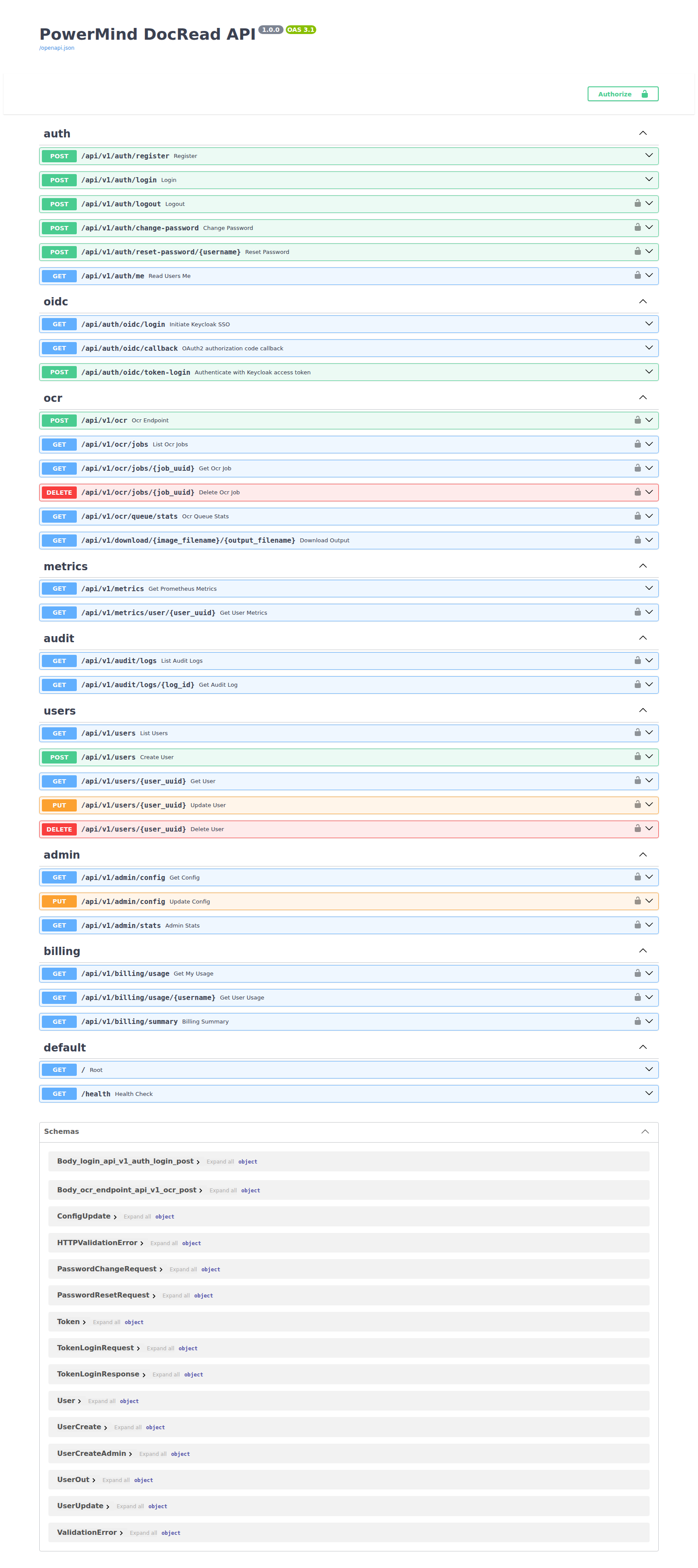
Details: API reference.