Getting Started — First login to first OCR result
Use this if you have never opened DocRead. You need a Studio URL from your operator and a username/password (corporate credentials).
1. Sign in to PowerMind AI Studio
Open the Studio URL your team gave you. You should see Sign in to PowerMind AI Studio (footer shows product version, for example v4.2.1).
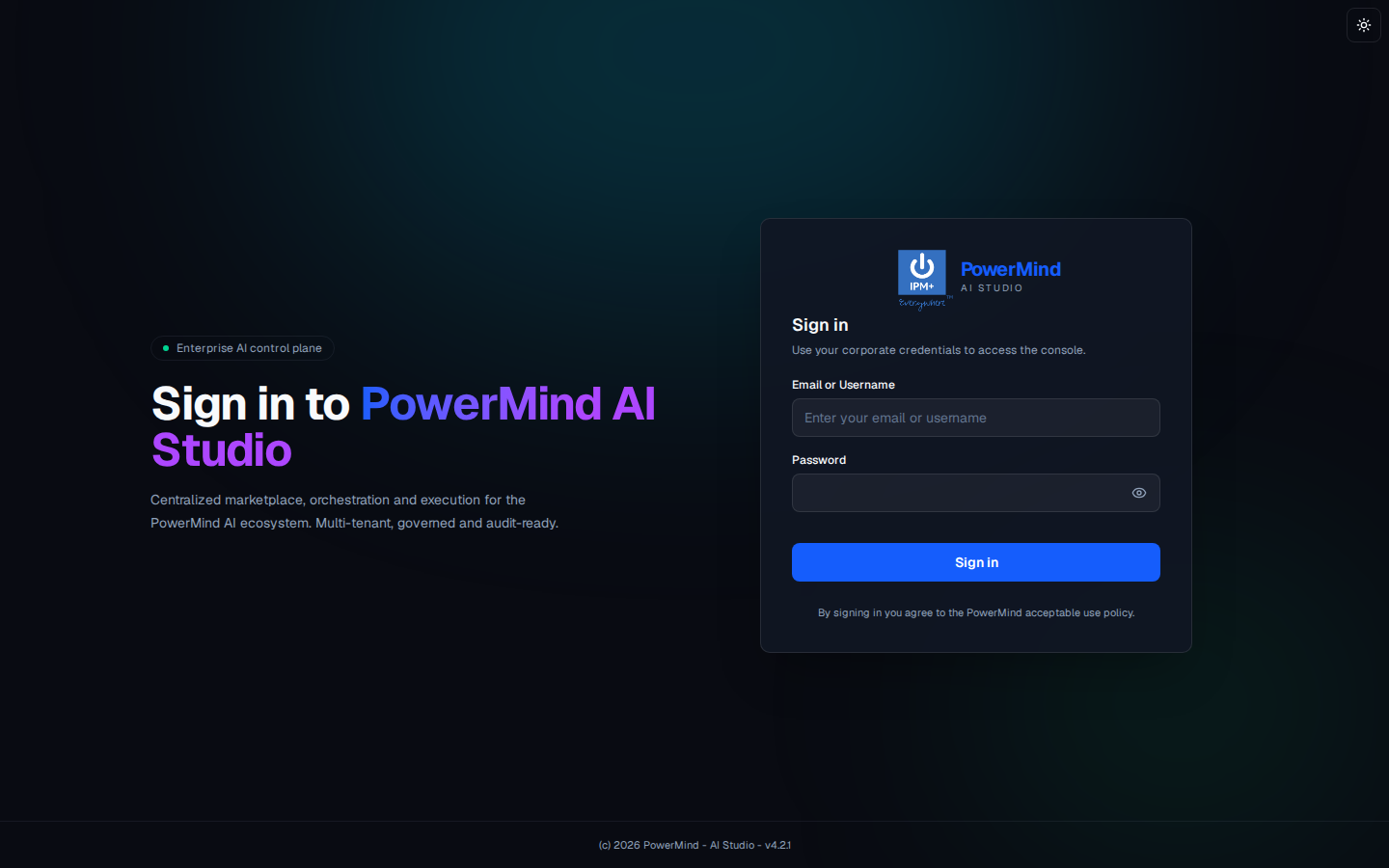
- Enter Email or Username.
- Enter Password (eye icon shows/hides the password).
- Click the blue Sign in button.
- Optional: sun icon (top right) switches light/dark theme.
2. Pick the project and open DocRead
After login you land on Tool Marketplace.
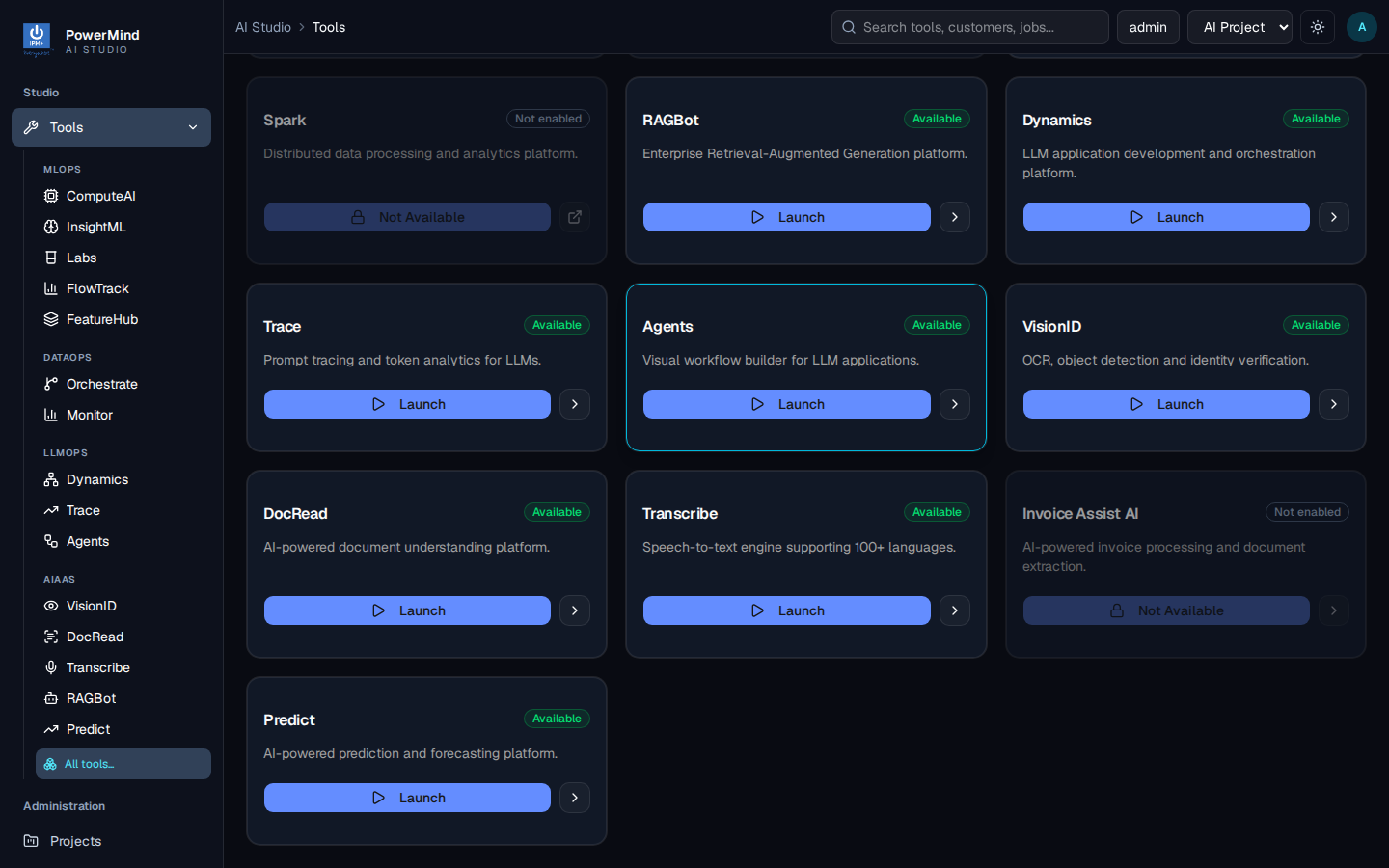
- Confirm the project in the top bar (for example AI Project). Tools that are Not enabled on another project become Available after you switch.
- Filter AIaaS (or use the left menu AIAAS → DocRead).
- On the DocRead card, click Launch.
- Breadcrumb becomes
AI Studio > Tools > docread. Header: PowerMind DocRead — Intelligent OCR & document digitization · AIaaS. Green OCR Cluster Healthy means the backend is up.
3. Check the Dashboard
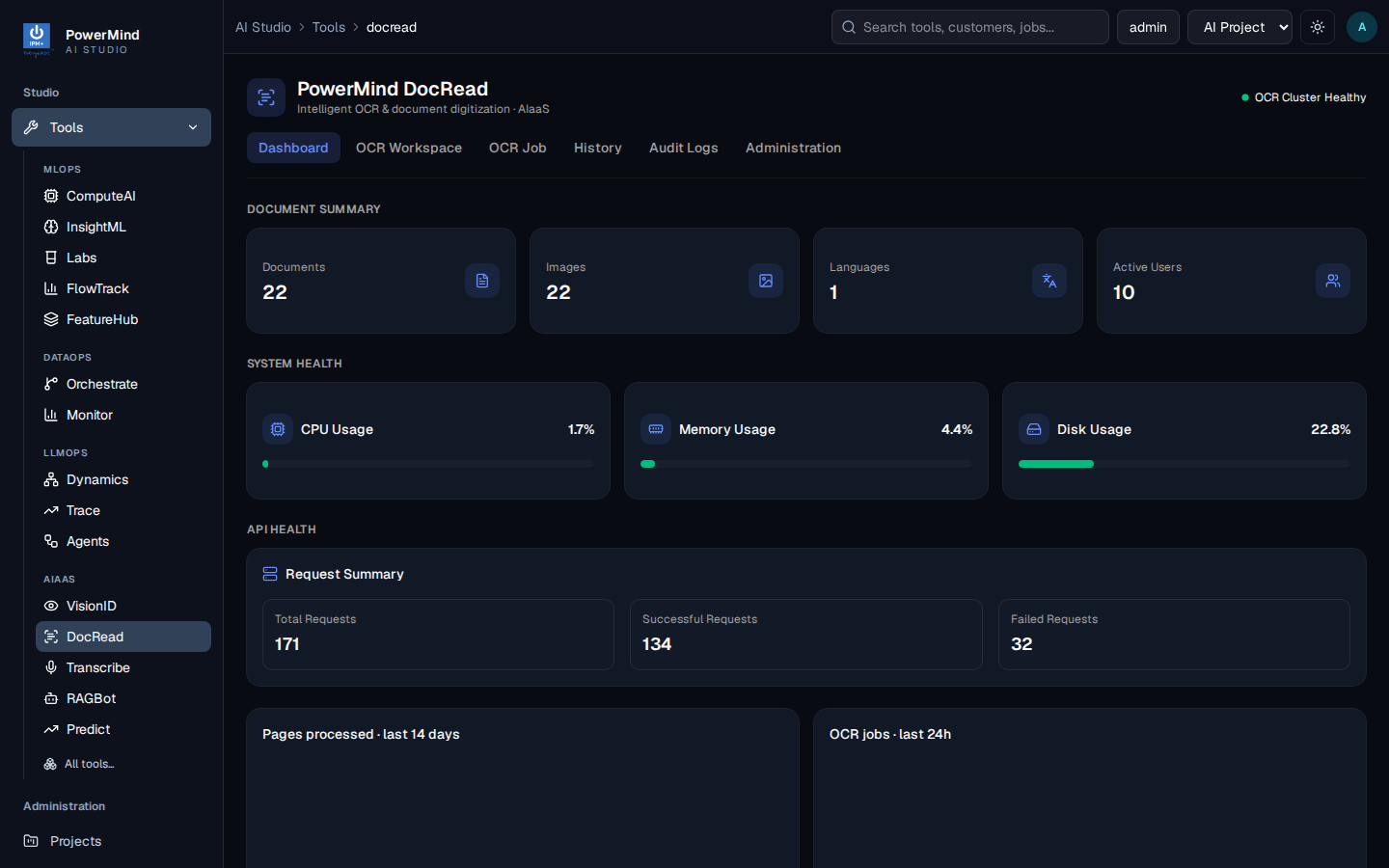
This is a snapshot only. It does not run OCR. Typical cards: Documents, Images, Languages, Active Users, CPU / Memory / Disk, Total / Successful / Failed requests.
4. Run OCR in the Workspace
Open OCR Workspace.
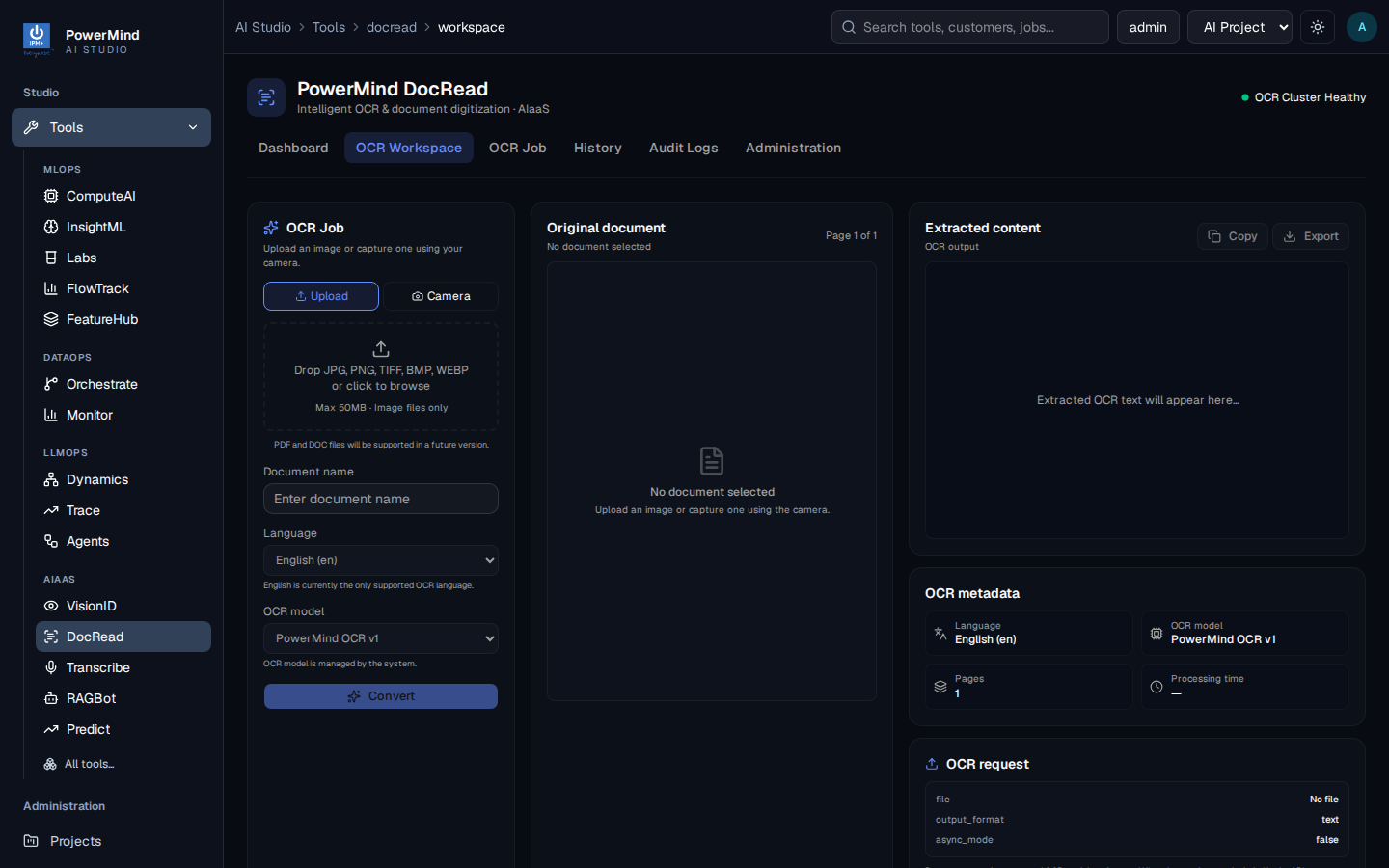
- Upload an image. Drop JPG, PNG, JPEG are supported in this.
- Optional: Document name. Language is English. OCR model is PowerMind OCR v1 (managed by the system).
- Click Convert.
- Wait until Extracted content fills in. Use Copy or Export.
5. Find the job later
Open History.
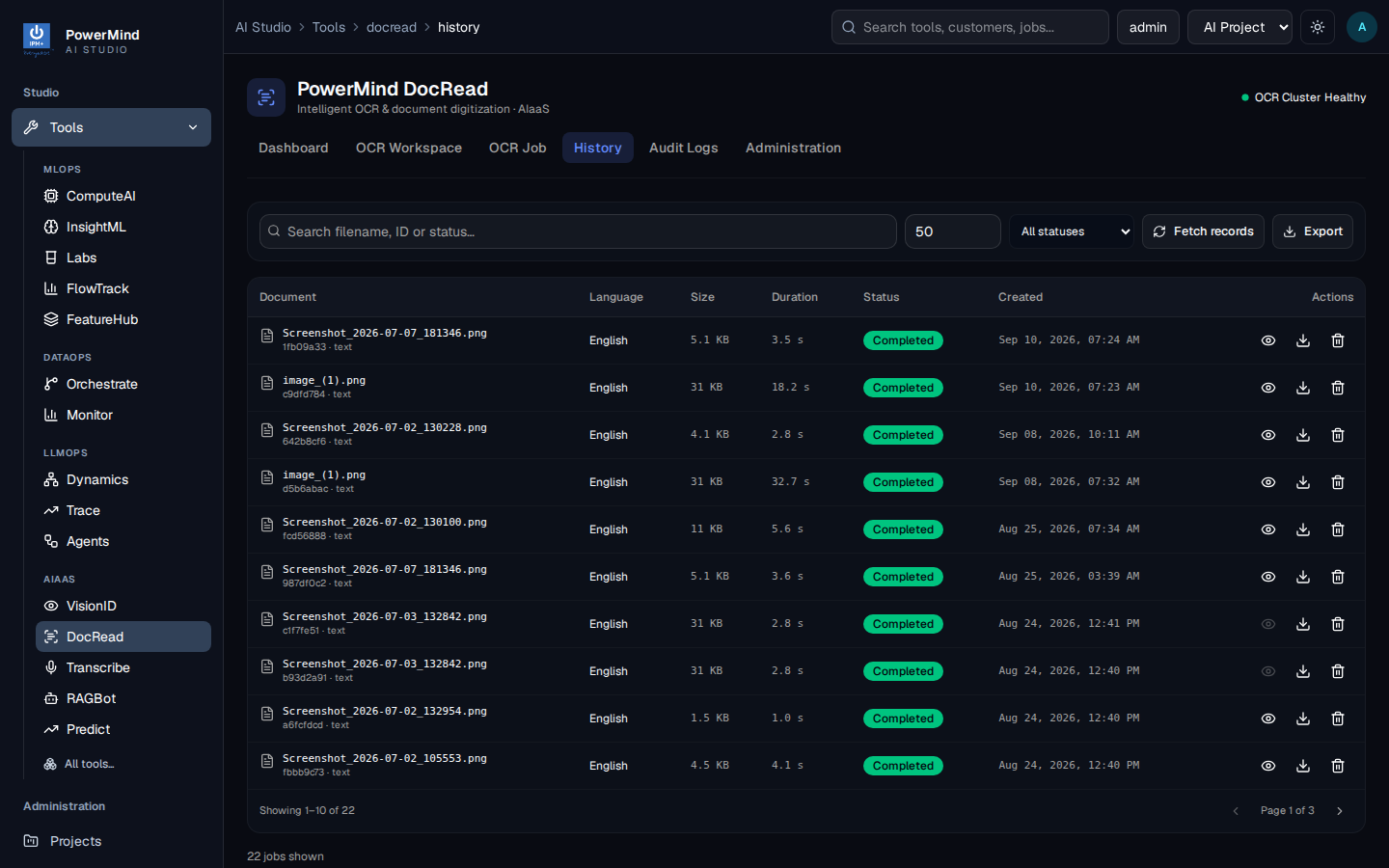
Search by filename, ID, or status. Use the eye (view), download, or trash icons. Export downloads the list.
If you submitted work with async processing, open OCR Job, paste the job UUID, and click Check Status.
You now know the full user path. For every screen in more detail, see the User Guide.