PowerMind Labs User Guide
PowerMind Labs is a browser-based workspace for writing code, running notebooks, working with files, and using terminals. It gives users one place to create PowerMind Notebooks, upload data, run Python code, manage files, and download results.
This guide is written for everyday users of PowerMind Labs. It does not cover server administration, installation, deployment, or source-code development.
Contents
- Signing In
- Starting Your Server
- Understanding The Main Workspace
- Opening A New Launcher
- Creating A PowerMind Notebook
- Running Code In A PowerMind Notebook
- Working With Kernels
- Uploading Files
- Opening Uploaded Notebooks
- Downloading Files
- Using The Terminal
- Changing Theme And Display Settings
- Common Tips
- Troubleshooting
- FAQ
Signing In
Open PowerMind Labs in your browser. You will see the sign-in screen.
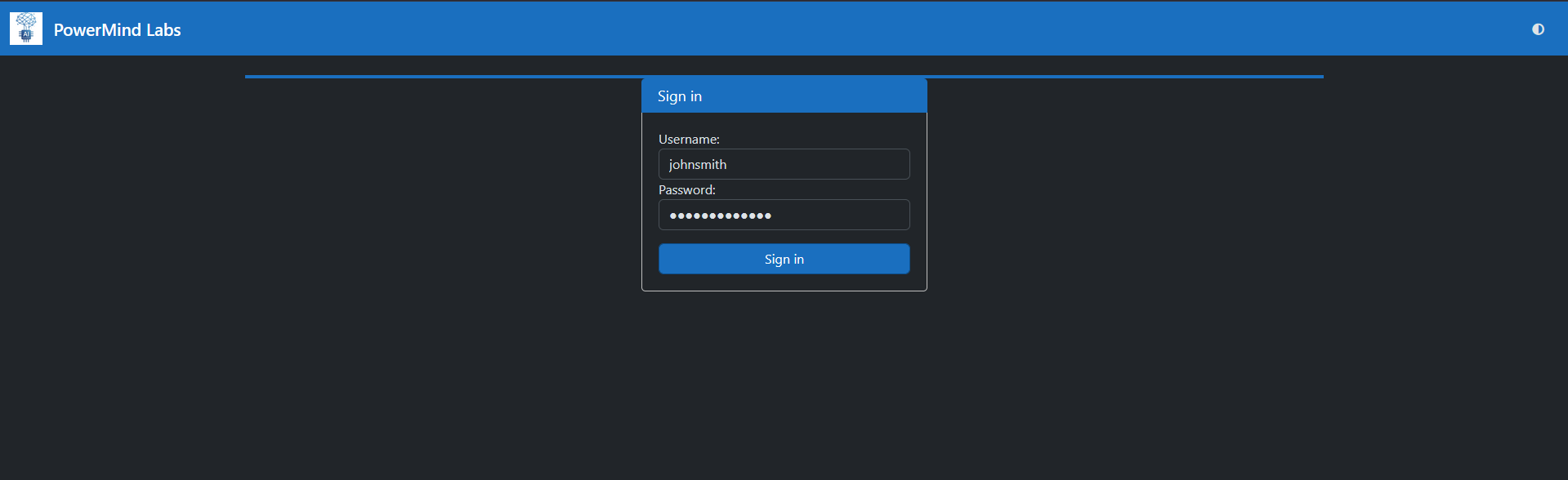
Enter the username and password provided to you, then select Sign in.
After signing in, PowerMind Labs prepares a personal workspace for your account. Files you create or upload are stored in your own user area.
Starting Your Server
If your workspace server is not already running, PowerMind Labs shows a Start My Server button.
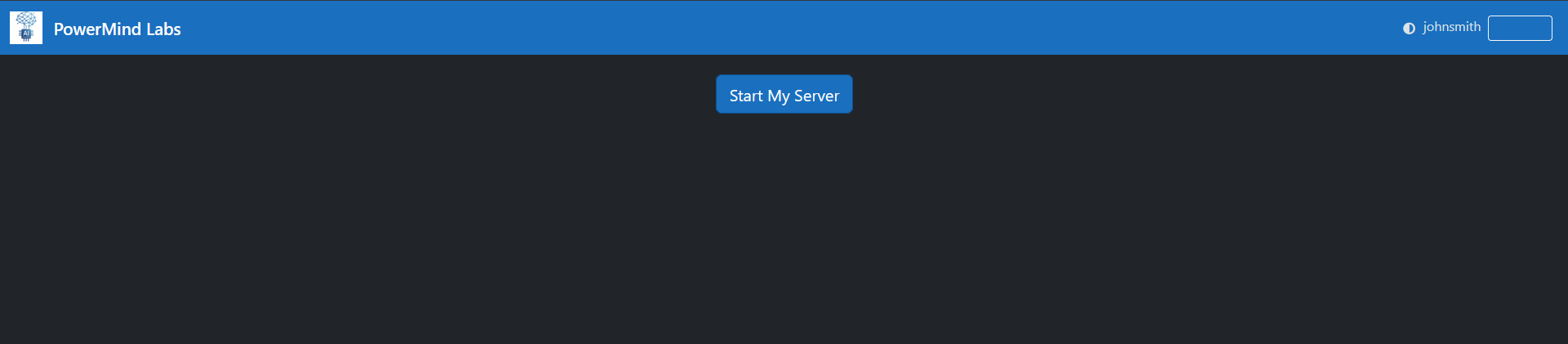
Select Start My Server to begin. While the server starts, a progress screen shows the current status.
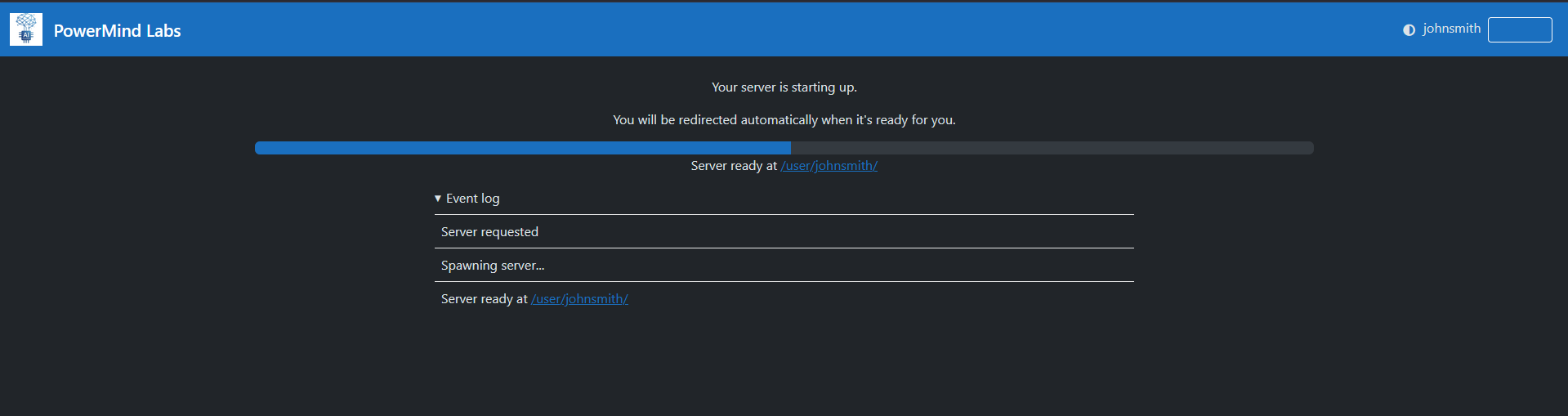
When the server is ready, PowerMind Labs redirects you to your workspace.
Understanding The Main Workspace
The main workspace opens with the Launcher and the file browser.
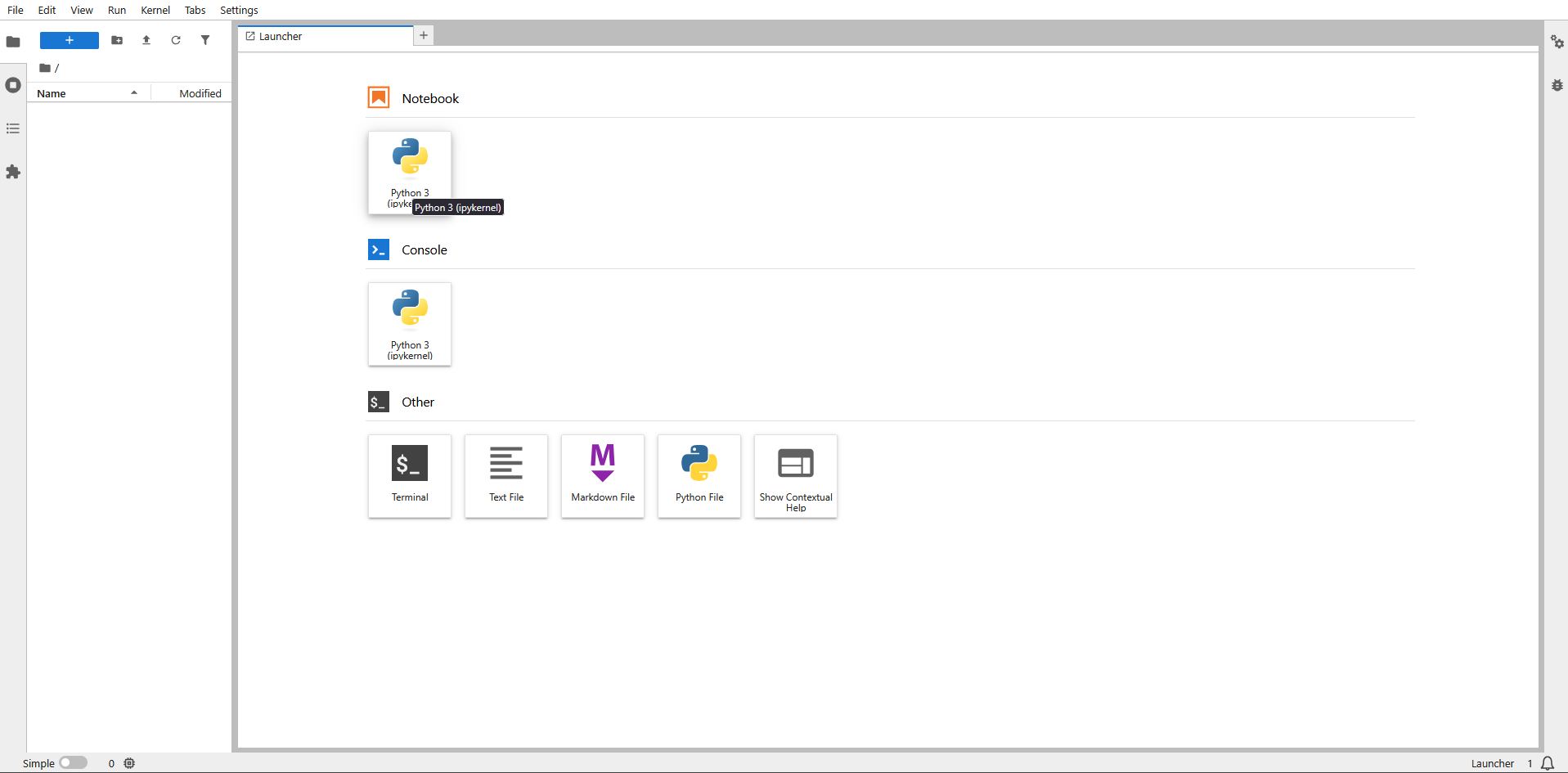
The main areas are:
- Menu bar: Commands such as File, Edit, View, Run, Kernel, Tabs, and Settings.
- File browser: Shows files and folders in your workspace.
- Launcher: Lets you create notebooks, consoles, terminals, text files, Markdown files, and Python files.
- Tabs area: Open notebooks, terminals, files, and launchers appear as tabs.
- Left sidebar: Contains tools such as the file browser and running sessions.
- Right sidebar: Contains additional tools such as settings or debugging panels when available.
The file browser is usually the best starting point for opening, uploading, renaming, downloading, or deleting files.
Opening A New Launcher
If the Launcher tab is closed, or if you want another Launcher, select the New Launcher button in the file browser toolbar.
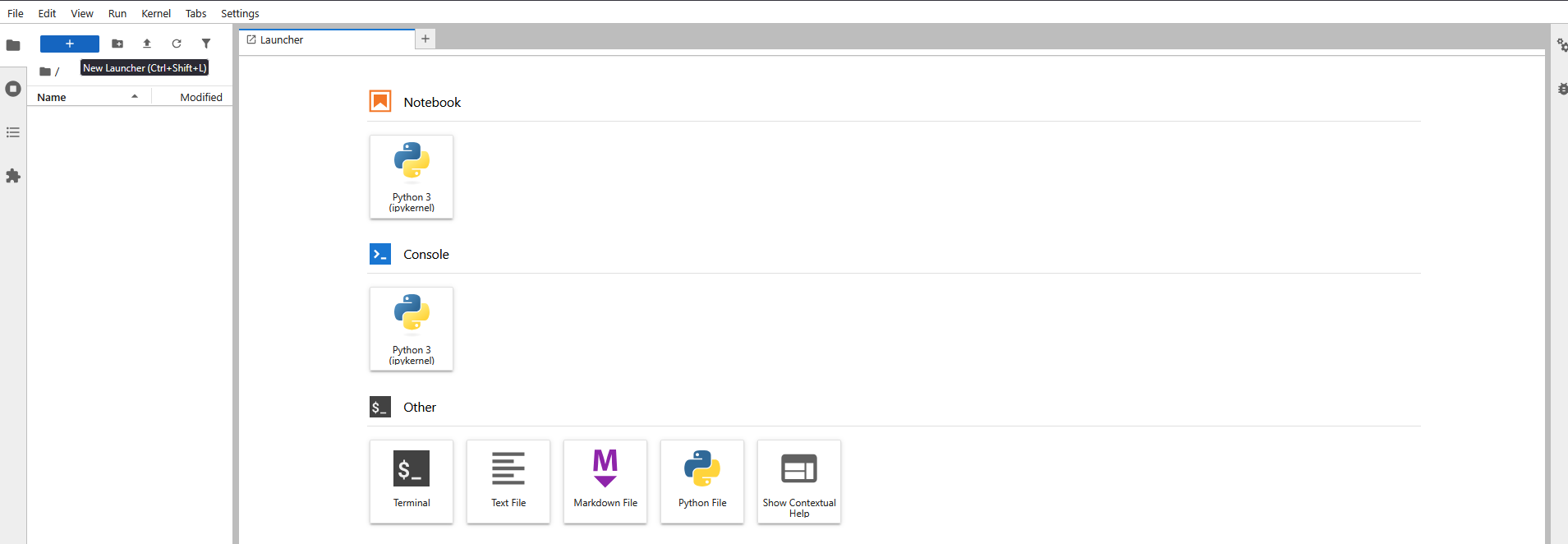
You can also use the plus button near open tabs to create another Launcher.
Creating A PowerMind Notebook
From the Launcher, go to the Notebook section and select the available Python notebook tile.
A new PowerMind Notebook opens in a tab. The notebook is made of cells. Each cell can contain code, Markdown text, or output.
Useful notebook controls include:
- Save: Save the notebook file.
- Add cell: Insert a new cell.
- Cut, copy, paste: Move or duplicate cells.
- Run: Run the selected cell.
- Stop or interrupt: Stop running code.
- Restart kernel: Restart the Python process behind the notebook.
- Cell type selector: Choose Code, Markdown, or other supported cell types.
Running Code In A PowerMind Notebook
Click inside a code cell, type Python code, and select the Run button. The result appears below the cell.
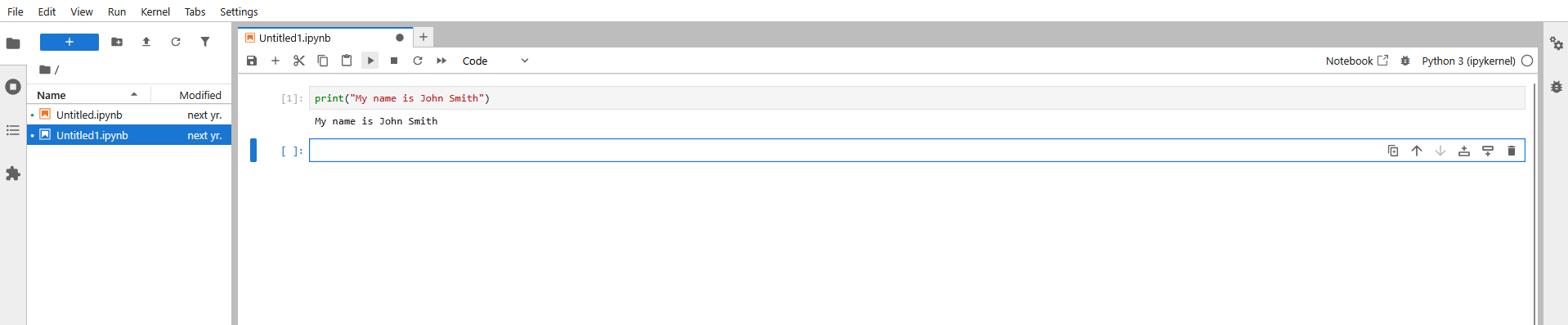
In the example above, the notebook runs a Python print() command and displays
the output immediately below the cell.
Common actions:
- Press the toolbar run button to run the selected cell.
- Use the cell type menu to switch between Code and Markdown.
- Add more cells as your work grows.
- Save regularly, especially before closing the browser tab.
Working With Kernels
A kernel is the process that runs your notebook code. For Python notebooks, the kernel name is usually shown in the top-right area of the notebook.
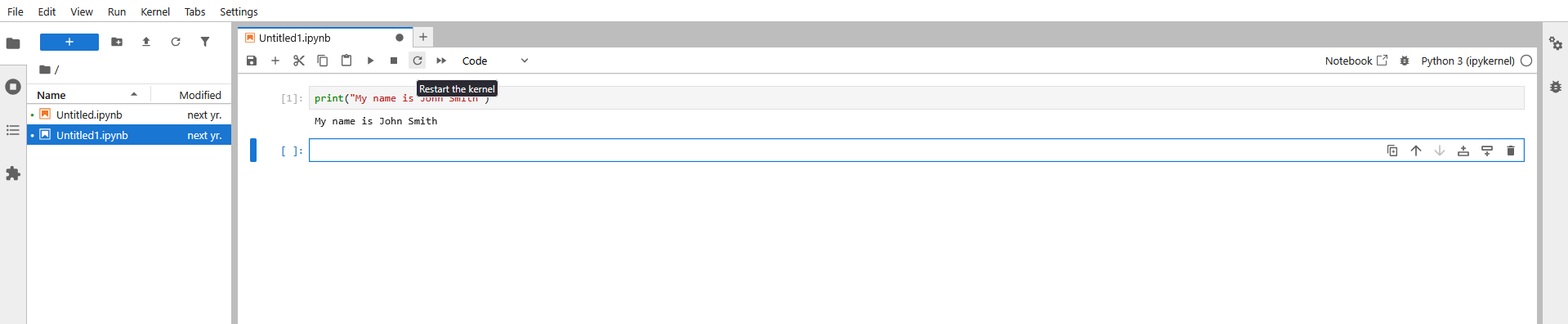
Use kernel controls when:
- Code is stuck or taking too long.
- Variables need to be cleared.
- A package or environment change needs a fresh runtime.
- The notebook looks disconnected or unresponsive.
Useful kernel actions:
- Interrupt: Stop currently running code without clearing variables.
- Restart: Start the kernel again and clear current variables.
- Restart and run all: Restart, then run the notebook from top to bottom.
- Shut down kernel: Stop the notebook runtime when you are finished.
After restarting a kernel, run earlier cells again if later cells depend on variables or imports from them.
Uploading Files
To upload a file, open the file browser and select the Upload Files button.
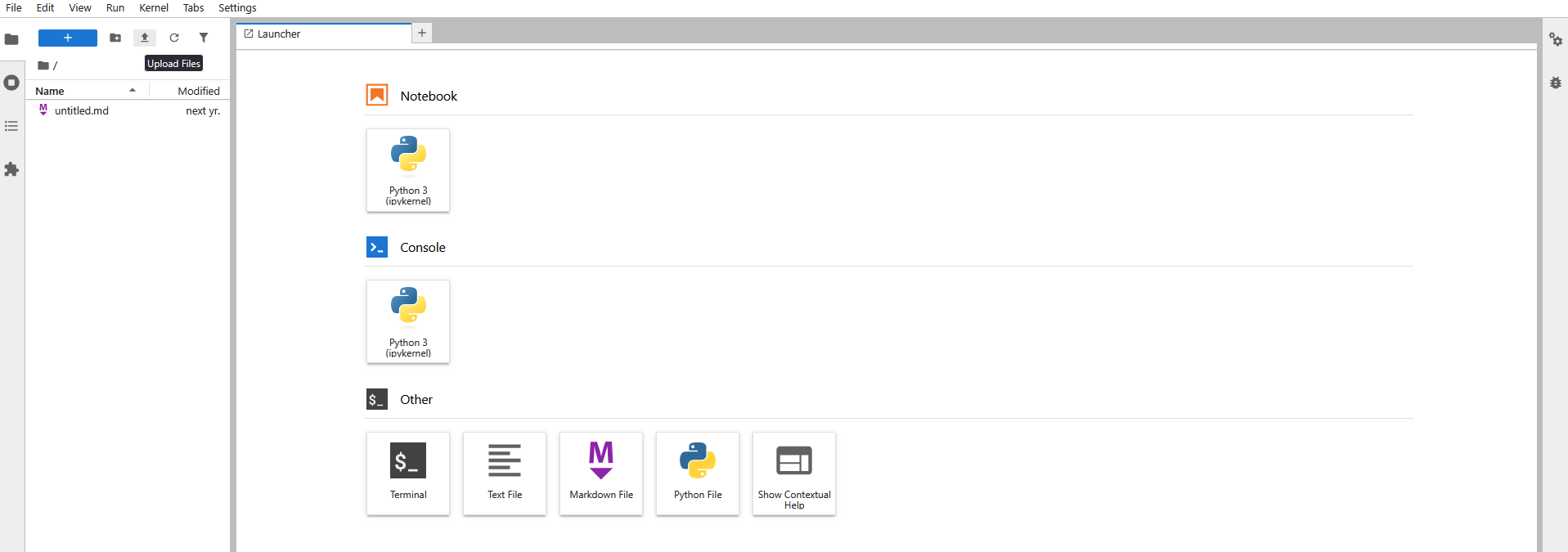
Your browser opens a file chooser. Select the file from your computer and open it.
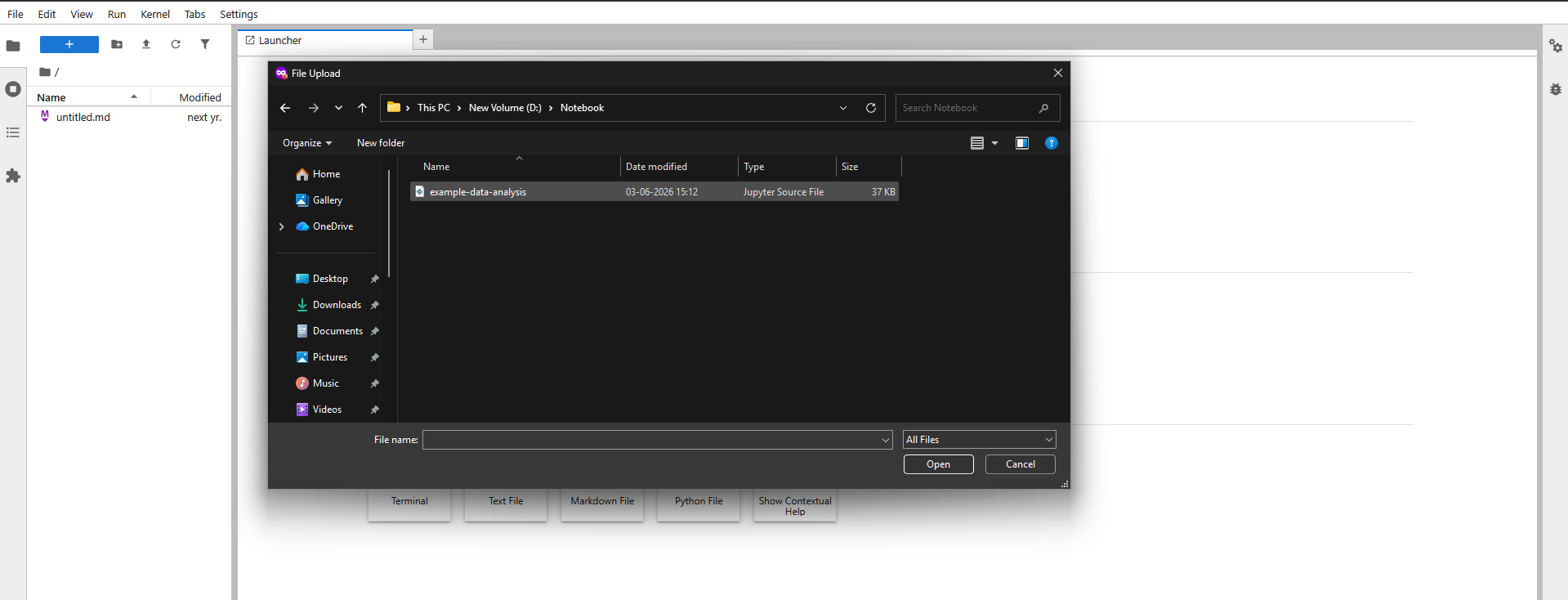
After the upload finishes, the file appears in the file browser. You can then open it, rename it, move it, or use it from a notebook.
Upload examples:
- Upload a
.ipynbfile to continue notebook work. - Upload a
.csvfile to analyze data. - Upload a
.pyfile to edit or run Python code. - Upload text, Markdown, or other project files.
Opening Uploaded Notebooks
Uploaded notebooks appear in the file browser. Select the notebook file to open it as a PowerMind Notebook.
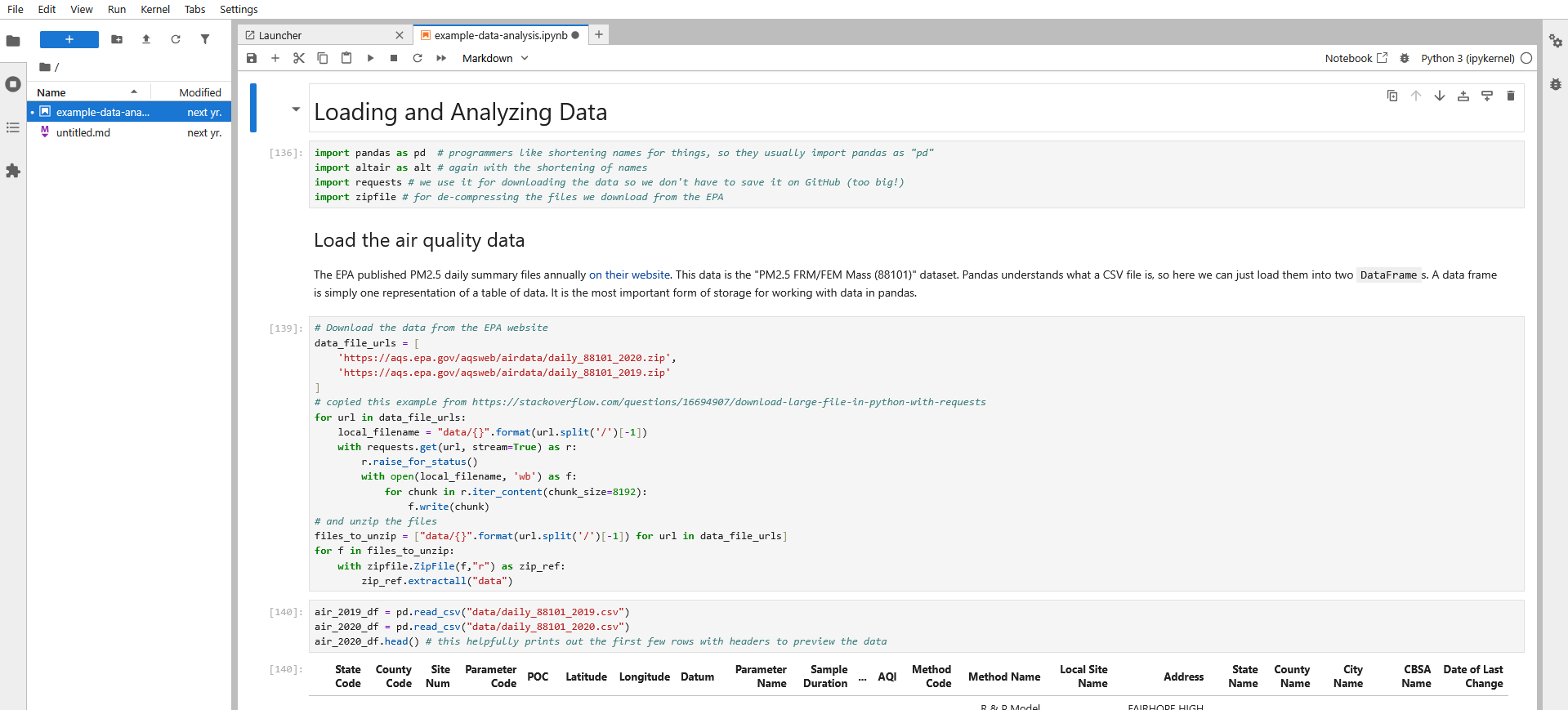
If the notebook contains code cells, select a cell and run it. If it depends on data files, make sure those files are also uploaded into the expected folder.
Downloading Files
To download a file, right-click the file in the file browser and select Download.
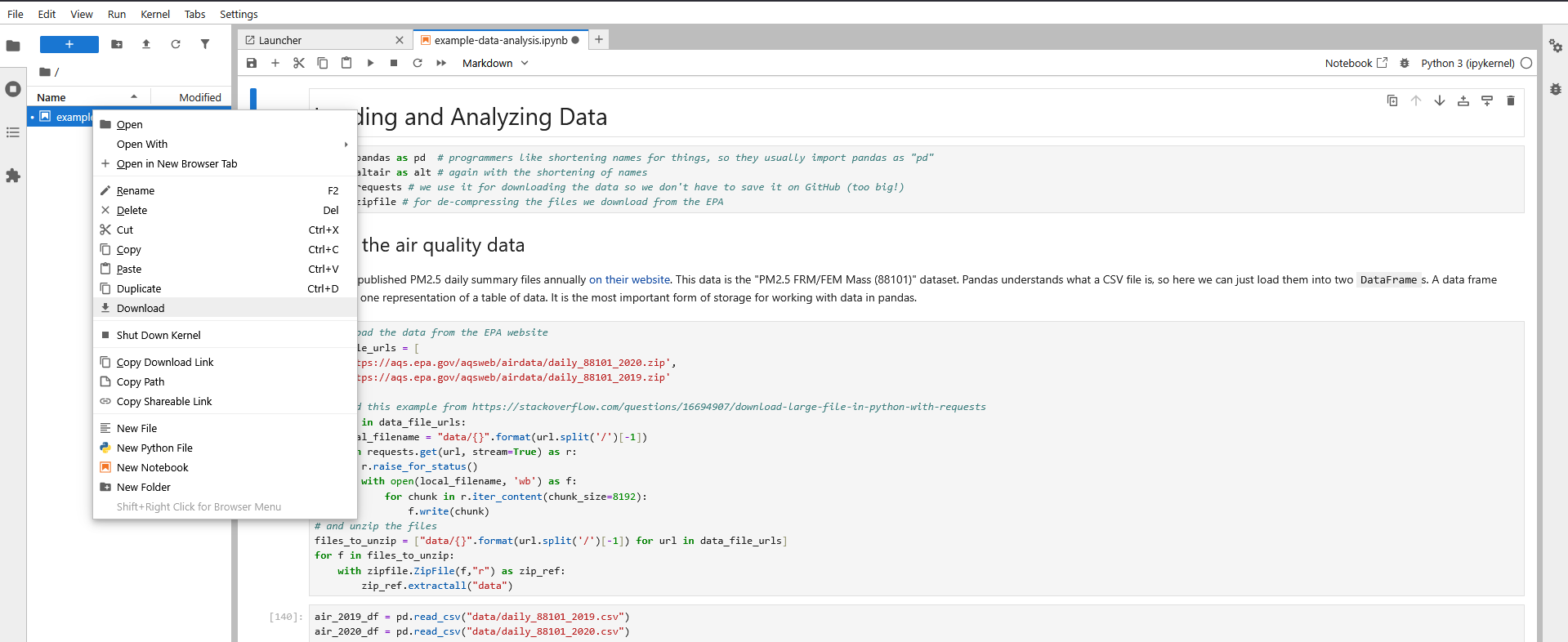
This is useful for saving notebooks, results, scripts, or data files back to your computer.
You can also use the context menu for common file actions:
- Open
- Rename
- Delete
- Cut, copy, and paste
- Duplicate
- Copy path
- Create new files or folders
Using The Terminal
PowerMind Labs includes a terminal for command-line work. Open it from the Launcher under the Other section by selecting Terminal.

Use the terminal for tasks such as:
- Listing files and folders.
- Running command-line tools.
- Installing or checking user-level packages, if allowed in your environment.
- Running scripts from your workspace.
The terminal opens in your workspace environment. Be careful when deleting or overwriting files, because terminal commands can affect your user files directly.
Changing Theme And Display Settings
Open the Settings menu to change display and editor preferences. Theme options are available under Settings > Theme.
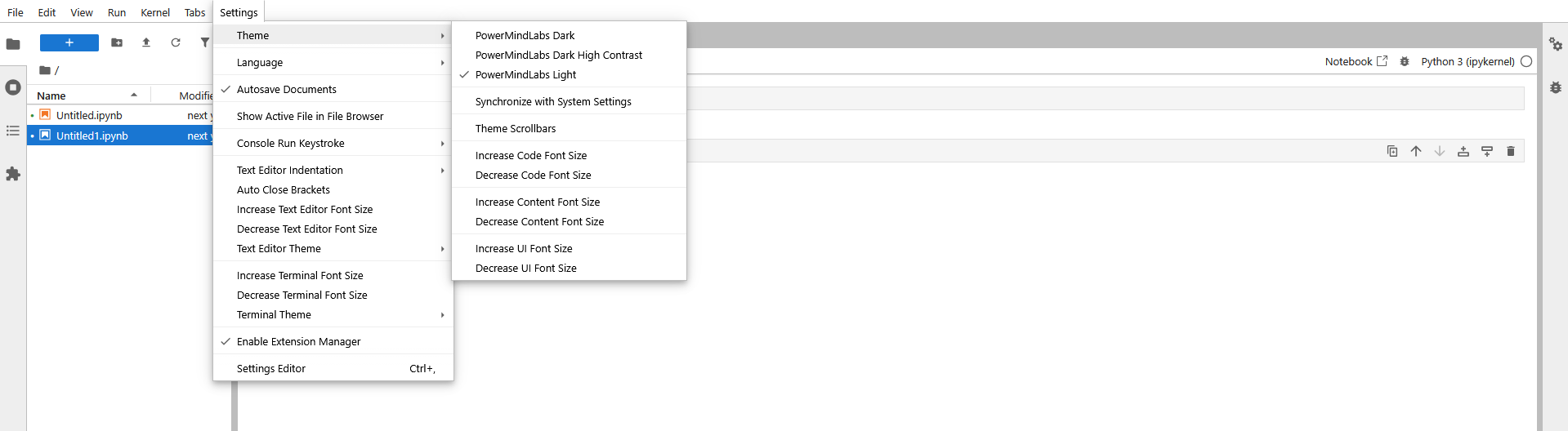
Common settings include:
- Theme selection, such as PowerMindLabs Light or PowerMindLabs Dark.
- Code font size.
- Content font size.
- UI font size.
- Text editor indentation.
- Autosave documents.
- Terminal theme.
Choose the theme and font sizes that make the workspace comfortable for your screen and working style.
Common Tips
- Keep related files in the same folder so notebooks can find data files easily.
- Save notebooks before closing tabs or logging out.
- Use clear filenames for notebooks and data files.
- Restart the kernel if code behaves unexpectedly after many experiments.
- Shut down unused notebooks and terminals to keep your session clean.
- Download important work when you need a local copy.
Troubleshooting
The workspace does not open
If you see the server start page, select Start My Server. If the progress screen stays for a long time, refresh the browser page and try again.
The notebook is busy or stuck
If a notebook keeps running and does not respond, interrupt the kernel. If that does not help, restart the kernel and run the required cells again.
A variable is missing after restart
Restarting the kernel clears variables and imports. Run the earlier setup cells again before running later analysis cells.
An uploaded notebook cannot find its data
Check that the data file was uploaded into the same folder or into the path the notebook expects. File paths inside notebooks are relative to the notebook's location unless an absolute path is used.
The interface looks old after an update
Refresh the browser page. If the old view remains, close old PowerMind Labs tabs and open a new session. Browser caching can sometimes keep older interface files for a short time.
A file does not download
Try right-clicking the file in the file browser and selecting Download again. If the file is open and currently being written, save or stop the running process first.
FAQ
What is PowerMind Labs?
PowerMind Labs is your browser-based workspace for notebooks, files, terminals, and data work.
What is PowerMind Notebook?
PowerMind Notebook is the notebook interface inside PowerMind Labs. It lets you write code, run cells, view output, and document your work in one file.
Where are my files stored?
Files are stored in your personal workspace. The file browser shows the files and folders available to your user account.
Can I upload my own notebooks?
Yes. Use the upload button in the file browser, select a notebook file from your computer, and then open it from the file browser.
How do I download my work?
Right-click the file in the file browser and select Download.
What should I do before logging out?
Save your notebooks and files. If you want a local copy, download the important files before logging out.
What if my notebook stops responding?
Try interrupting the kernel first. If it still does not respond, restart the kernel and rerun the necessary cells.