PowerMind Labs Studio Workspace
This guide explains how to access and manage a PowerMind Labs workspace from PowerMind AI Studio. For instructions about notebooks, files, kernels, and terminals inside the workspace, see the PowerMind Labs User Guide.
Before you begin
You need:
- A PowerMind AI Studio account.
- Access to a project that has PowerMind Labs enabled.
- Permission to use the Labs tool.
The project selector in the Studio header determines which managed workspace is shown. If Labs is not visible under Tools, ask your administrator to enable it for your account and project.
Open Labs from Studio
- Sign in to PowerMind AI Studio with your PowerMind credentials.
- Select the required project from the project selector in the header.
- Expand Tools in the left navigation.
- Select Labs.
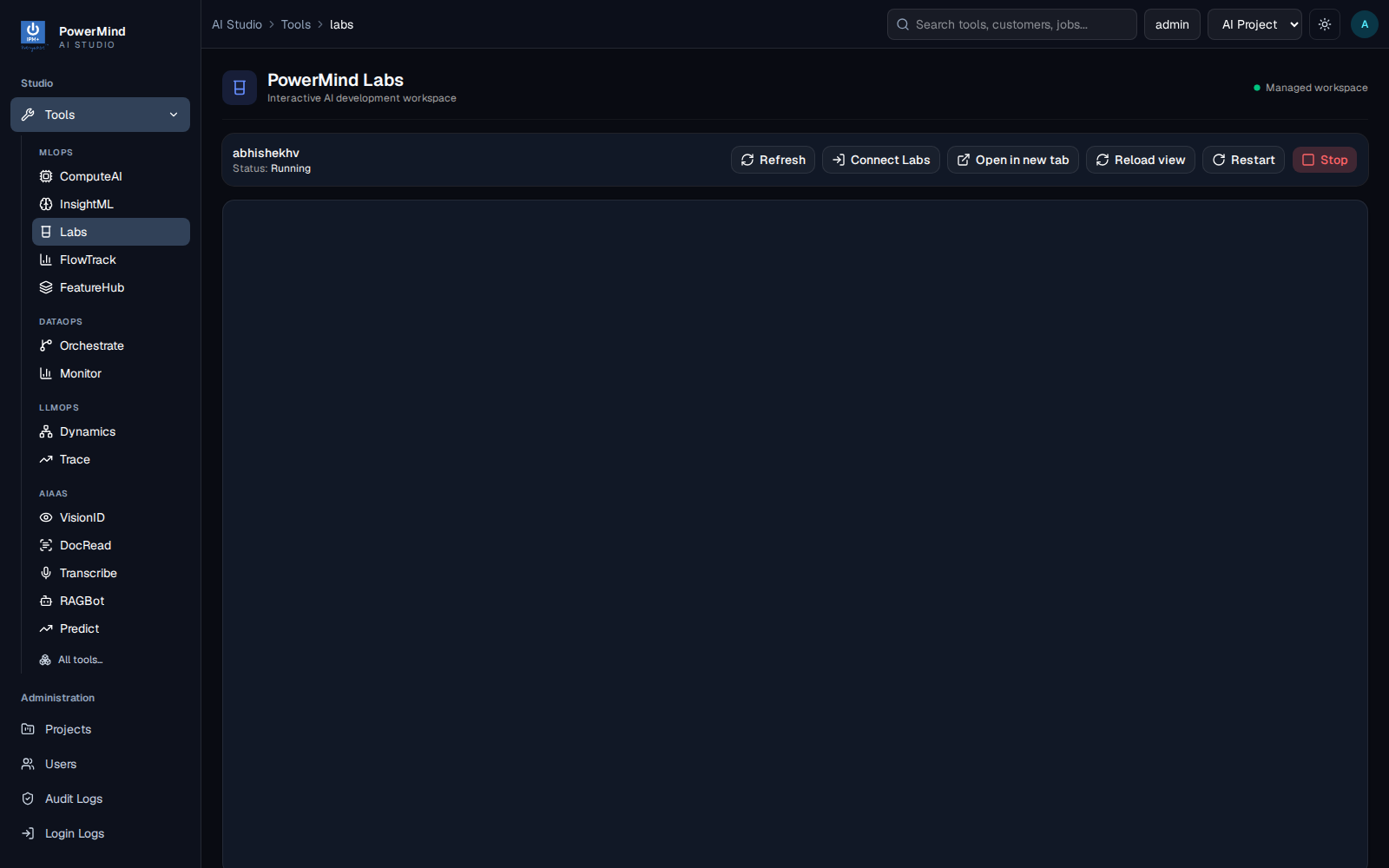
The Labs page shows the selected user's workspace state and the available workspace controls.
Studio checks the Labs service and your personal workspace. During the first connection, the page may briefly redirect while Studio establishes a secure Labs session. You do not need to sign in a second time.
Note
Each user receives a personal Labs workspace. Changing the selected Studio project changes the project context used to open and manage the workspace.
Understand workspace status
The workspace card shows the Labs username and current status.
| Status | Meaning | What to do |
|---|---|---|
| Not provisioned | A Labs account has not been prepared for the current user. | Select Connect Labs or contact an administrator if provisioning does not complete. |
| Stopped | The personal workspace exists but its server is not running. | Select Start workspace. |
| Starting | Labs is preparing the notebook server. | Wait for the page to refresh. Do not repeatedly select Start. |
| Running | The workspace is ready. | Work in the embedded view or open it in a new tab. |
| Stopping | The server is shutting down. | Wait until the status changes to Stopped. |
| Failed or Unavailable | Studio could not manage or reach the Labs service. | Select Refresh once, then use the troubleshooting section below. |
Connect your Labs account
When Connect Labs is displayed:
- Select Connect Labs.
- Allow the browser to complete the short redirect.
- Wait to return to the Labs page in Studio.
Studio uses your existing PowerMind identity to establish the Labs browser session. The connection is short-lived and does not expose a password to the workspace.
Start the workspace
If the status is Stopped, select Start workspace. The status changes to Starting while JupyterLab is prepared. When startup completes, the status changes to Running and the workspace appears in the page.
Startup can take longer when an environment is being prepared for the first time. Keep the Studio page open until the operation completes.
Use the embedded workspace
When the workspace is running, JupyterLab is displayed inside Studio. You can:
- Create and run PowerMind notebooks.
- Upload, open, rename, and download files.
- Work with Python kernels.
- Open terminals and run permitted command-line tools.
- Change JupyterLab display and editor settings.
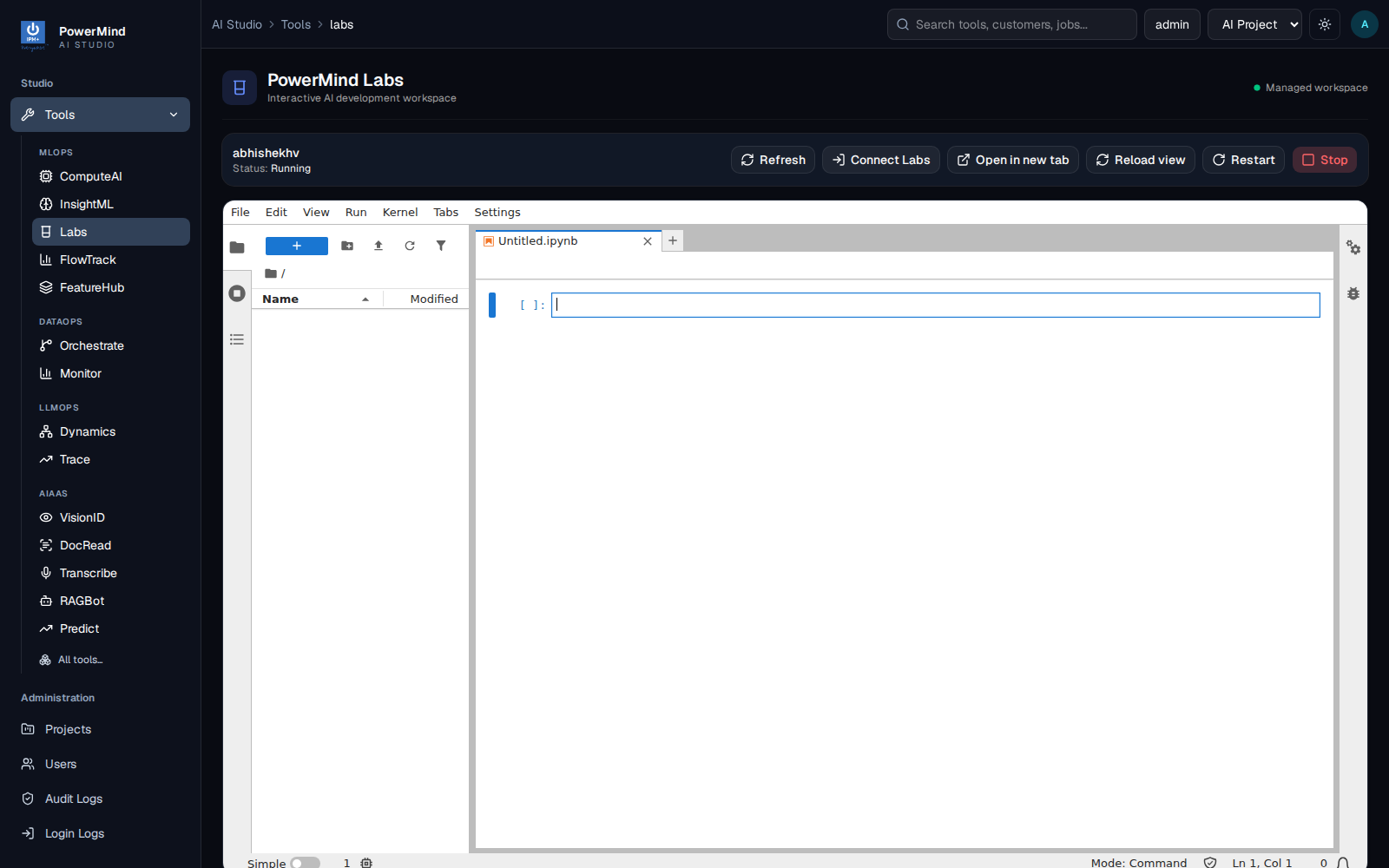
A running Labs workspace displayed inside the Studio page.
Your work is stored in your Labs user area. Save notebooks and files before restarting or stopping the workspace.
For step-by-step instructions inside JupyterLab, use the PowerMind Labs User Guide.
Workspace controls
| Control | Purpose |
|---|---|
| Refresh | Requests the latest workspace state from the Labs service. |
| Connect Labs | Establishes a new Labs browser session using your Studio identity. |
| Open in new tab | Opens the same personal workspace in a separate browser tab. |
| Reload view | Reloads only the embedded JupyterLab view. It does not restart the server. |
| Restart | Stops and starts the personal workspace server. Running kernels and in-memory variables are lost. |
| Stop | Stops the personal workspace server. Saved files remain available for the next session. |
Open Labs in a new tab
Select Open in new tab when you need more screen space. The new tab uses the same authenticated workspace. If it opens a sign-in page instead, return to Studio, select Connect Labs, and try again.
Restart or stop the workspace
Use Restart when the server or multiple kernels are unresponsive. Save all open files first. Restarting clears running processes, terminal sessions, and unsaved in-memory variables.
Use Stop when you have finished working:
- Save notebooks and other files.
- Shut down important kernels or terminals when appropriate.
- Select Stop.
- Wait for the status to change to Stopped.
Stopping the server does not delete saved workspace files.
Troubleshooting
Labs remains unavailable
- Confirm that the correct Studio project is selected.
- Select Refresh once.
- Confirm that Labs is enabled for your account and project.
- Ask an administrator to check the Labs service if the unavailable message persists.
Labs account is not provisioned
Select Connect Labs and allow the redirect to complete. If the account is still not provisioned, an administrator must verify your Labs group membership and service permissions.
The embedded workspace is blank
- Select Connect Labs to renew the browser session.
- Select Reload view.
- Perform a hard browser refresh if the old page remains cached.
- Try Open in new tab to determine whether the issue is limited to the embedded view.
Do not attempt to open the identity-provider login page inside the embedded workspace. Authentication must be completed through the Studio connection flow.
The workspace is stuck in Starting or Stopping
Wait briefly and select Refresh. If the state does not change, contact an administrator rather than repeatedly issuing start, stop, or restart requests.
A notebook is unresponsive
Interrupt or restart the notebook kernel from JupyterLab first. Restart the entire Labs workspace only when the kernel-level recovery does not work.
Changes disappeared after restart
Restarting clears kernel memory. Only saved notebooks and files persist. Run the required notebook cells again to recreate variables and imported state.
Recommended practices
- Verify the selected project before starting work.
- Save notebooks frequently.
- Use Reload view for display problems and Restart for server problems.
- Stop the workspace when it is no longer needed.
- Do not share authenticated Labs URLs or browser-session links.
- Sign out of Studio when using a shared computer.