Getting Started — First login to first transcript
Use this if you have never opened Transcribe. You need a Studio URL from your operator and a username/password (corporate credentials).
1. Sign in to PowerMind AI Studio
Open the Studio URL your team gave you. You should see Sign in to PowerMind AI Studio.
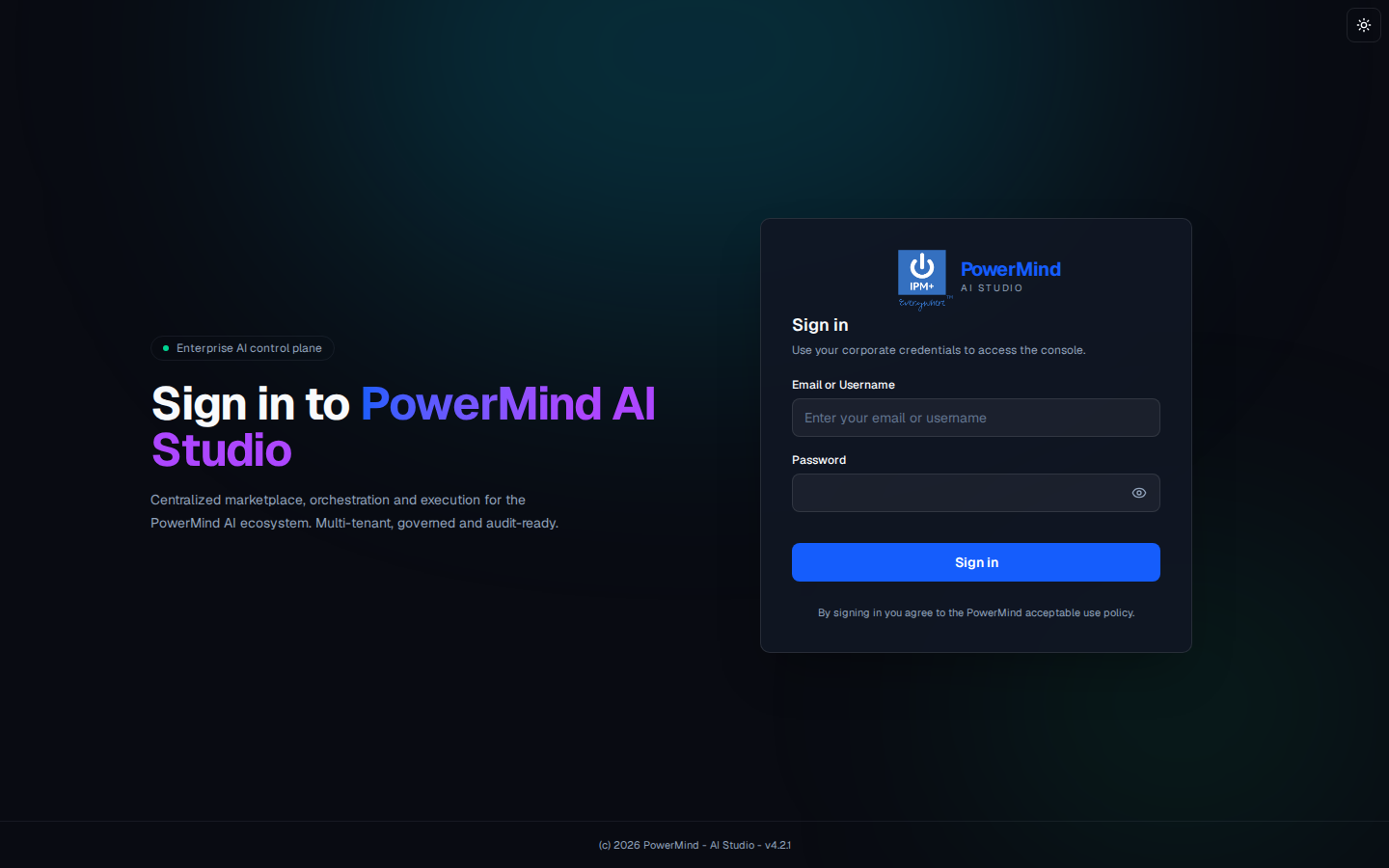
- Enter Email or Username.
- Enter Password (eye icon shows/hides the password).
- Click the blue Sign in button.
- Optional: sun icon (top right) switches light/dark theme.
2. Confirm the project and open Transcribe
After login you land on Tool Marketplace.
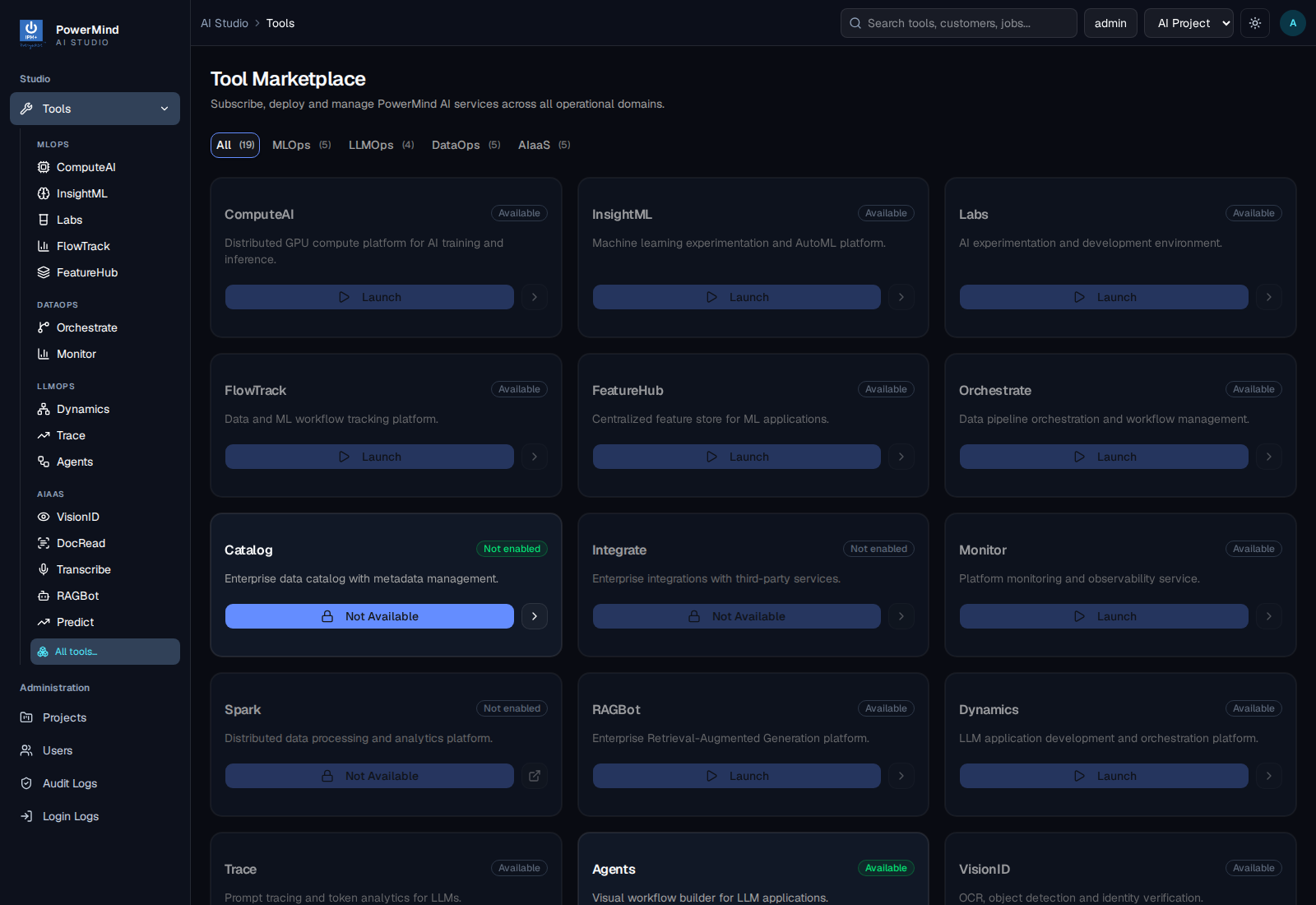
- Confirm the project in the top bar (for example AI Project).
- Filter AIaaS if you want a shorter list.
- Find Transcribe (Speech-to-text engine supporting 100+ languages).
- Click Launch when the card is Available. If it says Not enabled, ask an admin to enable the Transcribe service for the project, or open the tool URL your operator gave you (
…/app/tools/transcribe). - Breadcrumb becomes
AI Studio > Tools > transcribe. Header: PowerMind Transcribe — Enterprise speech-to-text · AIaaS.
3. Check the Dashboard
You should see Dashboard with TRANSCRIPTION SUMMARY and USAGE METRICS.
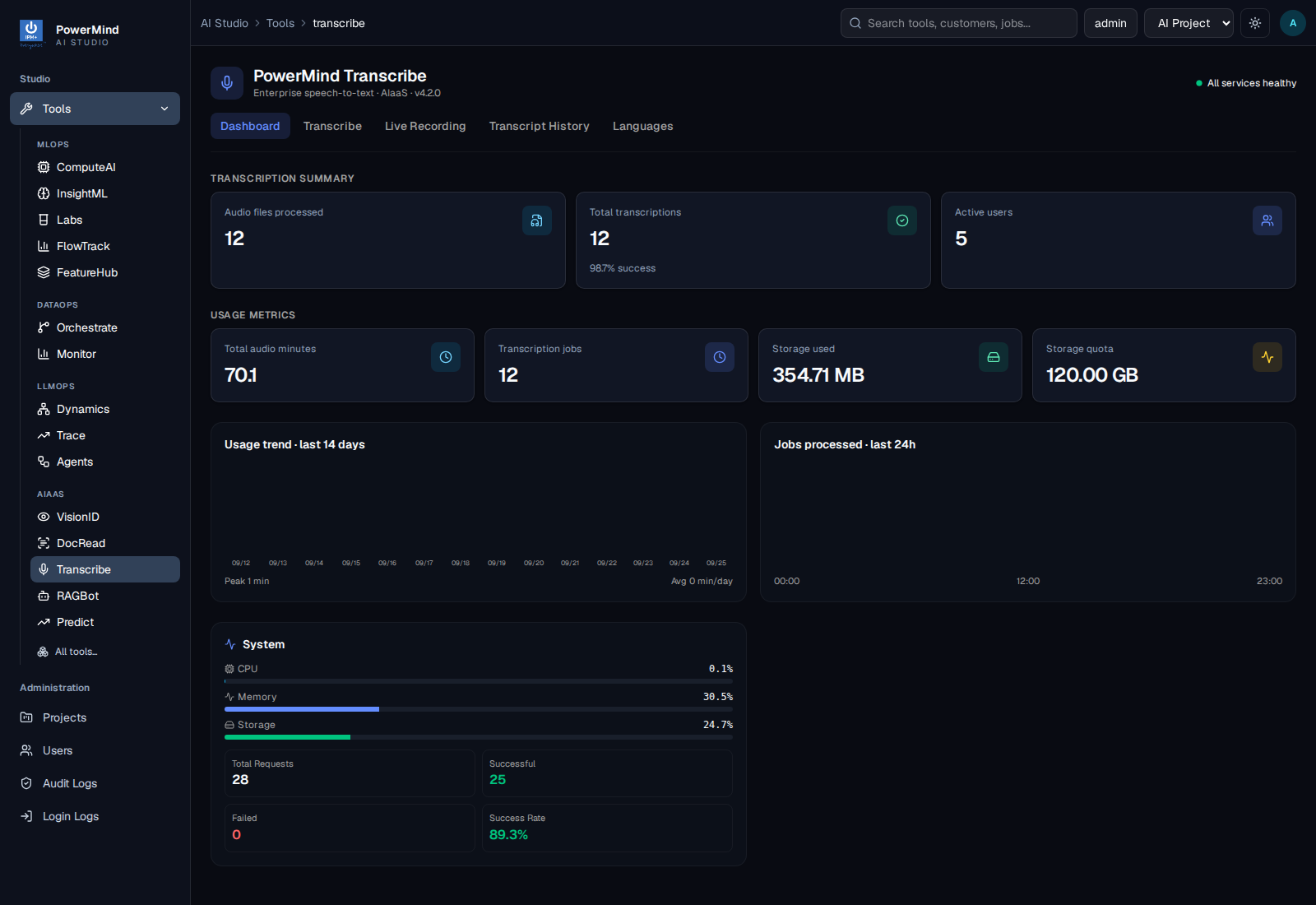
This is a snapshot only. It does not transcribe audio. Typical cards: audio files processed, total transcriptions, active users, audio minutes, jobs, storage.
4. Transcribe a file
Open the Transcribe tab.
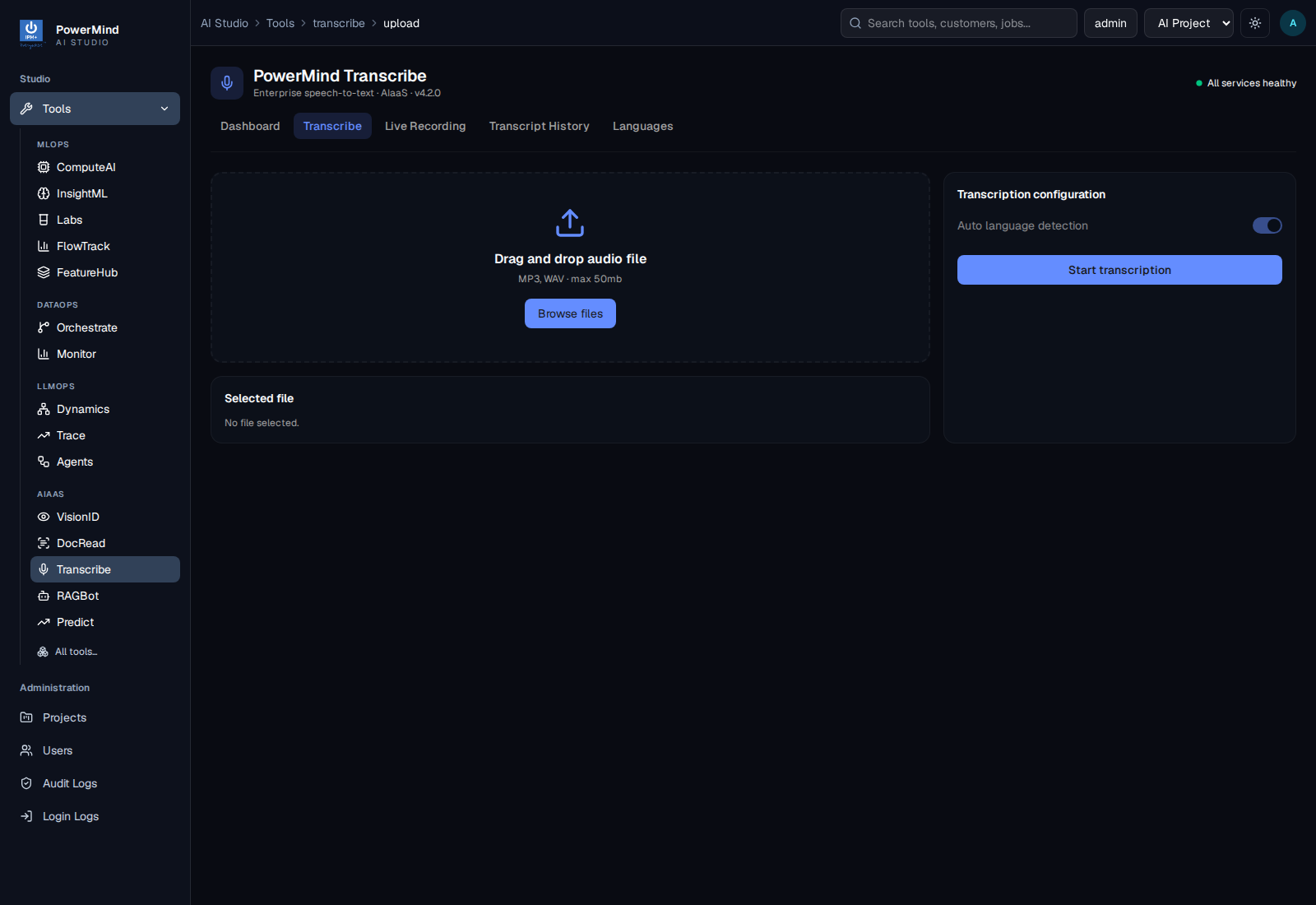
- Drag and drop an MP3 or WAV (max size shown on the page, for example 50 MB), or click Browse files.
- Wait until the selected file name appears.
- Start transcription (button on that page). When it finishes, the text is stored as a job.
- Open Transcript History to read or export it.
5. Or record live
Open Live Recording.
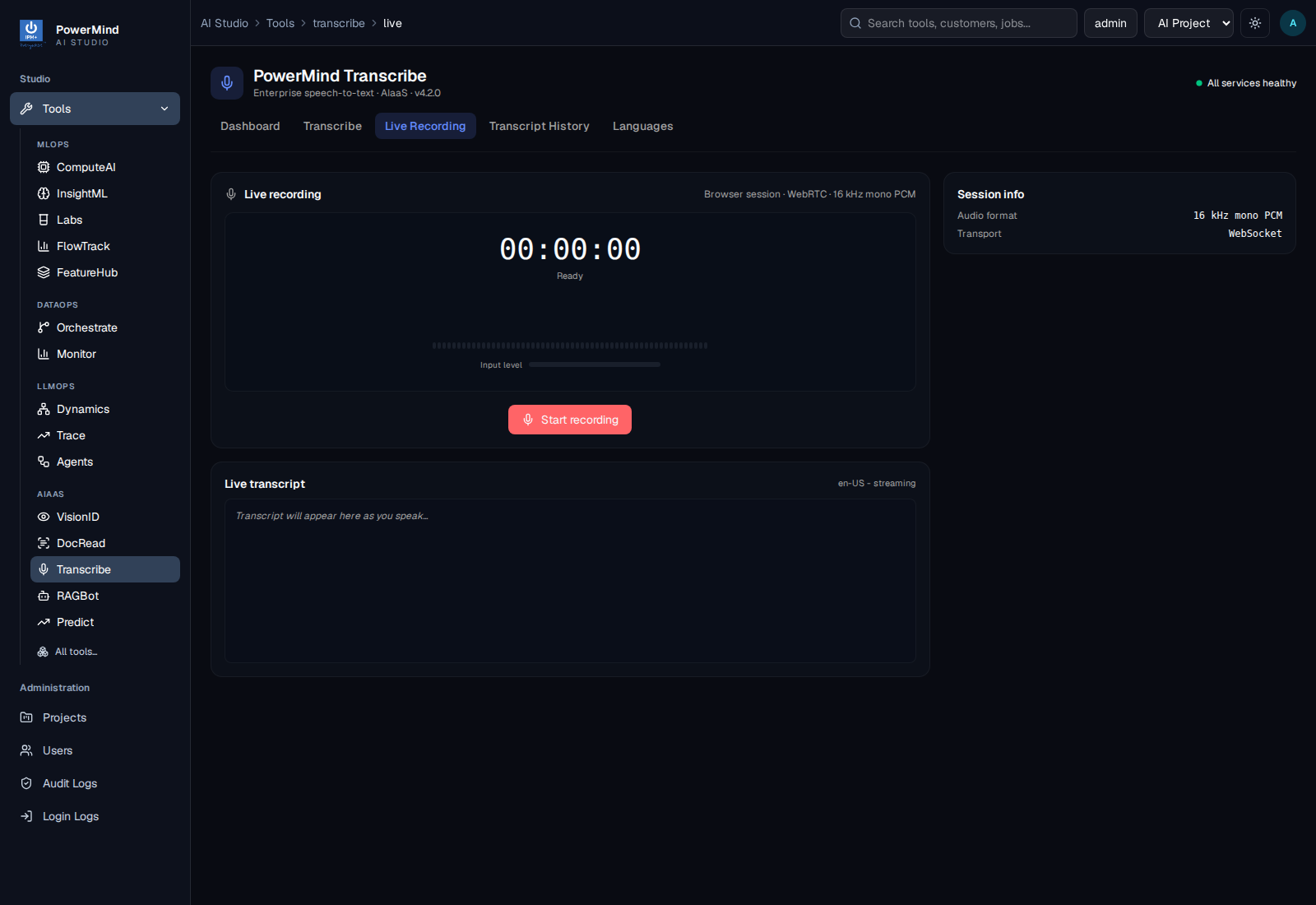
- Allow the browser to use your microphone (HTTPS or localhost).
- Click Start recording. Speak clearly.
- Text appears under Live transcript. First speech result can take several seconds.
- Stop when you are done.
6. Find an old transcript
Open Transcript History.
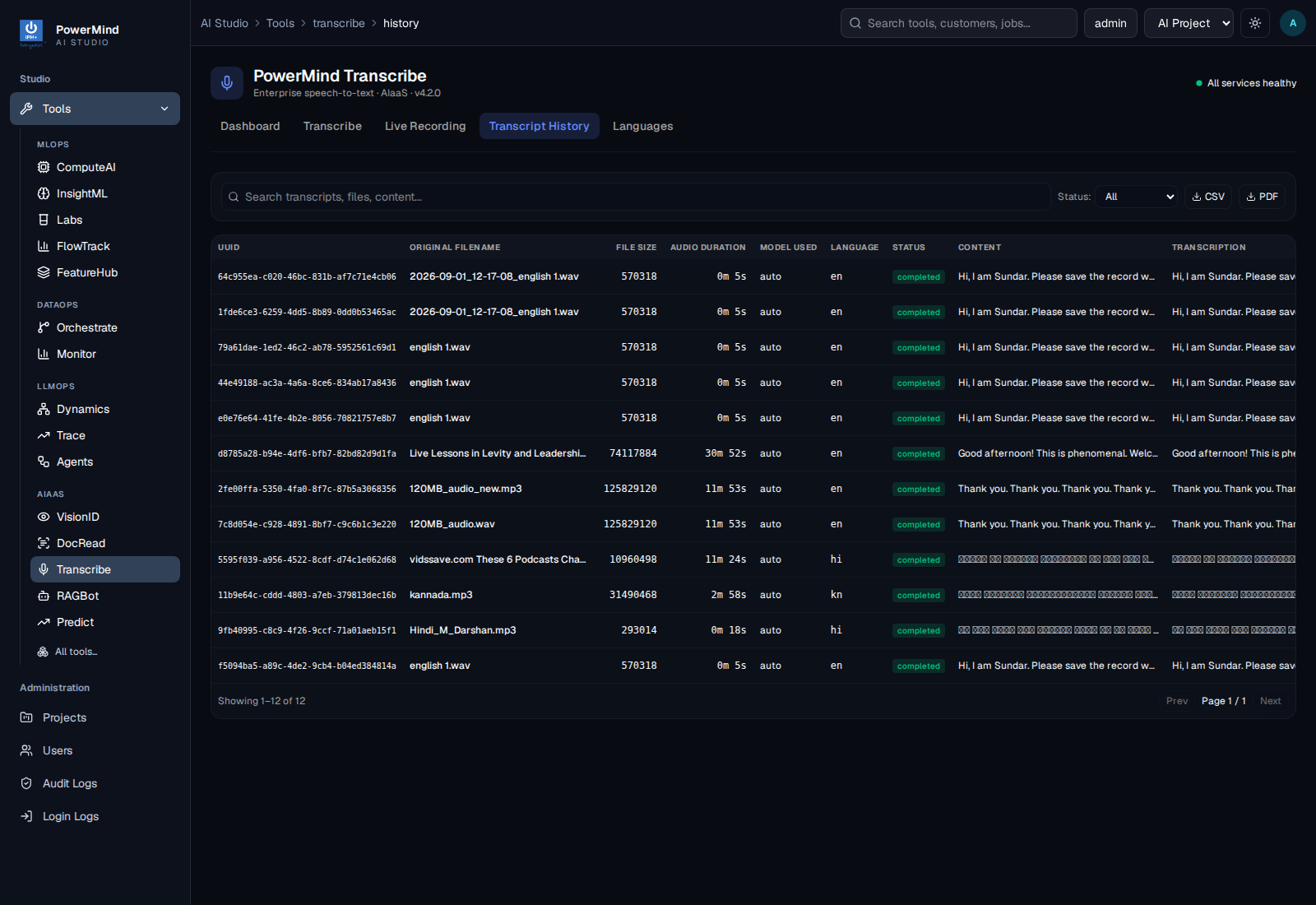
Filter by All / Completed / Processing / Queued / Failed. Export CSV or PDF when you need a file.
You now know the full user path. For every screen in more detail, see the User Guide.