Getting Started — First login to first Playground run
Use this if you have never opened AI Flow. You need a Studio URL from your operator and a username/password (corporate credentials).
1. Sign in to PowerMind AI Studio
Open the Studio URL your team gave you. You should see Sign in to PowerMind AI Studio.
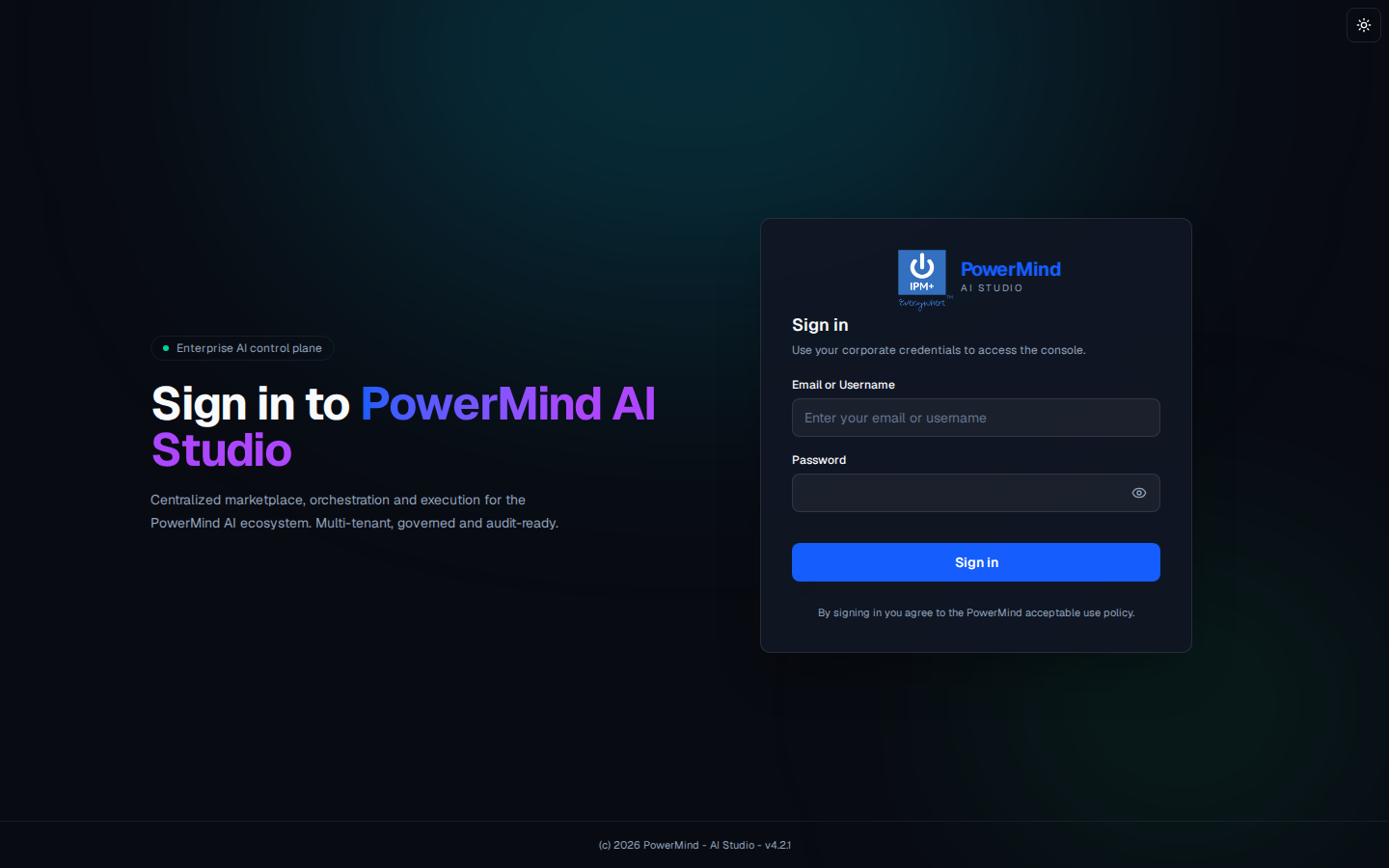
- Enter Email or Username.
- Enter Password (eye icon shows/hides the password).
- Click the blue Sign in button.
- Optional: sun icon (top right) switches light/dark theme.
2. Select the project
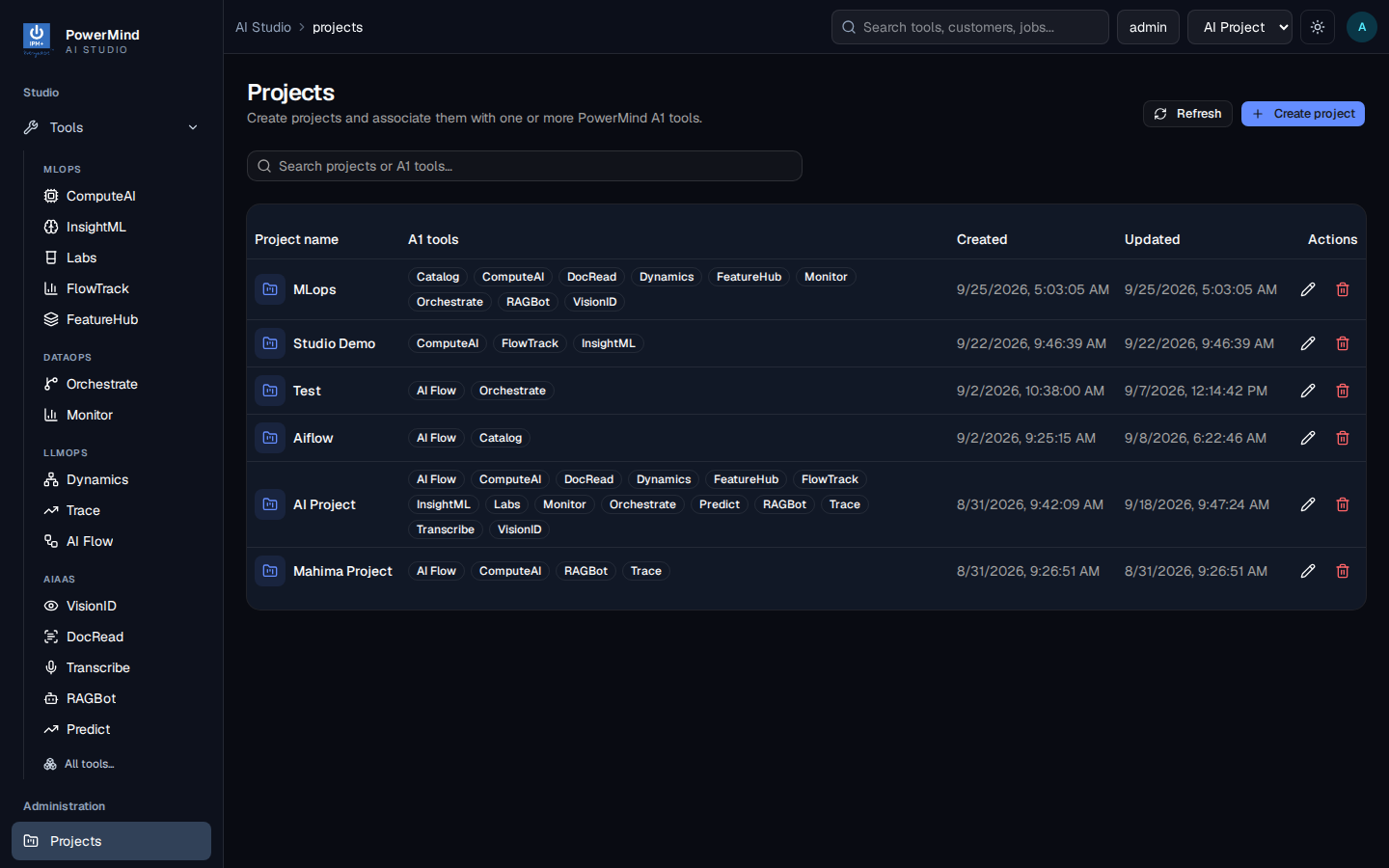
In the top bar, set the project dropdown to AI Project (or the project your team uses). Flows are scoped to this project. If the wrong project is selected, the flow list will look empty or unfamiliar.
Confirm on Projects that AI Flow is attached to that project.
3. Open AI Flow from the Tool Marketplace
After login you land on Tool Marketplace.
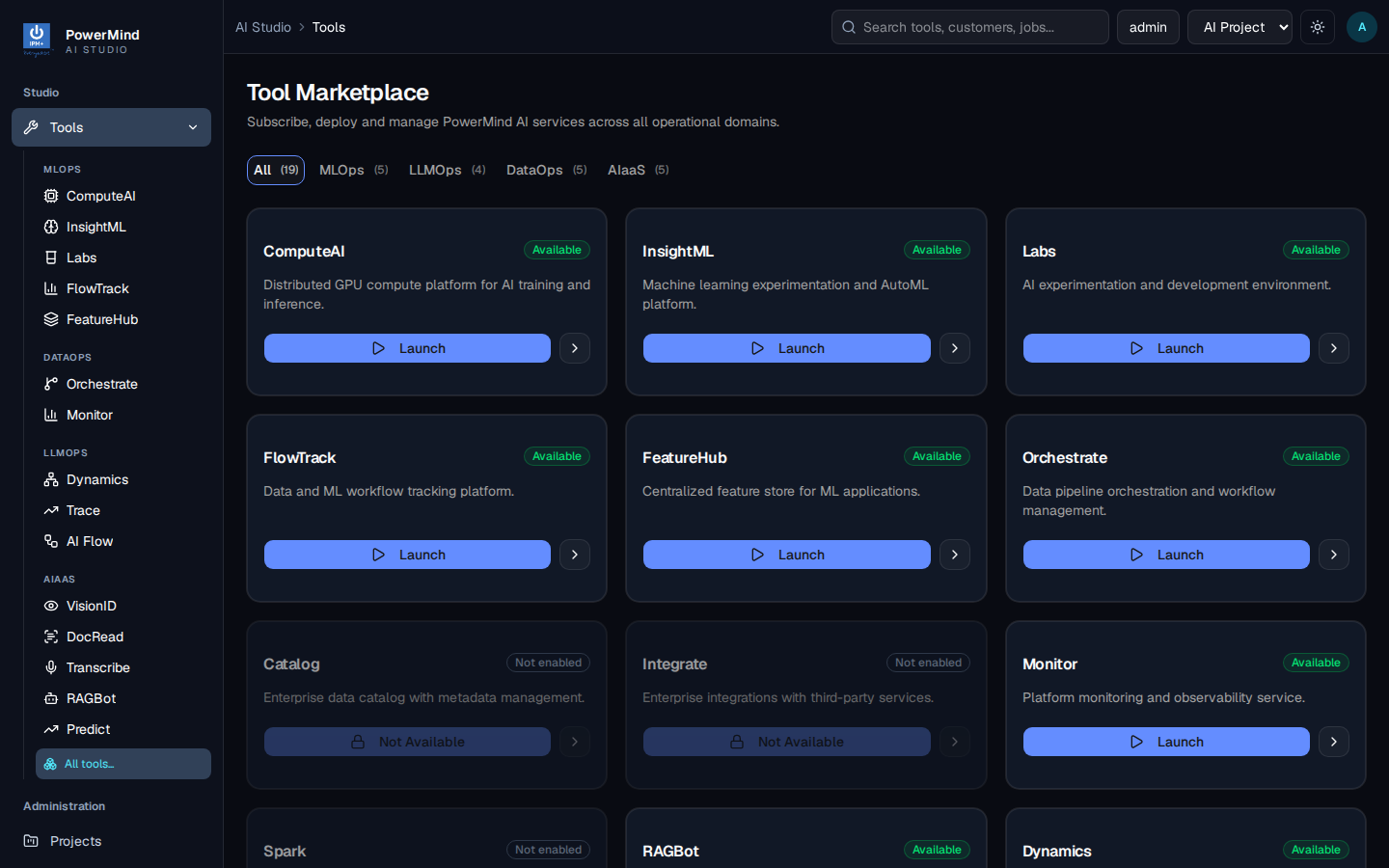
- In the left menu, LLMOPS includes AI Flow.
- Filter LLMOps to see AI Flow with Dynamics and Trace.
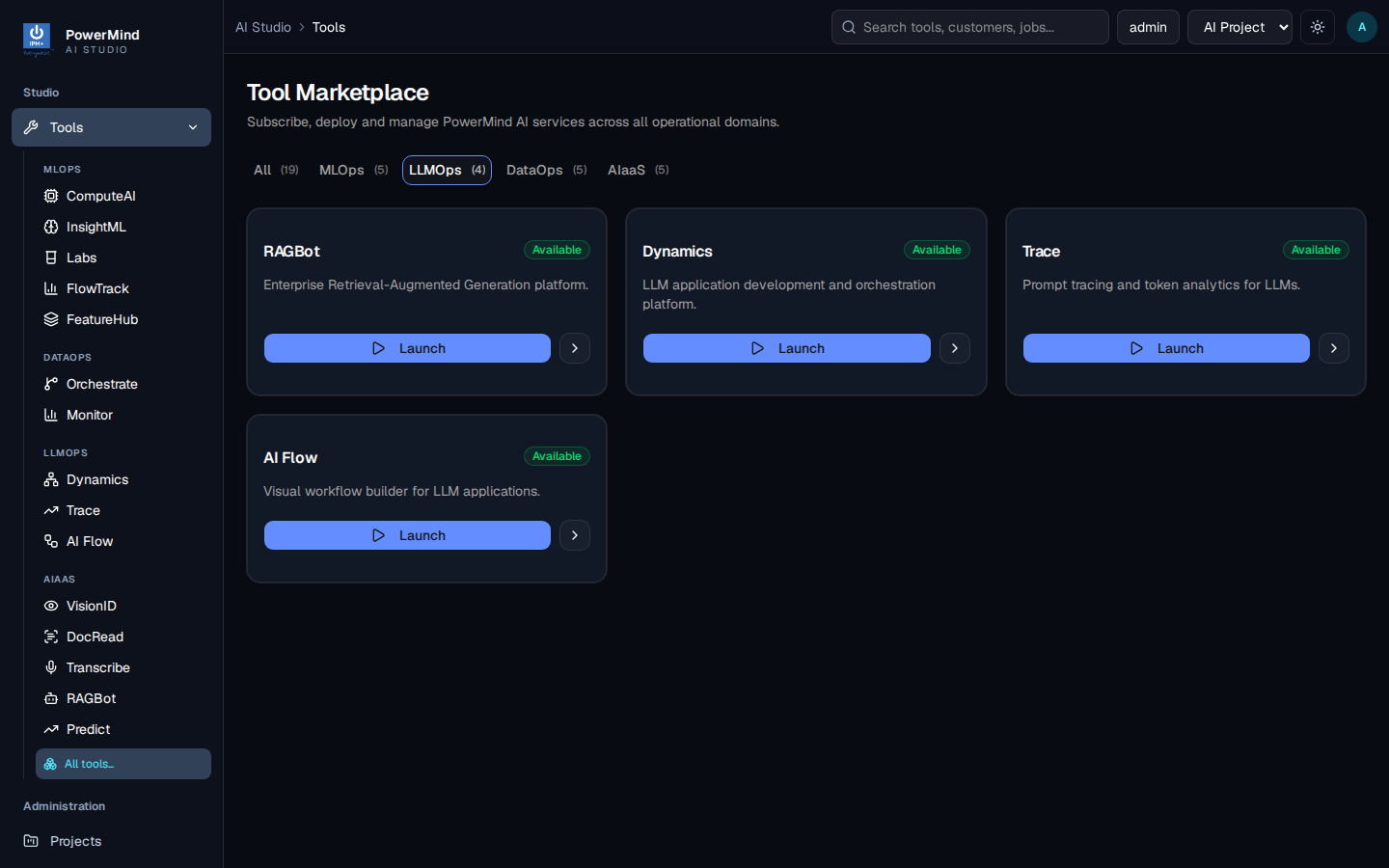
- Click Launch on the AI Flow card, or click AI Flow in the left menu.
- Breadcrumb becomes
AI Studio > Tools > aiflow.
4. Check the flow list
You should see AI Flow — Build, manage, and run AI-powered workflows using visual flow orchestration.
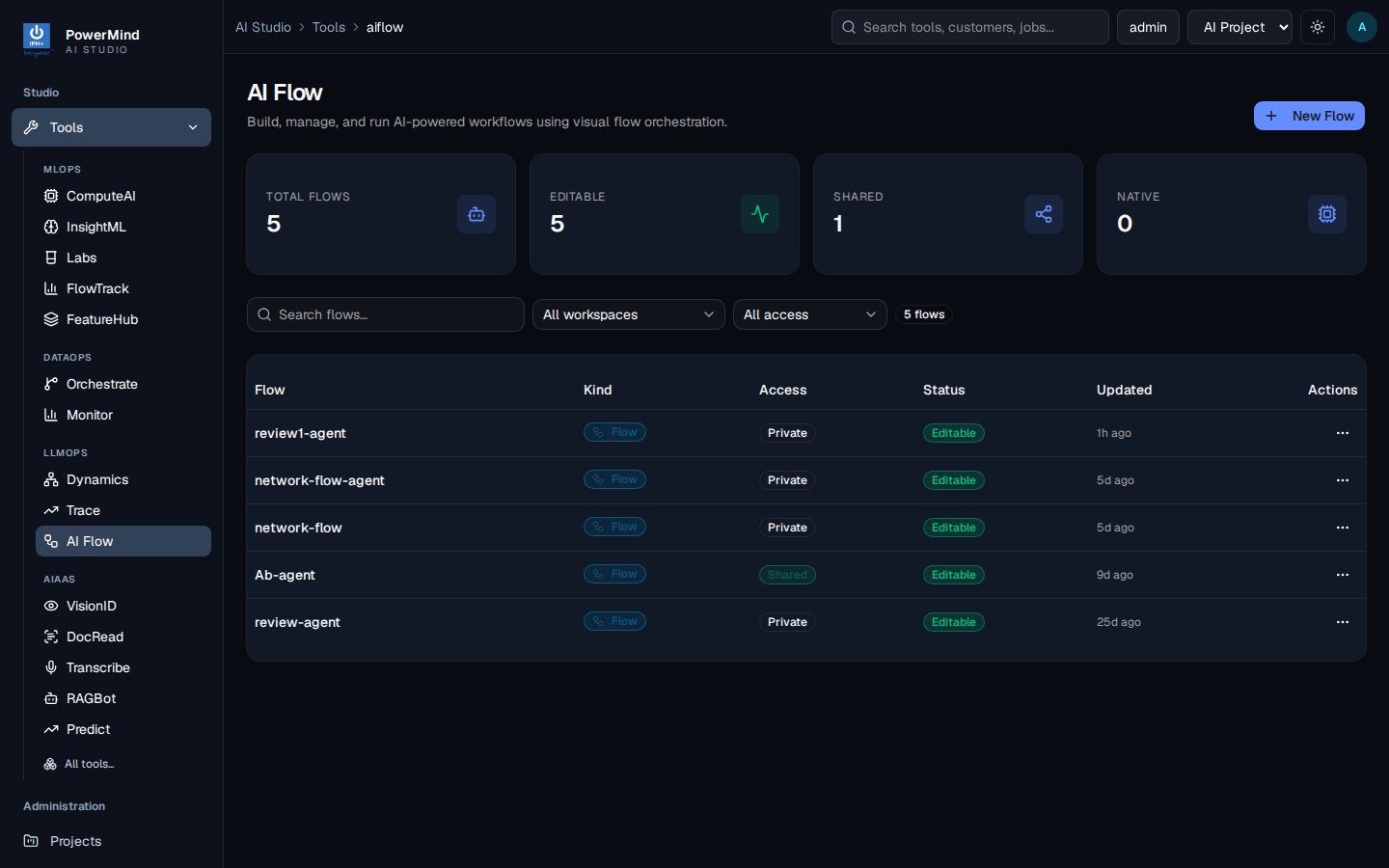
Cards at the top: Total flows, Editable, Shared, Native. The table lists each flow name, kind (Flow or Native), access, status, and last update.
5. Open a flow and look at the graph
Click a flow name (for example network-flow). You enter the editor: Graph, Playground, Tools, Versions, Settings.
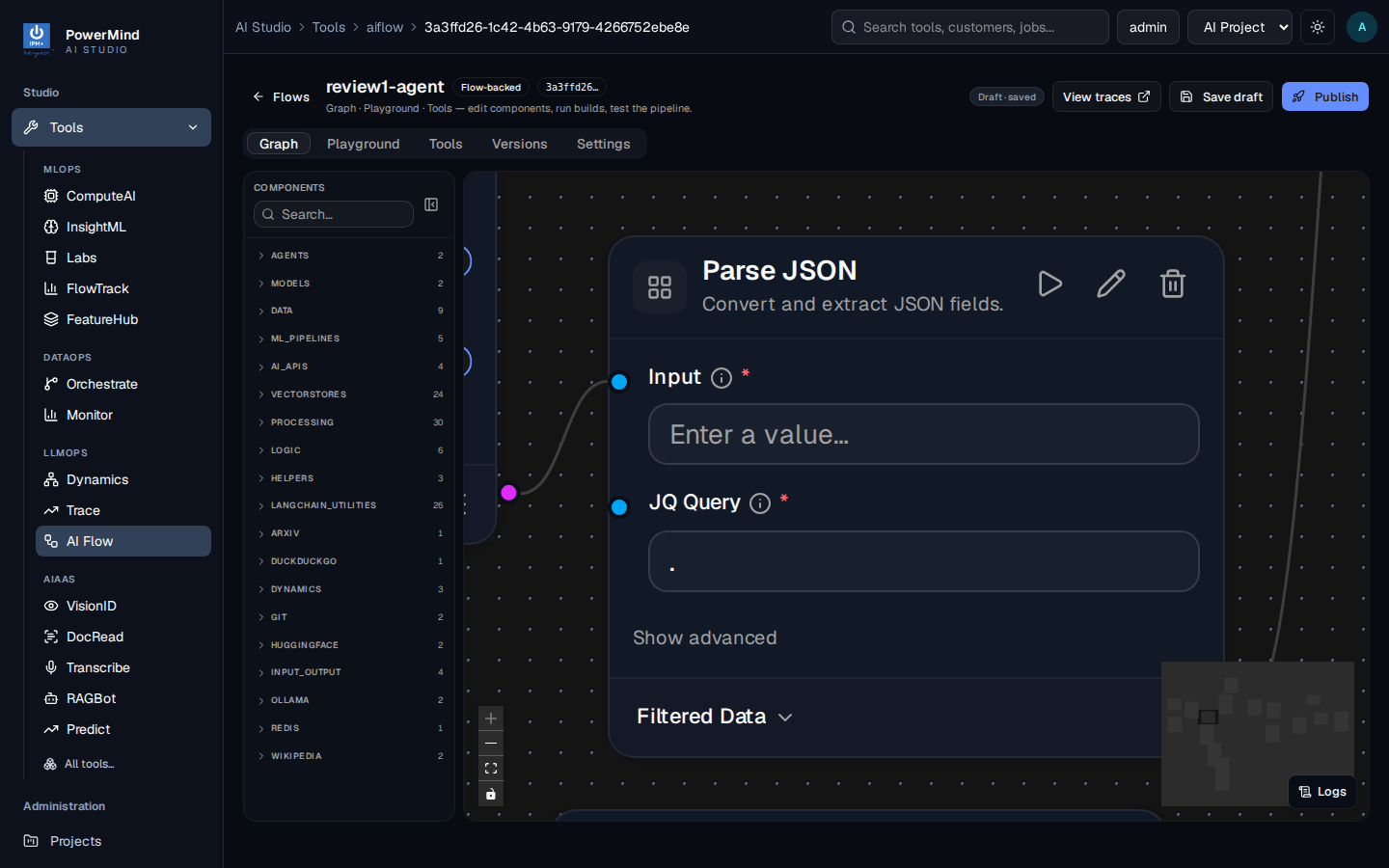
Left: Components palette (Agents, Models, Dynamics, Vector stores, Processing, …). Center: the canvas. Top right: Save draft and Publish.
6. Run Playground
Open the Playground tab. Type a message in Message this flow… and click Send.
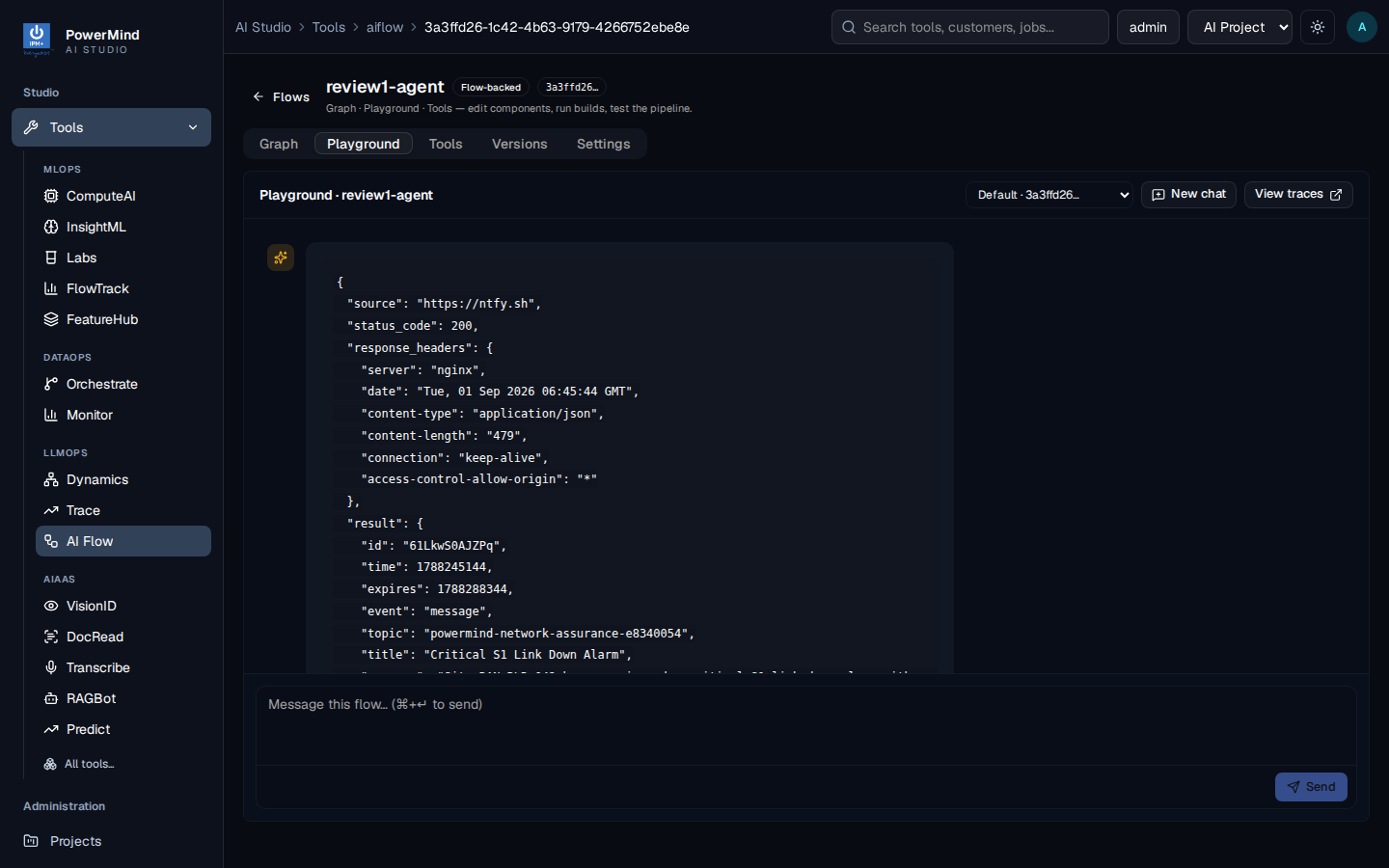
Use New chat for a fresh thread. View traces opens observability (Trace) for this run.
You now know the full user path. For every screen in more detail, see the User Guide.