PowerMind InsightML: FeatureHub Integration Guide
PowerMind InsightML integrates natively with PowerMind FeatureHub, the centralized enterprise feature store. This integration allows data science and engineering teams to train AutoML models directly on governed, versioned feature views without manual CSV exports or offline ETL data pipelines.
1. Overview of FeatureHub Integration
FeatureHub serves as the single source of truth for machine learning features across the enterprise. By connecting InsightML to FeatureHub:
- Consistent Feature Definitions: Share standardized feature transformations between offline training and online serving.
- Zero-ETL Dataset Creation: Pull curated entity feature sets directly into InsightML experiments with one click.
- Automated Data Validation: Preserve data types, column descriptions, and lineage automatically.
2. Configuring the FeatureHub Data Source in InsightML
To enable FeatureHub connectivity within an InsightML workspace:
- Navigate to the Workspace tab in the InsightML console.
- Under the workspace table, find your active workspace row and click the FeatureHub action button.
- In the FeatureHub Datasource configuration modal, provide the following connection parameters:
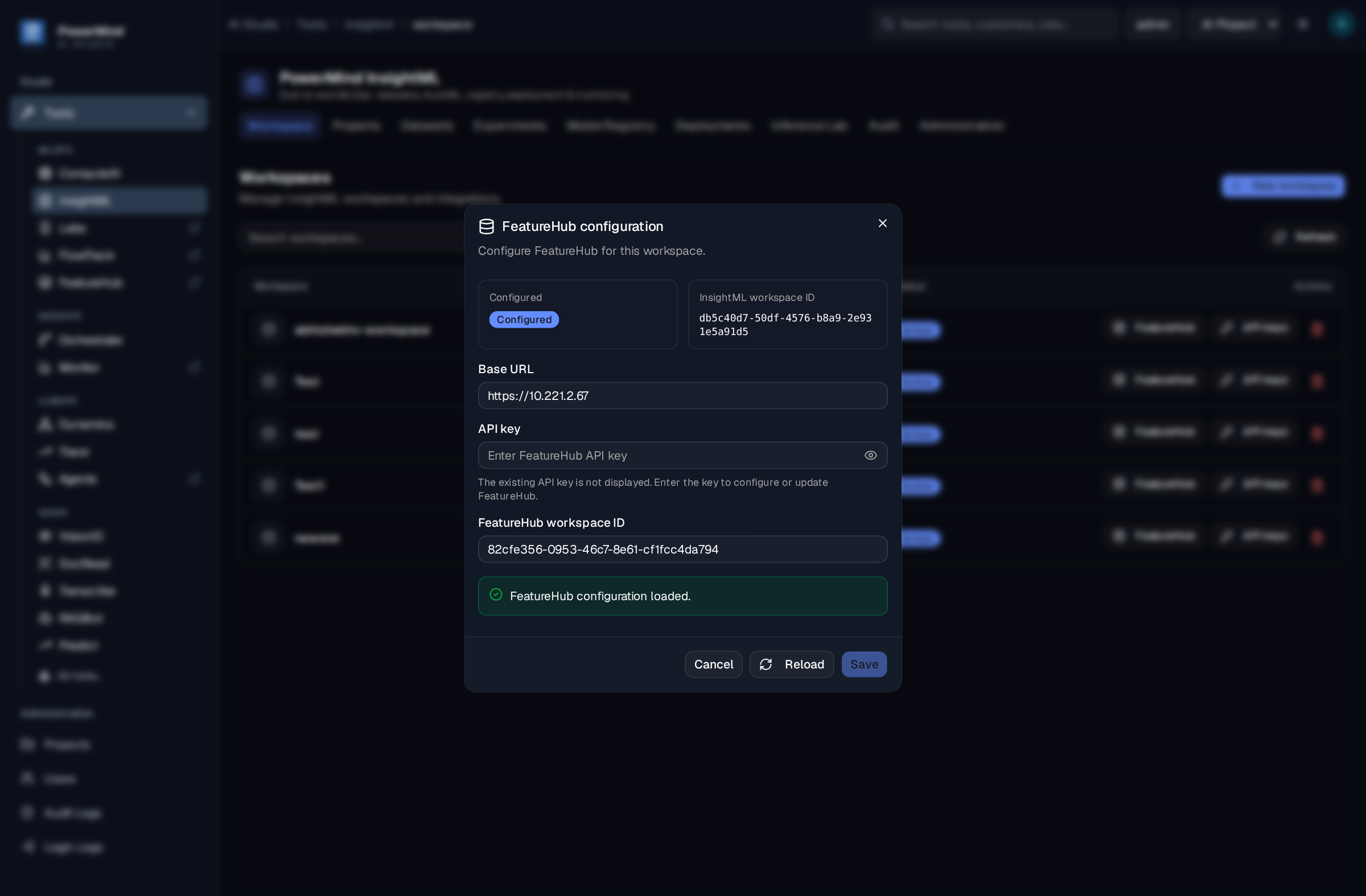
- Base URL: The REST endpoint of your enterprise FeatureHub deployment (e.g.,
https://featurehub.<your-domain>.com). - API Key: Scoped FeatureHub access token with read permissions.
- FeatureHub Workspace ID: Target UUID identifying the FeatureHub workspace (e.g.,
550e8400-e29b-41d4-a716-446655440000). - Click Save Datasource Configuration. InsightML validates the connection and displays the configured status JSON.
3. Creating FeatureHub-Backed Datasets
Once the FeatureHub data source is configured, you can create datasets directly from feature views:
- Navigate to the Datasets tab in the InsightML console.
- Locate the Create FeatureHub dataset card in the datasets action area:
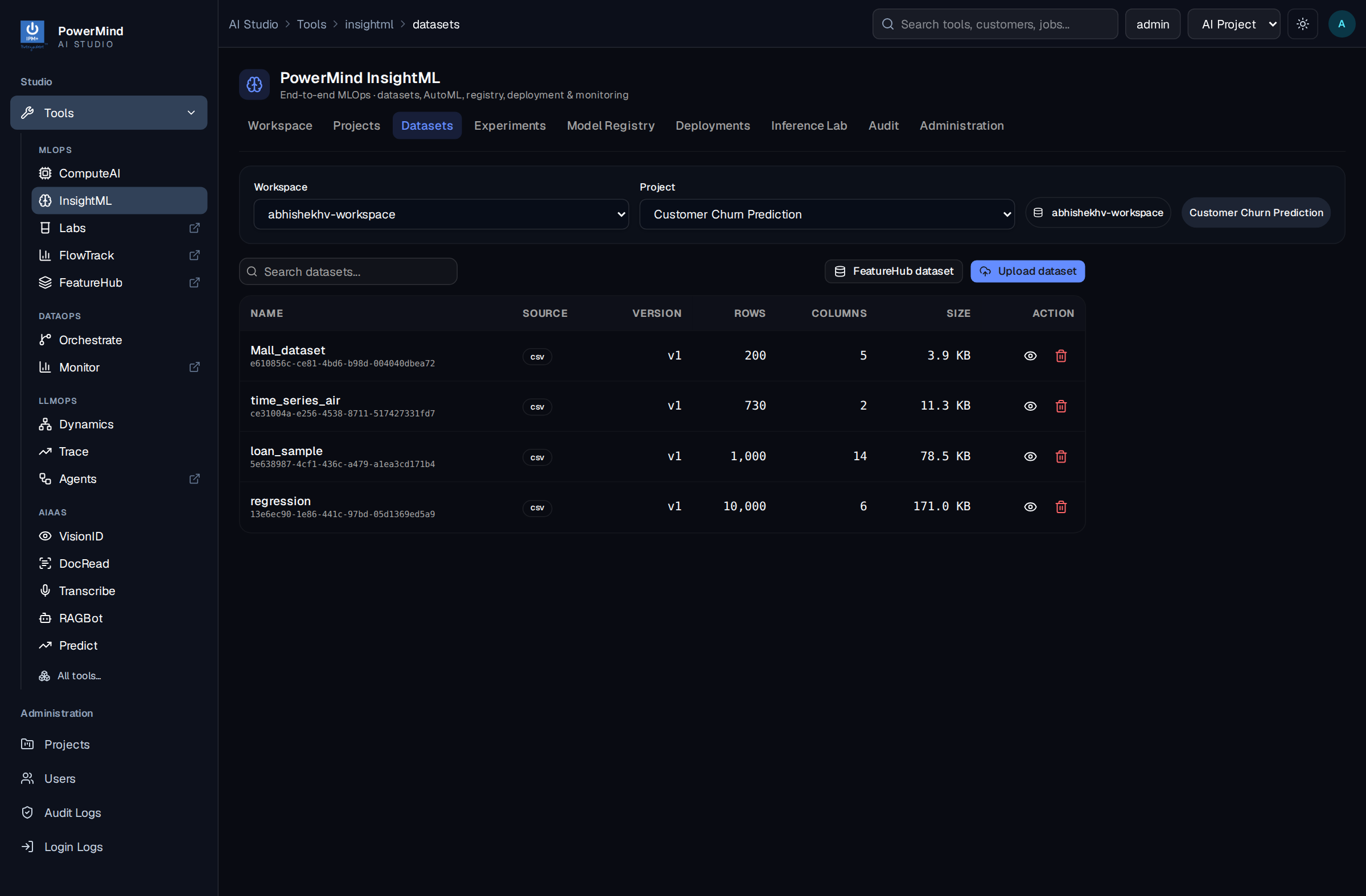
- Fill in the dataset creation form:
- Dataset Name: A unique identifier for the dataset inside InsightML (e.g.,
customer-features-v2). - Feature Name: The exact name of the published feature view registered in FeatureHub (e.g.,
user_transaction_aggregates_30d). - Click Create FeatureHub dataset.
- InsightML queries FeatureHub, retrieves the schema and records, registers the dataset in your workspace, and makes it available for immediate AutoML training runs.
4. Using FeatureHub Datasets in AutoML Experiments
FeatureHub datasets behave identically to uploaded CSV datasets throughout the AutoML lifecycle:
- In the Experiments tab, select the FeatureHub dataset from the Dataset dropdown.
- InsightML automatically discovers all feature columns and displays them for target variable selection.
- During training, InsightML records the FeatureHub feature view name and version in the experiment metadata for complete lineage and reproducibility.