PowerMind ComputeAI User Guide
The PowerMind AI Studio Web UI is an enterprise-grade control plane that simplifies and accelerates every stage of the deep learning lifecycle. By combining a modern web interface with powerful automated cluster orchestration, ComputeAI frees data scientists and ML engineers from infrastructure boilerplate—enabling teams to move from raw data to scalable, production-ready inference endpoints in minutes.
🌟 Real-World Use Case & User Story
Alex's Journey: Scaling Sentiment Classification from Research to Production
The Persona: Alex is a Senior Machine Learning Engineer tasked with developing a high-throughput Customer Sentiment Classification model for a high-volume financial services platform.
graph LR
    A["1. Upload Raw Dataset<br/>(ZIP Archive)"] --> B["2. Write Clean Script<br/>(No Checkpoint Code)"]
    B --> C["3. 1-Click Launch<br/>(GPU Worker Cluster)"]
    C --> D["4. Auto-Checkpointing &<br/>Live Metrics"]
    D --> E["5. 1-Click Deploy<br/>(Triton Server)"]
    E --> F["6. Issue API Key &<br/>Serve Real-Time REST"]
The End-to-End Workflow:
- Zero-Friction Ingestion: Alex logs into PowerMind AI Studio, selects ComputeAI, and uploads
customer_reviews_500k.zipvia the Workspace Upload Modal. With "Extract archive" enabled, the platform unpacks 500,000 text records directly into the isolated$DATASET_DIR. - Pure Model Code: Alex writes a PyTorch script. Thanks to ComputeAI's autowrapper, Alex does not need to write checkpoint saving/loading logic or hardcode storage paths. The script simply loads data from
$DATASET_DIRand starts the epoch loop usingstart_epoch = resume_epoch. - Interactive Job Dispatch: Alex opens the Training Jobs view, selects
PyTorch,GPU, and a checkpoint interval of5epochs, and attaches the local.pyfile. Alex clicks Submit Job—no pre-uploading or complex Docker configs required. - Live Observability & Auto-Recovery: As training progresses, Alex watches the real-time loss and accuracy curves directly on the web dashboard. ComputeAI's autowrapper automatically persists epoch state weights to disk. When the cluster is paused for scheduled maintenance and resumed, the job seamlessly continues from epoch 35 without losing a single training step.
- Instant Production Serving: Once training concludes, the final model appears in the Model Registry. Alex clicks Deploy to launch a dedicated Triton Inference Server with dynamic batching.
- Secure Integration: Alex opens the API Key Management Modal, generates a scoped secret token, and hands it off to the backend engineering team to send high-concurrency prediction payloads.
UI Module Quick Reference
| Module | Primary Operational Purpose | Key User Benefits |
|---|---|---|
| Tool Hub | Organization sign-in and access point for AI Studio modules. | Seamless navigation across ComputeAI, InsightML, Labs, and FlowTrack. |
| Overview | Real-time aggregate telemetry, cluster health counters, and quick actions. | Instant visibility into active jobs, models, endpoints, and cluster status. |
| Workspace | Tenant-isolated cloud filesystem for datasets, code, models, and checkpoints. | Structured directories automatically mapped to runtime environment variables. |
| Training Jobs | Real-time job dashboard, live metrics plotting, logs console, and submission wizard. | 1-click dispatch, autowrapped checkpointing, and live stdout streaming. |
| Models & BYOB | Centralized neural network catalog with "Bring Your Own Model" importer. | Versioning, tensor metadata tracking, and 1-click deployment. |
| Endpoints | Low-latency Triton inference management and API key security controls. | High-throughput serving, dynamic batching, pause/resume, and instant key revocation. |
| Resources | Physical and virtual compute node inventory and capacity tracker. | Real-time visibility into CPU cores, GPU accelerators, RAM, and slot allocation. |
| Admin & Audit | Tenant quota governance, multi-user limits, and compliance logs. | Role-based controls, resource limits, and immutable audit logs. |
1. Authentication & Tool Marketplace
1.1 Secure Login Screen
Users access the platform through the enterprise PowerMind AI Studio sign-in page. The authentication subsystem enforces role-based access control (RBAC), verifying user credentials and creating an encrypted session token.

Authentication Details & Security:
- Organization account: Authenticate using the credentials assigned by your organization.
- Session Scoping: Generates an encrypted JSON Web Token (JWT) stored in browser session storage, granting role-appropriate permissions (
MemberorAdmin). - Automatic Session Renewal: Maintains uninterrupted connection during long-running training job monitoring.
1.2 Tool Marketplace Hub
After sign-in, the Tool Marketplace displays all available enterprise AI applications. Select ComputeAI to enter the deep learning compute control plane.
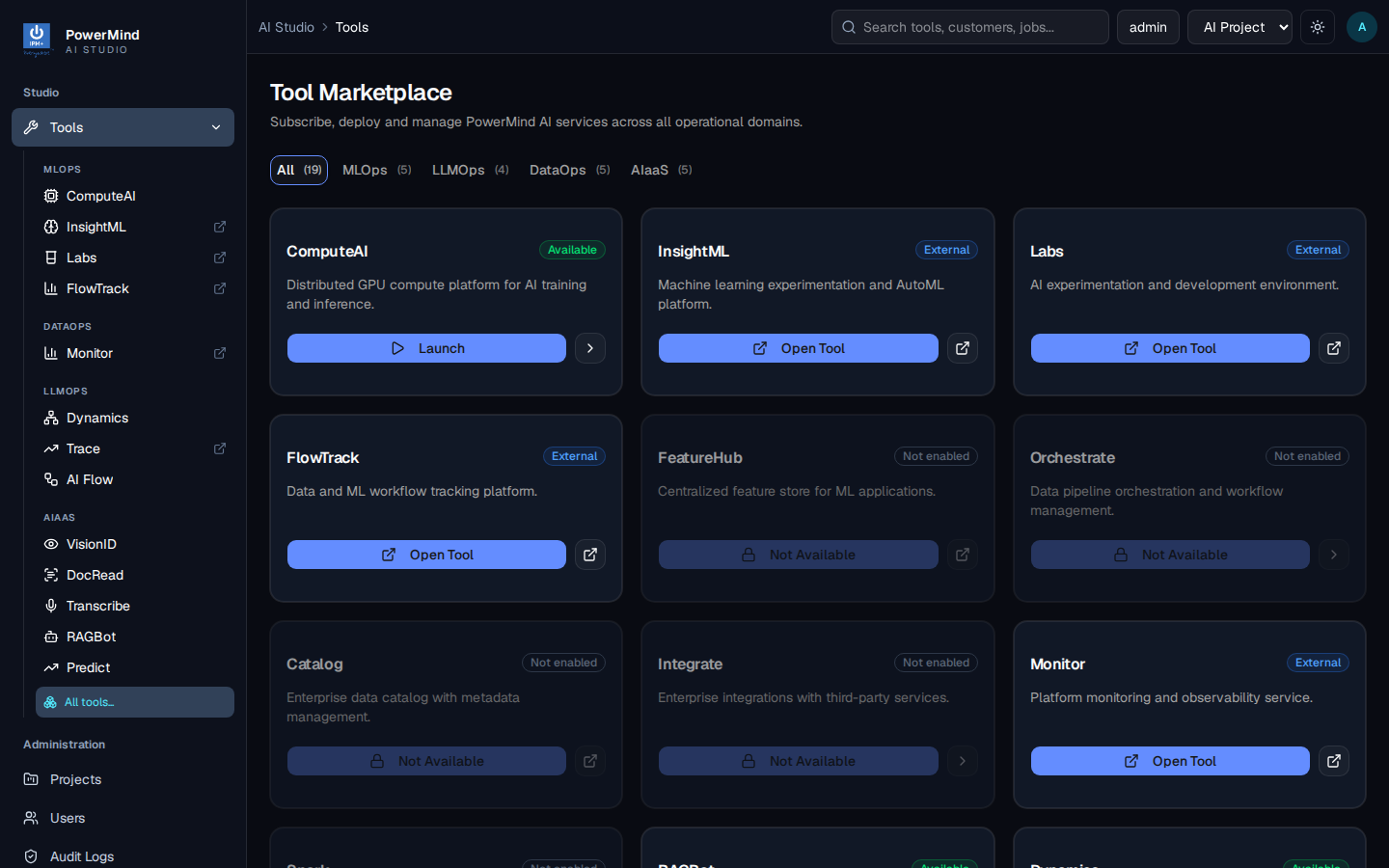
Integrated Suite Ecosystem:
- PowerMind ComputeAI: High-performance neural network training, distributed GPU clustering, and Triton inference serving.
- PowerMind InsightML: Automated dataset analytics, distribution profiling, and data quality validation.
- PowerMind Labs: Interactive Jupyter notebooks and exploratory research sandboxes.
- PowerMind FlowTrack: Workflow orchestration, pipeline DAG scheduling, and model lifecycle automation.
2. ComputeAI Studio Overview
The Overview dashboard delivers an instantaneous operational summary of your machine learning workloads, cluster health, and quick actions.
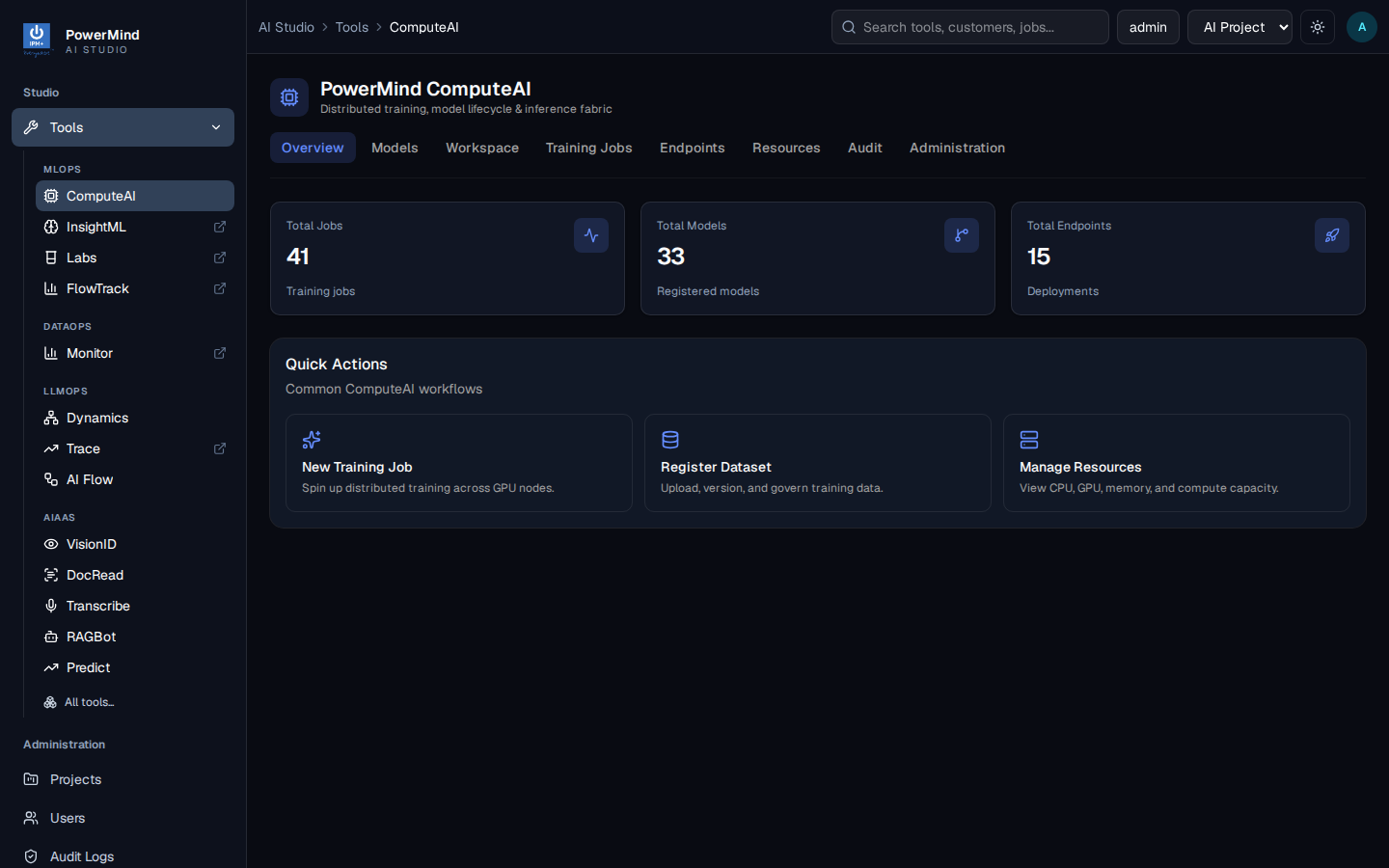
Key Metrics Displayed:
- Total Jobs: Cumulative count of queued, running, completed, and failed training jobs.
- Total Models: Versioned neural network models registered in the catalog.
- Total Endpoints: Live Triton inference services actively serving predictions.
- Cluster Health Indicator: Shows real-time heartbeat connectivity to worker nodes (
All services healthy).
Operational Shortcuts:
- + New Training Job: Opens the job submission wizard to immediately dispatch a script.
- Register Dataset: Jumps directly to the Workspace File Browser with the upload dialog open.
- Manage Resources: Opens the Worker Node inventory to inspect available CPU cores, GPU devices, and memory capacity.
3. Workspace File Browser & Dataset Ingestion
The Workspace tab provides a secure, tenant-isolated filesystem browser. Every user has a dedicated workspace directory on the cluster storage volume that is automatically mounted into worker nodes when jobs execute.
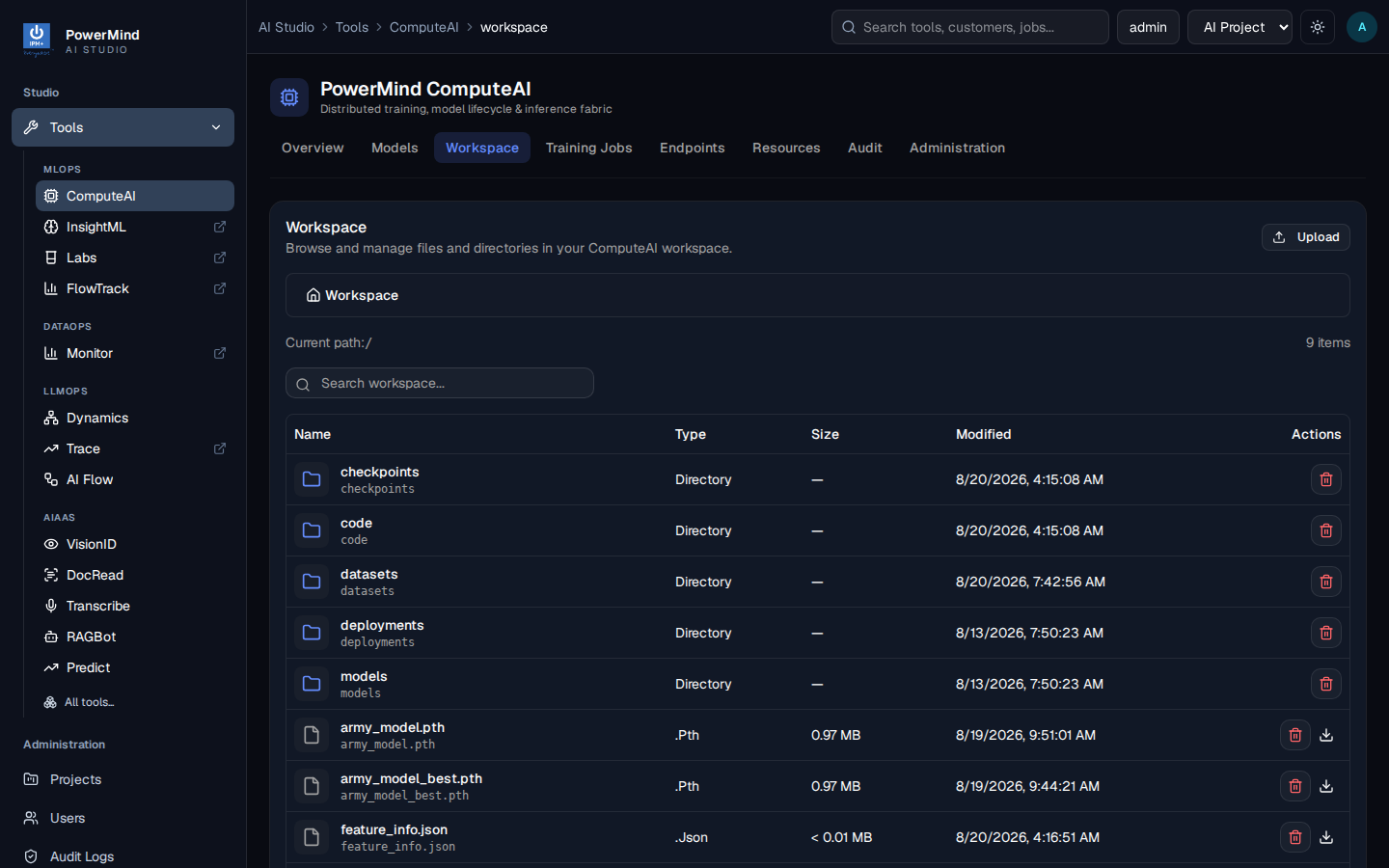
Workspace Directory Layout & Path Mapping:
| Directory | Purpose | Runtime Variable Contract | Description |
|---|---|---|---|
checkpoints/ |
Auto-managed checkpoint storage | $CHECKPOINT_DIR |
Platform automatically persists epoch states (checkpoint_epoch_5.pth). |
datasets/ |
Training corpora & feature tables | $DATASET_DIR |
Raw training datasets, CSVs, image directories, TFRecords, HDF5 corpora. |
code/ |
Shared helper modules | $CODE_DIR |
Custom Python packages, data loaders, and utility functions. |
deployments/ |
Triton server configurations | (Platform managed) | Auto-generated Triton model repository bundles and config.pbtxt. |
models/ |
Exported model weights | (Linked to Registry) | Final trained model weights (model_final.pt, model.onnx, saved_model.pb). |
3.1 Uploading Datasets & Files via UI Modal
Clicking the Upload button in the top-right corner opens the workspace upload dialog:
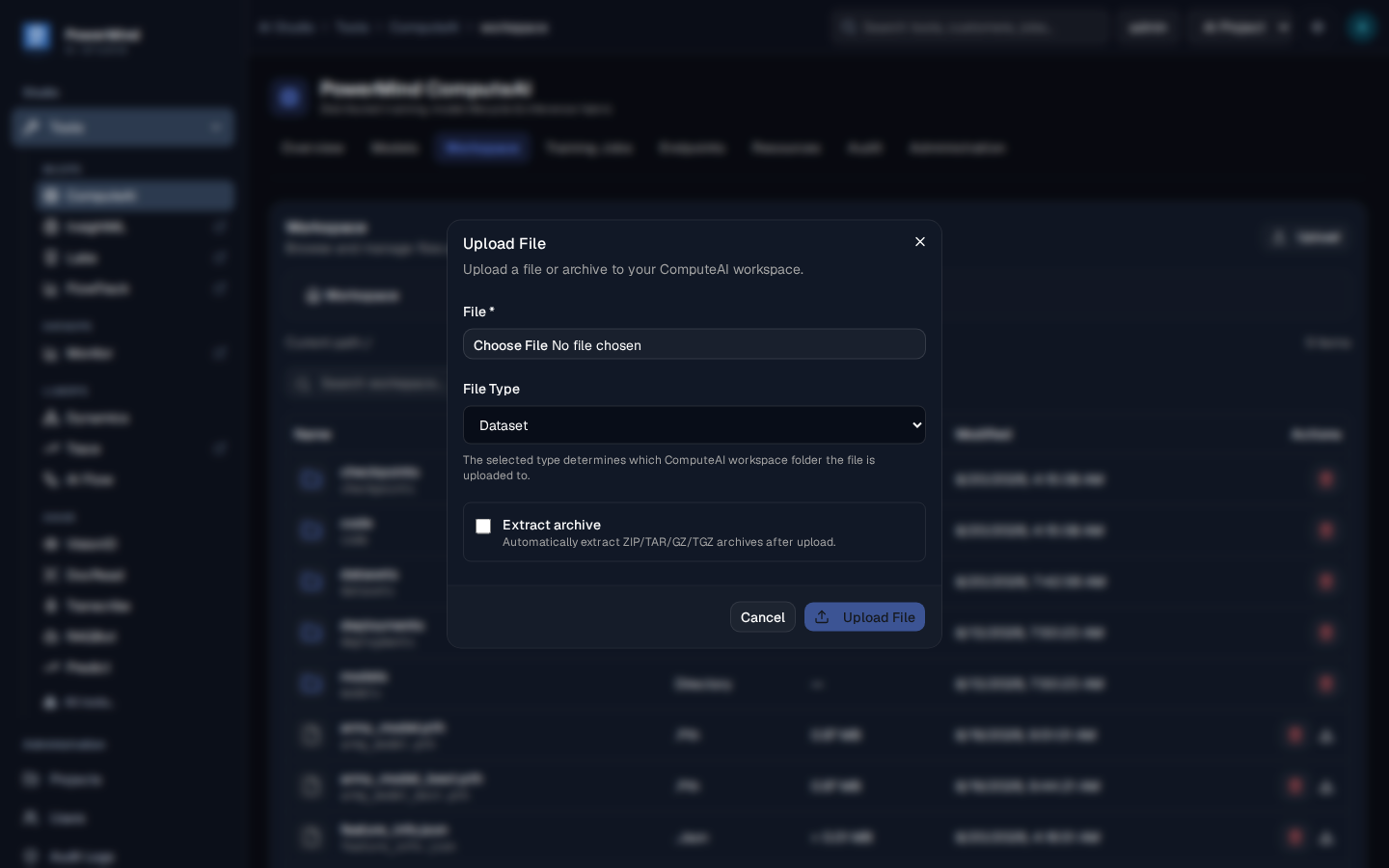
Step-by-Step Upload Workflow:
- Choose File: Click Browse or drag and drop local files (CSVs, images, archives, weights).
- Select Category:
Dataset: Automatically routes files to<workspace>/datasets/.Code: Places files into<workspace>/code/for module imports.Model: Stores pre-trained weights into<workspace>/models/.- Extract Archive Option: Check "Extract archive" when uploading compressed
.zip,.tar,.tar.gz, or.tgzbundles. ComputeAI will automatically decompress the contents directly into$DATASET_DIR, creating ready-to-use directory structures for your training scripts. - Submit: Click Upload File to initiate chunked, high-throughput transmission.
4. Training Jobs Studio
The Training Jobs view provides complete observability over active, completed, and historical training workloads.
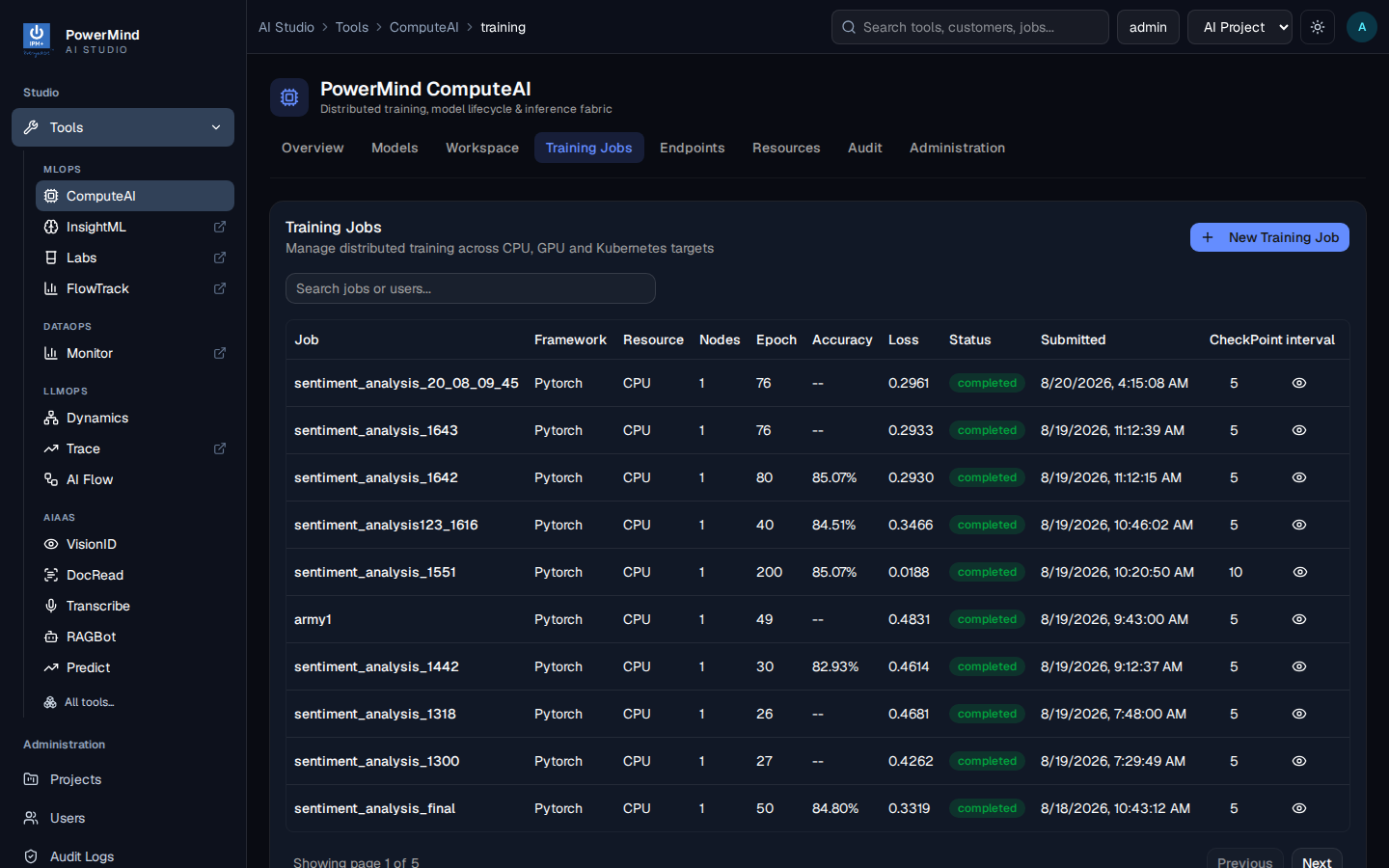
4.1 Training Jobs Table Columns:
- Job: Displays the job name, unique system UUID (e.g.
d53aa8e1-2d01-4972-9b47-08f8959daeaa), and submitting username. - Framework: Deep learning framework runtime (
PyTorchorTensorFlow). - Resources: Compute allocation profile, including node count, GPU accelerator allocation, virtual CPU cores, and memory allocation (e.g.
1× node · 0 GPU · 2 vCPU · 4GB). - Progress: Real-time progress bar reflecting the percentage of completed epochs alongside current/total epoch counters (e.g.
70% · 28/40). - Loss: The latest training loss metric parsed live from the script's standard output.
- Duration: Total execution wall-clock time in minutes.
- Status Badge:
running(Blue),queued(Yellow),succeeded(Green),failed(Red), orstopped(Gray). - Actions Column:
- Inspect Eye Icon (
View checkpoints): Opens the epoch checkpoint history and validation metrics dialog. - Logs File Icon (
View job logs): Opens the live stdout/stderr console stream dialog. - Trash Icon (
Delete): Deletes job records and cleans up temporary execution artifacts.
4.2 Submitting a Training Job via UI
Clicking + New Training Job opens the interactive job submission modal:
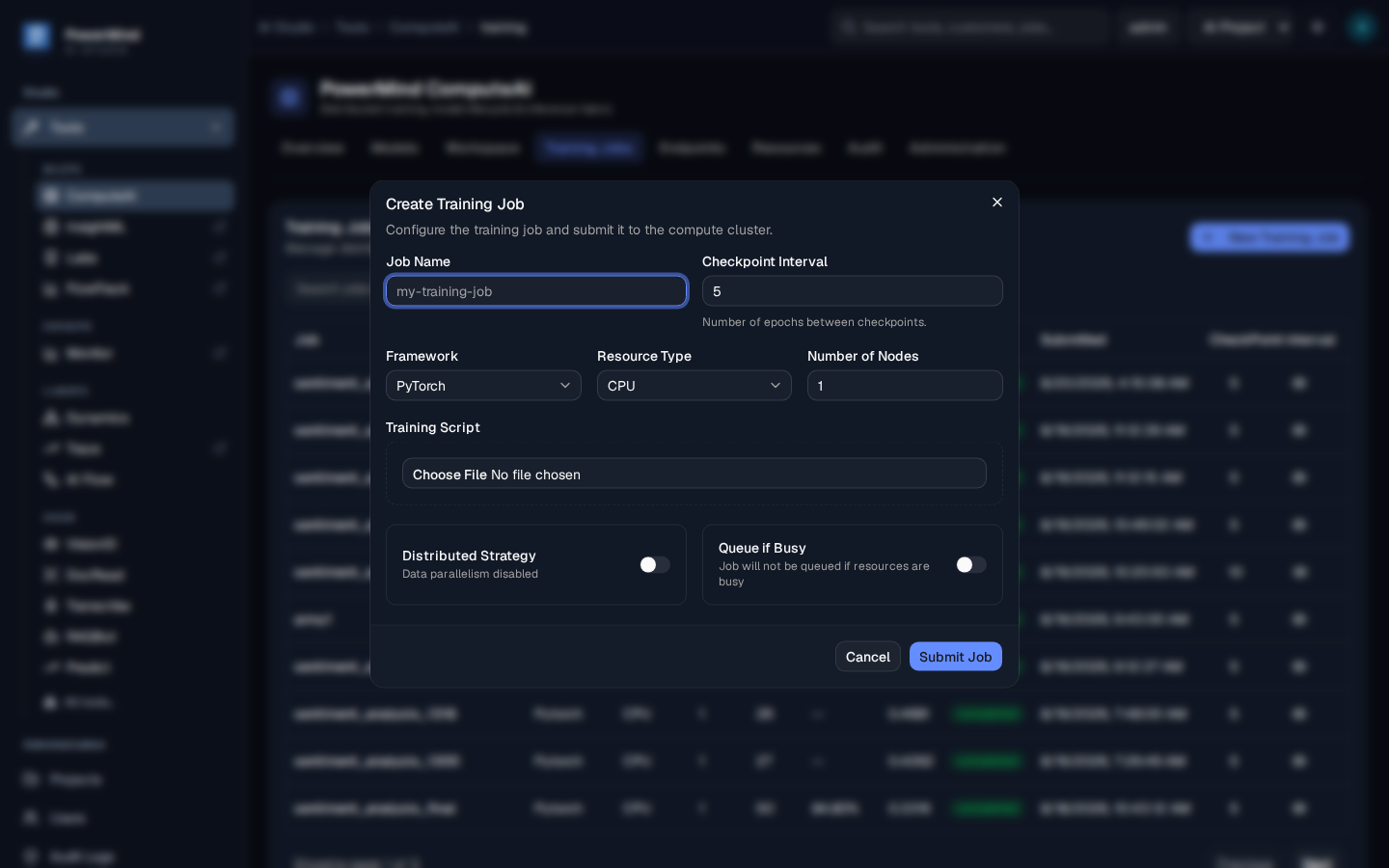
Training Job Modal Fields:
- Job Name: Unique identifier using alphanumeric characters and underscores (e.g.
sentiment_analysis_run_01). - Checkpoint Interval: Frequency (in epochs) at which the platform automatically captures checkpoint states (e.g. every
5epochs). - Framework:
PyTorchorTensorFlow. The runner activates the corresponding container environment with optimized CUDA/cuDNN libraries. - Resource Type:
CPU: Best for data pre-processing, small networks, or testing.GPU: Binds training processes directly to available NVIDIA CUDA accelerators.- Number of Nodes: Single-node (
1) or multi-node training (2+). - Training Script: Select local
.pyscript (transmits directly without requiring separate manual pre-upload). - Distributed Strategy Toggle: Enables multi-node data parallelism with automatic rank and port coordination.
- Queue if Busy Toggle: Automatically queues the job if all cluster worker slots are currently occupied and launches it as soon as worker capacity frees up.
4.3 Inspecting Training Checkpoints & Metrics
In the Training Jobs table, clicking the Inspect Eye icon in the Actions column of any job opens the Training Checkpoints modal:
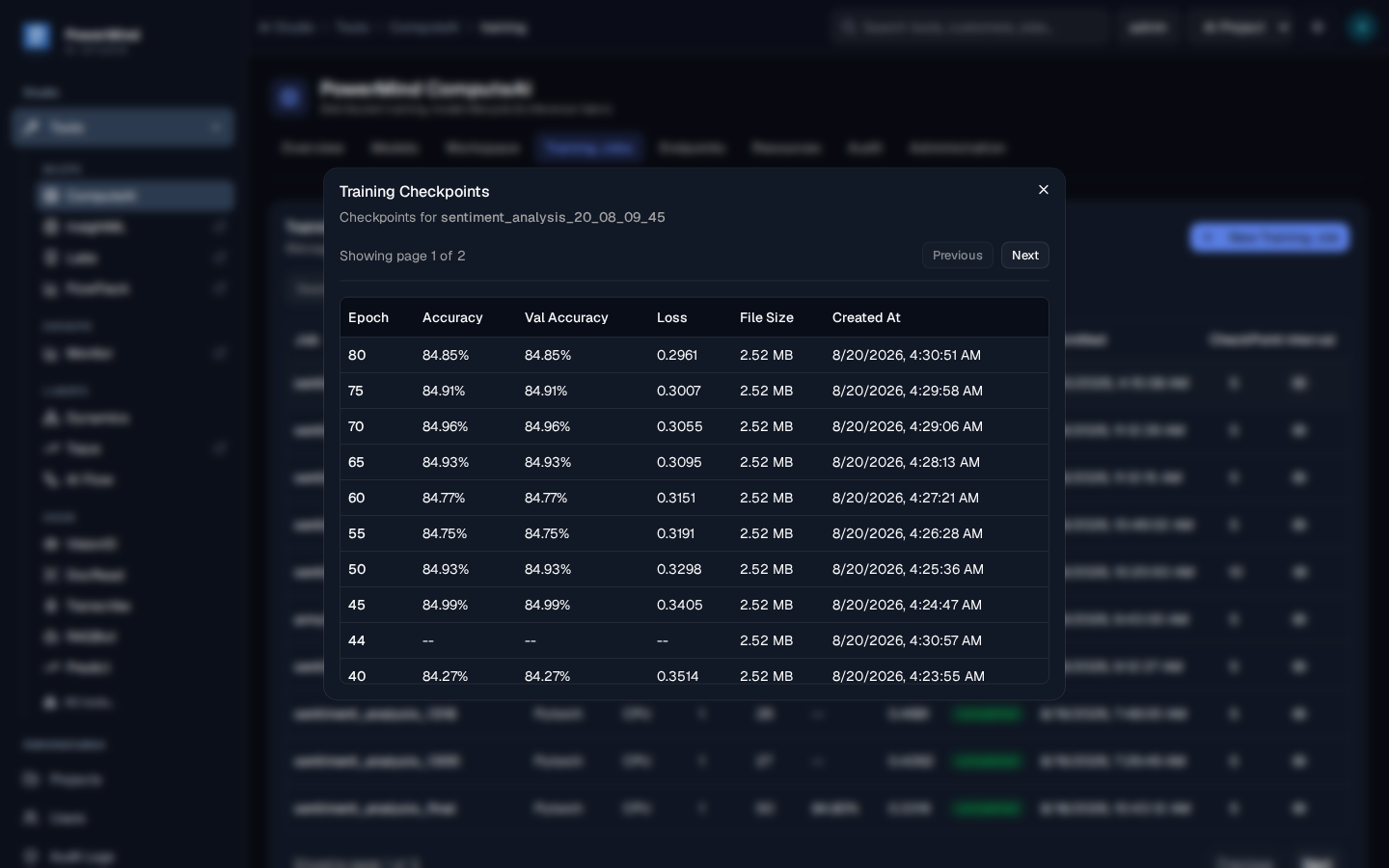
Checkpoints Modal Capabilities:
- Epoch History: Chronological table of all automatically saved checkpoint states (e.g. Epoch 80, 75, 70, 65, 60...).
- Validation & Metric Curves: Epoch-by-epoch tracking of training accuracy, validation accuracy, and loss.
- File Size & Timestamp: File size (e.g.
2.52 MB) and creation timestamp for each stored epoch checkpoint. - Pagination Controls: Easily browse through hundreds of historical checkpoints from long training runs.
4.4 Inspecting Job Logs & Live Execution Console
In the Training Jobs table, clicking the File / Logs icon (next to the Eye icon) opens the Job Logs modal:
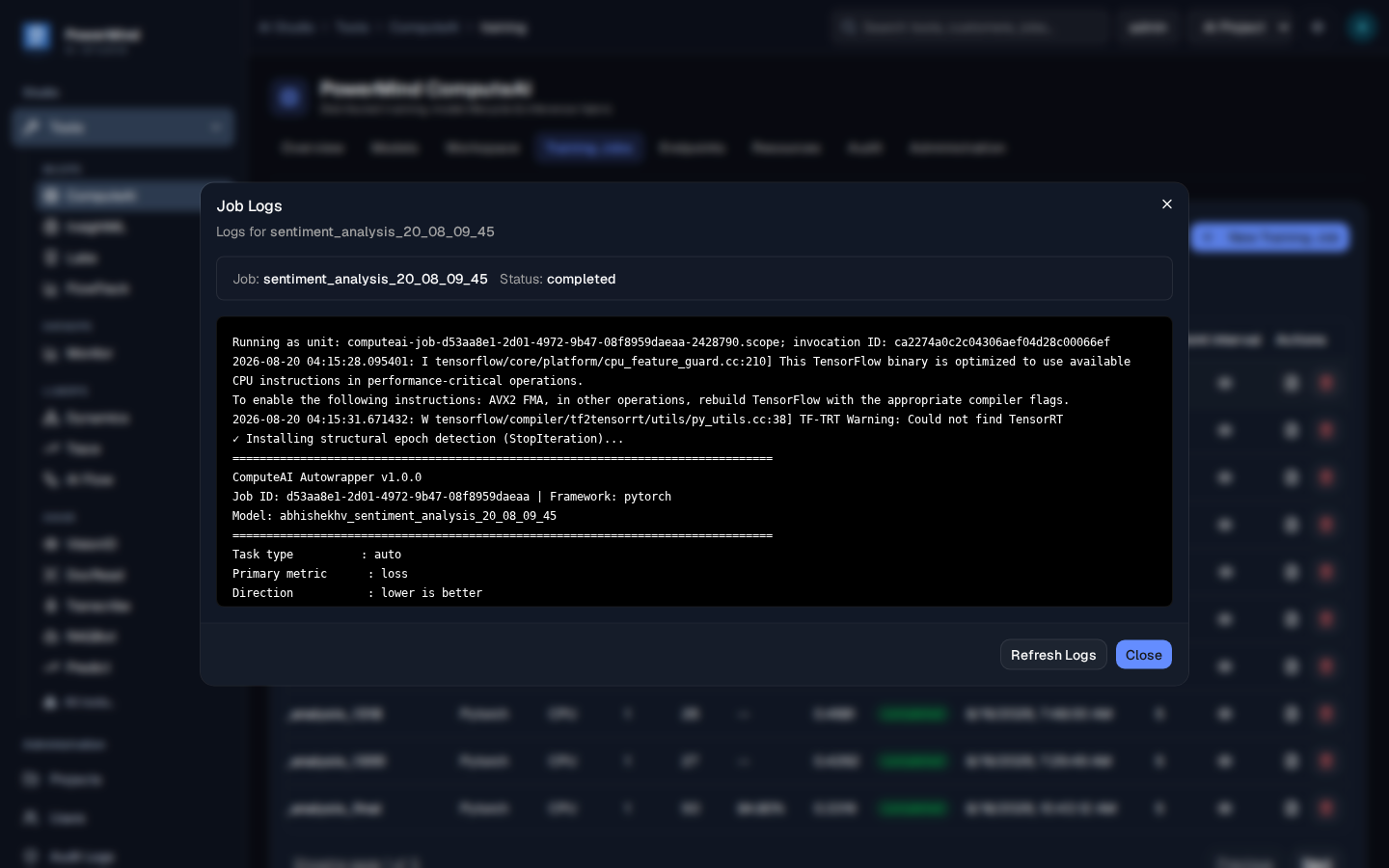
Job Logs Modal Features:
- Real-Time Log Stream: Displays stdout and stderr output directly from the compute worker node.
- Autowrapper Metadata: Shows invocation ID, CPU/GPU feature flags, framework version, job ID, and target metric direction (
lower is betterfor loss). - Refresh Logs Action: Click Refresh Logs to stream the latest execution output during an active training run without reloading the page.
5. Zero-Boilerplate Script Contract & True Resume
ComputeAI eliminates the need for developers to write tedious infrastructure boilerplate. The platform automatically manages checkpoint saving and state recovery behind the scenes.
What Developers DO and DO NOT Need to Write:
┌─────────────────────────────────────────────────────────────────────────────┐
│                       COMPUTEAI SCRIPT SIMPLICITY CONTRACT                  │
│                                                                             │
│   ❌ NO manual checkpoint loading code (torch.load / load_weights)          │
│   ❌ NO manual checkpoint saving code (torch.save / model.save_weights)     │
│   ❌ NO hardcoded workstation file paths (/home/user/data)                  │
│                                                                             │
│   ✅ Read dataset from $DATASET_DIR environment variable                    │
│   ✅ Use resume_epoch (or $COMPUTEAI_RESUME_EPOCH) as start_epoch           │
│   ✅ Print standard metrics (e.g. "Epoch 5: loss = 0.25, accuracy = 91%")   │
└─────────────────────────────────────────────────────────────────────────────┘
Plug-and-Play Training Script Template (PyTorch)
Save this script locally and submit it directly through the + New Training Job modal:
import os
import torch
import torch.nn as nn
import torch.optim as optim

def main():
    # 1. Access Dataset Directory via Platform Variable
    workspace   = os.environ.get("USER_WORKSPACE", "./workspace")
    dataset_dir = os.environ.get("DATASET_DIR", os.path.join(workspace, "datasets"))
    output_dir  = os.environ.get("JOB_OUTPUT_DIR", "./output")
    os.makedirs(output_dir, exist_ok=True)

    # 2. Select Compute Device (GPU if allocated)
    device = torch.device("cuda" if torch.cuda.is_available() else "cpu")
    print(f"[ComputeAI] Using compute device: {device}")
    print(f"[ComputeAI] Loading datasets from: {dataset_dir}")

    # 3. Define Model Architecture & Optimizer
    model = nn.Sequential(
        nn.Linear(1000, 256),
        nn.ReLU(),
        nn.Dropout(0.2),
        nn.Linear(256, 2)
    ).to(device)

    criterion = nn.CrossEntropyLoss()
    optimizer = optim.Adam(model.parameters(), lr=1e-3)

    # 4. True Resume Contract: Extract Starting Epoch
    # When resuming a job, ComputeAI injects resume_epoch into the global namespace
    start_epoch = int(globals().get("resume_epoch", os.environ.get("COMPUTEAI_RESUME_EPOCH", 0)))
    total_epochs = start_epoch + 20

    if start_epoch > 0:
        print(f"[ComputeAI] ✓ Resuming training run starting from epoch {start_epoch + 1}")
    else:
        print("[ComputeAI] ✓ Starting fresh training run from epoch 1")

    # 5. Training Loop: Begins cleanly from start_epoch + 1
    # Checkpointing is handled AUTOMATICALLY by ComputeAI autowrapper!
    for epoch in range(start_epoch + 1, total_epochs + 1):
        model.train()

        # [Insert your batch training forward/backward steps here]
        mock_loss = 0.35 / (epoch ** 0.5)
        mock_acc = 80.0 + (epoch * 0.8)

        # Standard stdout log formatting parsed live by ComputeAI autowrapper:
        print(f"Epoch {epoch}: loss = {mock_loss:.4f}, accuracy = {mock_acc:.2f}%")

    # 6. Final Model Export (Optional)
    final_model_path = os.path.join(output_dir, "model_final.pt")
    torch.save(model.state_dict(), final_model_path)
    print(f"[ComputeAI] Training finished. Final model exported to: {final_model_path}")

if __name__ == "__main__":
    main()
6. Model Registry & Bring Your Own Model (BYOB)
The Models registry catalogues all trained or uploaded neural network models, managing versions, metadata, frameworks, and instant deployment.
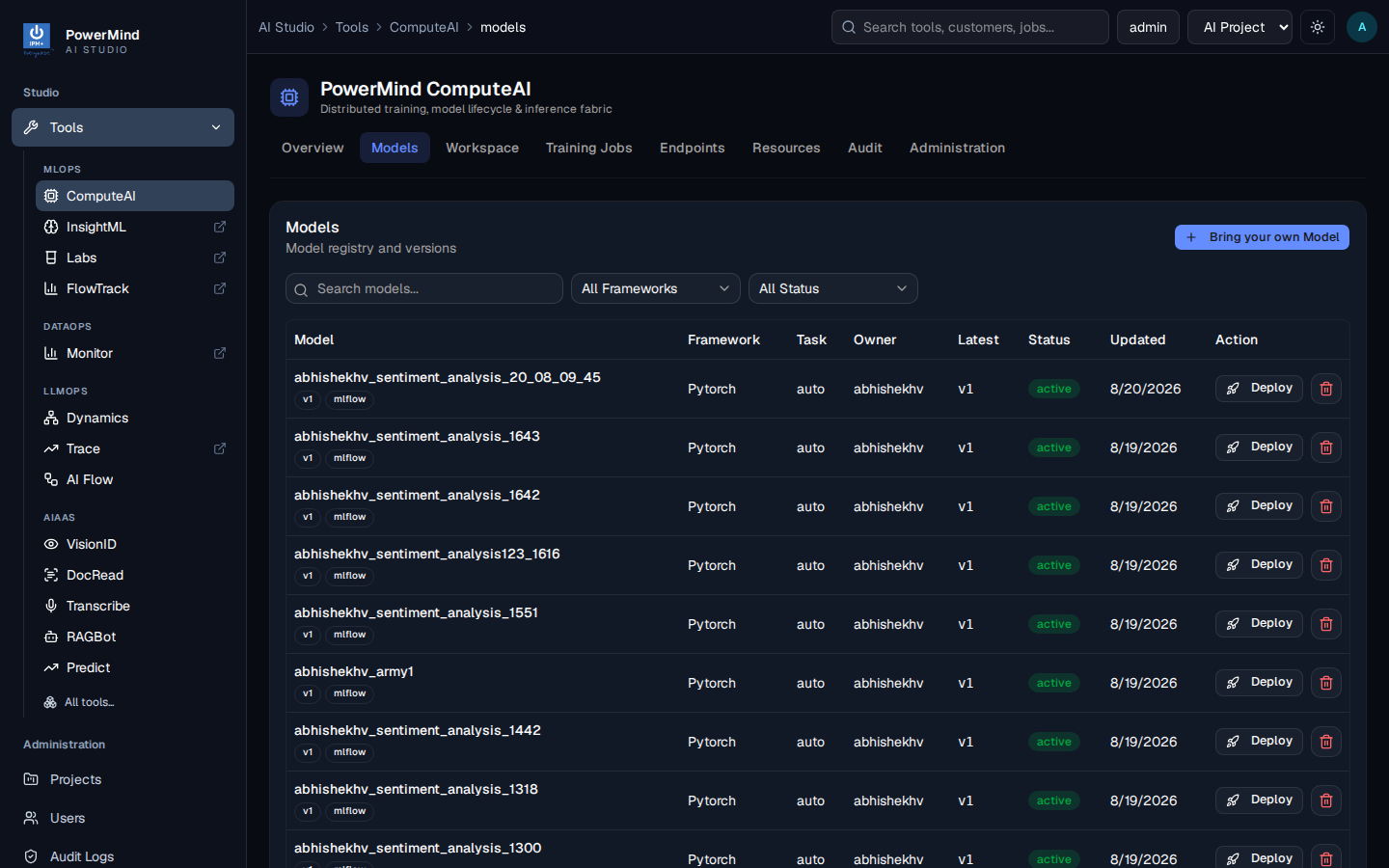
Model Catalog Capabilities:
- Version Lifecycle Management: Track version history (
v1,v2,v3) with full parameter lineage. - Framework Coverage: Supports PyTorch (
.pt,.pth), TensorFlow SavedModel bundles (.zip), and ONNX (.onnx). - 1-Click Deployment: Deploy any model version directly to Triton Inference Server by clicking Deploy.
6.1 Bring Your Own Model (BYOB) Dialog
Clicking + Bring your own Model allows external models (trained outside the platform) to be registered and deployed directly without retraining:
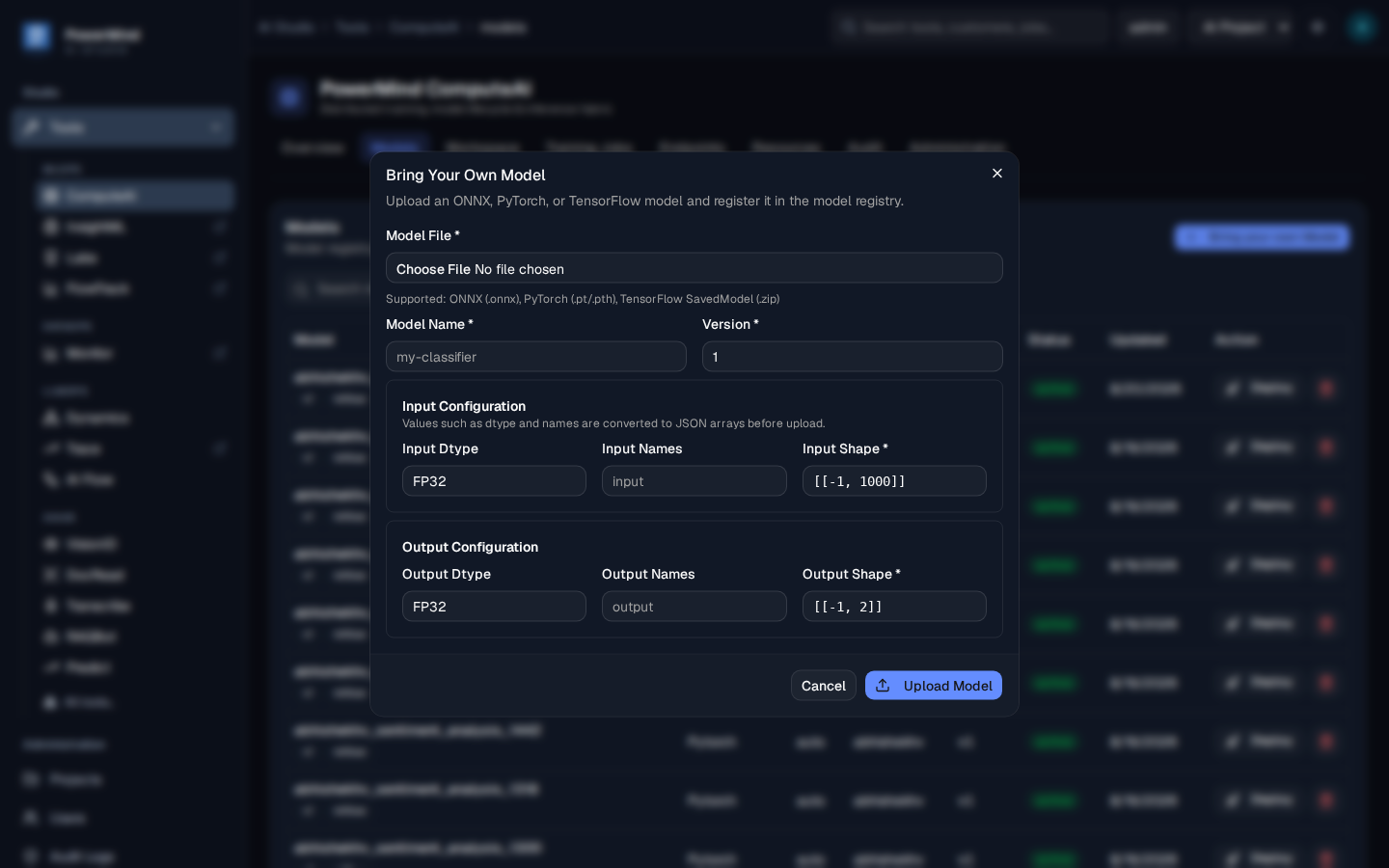
BYOB Configuration Contract:
- Model File: File selector for
.onnx,.pt,.pth, or.zip(SavedModel containingsaved_model.pb). - Model Name & Version: Catalog name (e.g.
sentiment_analysis_classifier) and version integer (e.g.1). - Input Configuration:
- Input Dtype: Data type required by the input layer (e.g.
FP32,INT32,UINT8). - Input Names: Tensor name expected by the model computational graph (default:
INPUT__0orinput). - Input Shape: Dimension tensor spec with dynamic batch support, specified in double brackets, e.g.
[[-1, 1000]]or[[-1, 3, 224, 224]]. (Note:-1indicates dynamic batch size). - Output Configuration:
- Output Dtype: Return tensor data type (
FP32,INT64, etc.). - Output Names: Output layer identifier (default:
OUTPUT__0oroutput). - Output Shape: Output dimension tensor spec, e.g.
[[-1, 2]]or[[-1, 1000]].
7. Inference Endpoints & API Key Management
The Endpoints dashboard manages Triton inference servers running on dedicated compute acceleration nodes.
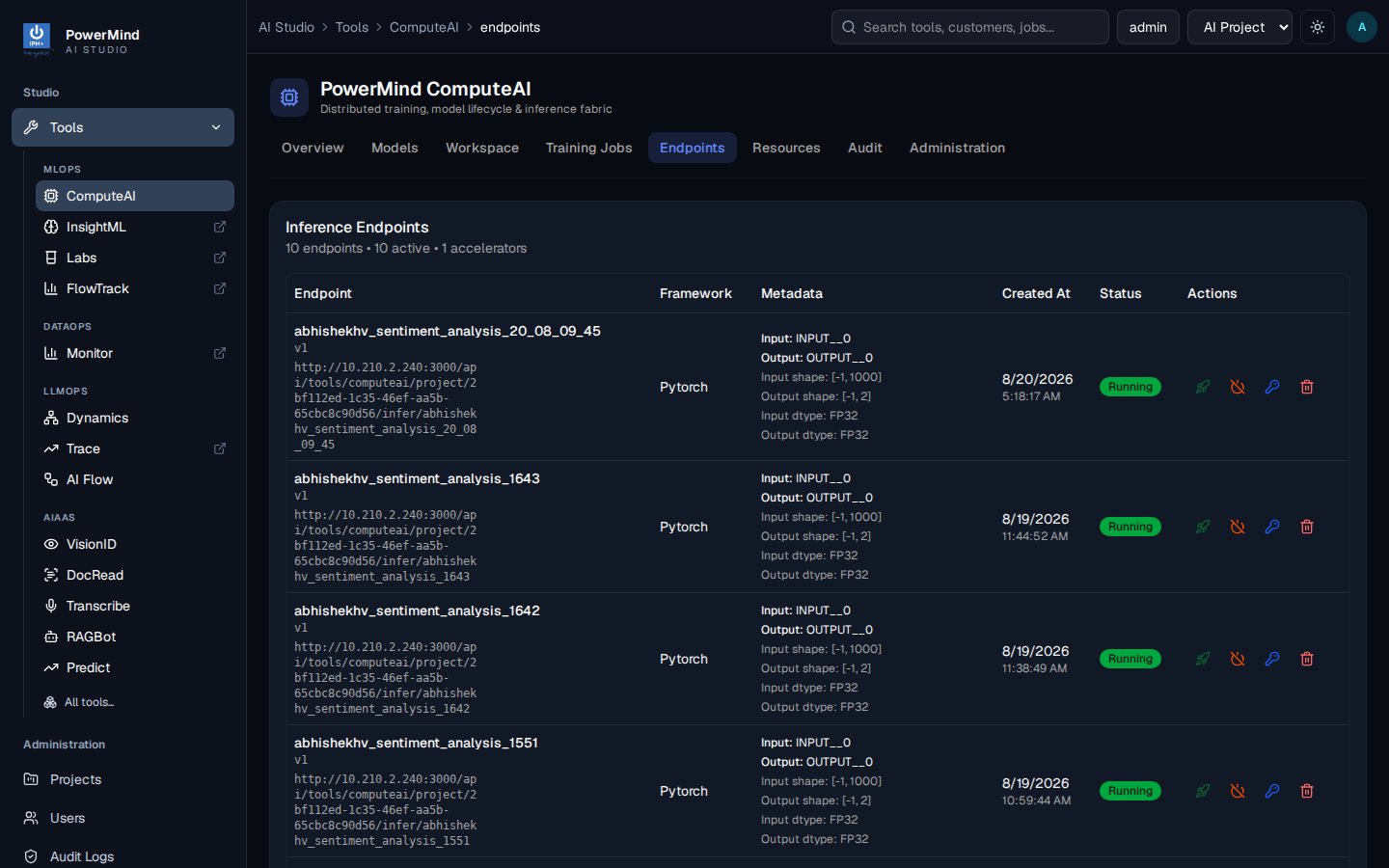
Inference Endpoint Specifications:
- High-Performance Serving: Backed by Triton Inference Server with dynamic tensor batching for ultra-high throughput.
- Dedicated URL Structure:
- Metadata Card: Displays input/output tensor names (
INPUT__0,OUTPUT__0), expected shapes ([-1, 1000]), and data types (FP32). - Endpoint Actions:
- Pause / Resume: Temporarily free worker resources without deleting model state.
- API Key Management: Generate and revoke scoped API keys for client integration.
- Delete: Tear down deployment and release worker capacity.
7.1 API Key Management Modal
Clicking the Key icon in the Actions column of an active endpoint opens the API Key Management dialog:
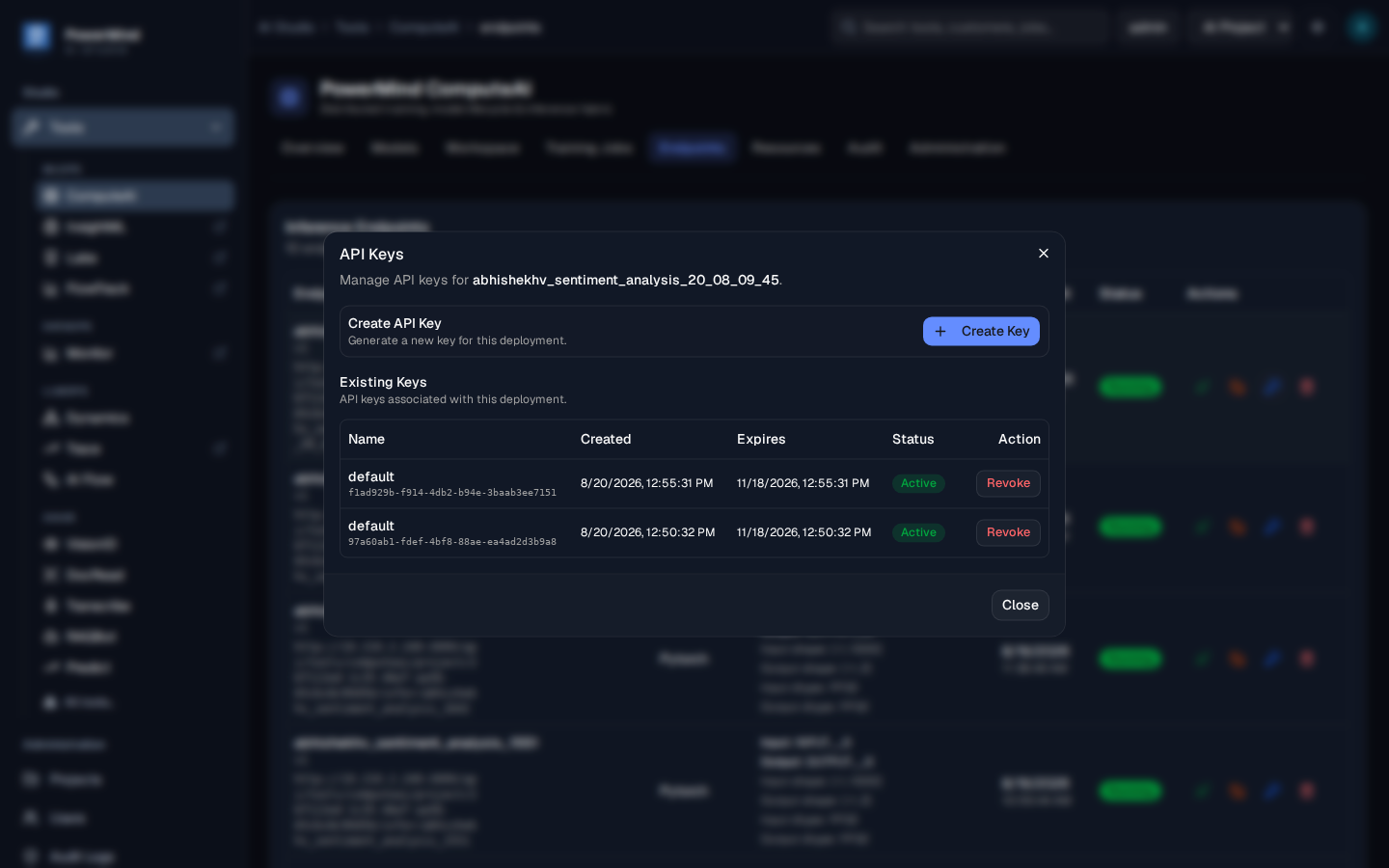
Managing Endpoint API Keys:
- Create API Key: Click + Create Key to generate a new cryptographically secure token tied strictly to this specific deployment.
- Existing Keys Table: Lists all active keys, Key ID hashes, creation timestamps, expiration dates, and status (
Active). - Revoke Key: Click Revoke on any compromised or deprecated key to immediately invalidate access in real time.
8. Inference Request Contract & Payload Helper
When sending inference requests to a running endpoint, the HTTP POST body must strictly adhere to the KServe v2 / Triton standard.
Standard Request Format (POST)
POST /api/tools/computeai/project/<PROJECT_ID>/infer/<DEPLOYMENT_NAME> HTTP/1.1
Host: <COMPUTEAI_HOST>:3000
Content-Type: application/json
Authorization: Bearer <API_KEY>

{
  "inputs": [
    {
      "name": "INPUT__0",
      "shape": [1, 10],
      "datatype": "FP32",
      "data": [0.12, 0.45, -0.23, 0.89, 0.01, -0.74, 0.33, 0.55, -0.11, 0.68]
    }
  ]
}
Standard Response Format (JSON)
{
  "model_name": "sentiment_analysis_classifier",
  "model_version": "1",
  "outputs": [
    {
      "name": "OUTPUT__0",
      "datatype": "FP32",
      "shape": [1, 2],
      "data": [0.8842, 0.1158]
    }
  ]
}
Supported Tensor Data Types:
| Data Type Identifier | Description | Corresponding Python / PyTorch Type |
|---|---|---|
FP32 |
32-bit Single Precision Float | float, torch.float32, np.float32 |
FP16 |
16-bit Half Precision Float | torch.float16, np.float16 |
INT32 |
32-bit Signed Integer | int, torch.int32, np.int32 |
INT64 |
64-bit Signed Integer | int, torch.int64, np.int64 |
UINT8 |
8-bit Unsigned Integer (e.g. RGB) | torch.uint8, np.uint8 |
BOOL |
Boolean Flag | bool, torch.bool, np.bool_ |
Ready-to-Use Python Inference Client
import requests
import json

ENDPOINT_URL = "http://<COMPUTEAI_HOST>:3000/api/tools/computeai/project/<PROJECT_ID>/infer/<DEPLOYMENT_NAME>"
API_TOKEN = "pm_token_live_abcdef123456789"

# 1. Structure payload matching endpoint metadata
payload = {
    "inputs": [
        {
            "name": "INPUT__0",
            "shape": [1, 1000],
            "datatype": "FP32",
            "data": [0.05] * 1000
        }
    ]
}

headers = {
    "Content-Type": "application/json",
    "Authorization": f"Bearer {API_TOKEN}"
}

# 2. Send prediction request
response = requests.post(ENDPOINT_URL, json=payload, headers=headers)

# 3. Parse prediction output
if response.status_code == 200:
    result = response.json()
    predictions = result["outputs"][0]["data"]
    print(f"✓ Inference successful! Output probabilities: {predictions}")
else:
    print(f"✗ Inference error [{response.status_code}]: {response.text}")
9. Compute Resources & Worker Node Management
The Resources tab visualizes cluster worker nodes, dynamic slot allocations, and hardware capacities.
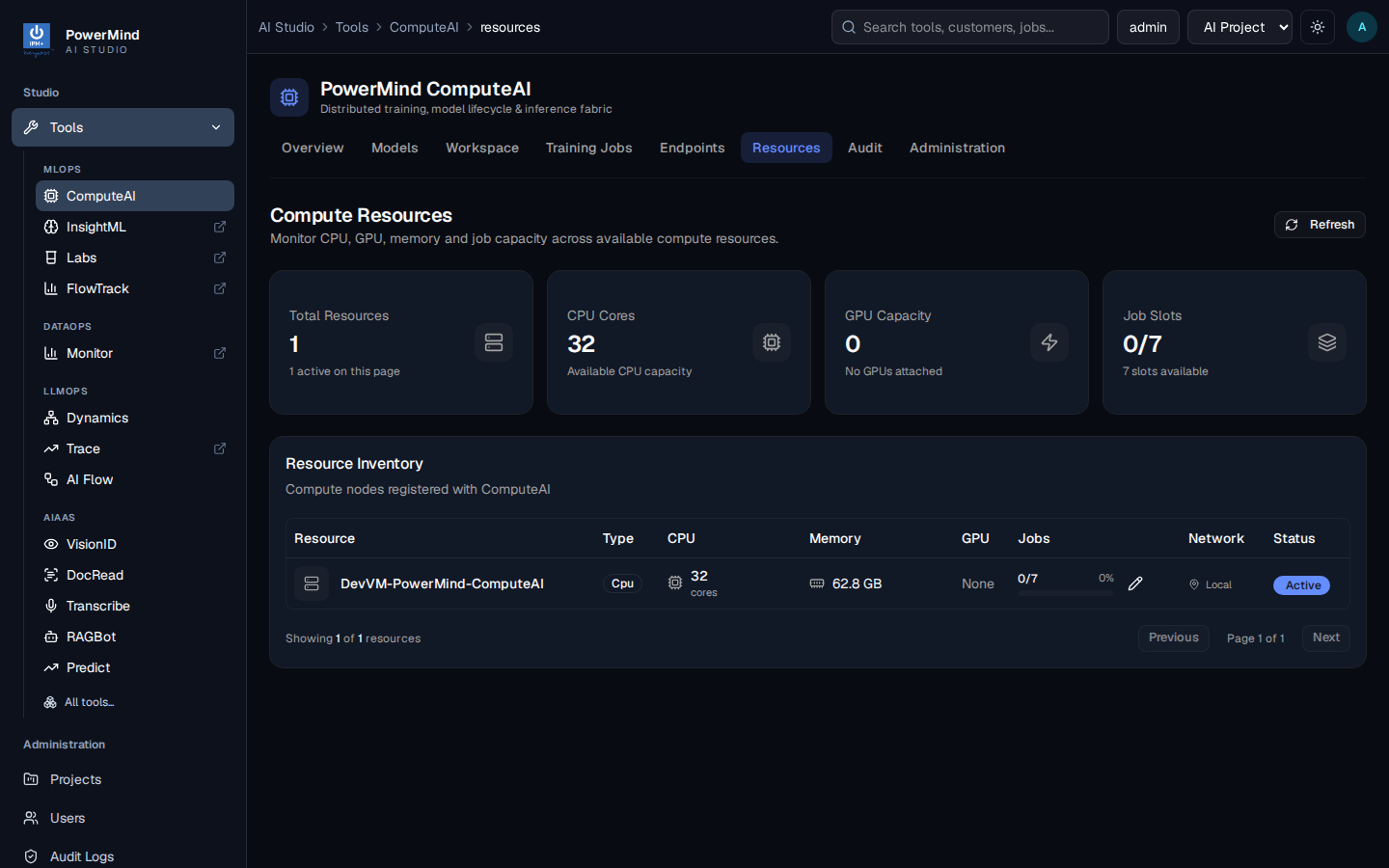
Resource Management Metrics:
- Total Resources: Total number of physical/virtual compute worker nodes in the pool.
- CPU Cores: Aggregated CPU capacity across all connected workers (e.g. 32 cores).
- GPU Capacity: Count of attached NVIDIA CUDA/TensorRT accelerators.
- Job Slots: Dynamic allocation ratio (e.g.
0/7slots utilized). - Worker Node Inventory Table:
- Node: Hostname (e.g.
DevVM-PowerMind-ComputeAI). - Type: Compute accelerator type (
CPU/GPU). - Memory: Total installed system RAM (
62.8 GB). - Active Jobs: Number of training runs or inference containers running on node.
- Proximity: Network topology (
Local/Remote Worker). - Health Status: Node health (
Active,Degraded,Offline).
10. Administration, Quotas & Audit Logs
10.1 Quota Management & User Limits
Platform administrators configure global quotas and individual tenant limits under the Administration tab to ensure fair resource allocation.
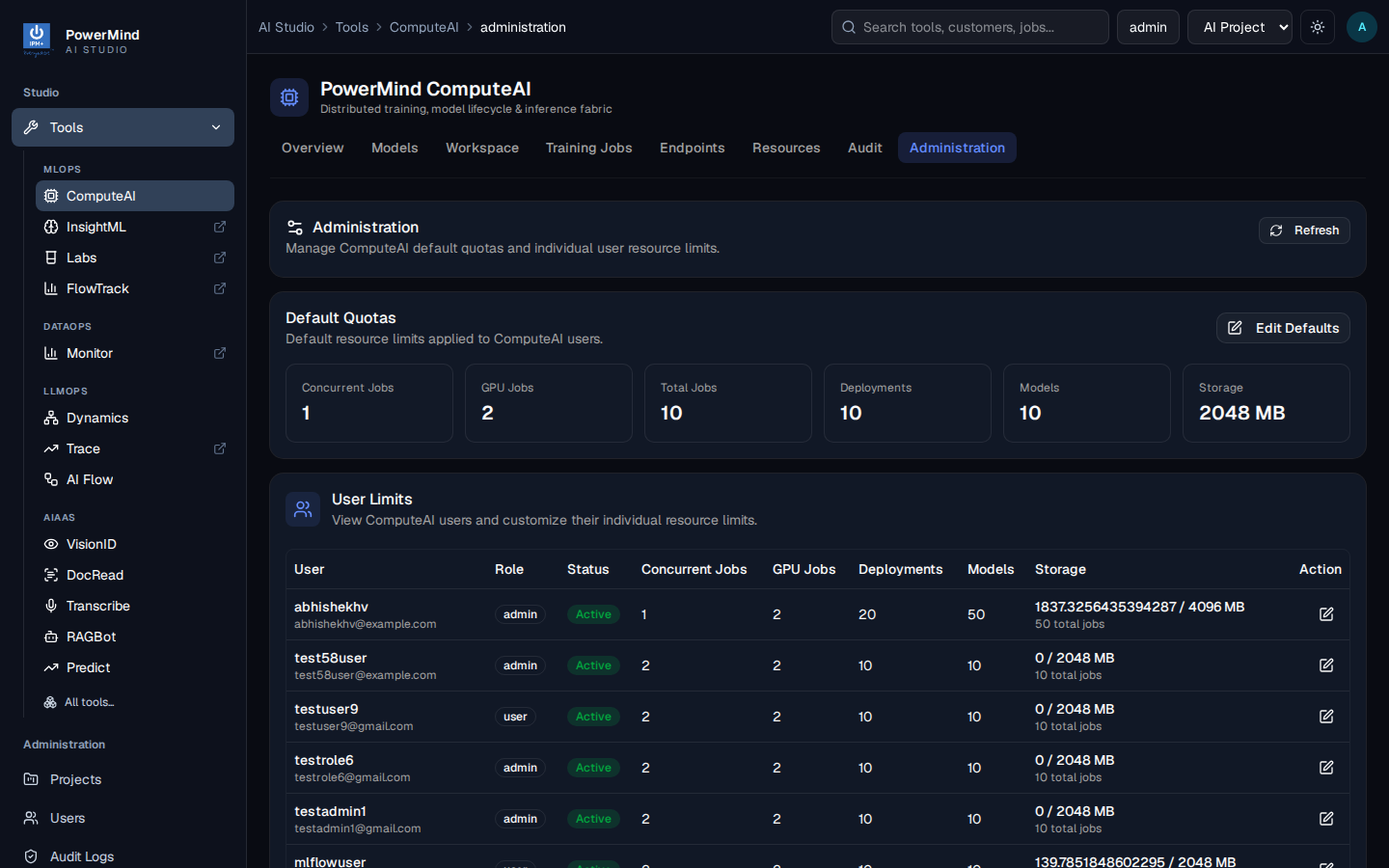
Configurable Quotas:
- Concurrent Jobs: Maximum simultaneous training jobs per user.
- GPU Jobs: Dedicated GPU workload allowance.
- Total Jobs: Maximum historical job retention.
- Deployments: Maximum simultaneous live inference endpoints.
- Models: Maximum cataloged model registry versions.
- Storage Limit: Storage quota in megabytes (e.g.
2048 MBor4096 MB).
10.2 Enterprise Audit & Compliance Logs
The Audit view tracks all operational events, user modifications, job submissions, and permission updates.
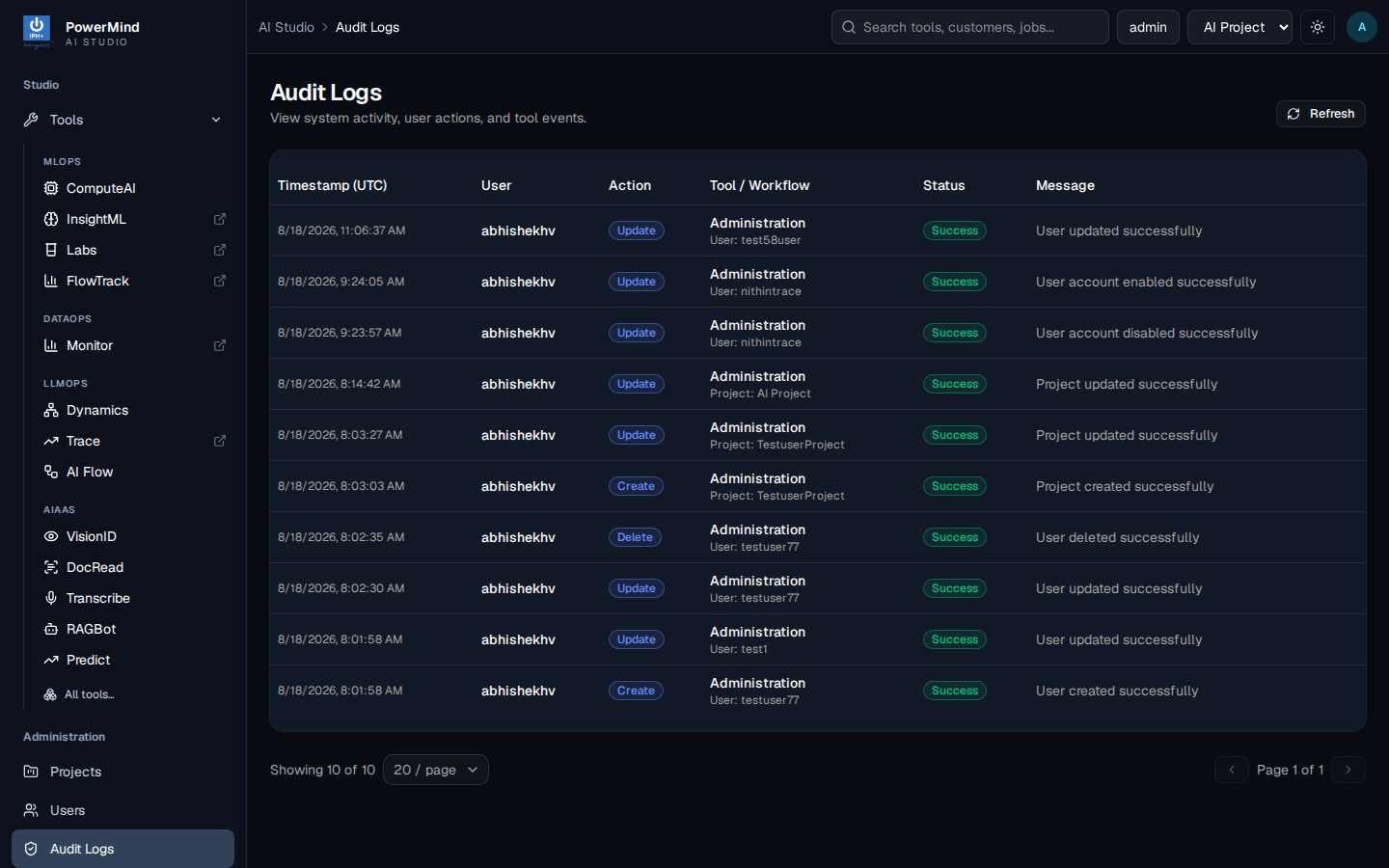
Log Fields Recorded:
- Timestamp (UTC): Exact chronological execution time down to the second.
- User: Authenticated user identity (e.g.
alice,developer_1). - Action: Event category (
Create,Update,Delete,Execute,Revoke). - Tool / Workflow: Target component and affected entity.
- Status: Execution outcome (
Success/Failure). - Message: Descriptive summary of the administrative action.
11. Quick Troubleshooting Matrix for Web UI
| Symptom | Probable Cause | Recommended Resolution |
|---|---|---|
| Job Submission Button Disabled | Missing required script or invalid job name | Ensure job name contains only alphanumeric characters and a script file is selected. |
| Job Fails on Start | Hardcoded file paths in script | Ensure the script loads data from os.getenv("DATASET_DIR") rather than local workstation paths. |
| BYOB Upload Fails | Mismatched input/output shape format | Provide double-bracketed shape strings with dynamic batch size, e.g. [[-1, 1000]] and [[-1, 2]]. |
| Inference Request 400 Bad Request | Wrong tensor name in payload | Check Endpoint metadata column: verify if name is INPUT__0 or input. |
| Inference Request 401 Unauthorized | Missing or revoked API key | Generate a new key in the API Key Management Modal and supply Authorization: Bearer <API_KEY>. |
| Inference Request 503 Unavailable | Worker node offline or deployment paused | Check Resources tab for node health or click Resume on the endpoint card. |