PowerMind AIFlow User Guide
This page is the full visual tour. Every screenshot is from the live Studio AI Flow UI.
Always check the project in the top bar (example: AI Project) so you are in the right workspace.
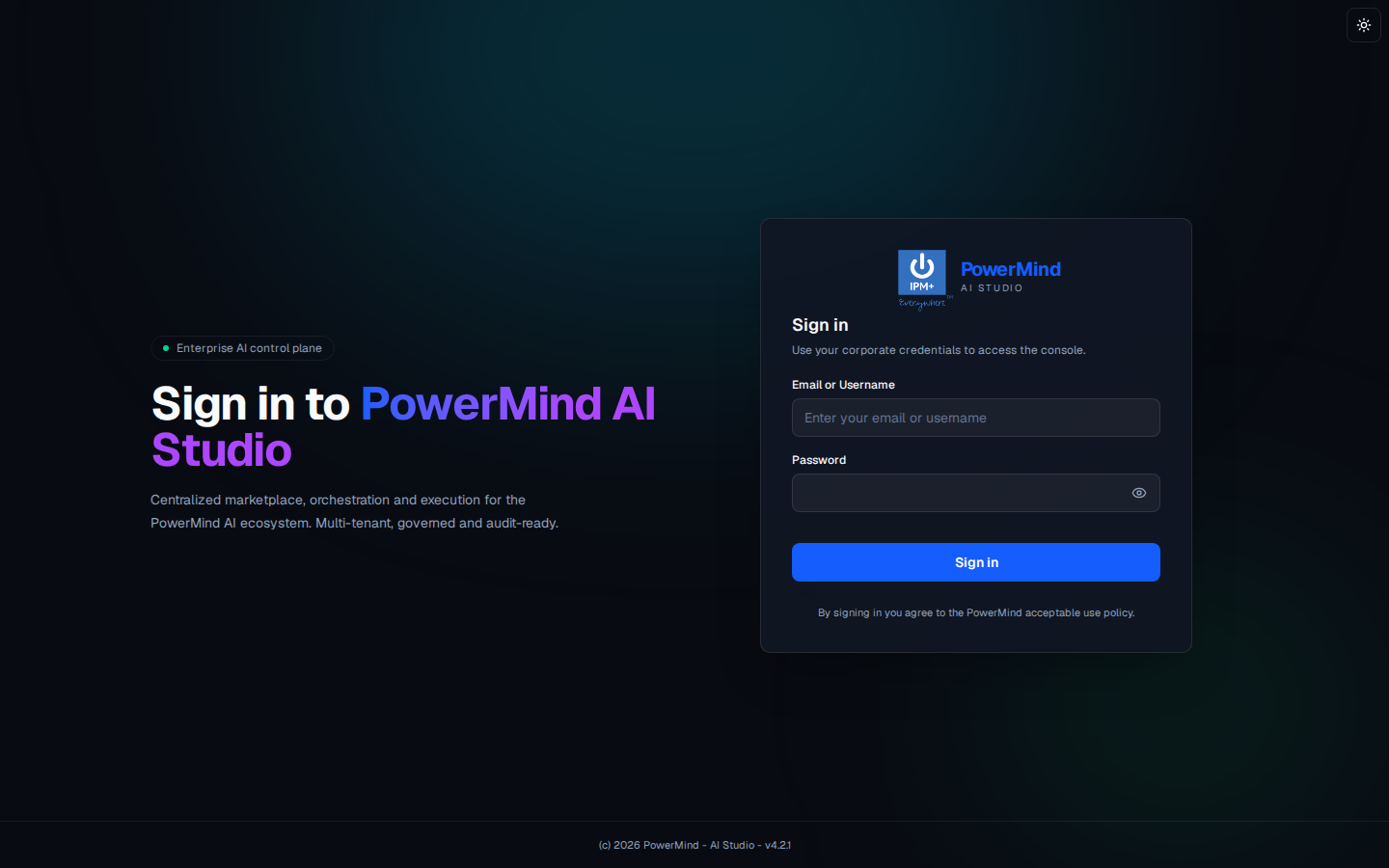
1. Sign in
Corporate username/email and password. Theme toggle is the sun icon, top right.
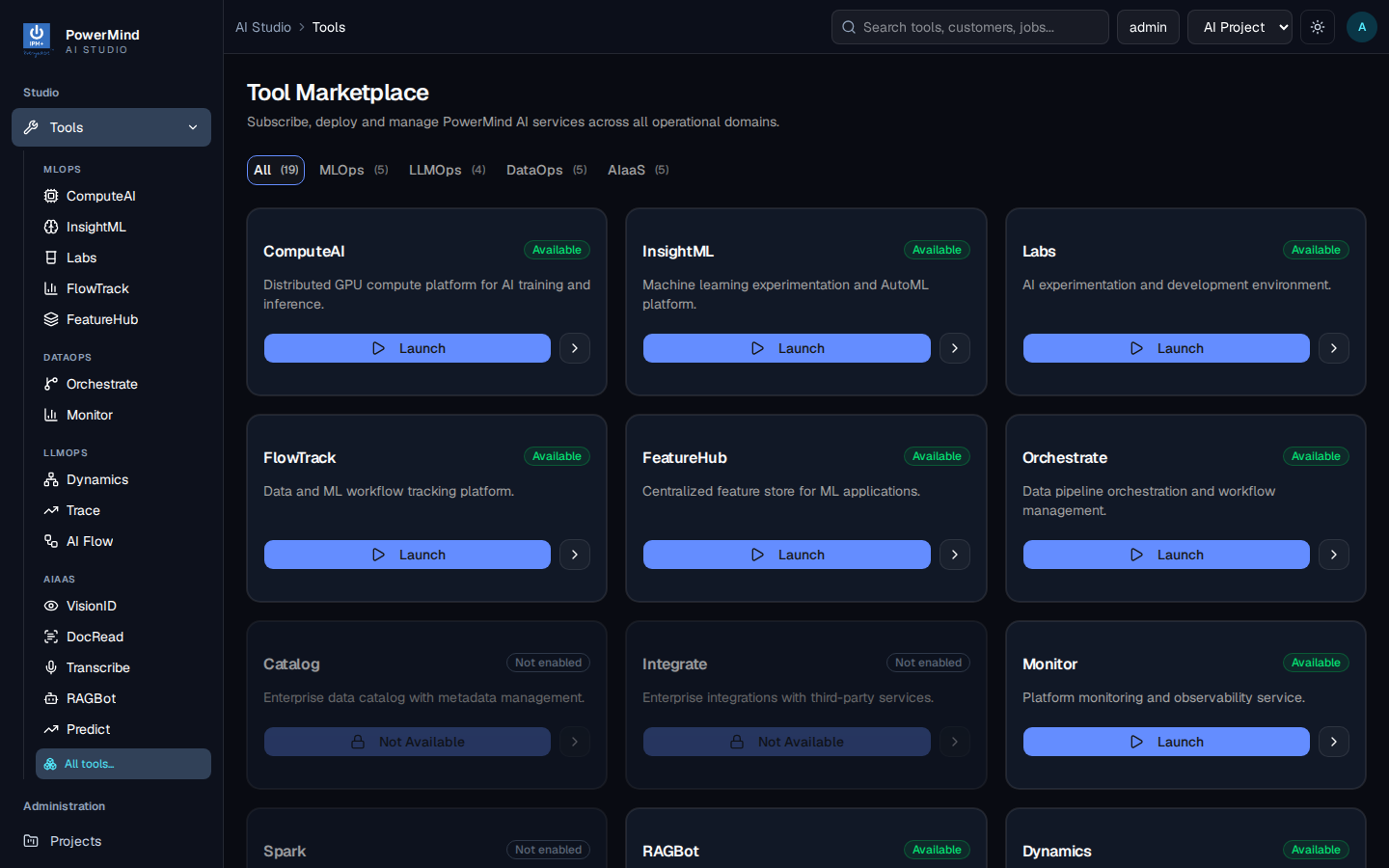
2. Tool Marketplace (hub)
Left menu groups tools: MLOPS, DATAOPS, LLMOPS, AIAAS. AI Flow is under LLMOPS. Filters at the top: All, MLOps, LLMOps, DataOps, AIaaS.
Cards show Available (Launch) or Not enabled / Not Available.
Filter LLMOps to see AI Flow with Dynamics and Trace:
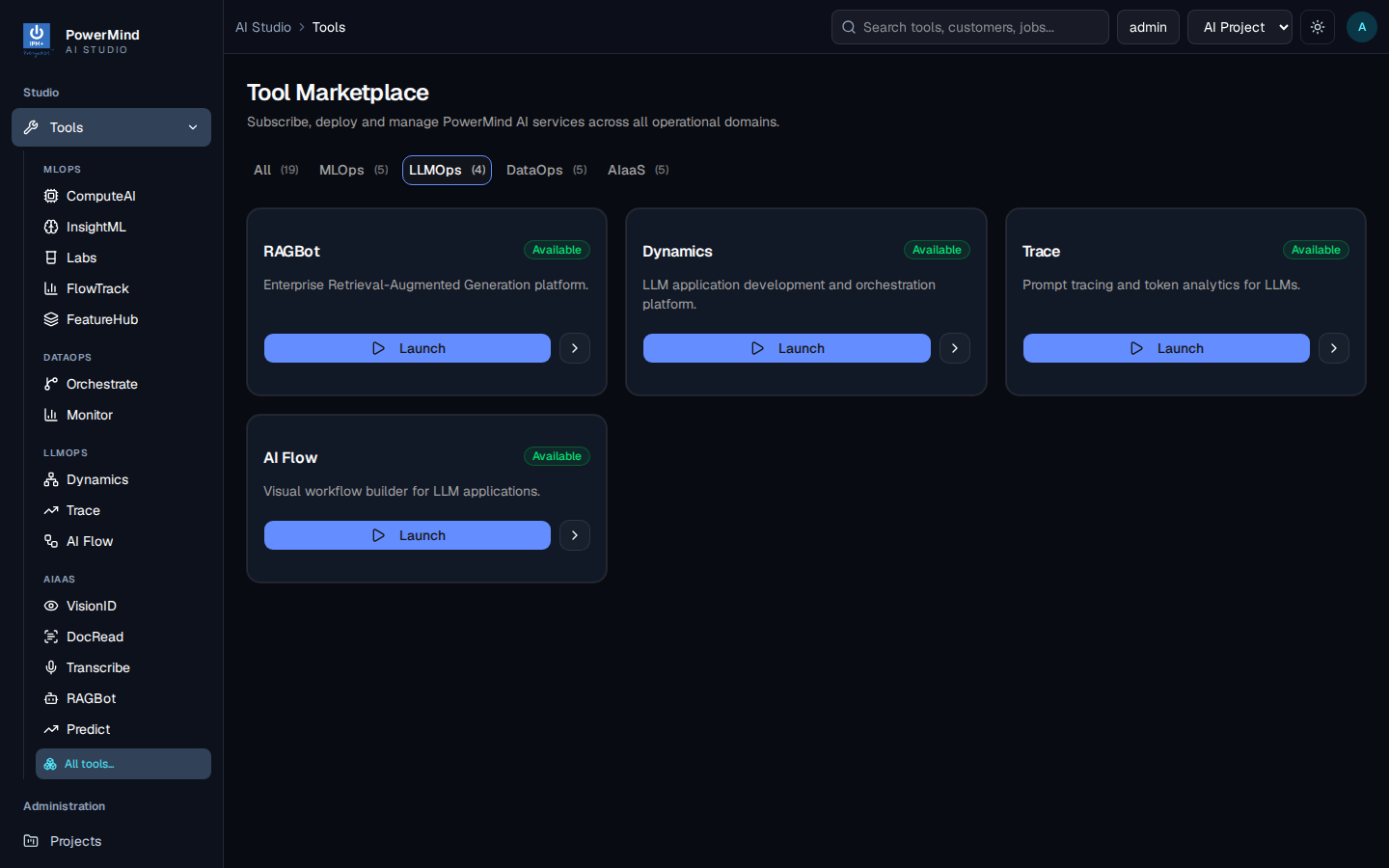
Open AI Flow. Header: AI Flow — Build, manage, and run AI-powered workflows using visual flow orchestration.
3. Projects (Studio)
Left menu: Projects. Breadcrumb: AI Studio > projects.
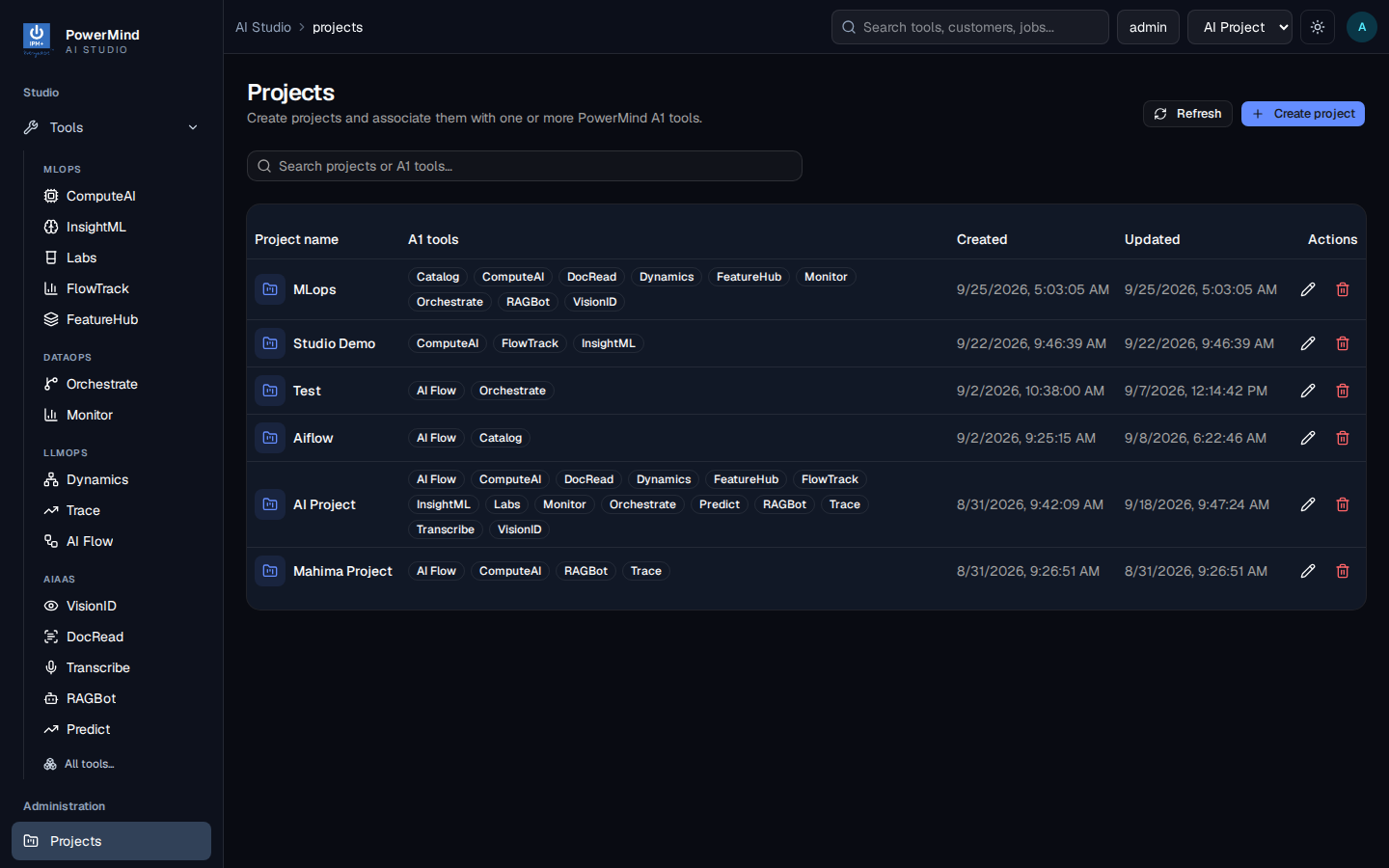
Use this to confirm AI Flow is listed on AI Project (and which other tools share that project).
4. Flow list
Tab/page: AI Flow. Breadcrumb: AI Studio > Tools > aiflow.
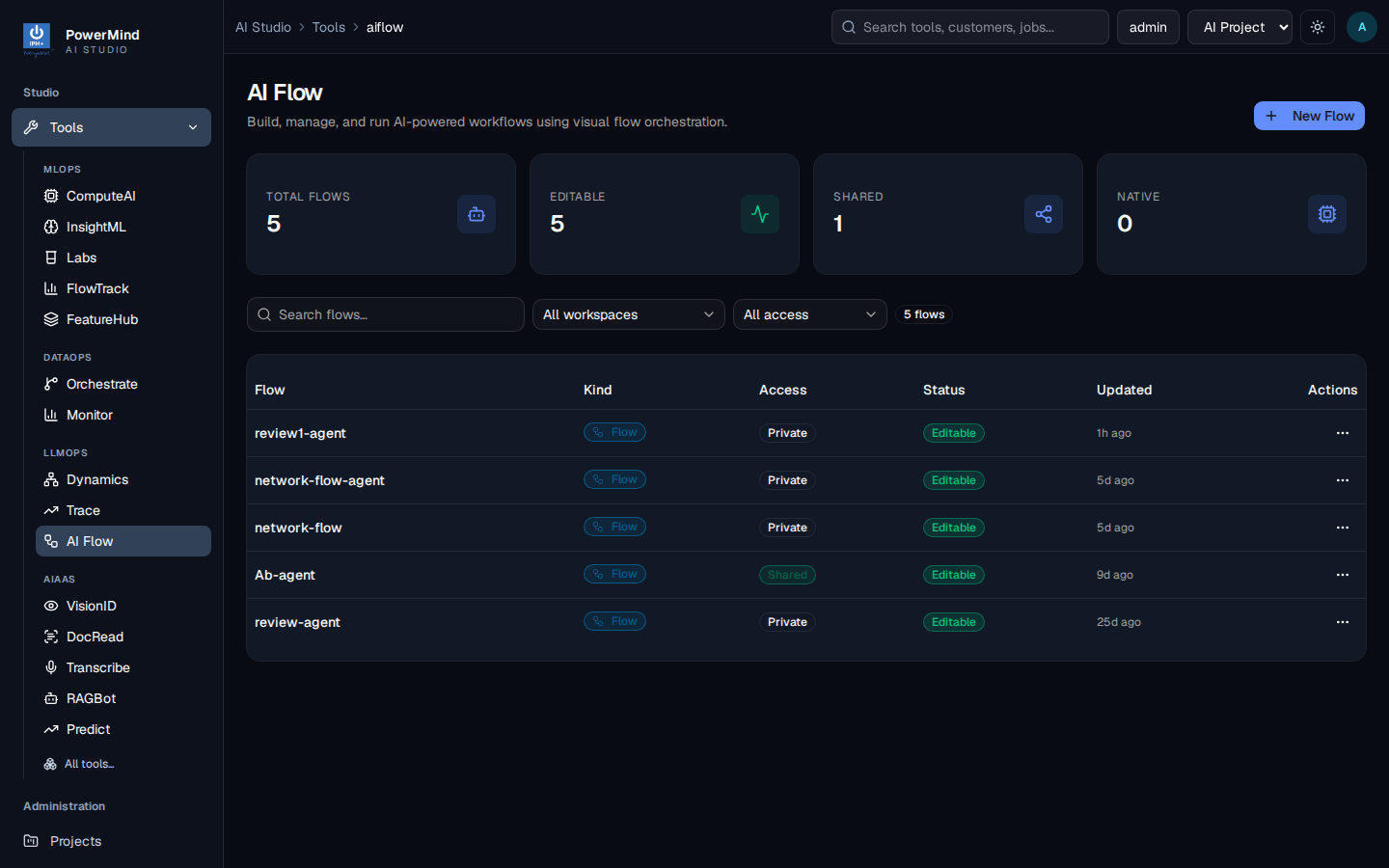
| Column | Meaning |
|---|---|
| Flow | Name (click to open) |
| Kind | Flow (visual graph) or Native |
| Access | Private or Shared |
| Status | Editable |
| Updated | Last change |
| Actions | … menu |
Search and filters: All workspaces, All access. + New Flow starts a new graph.
5. New Flow
+ New Flow opens Choose flow kind.
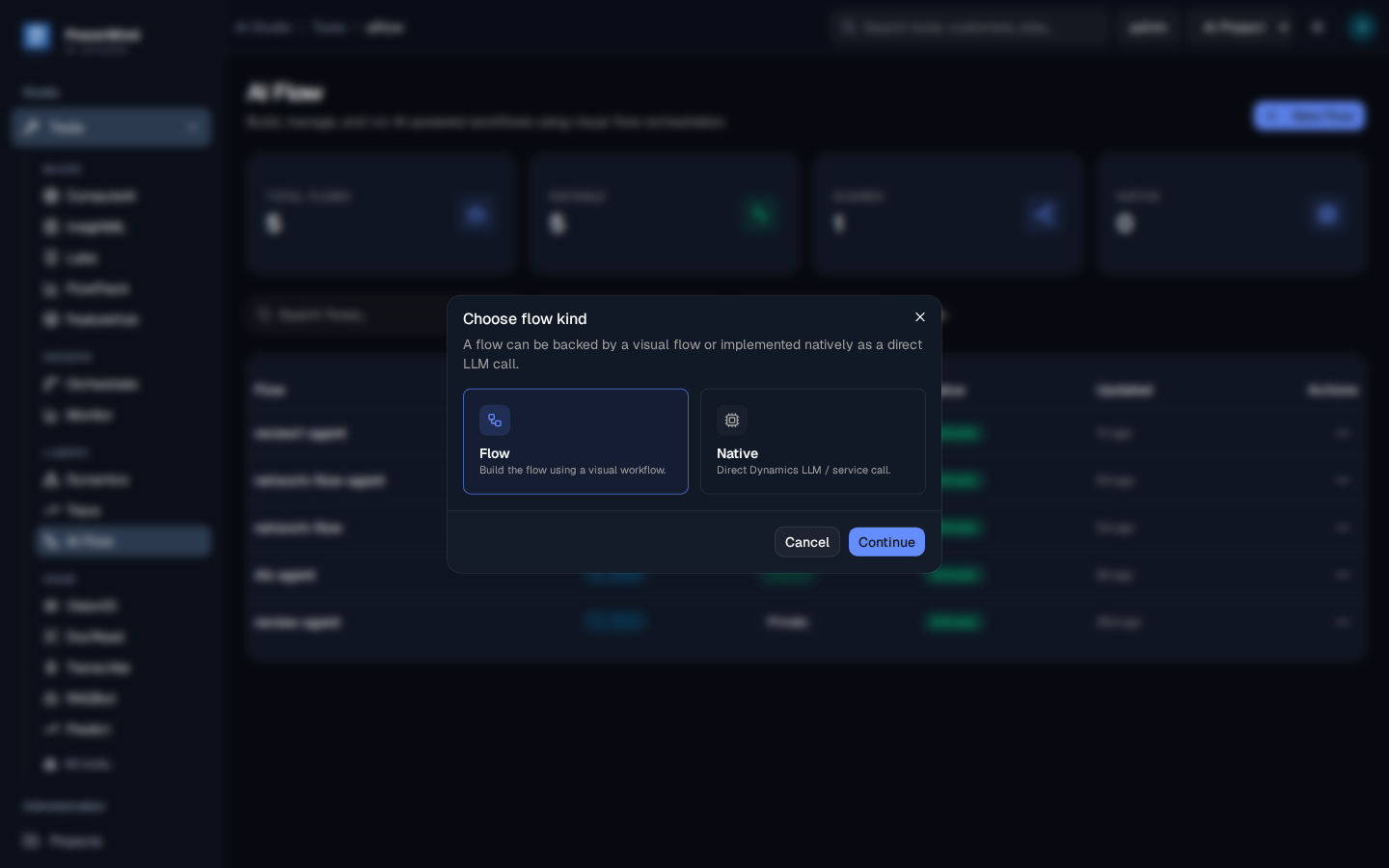
- Flow — build using a visual workflow.
- Native — direct Dynamics LLM / service call.
Continue creates the flow. Cancel closes the dialog.
6. Row actions
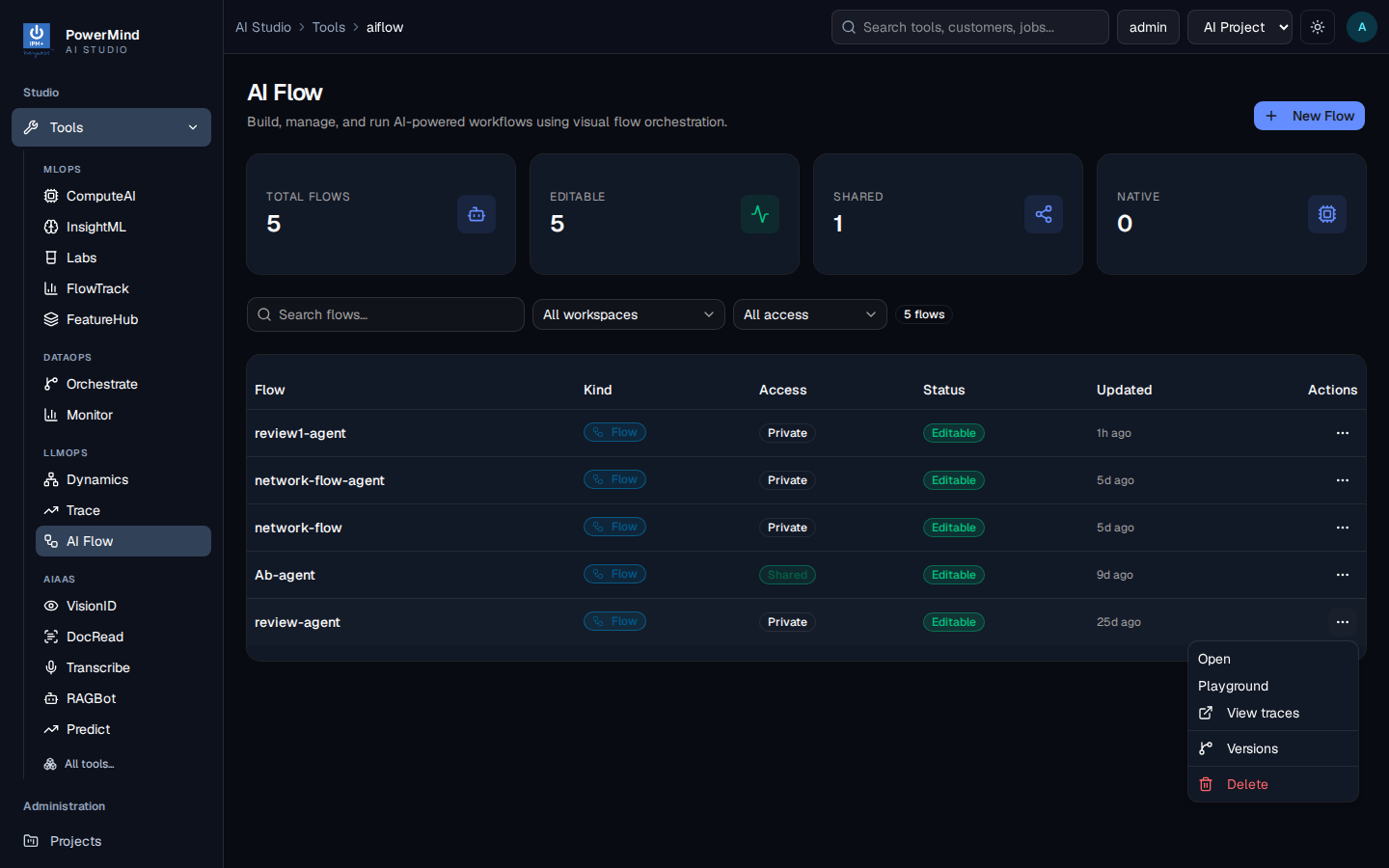
Open, Playground, View traces, Versions, Delete.
7. Graph (editor)
Breadcrumb includes the flow id. Example flow: review1-agent.
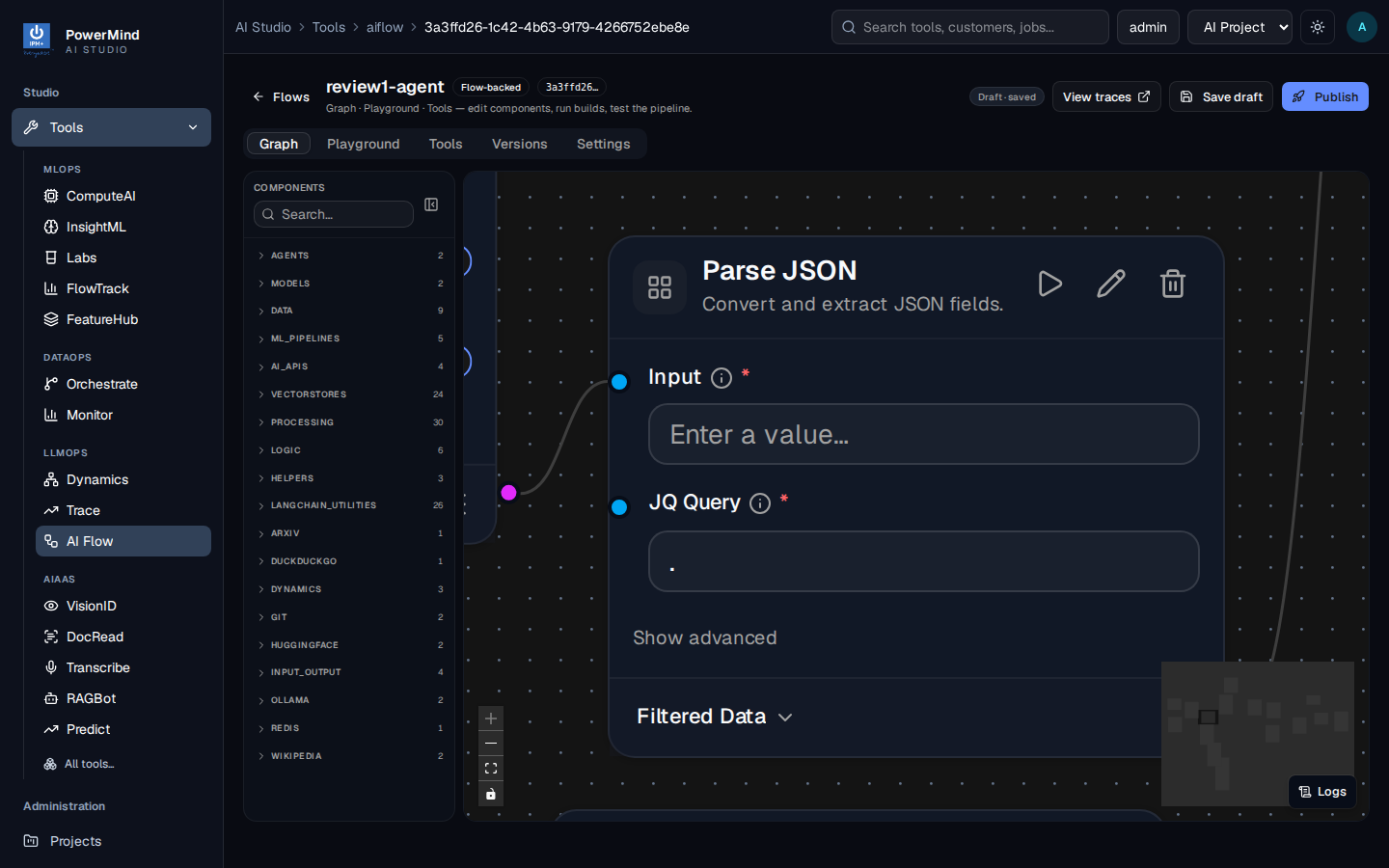
Left: Components search and groups (Agents, Models, Data, Vectorstores, Processing, Dynamics, …).
Canvas: nodes and edges. Node toolbar: run, edit, delete.
Top: Graph · Playground · Tools · Versions · Settings. Save draft. Publish. View traces.
8. Playground
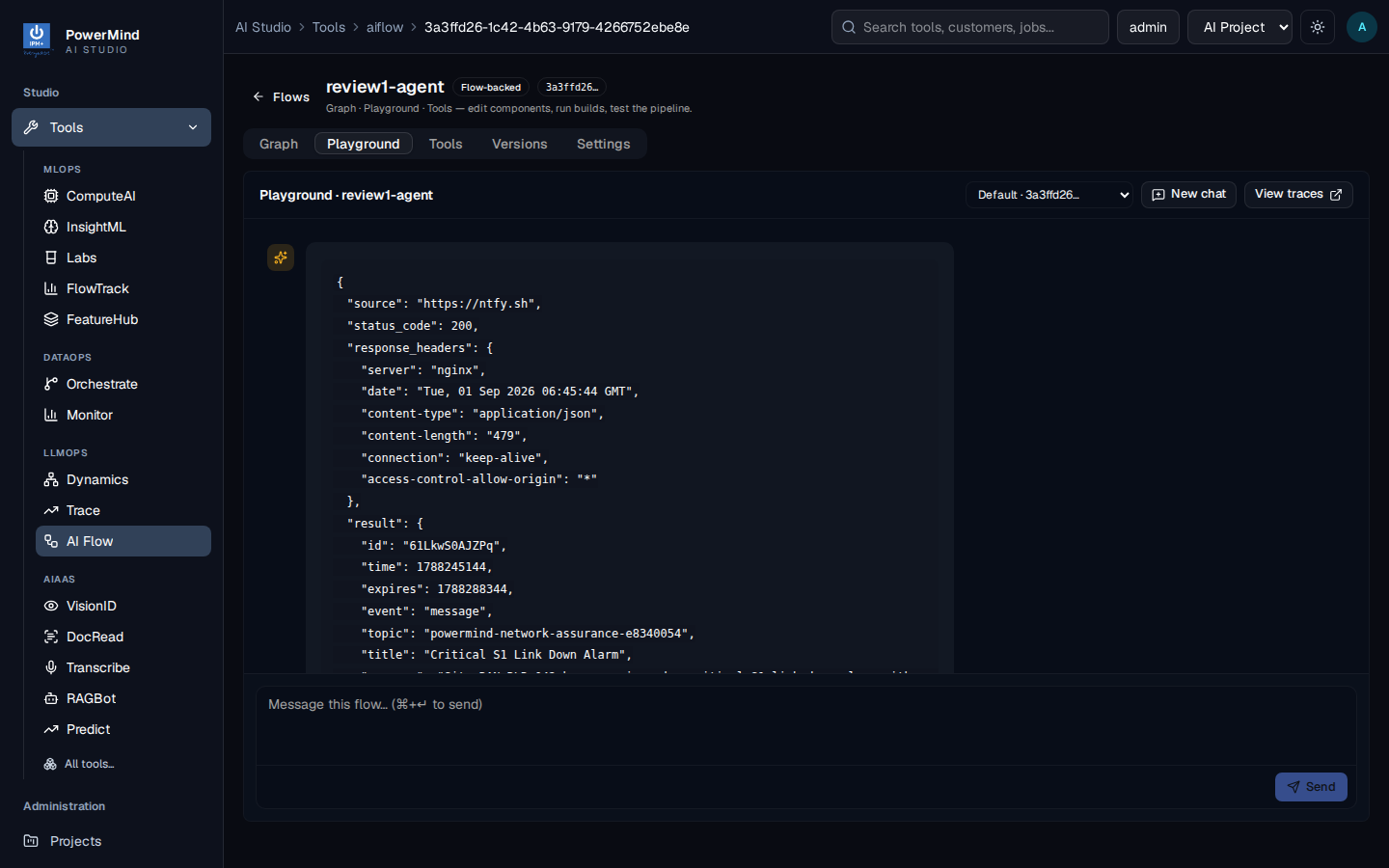
Chat panel, New chat, version dropdown, message box, Send. Use this to test before you publish.
9. Tools
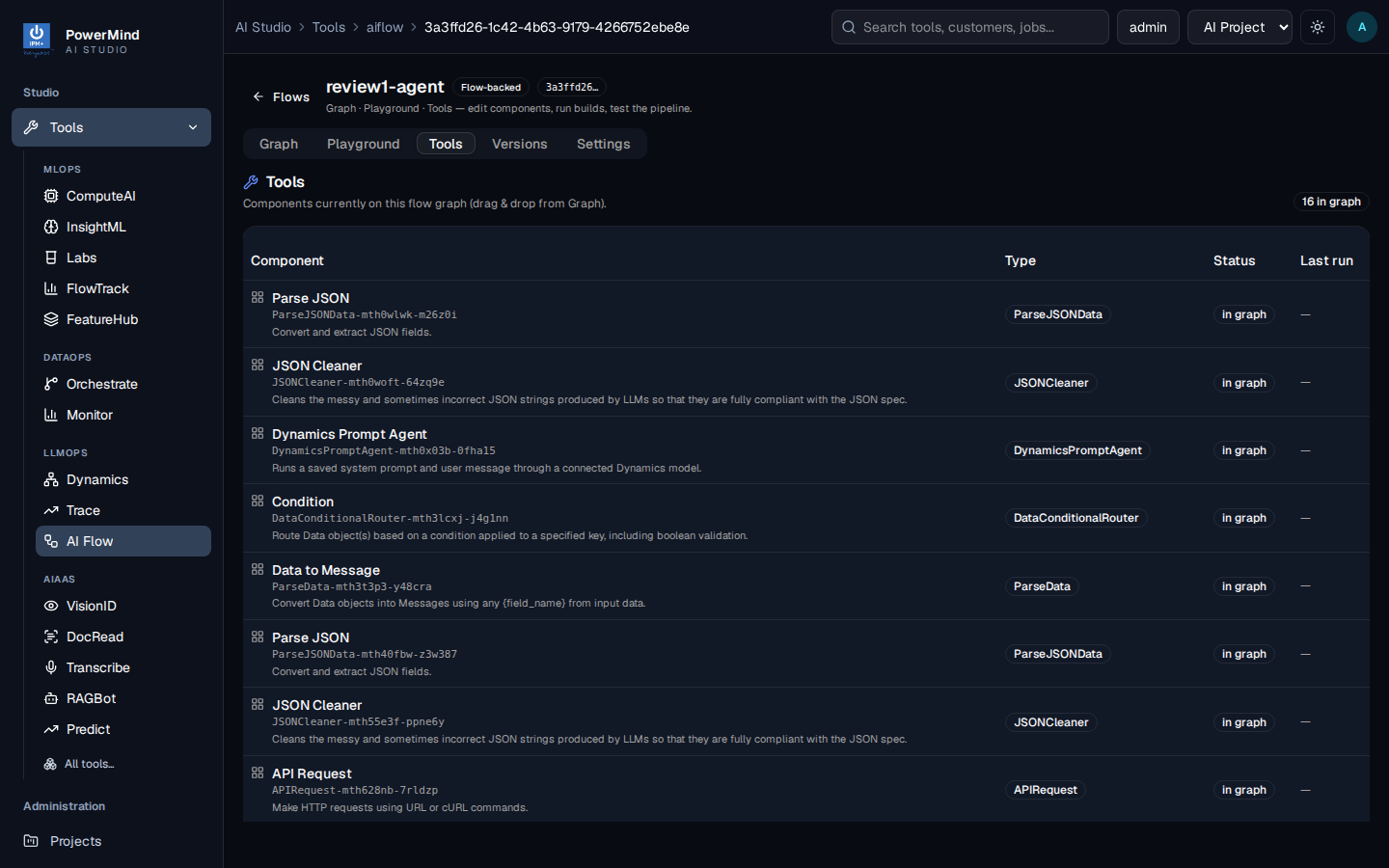
Every component currently on the graph (name, type, in-graph status, last run). Example: Parse JSON, JSON Cleaner, Dynamics Prompt Agent, Condition, API Request.
10. Versions
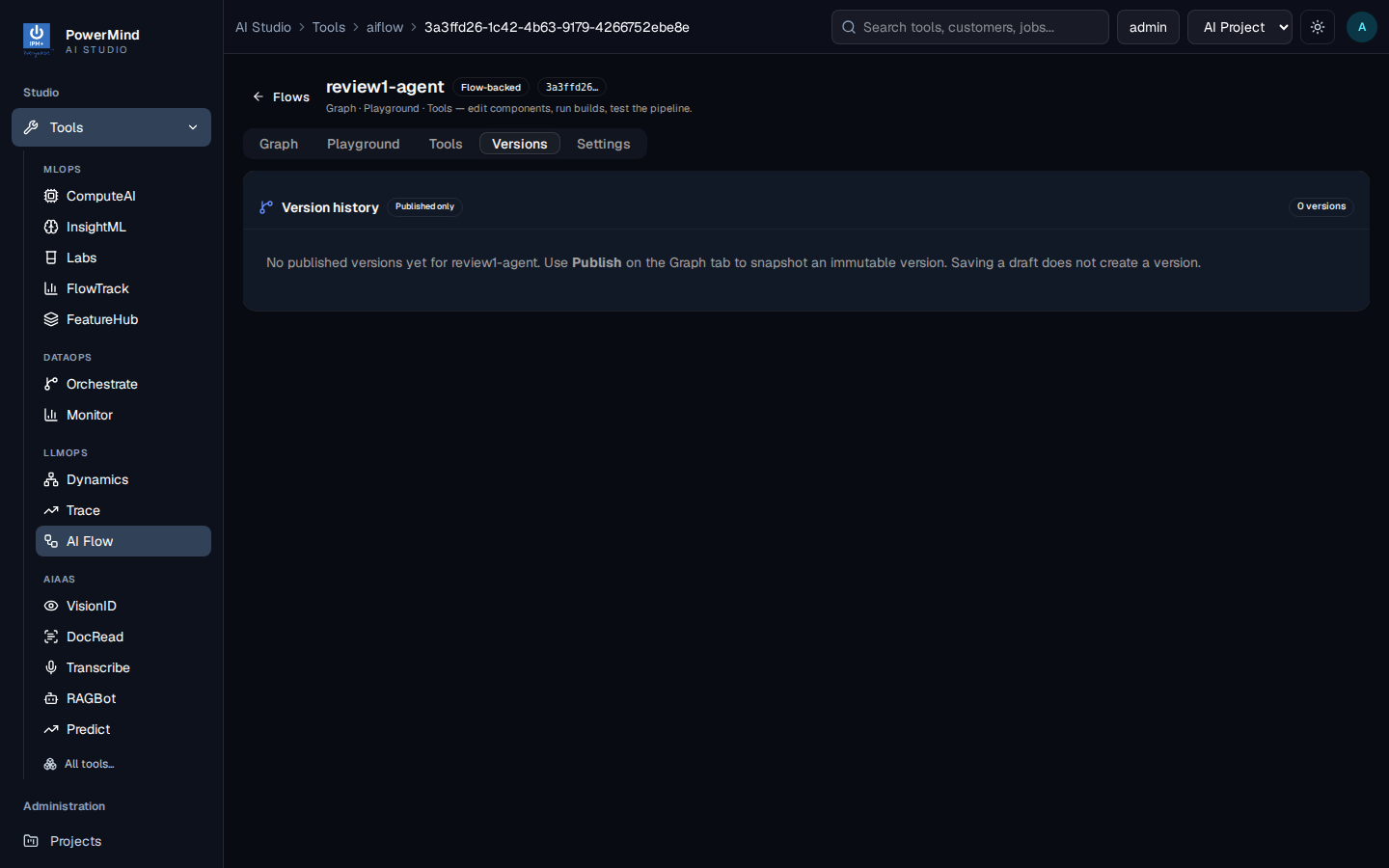
Published-only history. Empty until you Publish.
11. Settings
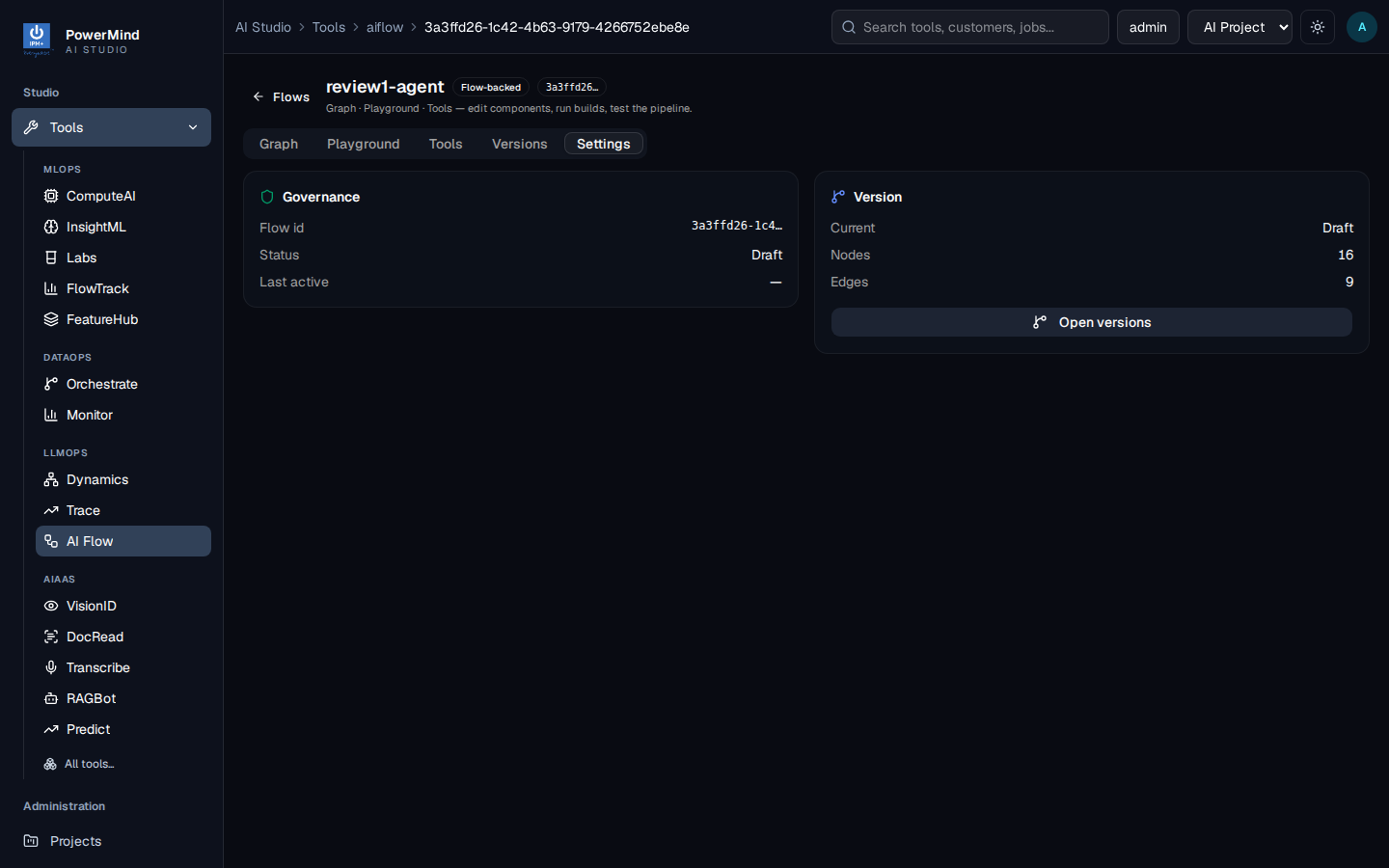
Governance (id, draft status) and version summary (nodes, edges). Details: Settings.
12. Publish
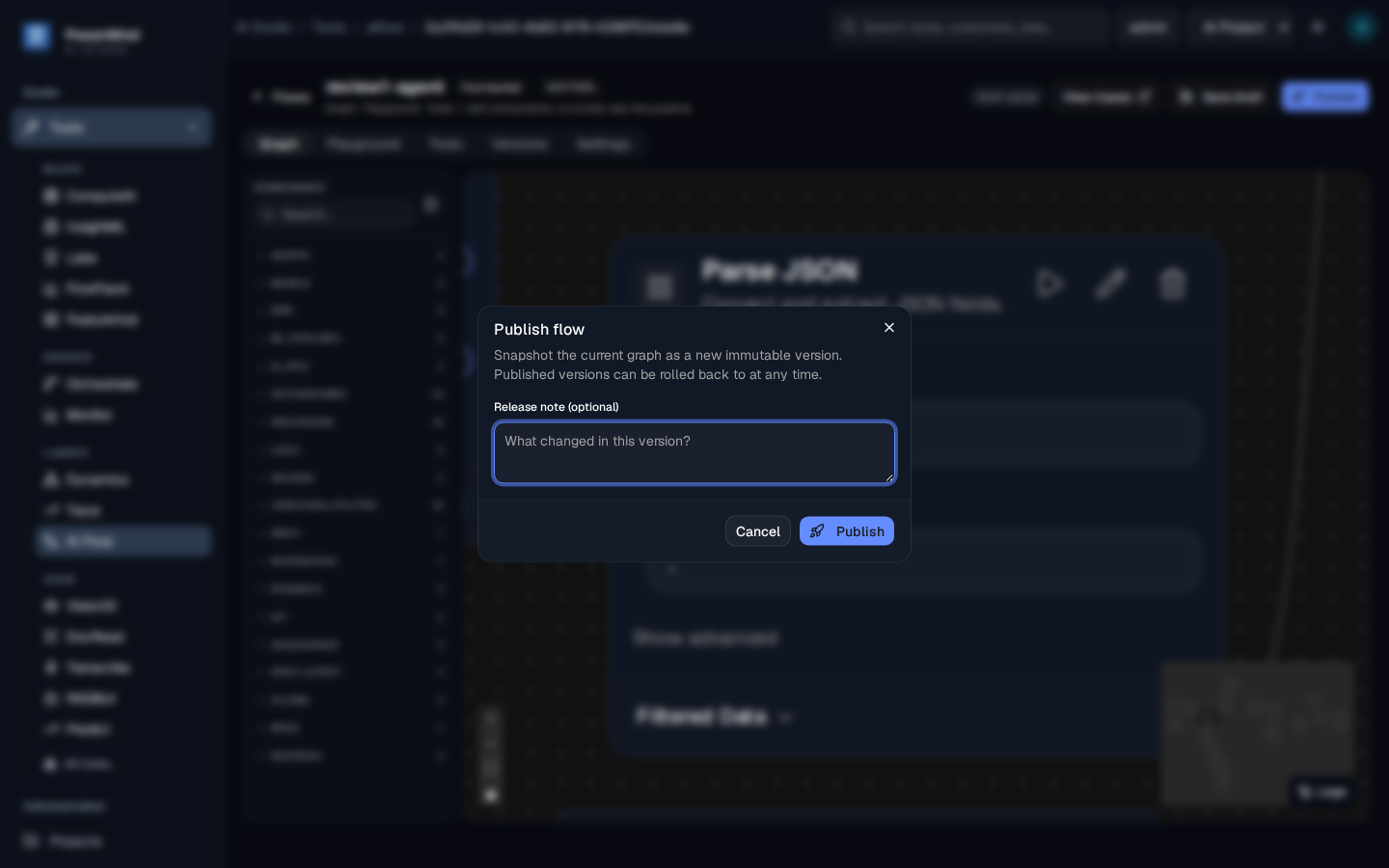
Optional release note, then Publish. Details: Publish.