PowerMind InsightML User Guide
Why InsightML? Purpose & Application Intent
Modern organizations generate vast amounts of structured, tabular, and time-series data. However, transitioning from raw data to production-ready machine learning services typically requires stitching together fragmented tools—Jupyter notebooks, ad-hoc training scripts, manual hyperparameter tuning pipelines, separate model registries, and complex custom Docker/Flask serving infrastructure. This operational friction introduces security vulnerabilities, slows down time-to-market, and requires scarce specialized machine learning engineering resources.
PowerMind InsightML solves this fundamental challenge by providing an enterprise-grade, end-to-end Automated Machine Learning (AutoML) platform and control plane. It enables data scientists, business analysts, and software engineers to build, evaluate, register, deploy, and monitor classical and time-series ML models in minutes—all from an intuitive graphical web interface or programmatically via a unified Python SDK.
flowchart TD
    subgraph Traditional["Traditional Fragmented ML Process"]
        direction LR
        A1["CSV Files"] --> A2["Custom Notebooks"] --> A3["Manual Tuning"] --> A4["Ad-hoc Docker / Flask"]
    end

    subgraph InsightML["PowerMind InsightML Unified Control Plane"]
        direction LR
        B1["Data Ingest / FeatureHub"] --> B2["Automated AutoML Engine"] --> B3["Model Registry"] --> B4["Instant REST Serving"]
    end

Traditional -.->|"Unified & Automated"| InsightML| Lifecycle Dimension | Traditional ML Tooling | PowerMind InsightML Platform |
|---|---|---|
| Workflow Architecture | Disconnected Jupyter notebooks, custom scripts & manual pipelines | Single unified web console & Python SDK |
| Model Selection | Manual trial-and-error hyperparameter search | Automated multi-algorithm competitive benchmarking |
| Feature Store Access | Ad-hoc exports & duplicated feature engineering | Native PowerMind FeatureHub synchronization |
| Production Serving | Manual Docker builds, Flask servers & custom routing | One-click instant REST serving microservices |
| Security & Governance | Shared platform credentials & token exposure | Security Token Isolation (Platform vs. Deployment API keys) |
Core Value Propositions
- Zero-Code to Production: Upload raw tabular datasets and generate production-grade predictive microservices with full REST APIs in one continuous workflow.
- Competitive Algorithm Benchmarking: InsightML concurrently trains, tunes, and cross-validates leading algorithms (LightGBM, XGBoost, CatBoost, Random Forest, Extra Trees, Linear/ElasticNet, and Voting Ensembles), ranking them on an interactive multi-metric leaderboard.
- Time-Series & Classical ML Support: Built-in temporal feature engineering automatically constructs lag features and rolling statistics for time-series forecasting, while handling classification, regression, and clustering tasks out of the box.
- Security & Governance by Design: Multi-tenant workspace isolation, full audit event tracking, and Security Token Isolation (separating administrative platform keys from low-privilege prediction keys).
- Enterprise Integration: Seamlessly connects with PowerMind FeatureHub for governed feature store access and provides high-throughput serving endpoints compatible with downstream enterprise applications.
Real-World User Story: Predicting Customer Churn
To see how InsightML accelerates machine learning in a corporate setting, consider this end-to-end user scenario:
Business Context: A subscription-based SaaS and telecommunications enterprise wants to reduce customer attrition by identifying accounts at high risk of churning before their contract renewal.
- Ingesting Historical Data: The analyst logs into their InsightML workspace and uploads
telecom_churn_history.csv(containing customer tenure, contract type, monthly charges, support tickets, and churn flags).- Launching AutoML: In the Experiments tab, they select
Classification, setchurnas the target variable, and start training. InsightML automatically imputes missing values, one-hot encodes categories, scales numerical fields, and launches hyperparameter search across multiple candidate algorithms.- Evaluating the Leaderboard: In under 3 minutes, the AutoML engine completes. The interactive leaderboard highlights a tuned LightGBM Ensemble as the top performer with an F1-Score of 0.94 and ROC-AUC of 0.96. The analyst inspects the confusion matrix and feature importance plot, confirming that customer support call volume and month-to-month contracts are the primary churn drivers.
- Promoting to Model Registry: With one click, the analyst promotes the winning model to the Model Registry as version
v1.0.0.- Instant Serving Deployment: The analyst clicks the 🚀 Deploy button on the registered model. InsightML provisions an active serving endpoint (
/api/v1/infer/telecom-churn-v1) and issues a dedicated Deployment API Key.- Interactive Validation in Inference Lab: In the Inference Lab, the developer selects the deployment, inputs sample customer features, clicks Run Inference, and validates the real-time prediction output (e.g.,
churn: true,probability: 0.89) with a sub-20ms response time. The endpoint is immediately ready for CRM integration.
1. Access & Authentication
The InsightML web console is accessible as a core tool within the PowerMind AI Studio ecosystem.
- Workspace Access URL:
http://<your-host-or-domain>/app/tools/insightml/workspace(or via the PowerMind AI Studio tool navigation) - Authentication Mechanism: Your organization account through PowerMind Studio.
1.1 Studio Sign-In Screen
Upon navigating to the platform URL, users are greeted by the centralized PowerMind AI Studio authentication gateway.
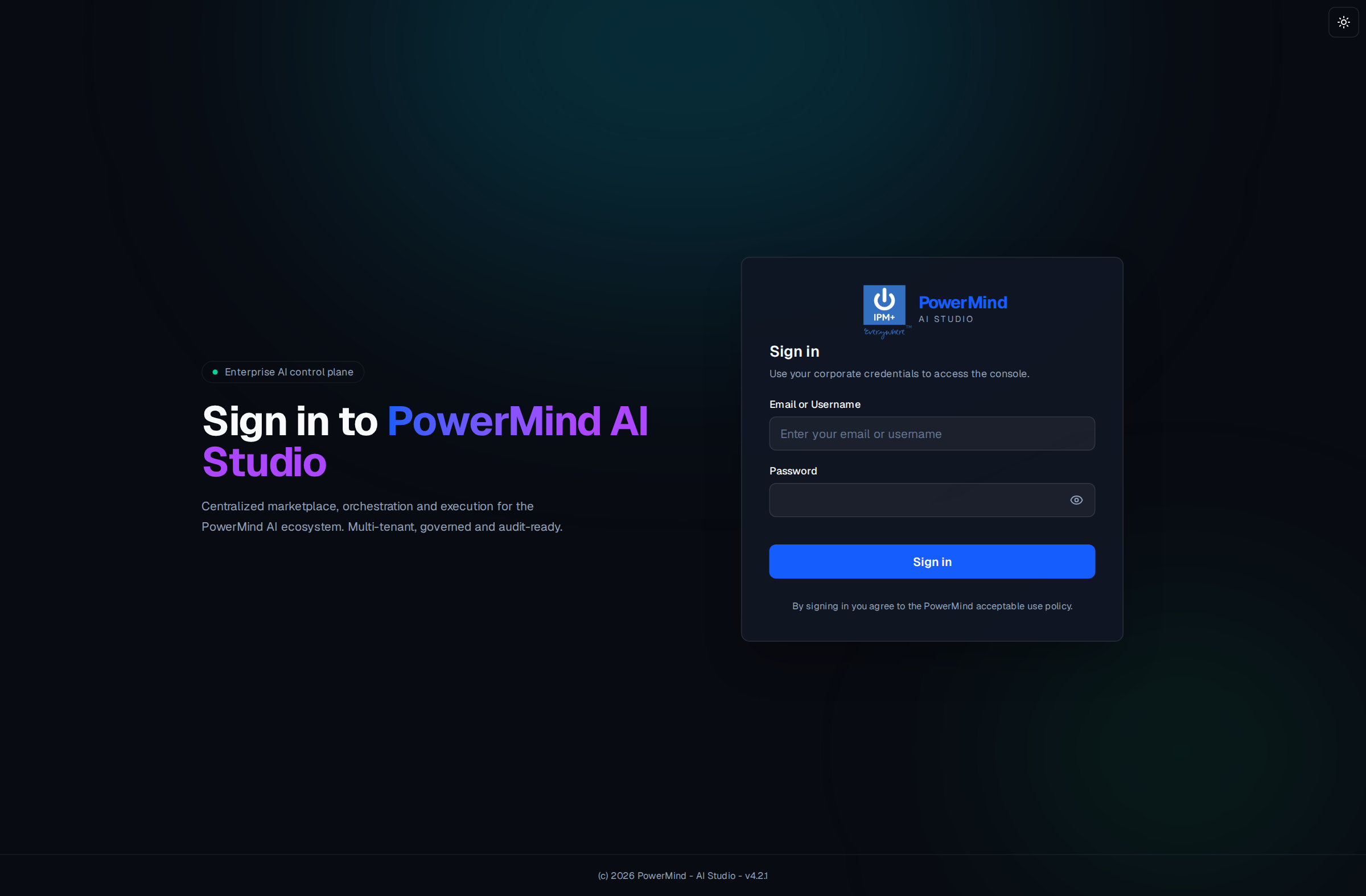
- Email or Username: Enter your assigned corporate username (e.g.,
<username>). - Password: Provide your corporate password.
- Sign In: Authenticates credentials against the enterprise identity provider and establishes an encrypted session.
2. PowerMind AI Studio Tools Marketplace
Following sign-in, users land on the unified AI Studio Tools Hub, which organizes platform capabilities into four operational pillars:
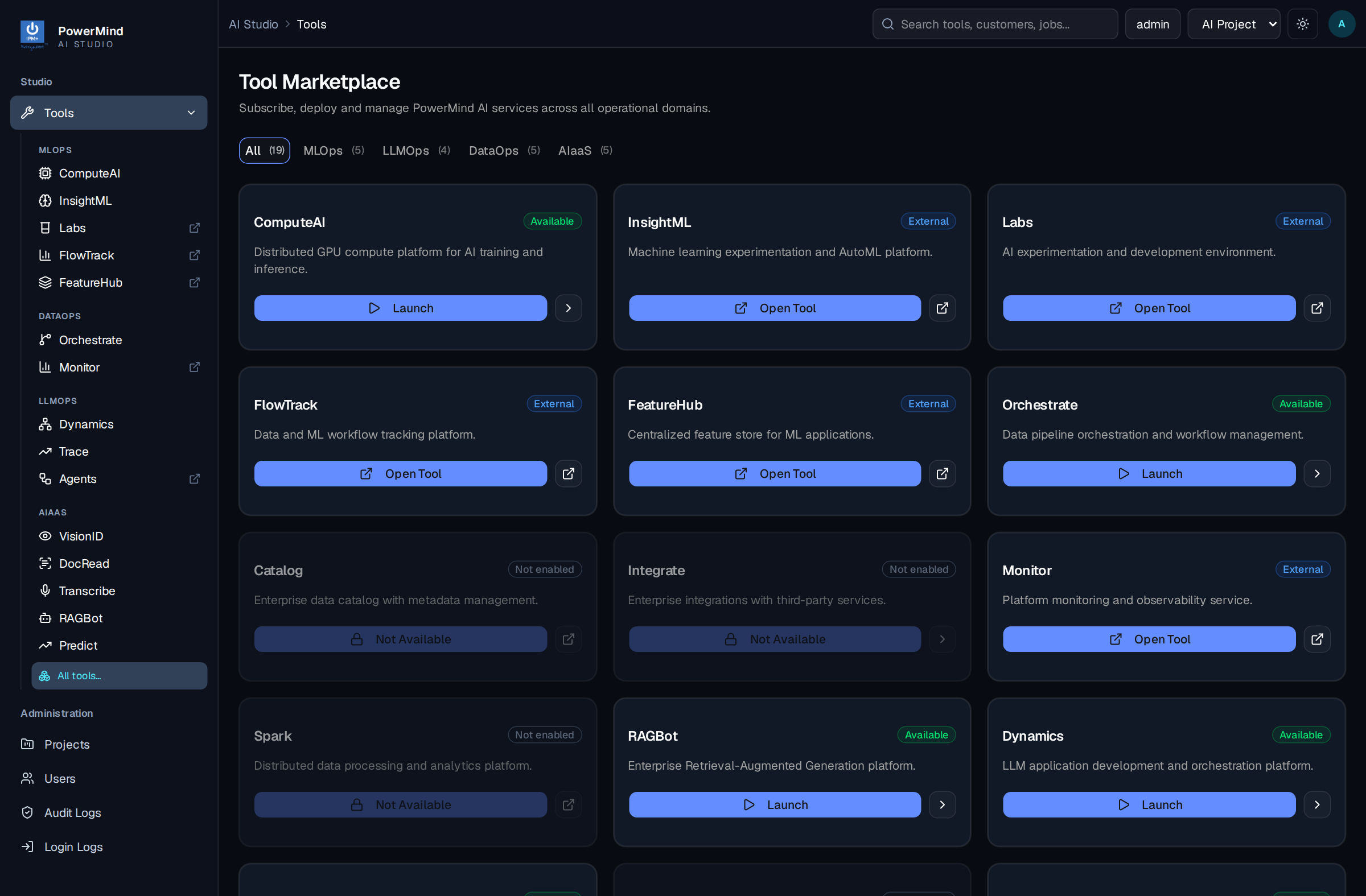
- MLOps:
- InsightML: End-to-end Automated Machine Learning (AutoML), Model Registry, and Serving.
- Labs: Interactive notebook environments and rapid experimentation.
- FlowTrack: Experiment tracking, artifact lineage, and metric logging.
- FeatureHub: Enterprise feature store for offline training and online serving.
- DataOps: Orchestrate and Monitor for data pipeline automation and infrastructure observability.
- LLMOps: Dynamics, Trace, and Agents for generative AI and LLM orchestration.
- AIaaS: Specialized AI microservices (VisionID, DocRead, Transcribe, RAGBot, Predict).
Clicking on the InsightML card or sidebar navigation opens the InsightML control plane.
3. Workspaces Management
The Workspace tab serves as the foundation for multi-tenancy, access governance, and resource isolation. All datasets, AutoML experiments, registered models, and active deployments belong to a specific workspace.
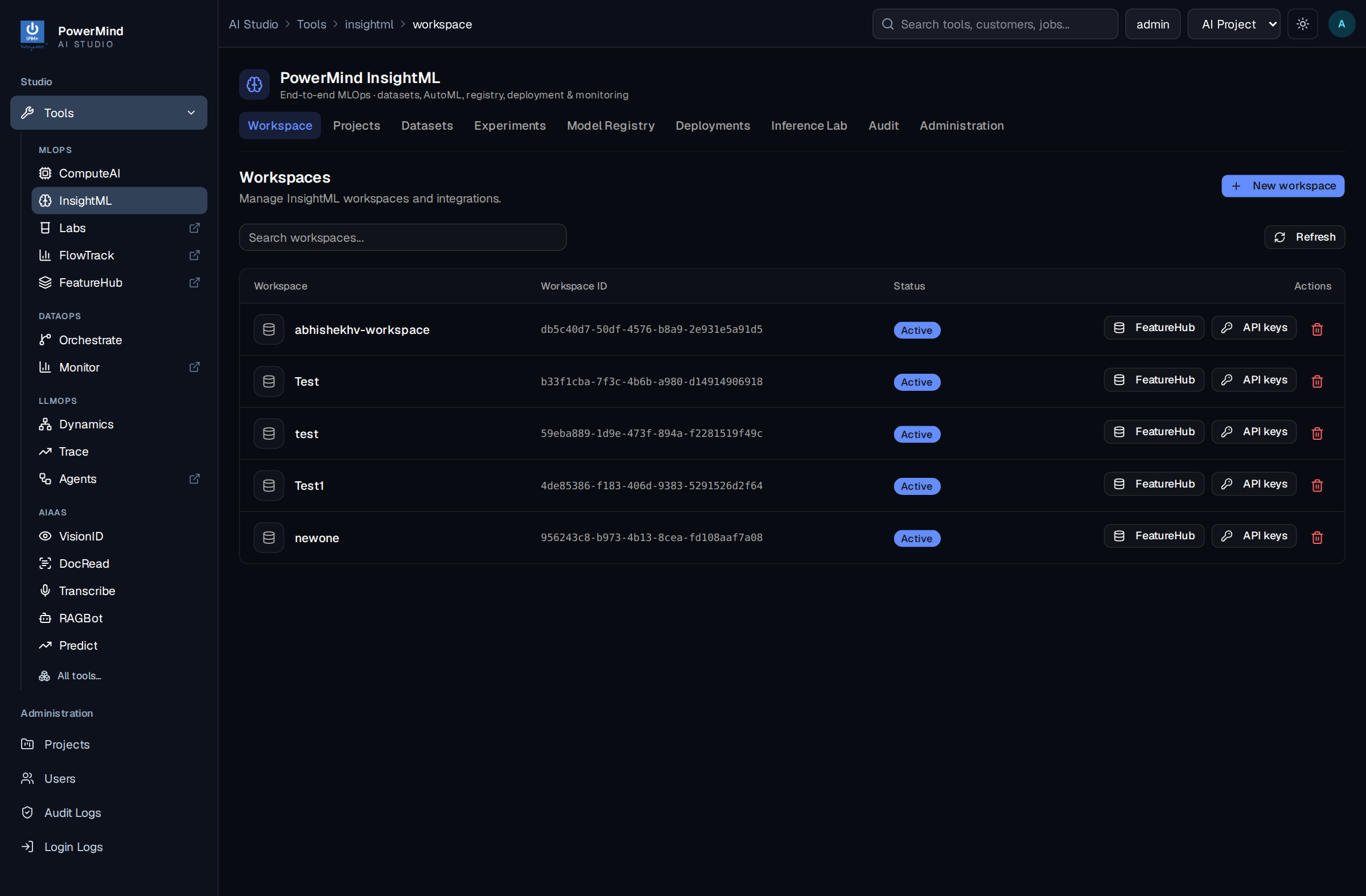
Key Workspace Columns & Controls
- Workspace Table:
Workspace Name: Human-readable identifier for the tenant workspace (e.g.,<workspace-name>).Workspace ID: System-generated UUID used for programmatic API and SDK access.Status: Operational state (ActiveorInactive).Actions: Quick-access buttons for Feature Store integration (FeatureHub) and credential generation (API keys).
- New Workspace: Provisions a dedicated workspace with custom storage paths.
- Refresh: Synchronizes the workspace table with the backend database.
3.1 Creating a New Workspace
Clicking the New workspace button opens the workspace provisioning modal.
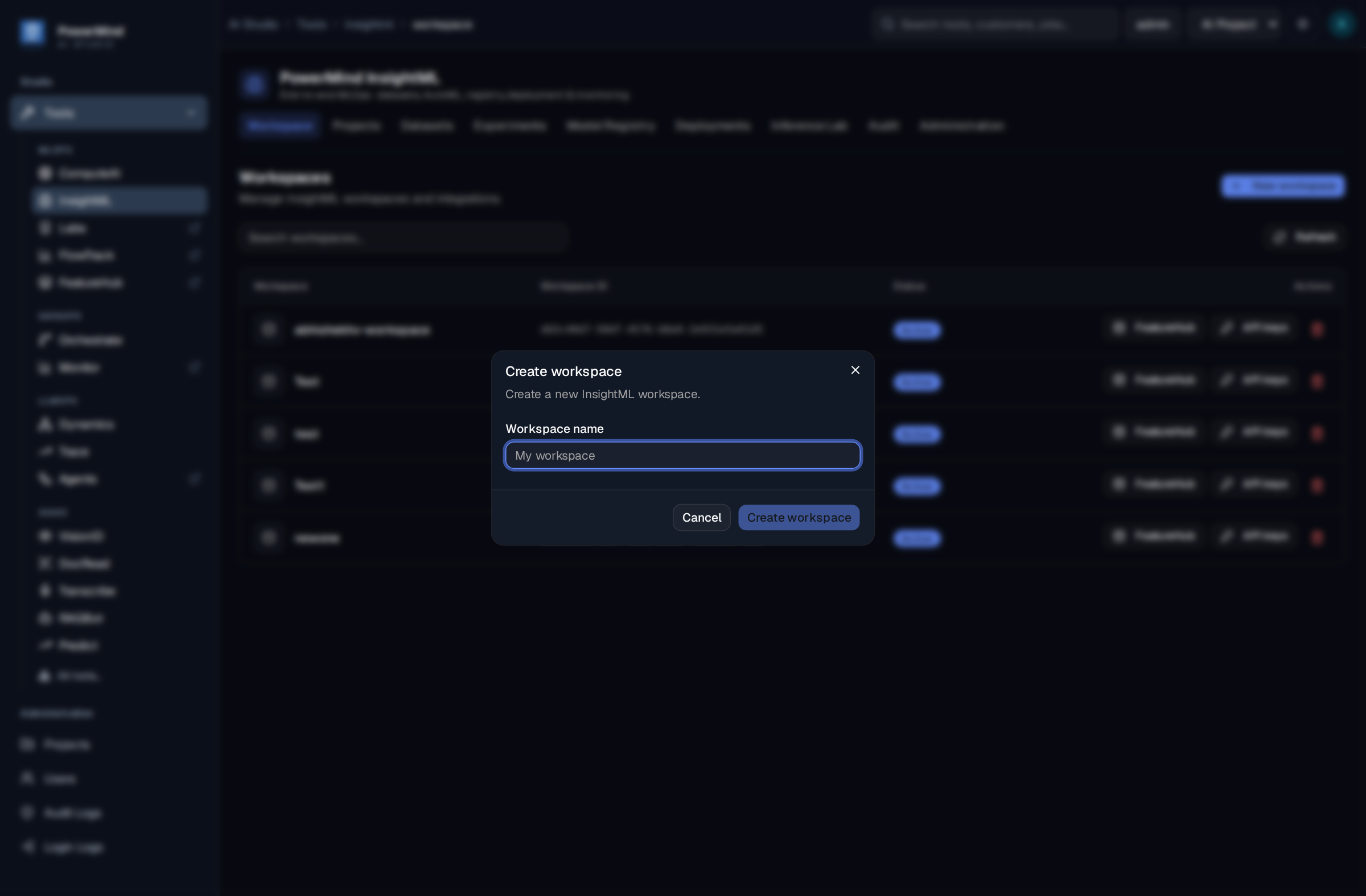
- Workspace Name: Enter a unique name following enterprise naming conventions.
- Storage Quota & Isolation: Automatically allocates isolated directory and database scopes for the tenant.
3.2 Managing Platform API Keys (SDK & Automation)
Clicking the API keys button on any workspace row opens the platform credential management modal.
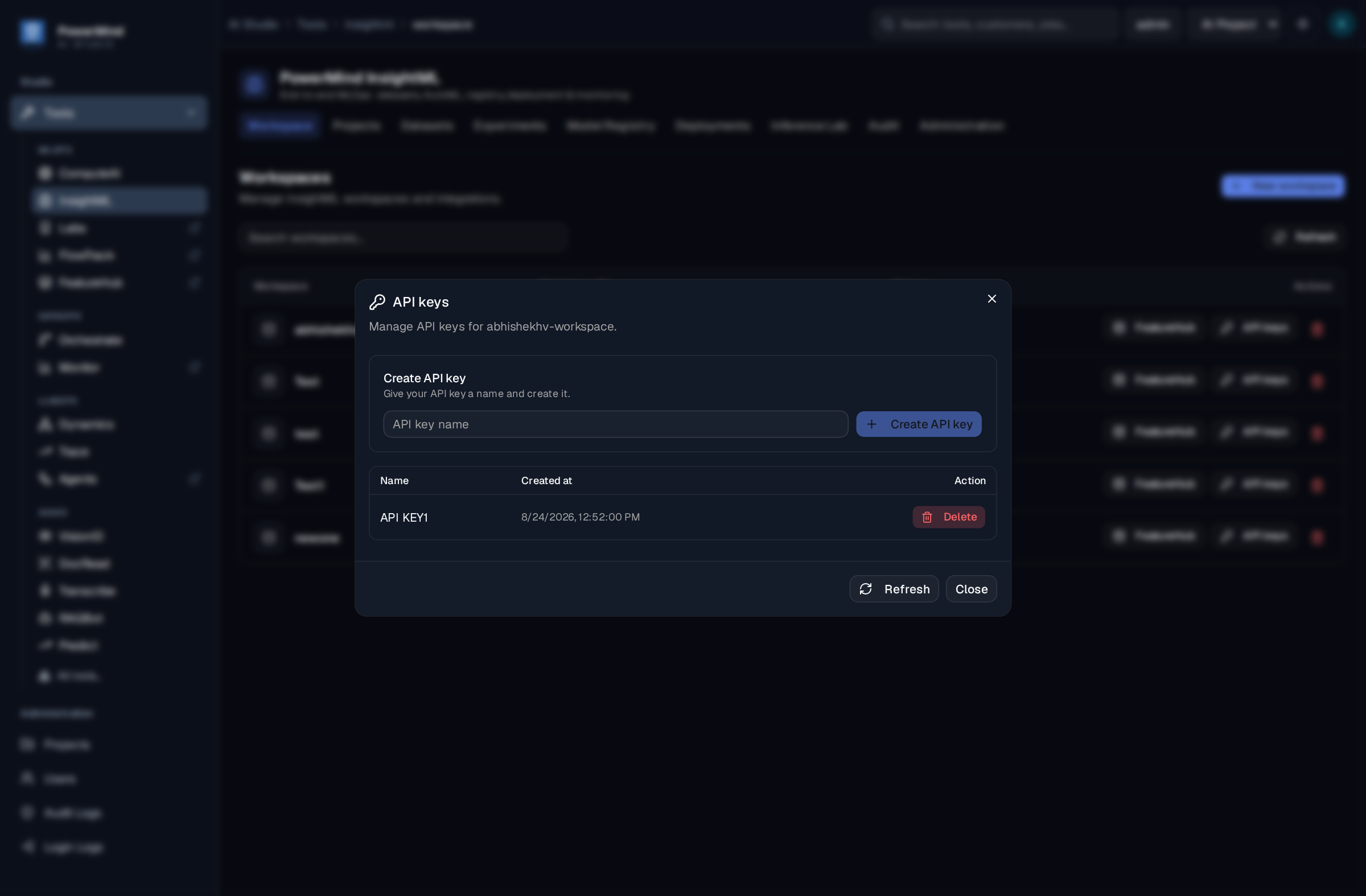
- Platform-Scoped API Keys: High-privilege tokens required for authenticating programmatic REST API calls and initializing the Python SDK (managing projects, uploading datasets, triggering AutoML runs).
- Python SDK Integration: For comprehensive code samples and automation tutorials, see the Python SDK Reference Guide.
Platform vs. Deployment Key Isolation
Platform API keys grant full management privileges across workspace resources. For security isolation, low-privilege Deployment API Keys (used exclusively for querying prediction endpoints) are created separately under active serving deployments.
3.3 FeatureHub Datasource Configuration
Clicking the FeatureHub button on a workspace row opens the centralized feature store connection modal.
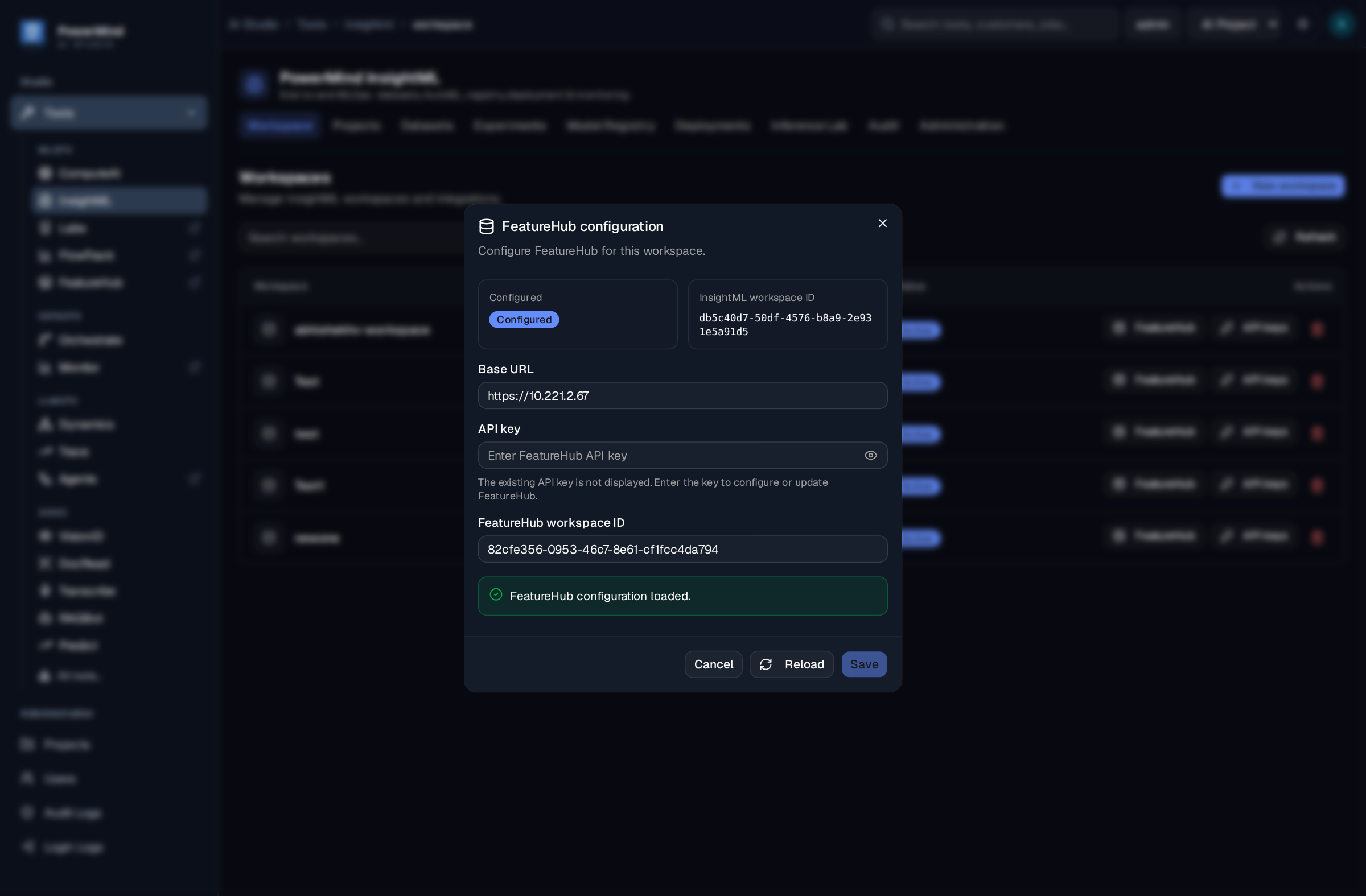
- Base URL: The REST endpoint of your enterprise FeatureHub deployment (e.g.,
https://featurehub.<your-domain>.com). - API Key: Scoped FeatureHub access token with read permissions.
- FeatureHub Workspace ID: Target UUID identifying the FeatureHub workspace.
- Documentation: For detailed feature store architecture, see the dedicated FeatureHub Integration Guide.
4. Projects Management
Within each workspace, work is organized into Projects. Projects group datasets, AutoML experiments, and models around specific business objectives (e.g., Customer Churn, Demand Forecasting, Fraud Detection).
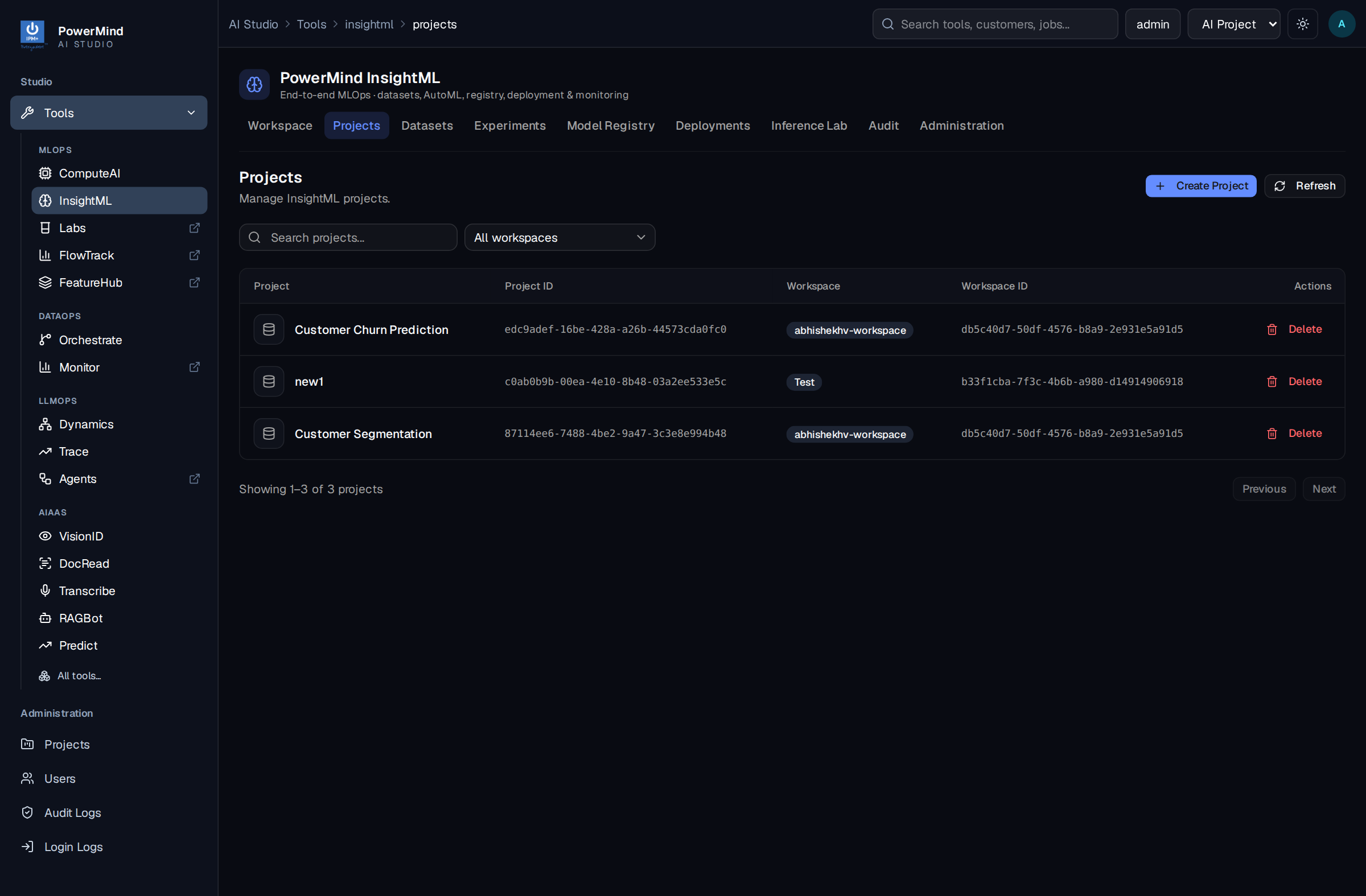
4.1 Creating a New Project
Clicking New project prompts the project creation dialog.
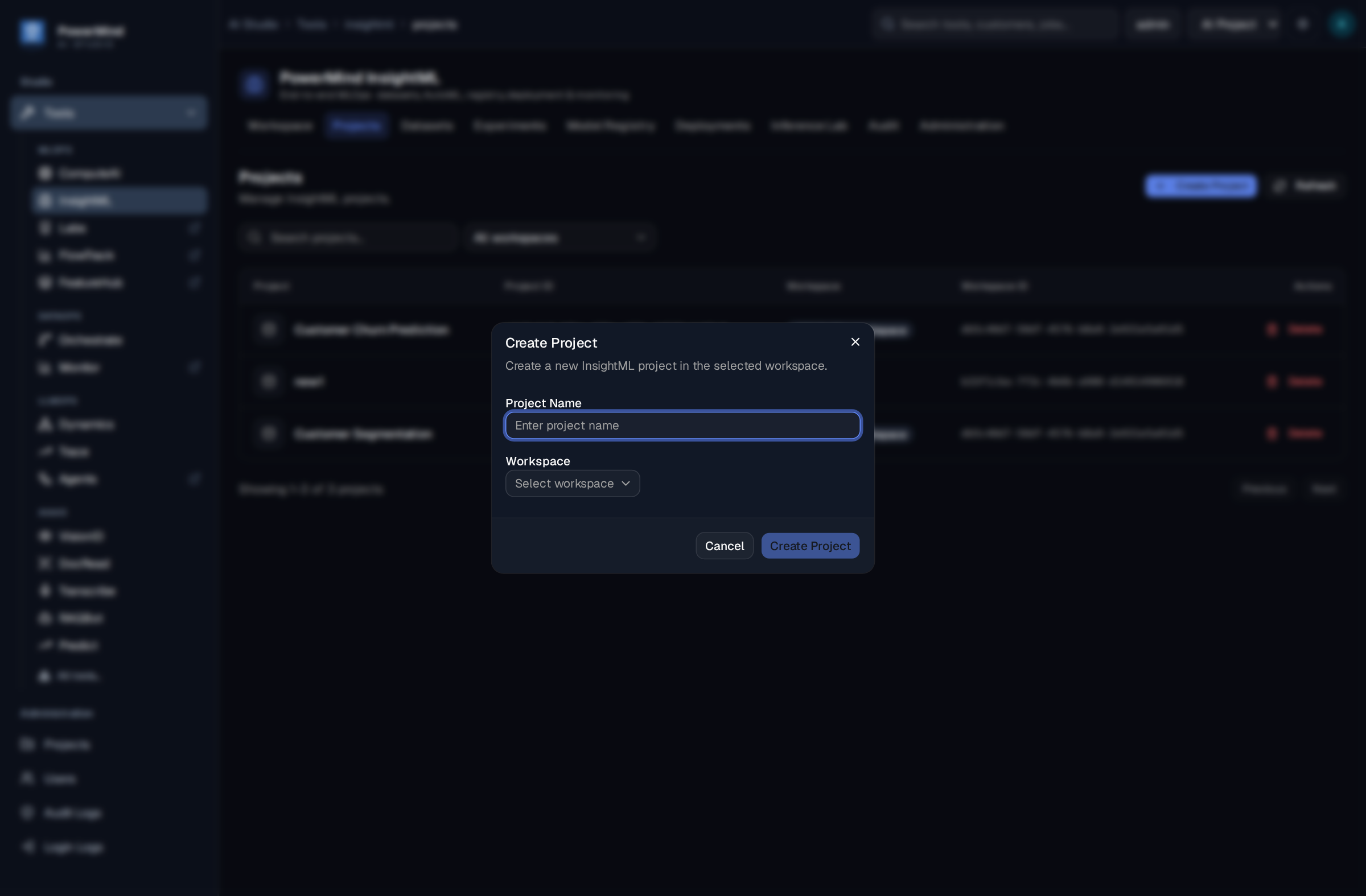
- Project Name: Descriptive name for the machine learning initiative.
- Description & Domain Tags: Metadata tags to organize experiments, datasets, and registered models.
5. Datasets & Feature Store Ingestion
The Datasets tab is the central hub for managing training datasets, temporal sequence data, and feature store connections. Both local CSV uploads and FeatureHub feature view imports are available on this screen.
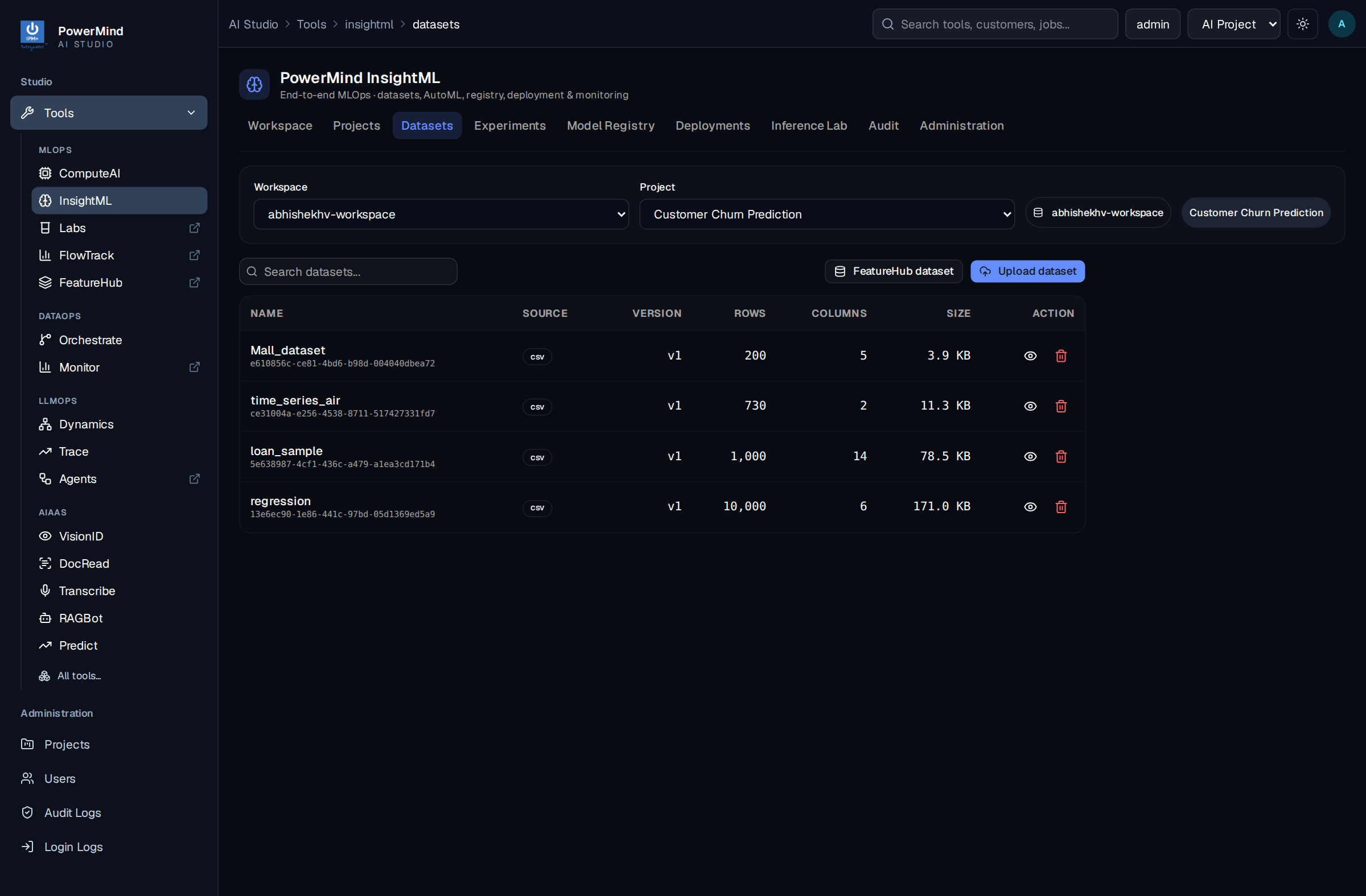
5.1 Uploading CSV Datasets
In the Upload dataset panel on the left:
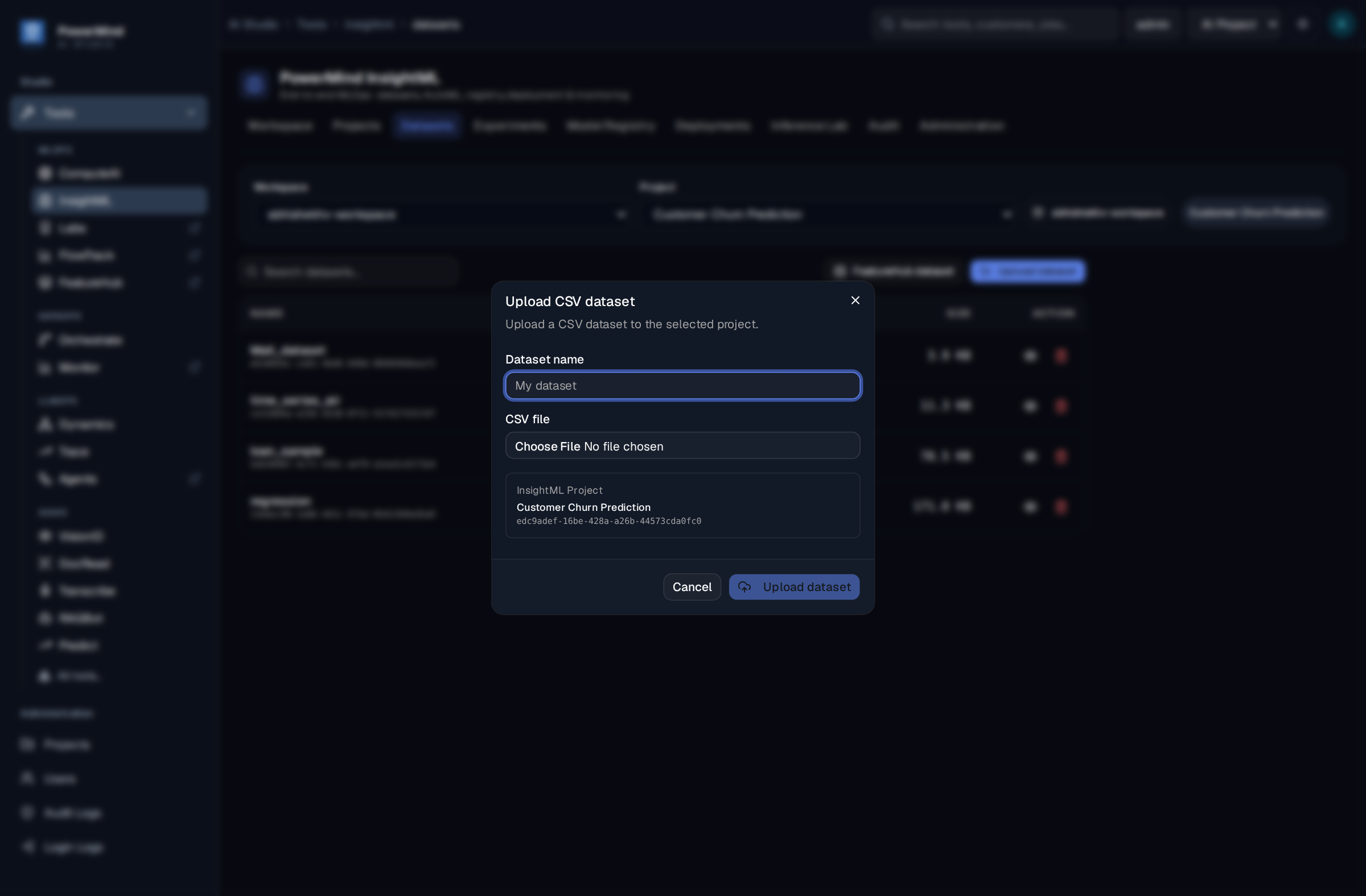
- Dataset Name: Enter a unique name for the dataset inside your project.
- CSV File: Click browse or drag-and-drop a local CSV file (UTF-8 encoded).
- Upload Dataset: Submits the file. InsightML automatically parses columns, computes data types, and records the dataset in your workspace.
5.2 Creating FeatureHub-Backed Datasets
In the Create FeatureHub dataset panel on the right:
- Dataset Name: Enter a unique identifier for the dataset inside InsightML (e.g.,
customer-30d-features). - Feature Name: Enter the exact name of the published feature view registered in FeatureHub (e.g.,
user_transaction_aggregates_30d). - Create FeatureHub dataset: InsightML connects to FeatureHub, retrieves the schema and data, and registers the feature view as an active dataset without requiring manual CSV exports.
- Step-by-Step Guide: For detailed feature store ingestion instructions, refer to the FeatureHub Integration Guide.
6. AutoML Experiments & Training
The Experiments tab houses InsightML's automated machine learning engine. It automates feature preprocessing, model selection, hyperparameter tuning, and cross-validation across diverse algorithms.
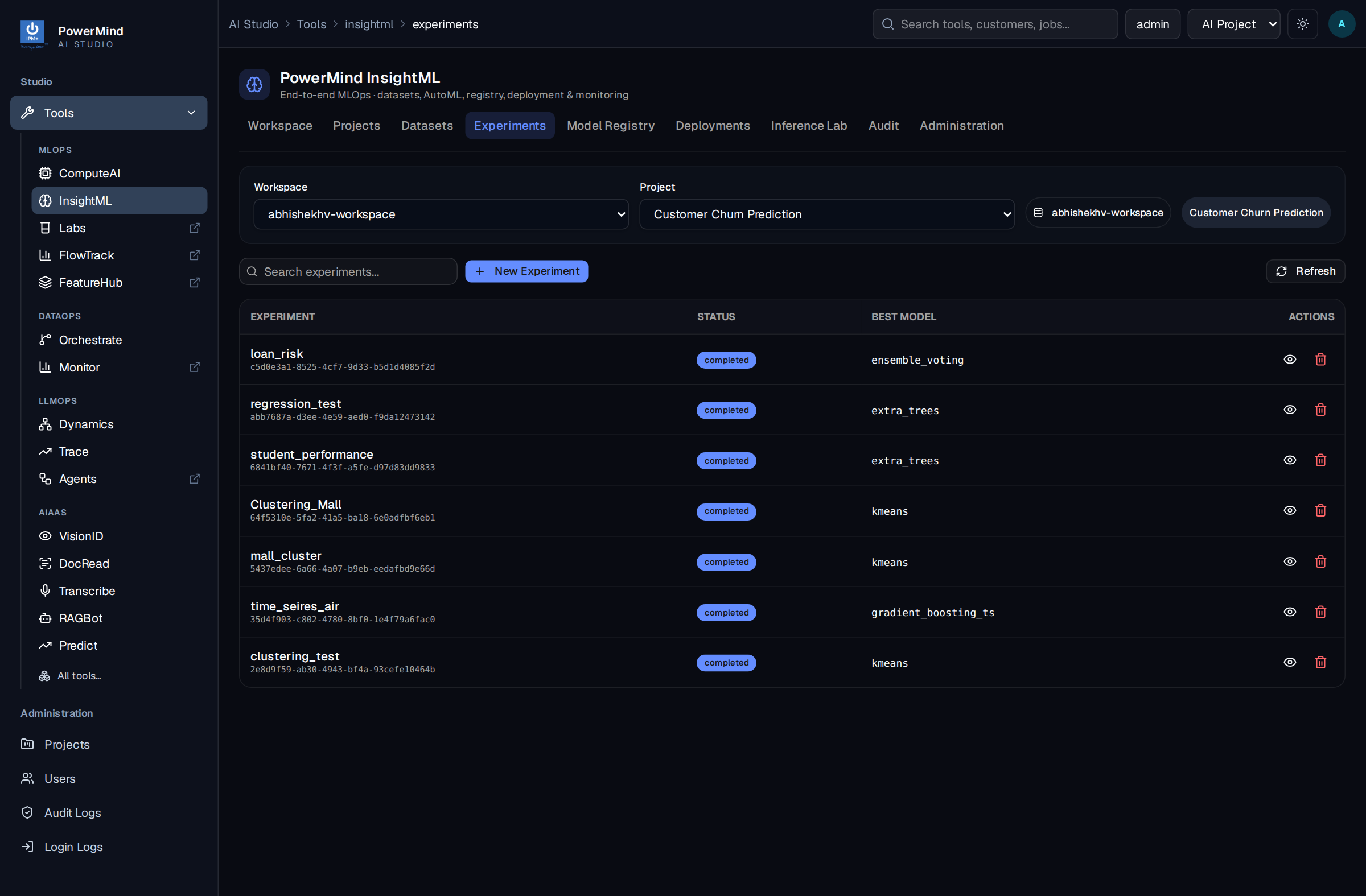
6.1 Launching an AutoML Run
Clicking New experiment opens the AutoML configuration modal.
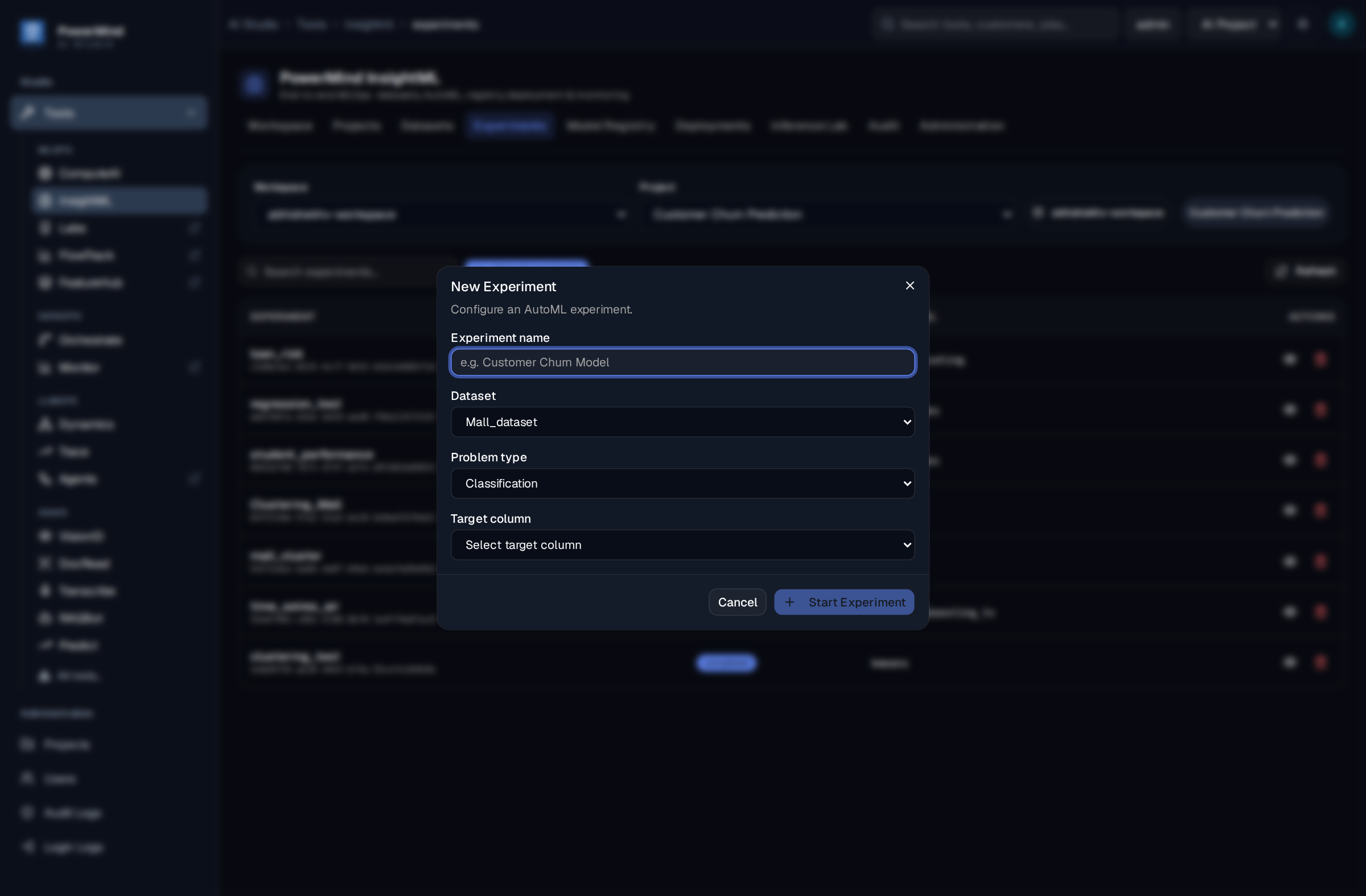
Configuration Fields
- Problem Type: Select the statistical modeling paradigm:
Classification: Binary or multi-class categorical outcome prediction (e.g., Churn, Fraud, Intent).Regression: Continuous numerical value estimation (e.g., Price, Sales, Lifetime Value).Clustering: Unsupervised grouping (evaluates candidate K clusters with Silhouette scoring).Time Series: Temporal sequence forecasting with automatic lag and rolling feature generation.
- Dataset Selection: Select an uploaded CSV dataset or FeatureHub feature view from the dropdown.
- Target Column: Select the dependent variable to predict (automatically hidden for unsupervised clustering).
- Time Budget & Search Strategy: Configure search intensity and maximum runtime limits.
- Automated Metric Optimization: InsightML automatically applies optimal evaluation objectives (Accuracy/F1/ROC-AUC for classification, RMSE/MAE/R² for regression and time-series, Silhouette scores for clustering) without requiring manual metric configuration.
7. Leaderboards & Model Evaluation
When an AutoML experiment completes, InsightML displays an interactive Candidate Models Leaderboard ranking every evaluated algorithm.
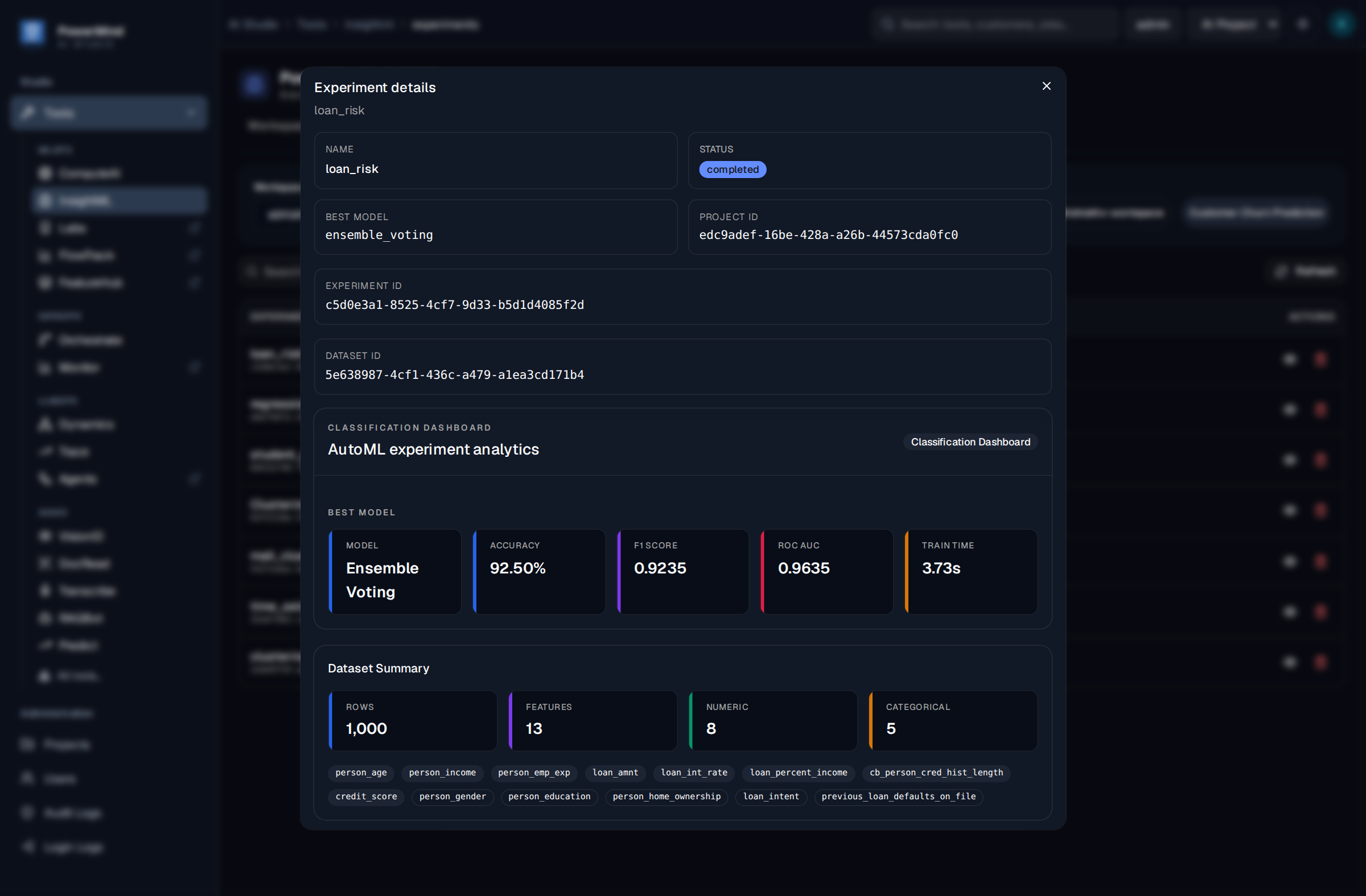
Leaderboard Capabilities
- Ranked Model Comparison: Evaluates and compares all candidate models (LightGBM, XGBoost, CatBoost, Random Forest, Extra Trees, ElasticNet, Linear Models, and ARIMA/Prophet).
- Multi-Metric Performance Table:
- Classification: Accuracy, Precision, Recall, Weighted F1-Score, Log Loss, ROC-AUC.
- Regression / Time-Series: Root Mean Squared Error (RMSE), Mean Absolute Error (MAE), MAPE, R².
- Clustering: Silhouette Score, Cluster Size Distribution, Centroid Feature Deltas.
- Visual Analytics:
- Classification: Interactive Confusion Matrices and ROC Curves.
- Regression & Forecasting: Actual vs. Predicted trend lines and Residual distributions.
- Explainability: Global Feature Importance rankings identifying top driving features.
- One-Click Model Promotion: Select the top-performing candidate model and promote it directly to the Model Registry.
8. Model Registry & Versioning
The Model Registry tab acts as the centralized corporate catalog for production-ready models, enforcing version control and deployment governance.
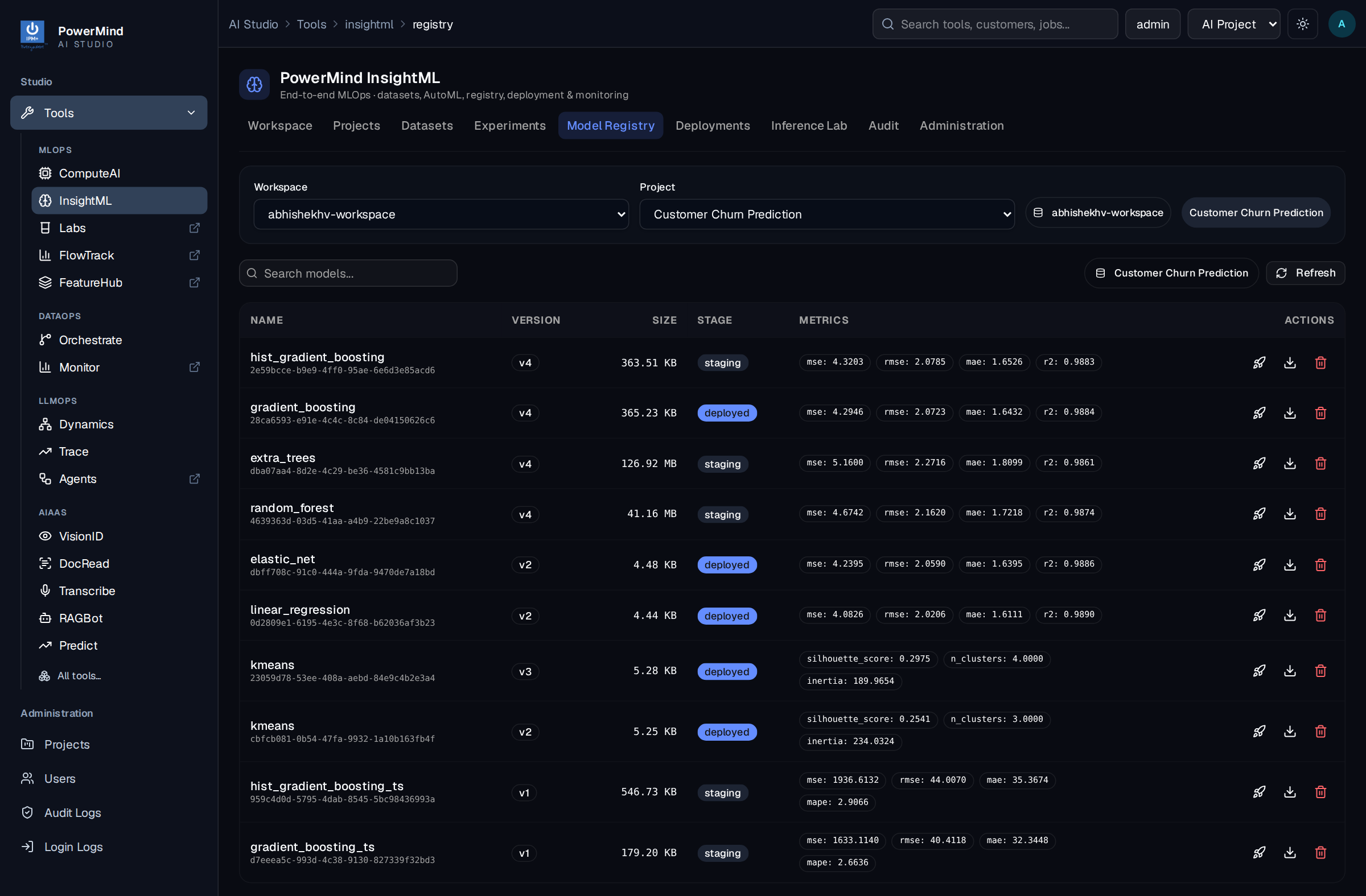
Registry Features & Actions
- Semantic Versioning: Automated version tagging (
v1.0.0,v1.1.0) for every promoted model artifact. - Model Lineage & Metrics: Tracks parent experiment UUID, training algorithm, test set accuracy, loss, and creation timestamp.
- One-Click Deployment: Locate any model version in the registry table and click the Deploy icon button (🚀). InsightML instantly provisions a dedicated serving instance and navigates to the Deployments tab.
9. Model Deployments & Serving Endpoints
The Deployments tab manages and monitors all active, queued, and historical model serving endpoints.
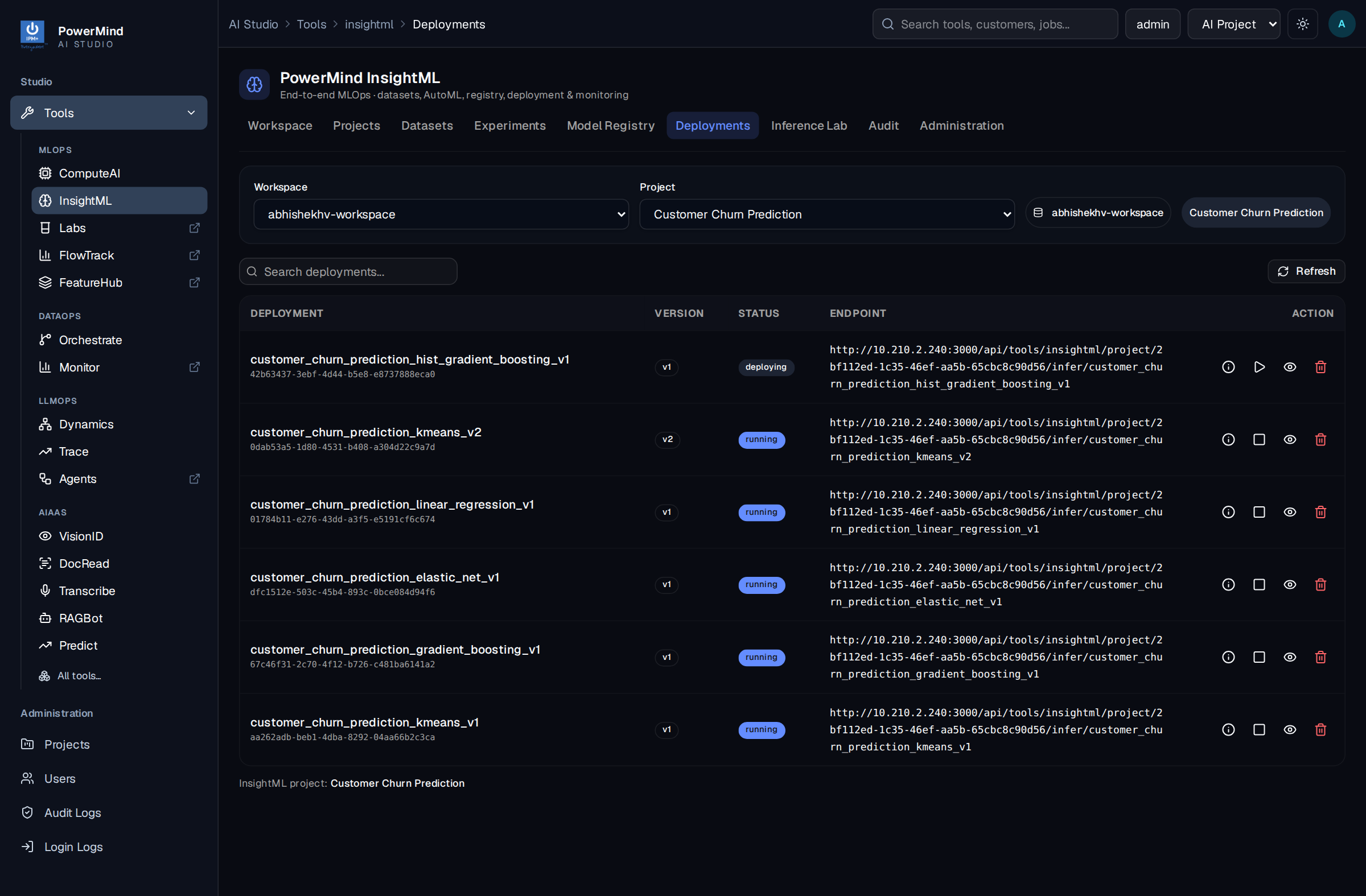
9.1 Serving Endpoints Management
- Lifecycle Indicators: Real-time operational states (
RUNNING,STARTING,QUEUED,STOPPED,FAILED). - Endpoint URL: Dedicated REST prediction URL (e.g.,
/api/v1/infer/{deployment_name}). - Information Modal & Metadata (ℹ️):
- Clicking on any deployment or its Information icon (ℹ️) displays the complete inference contract:
- Input Shape: Expected input tensor shape (e.g.,
[1, 4]). - Input Feature Names & Count: Total feature count and required column names.
- Data Types & Tensor Names: Expected tensor data type (e.g.,
BYTES,FP32) and tensor name (input__0). - Performance Benchmarks: Holdout validation metrics and inference latency.
- Input Shape: Expected input tensor shape (e.g.,
- Clicking on any deployment or its Information icon (ℹ️) displays the complete inference contract:
- Deployment-Scoped API Keys:
- Dedicated Deployment API Keys (
x-api-key) are generated directly within the deployment panel. - Restricts access strictly to invoking predictions on that specific endpoint, ensuring client applications cannot access workspace management APIs.
- Dedicated Deployment API Keys (
10. Inference Lab & Interactive Testing
The Inference Lab tab is an interactive experimentation playground where developers and data scientists can test, validate, and experiment with live model predictions before integrating endpoints into applications.
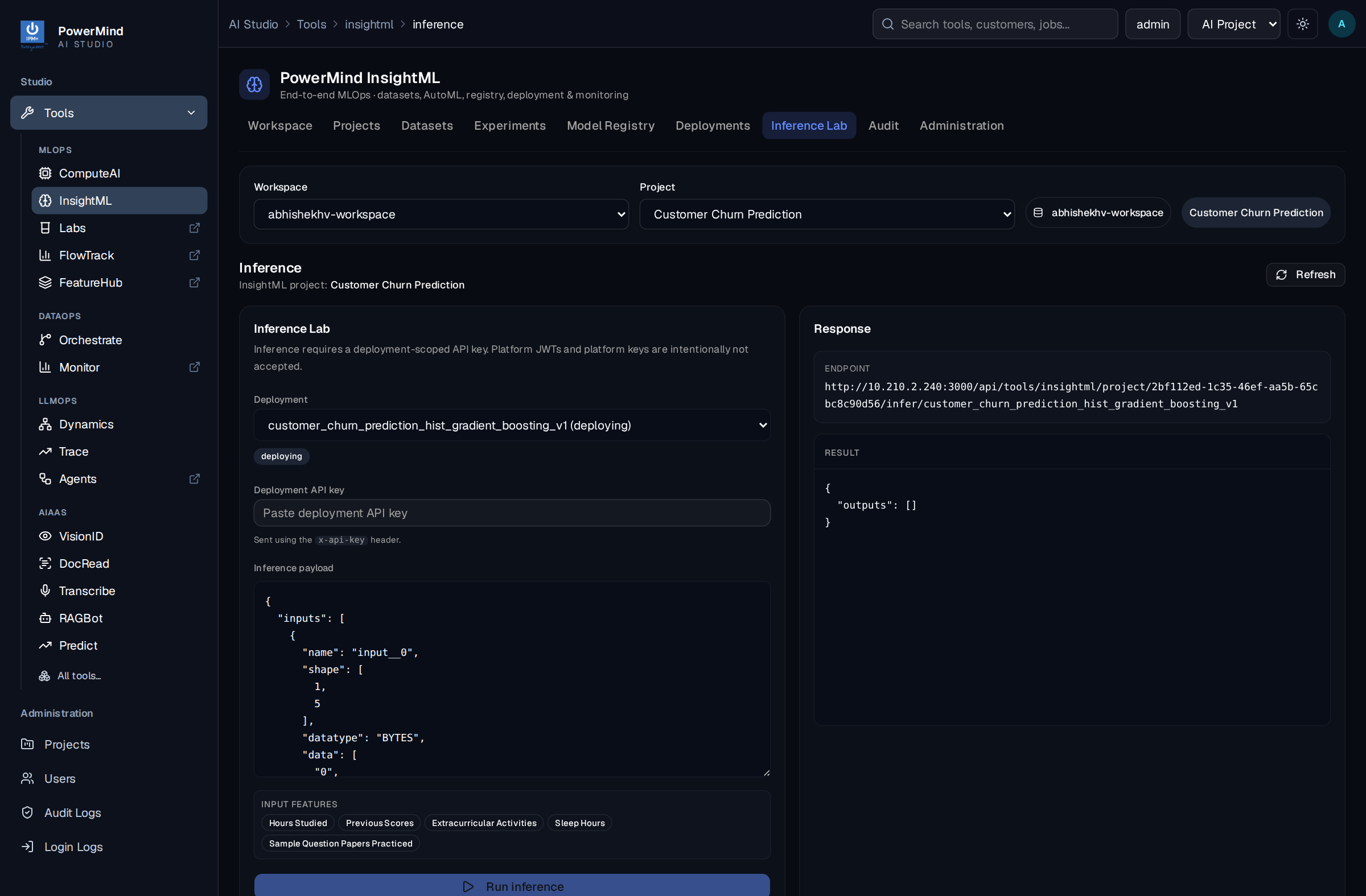
Inference Lab Workflow
- Select Deployment: Choose any active serving deployment from the dropdown selector.
- Automatic Schema Payload: InsightML automatically populates the JSON editor with the default tensor structure and expected input feature names.
- Interactive Payload Editing: Modify feature values directly in the editor to simulate different user profiles, edge cases, or test vectors.
- Instant Prediction Execution: Click Run Inference / Predict to send the payload to the serving engine.
- Real-Time Output & Latency: Inspect the structured prediction output (predicted class, probability distribution, or continuous forecast) along with execution latency in milliseconds.
11. Audit & Activity Logs
The Audit tab (accessible from the main navigation and inside the Administration console as System Audit Trail) maintains an immutable log of all operations performed across the platform to ensure regulatory compliance, security accountability, and complete operational visibility.
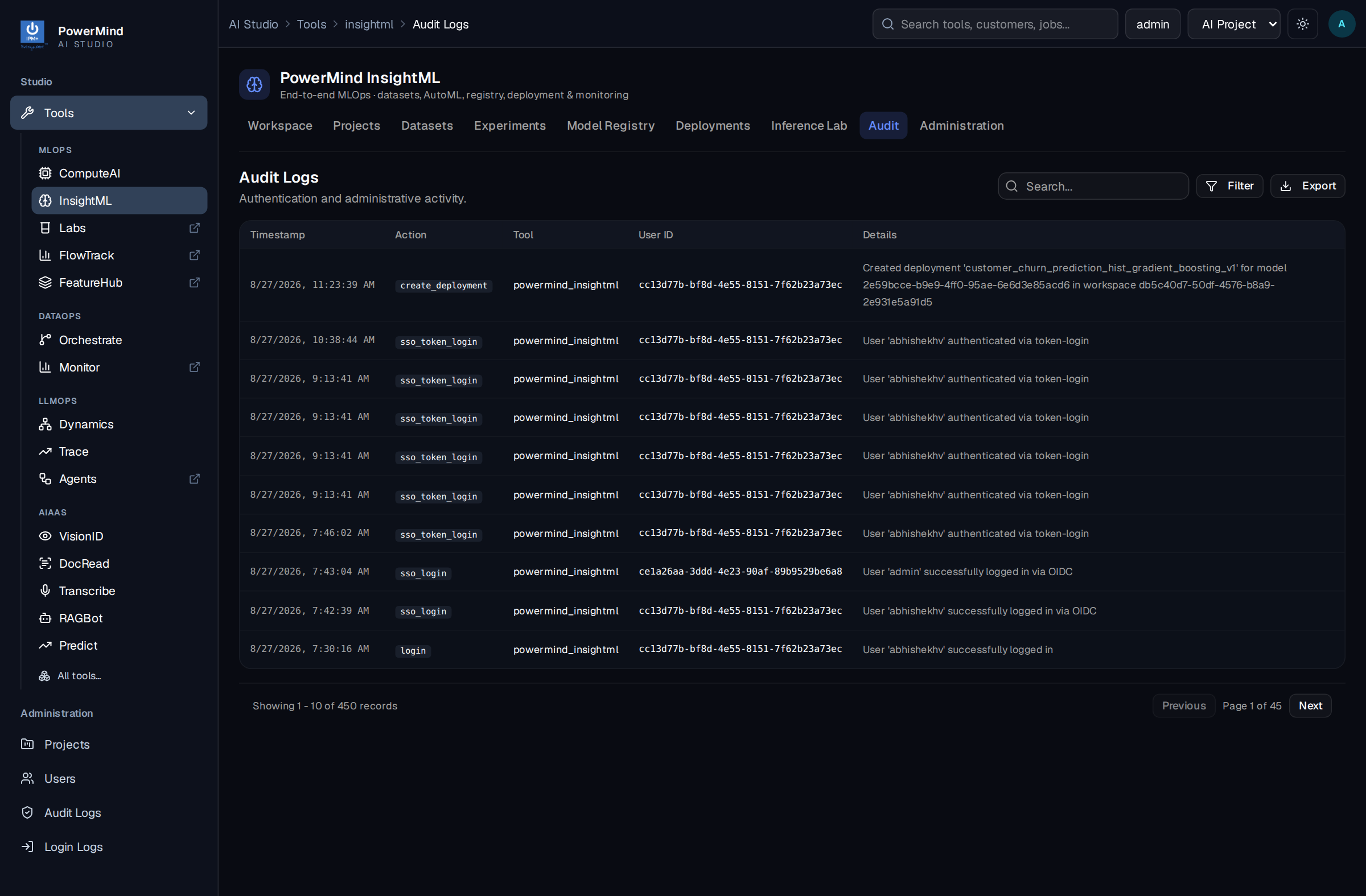
Audit Table Columns & Information
- Timestamp: Formatted date and time (local / UTC) when the event was recorded.
- Action: Highlighting badge indicating the operation performed (e.g.,
CREATE_WORKSPACE,UPLOAD_DATASET,RUN_AUTOML,CREATE_DEPLOYMENT,GENERATE_API_KEY,UPDATE_SETTINGS,USER_LOGIN). - Details: Contextual details regarding the event, including target resource names, identifiers, configuration changes, user identifiers, and operation outcomes.
Search & Navigation Features
- Search Action Filter: Real-time search input (
Search action...) allowing users to filter audit trails by specific action types or keywords. - Pagination Controls: Dynamic page navigation and record counters to review historical logs chronologically without performance degradation.
12. Platform Administration, Quotas & Governance
The Administration tab is reserved for platform administrators to configure global resource limits, manage user quotas, and govern workspace lifecycles.
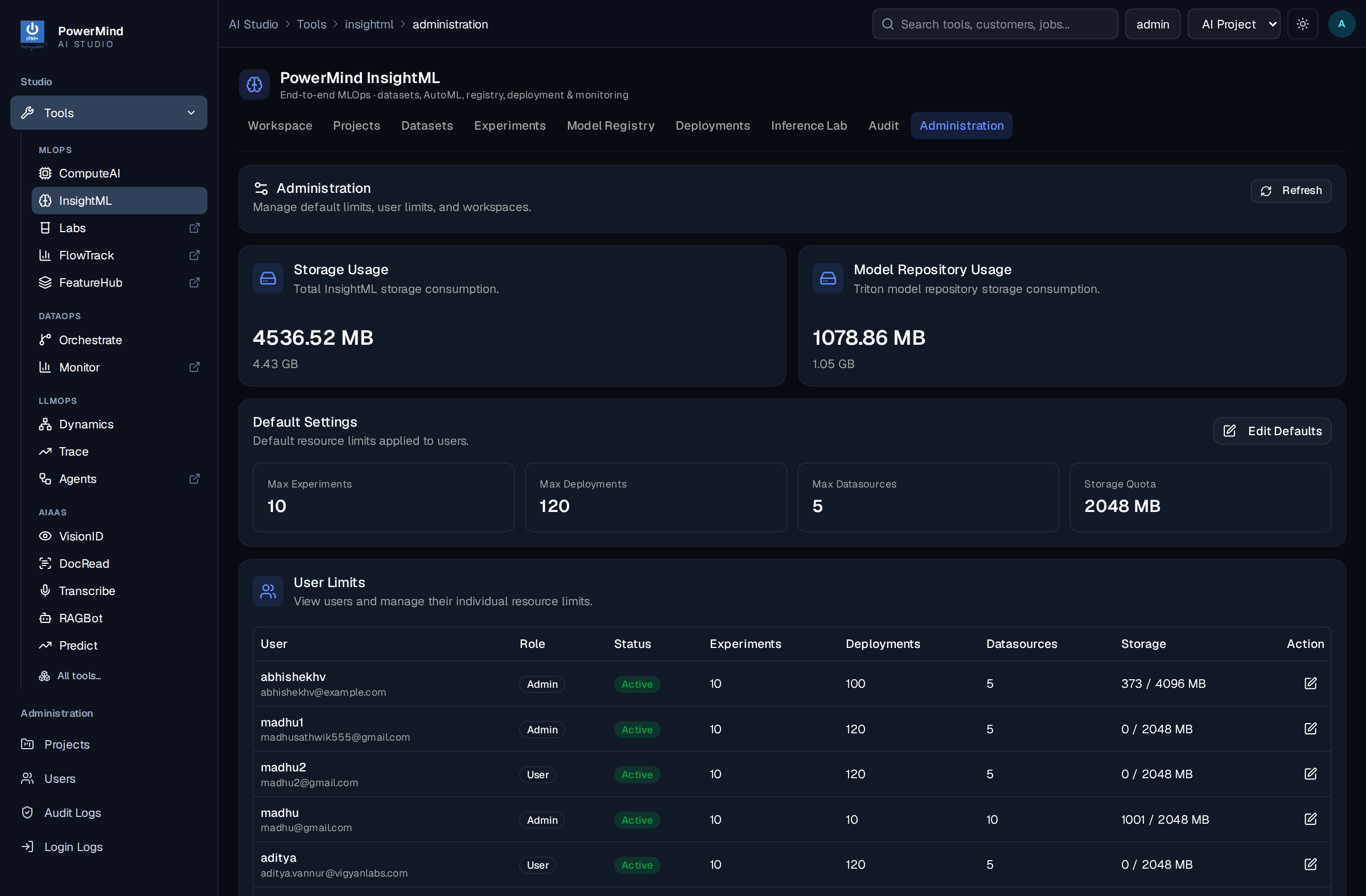
12.1 User Resource Quotas & Limits
Administrators can set strict resource boundaries per user or tenant to prevent compute bottlenecks and uncontrolled storage growth:
- Storage Limit (MB/GB): Maximum disk storage allowed for uploaded datasets and serialized model artifacts.
- Max Datasets: Maximum number of active datasets allowed per user account.
- Max Experiments: Concurrency and total experiment limits for AutoML training runs.
- Max Active Deployments: Maximum number of concurrent real-time serving endpoints permitted.
12.2 Workspace Lifecycle & Account Governance
Scrolling down in the Administration console displays global tenant management tables:
- Enable / Disable Workspaces: Administrators can activate, deactivate, or disable tenant workspaces with one click.
- User Account Management: Manage user statuses (active/inactive), reset passwords, edit custom per-user quota overrides, and assign administrative privileges.
13. Summary of End-to-End Workflow
| Step | Tab / View | Key Actions |
|---|---|---|
| 1. Workspace & Project Setup | Workspace / Projects | Select or create workspace and project; generate platform API keys for SDK use. |
| 2. Data Ingestion | Datasets | Upload CSV data or sync feature views using FeatureHub. |
| 3. AutoML Training | Experiments | Select problem type, dataset, target variable, time budget, and launch AutoML search. |
| 4. Model Evaluation | Leaderboard | Inspect metrics, ROC curves, feature importance, and select winning model. |
| 5. Model Registration | Model Registry | Version model artifact and inspect training performance. |
| 6. Real-Time Deployment | Model Registry / Deployments | Click the 🚀 Deploy icon on model row to launch serving endpoint; view metadata (ℹ️) and generate deployment API keys. |
| 7. Inference Playground | Inference Lab | Experiment with real-time test payloads and verify live predictions with latency metrics. |
| 8. Governance & Administration | Audit / Administration | Set user storage/experiment limits, disable/manage workspaces, and review audit logs. |