PowerMind FlowTrack User Guide
PowerMind FlowTrack provides experiment tracking, run analysis, model registry, prompt management, and artifact access inside PowerMind AI Studio. This guide describes the workflows available from the Studio user interface.
Before you begin
You need:
- A PowerMind AI Studio account.
- Access to a project that has FlowTrack enabled.
- Permission to view or manage FlowTrack resources.
FlowTrack data is loaded for the project selected in the Studio header. Always confirm the project before creating or changing an asset.
Open FlowTrack
- Sign in to PowerMind AI Studio.
- Select the required project from the header.
- Expand Tools in the left navigation.
- Select FlowTrack.
Studio uses your existing PowerMind session when communicating with FlowTrack. No second password is required.
The FlowTrack header contains these pages:
| Page | Purpose |
|---|---|
| Overview | View a summary of experiments, runs, models, and recent activity. |
| Experiments | Create and manage experiment containers. |
| Runs | Inspect run status, metrics, parameters, tags, and history. |
| Models | Manage registered models, versions, aliases, descriptions, and tags. |
| Prompts | Create and version reusable prompt templates. |
| Artifacts | Browse and download files associated with runs and model versions. |
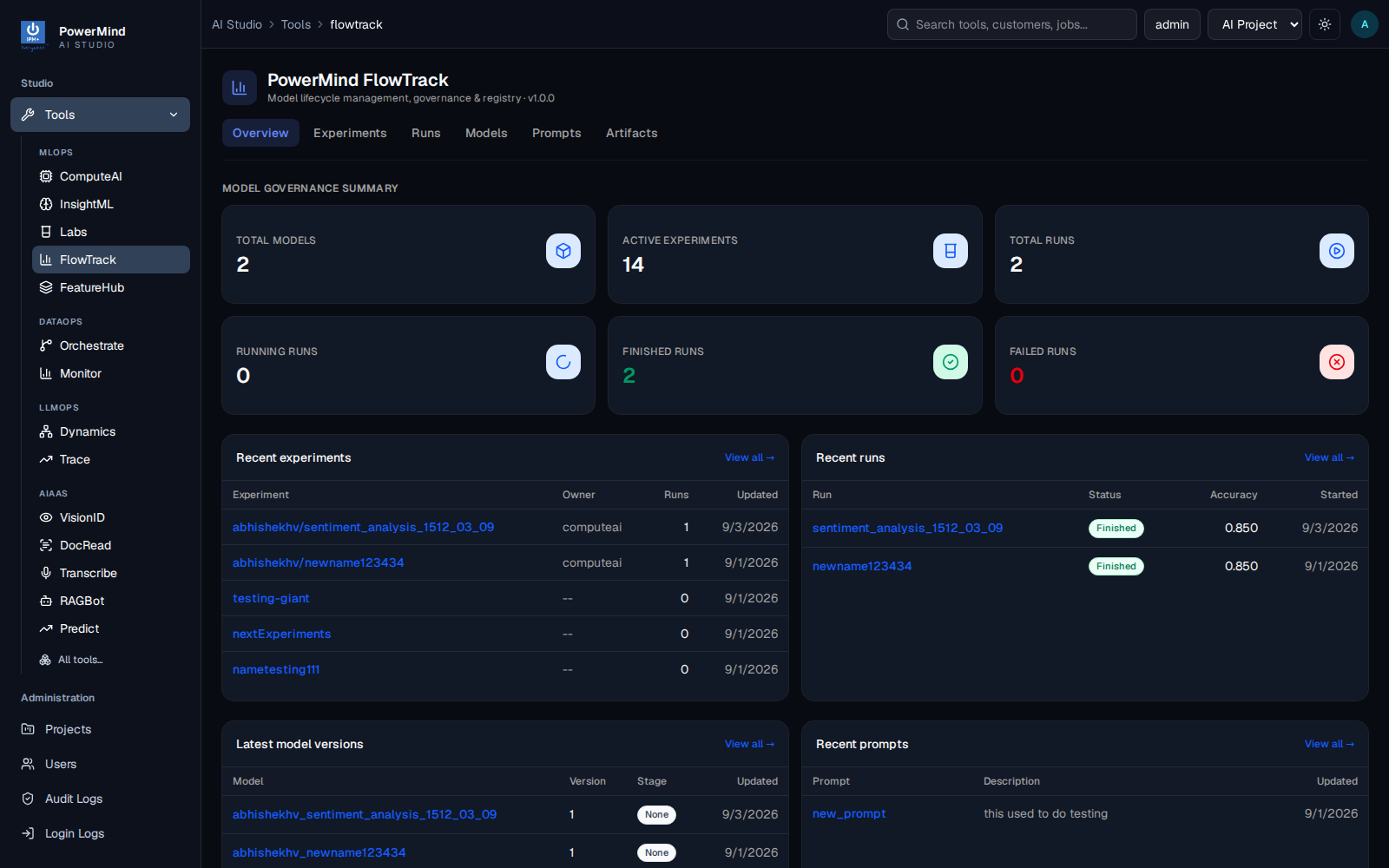
The Overview page summarizes models, experiments, runs, and recent activity for the selected Studio project.
Overview
The Overview page shows a Model Governance Summary with model, active experiment, and run totals. It also provides recent-experiment, recent-run, latest-model-version, and recent-prompt panels. Select View all on a panel to open its management page.
If the summary cannot be loaded, confirm the selected project and refresh the page before creating new resources.
Manage experiments
An experiment groups related training or evaluation runs.
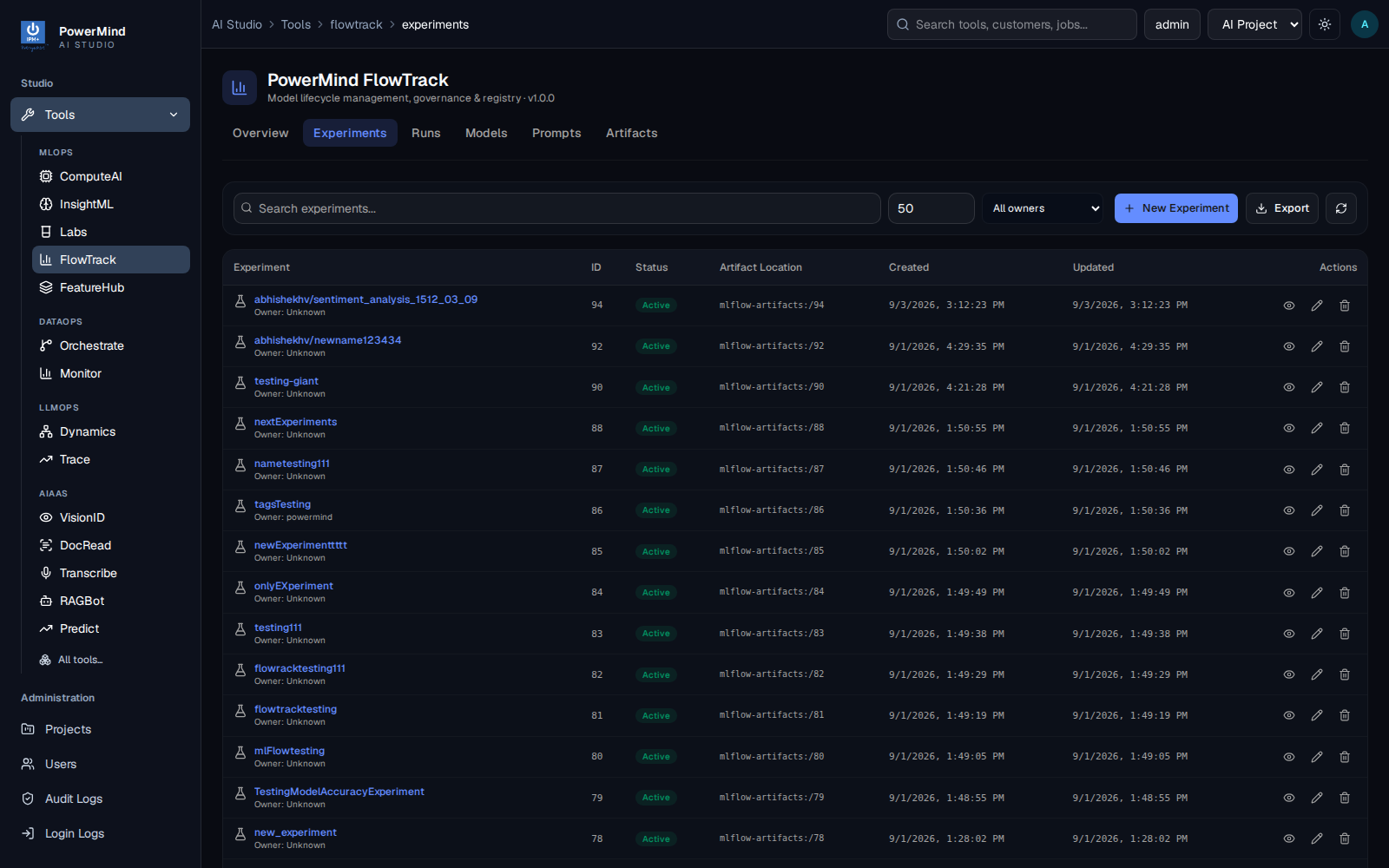
Find an experiment
Open Experiments and use:
- The search box to filter the displayed experiments.
- The result-limit control to change the number of rows requested.
- The lifecycle filter to view active or deleted experiments when available.
- Refresh to reload data from FlowTrack.
Select an experiment or its view action to inspect its metadata. Use the runs action to open runs belonging to that experiment.
Create an experiment
- Select New Experiment.
- Enter a unique experiment name.
- Optionally provide an artifact location.
- Add metadata tags when required.
- Confirm the operation.
Use meaningful names that describe the dataset, task, or business objective. The artifact location should only be supplied when your FlowTrack deployment has a compatible artifact store.
Rename, delete, or restore an experiment
Use the action controls on the experiment row. Deleting an experiment changes its lifecycle state; it may still be restorable when FlowTrack retains deleted resources. Review the selected experiment carefully before confirming a delete or restore operation.
Manage runs
A run records one execution of an ML workflow.
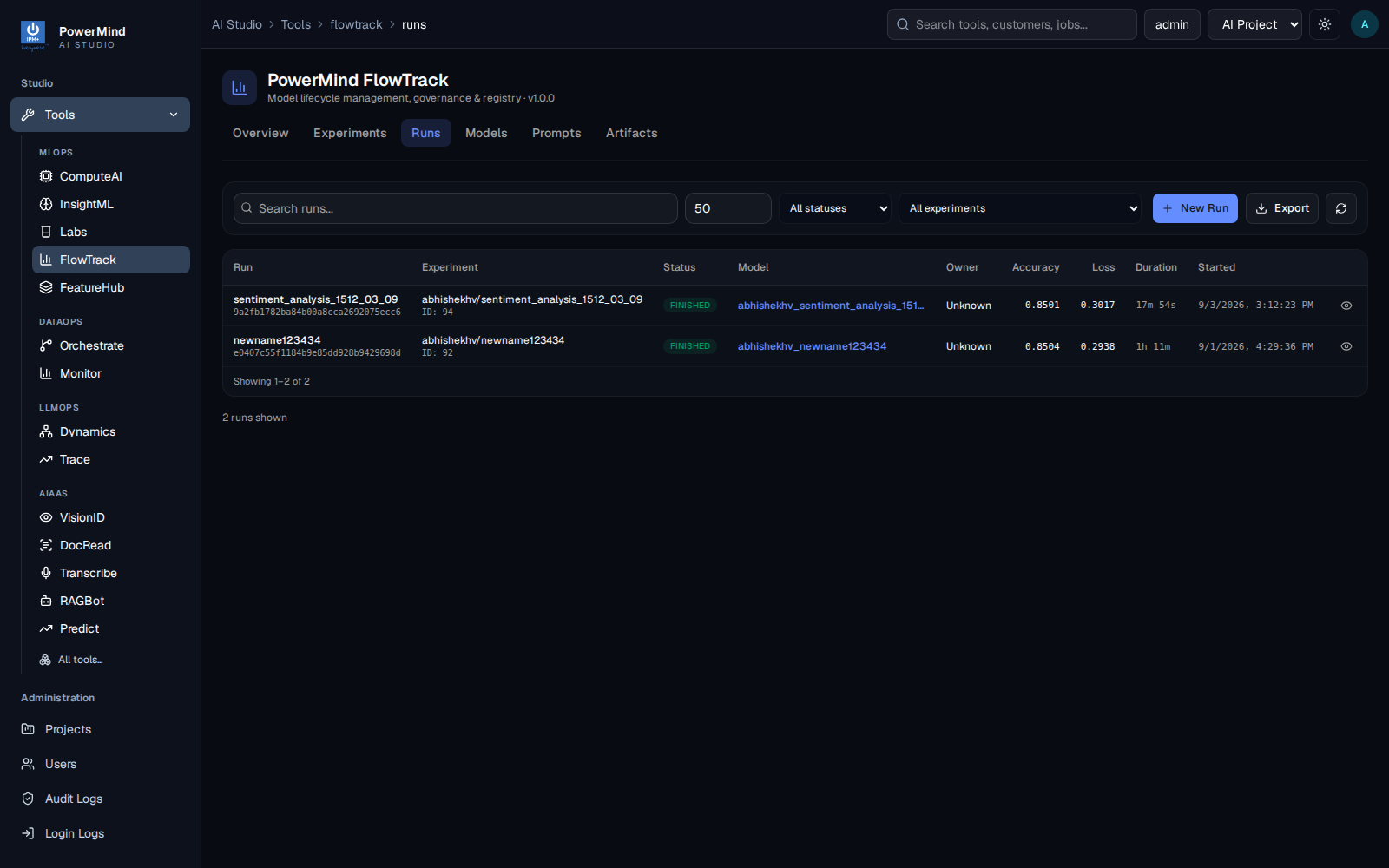
Browse runs
Open Runs to search and filter runs. Available controls include:
- Text search.
- Run-status filter.
- Experiment filter.
- Result limit.
- Refresh and export actions.
The run table summarizes the run name, experiment, status, model association, owner, selected metrics, duration, and start time.
View run details
Select the view action for a run. The details view can contain:
- Run name, ID, status, and experiment.
- Start and end information.
- Logged metrics.
- Logged parameters.
- Run tags.
- Model metrics and system metrics when available.
Copy the run ID when you need to retrieve its artifacts from the Artifacts page or refer to it from an SDK workflow.
Start a new run
Select New Run to open the New run using notebook dialog. The dialog provides a Classical ML code example that you can run in PowerMind Labs or in a local Python environment. The button does not execute training directly in the browser; the run appears in FlowTrack after the example or your own SDK code logs it to the configured tracking server.
Log run data
For active runs and roles with edit permission, the UI provides controls for logging:
- Metrics, including metric name, numeric value, and optional step.
- Parameters as name-value pairs.
- Tags as key-value pairs.
Avoid changing the meaning or unit of a metric key within the same run.
View metric history
Select the Metric history action on a run, then choose a metric key. The history displays the values recorded at different timestamps or steps. This is useful for reviewing training progress rather than only the latest metric value.
Delete or restore a run
Use the run actions to delete or restore a run where permitted. A deleted run is removed from the active view but may remain available through the deleted-state filter until it is permanently removed by retention policy.
Manage registered models
The Models page manages logical registered models and their versions.
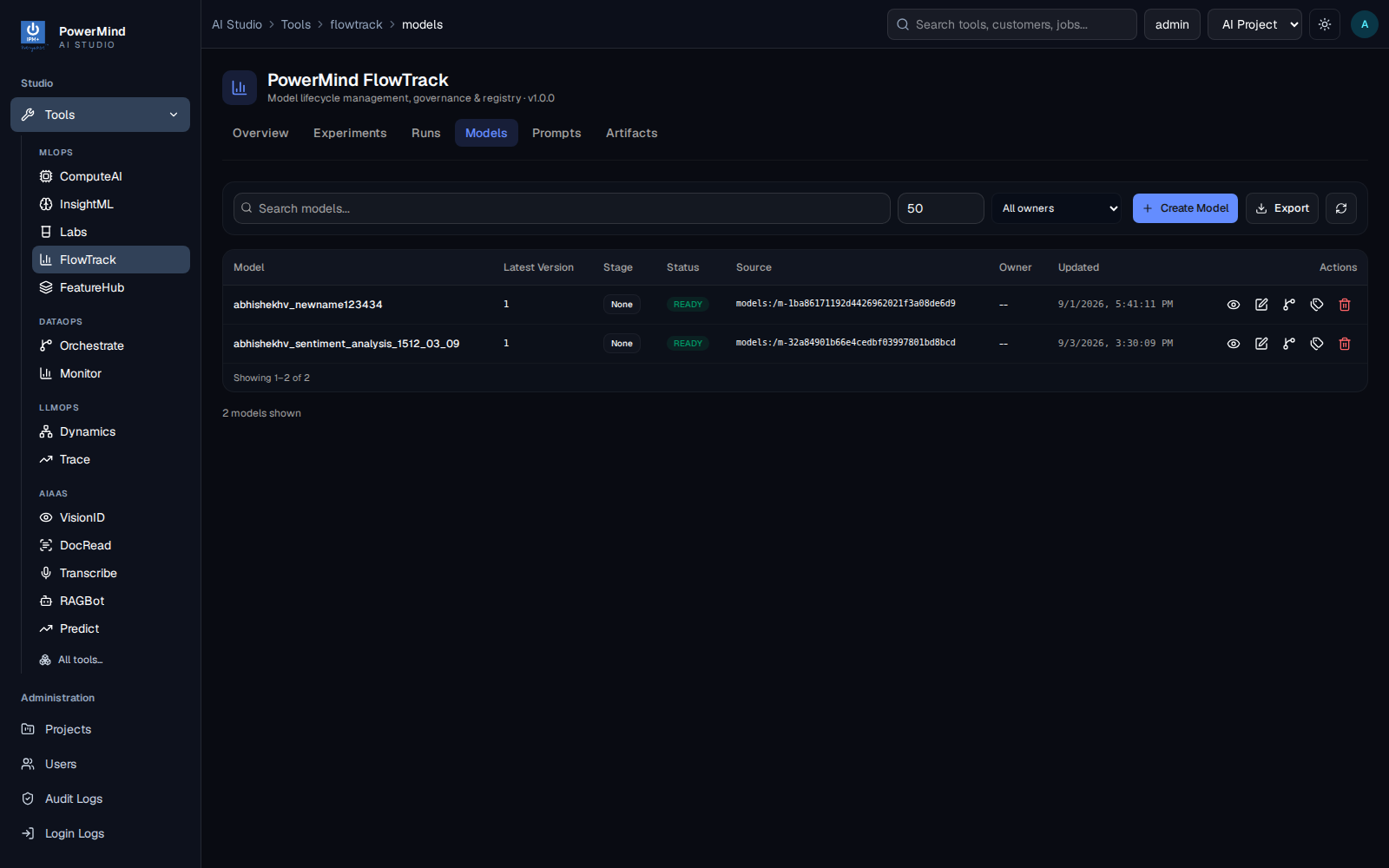
Find or create a model
Use the search box and owner filter to find an existing registered model. To create one:
- Select Create Model.
- Enter a unique model name.
- Add an optional description.
- Add metadata tags when required.
- Confirm the operation.
Creating a registered-model record does not automatically create a usable model version. Versions normally refer to a model logged by a run or SDK workflow.
Edit model metadata
Use the edit action to update the description or tags. Tags are appropriate for ownership, framework, use case, governance, or lifecycle metadata.
Manage model versions
Select Manage versions for a model. Depending on your permissions, you can:
- Review version number, source, run ID, status, creation time, description, and tags.
- Create a version by supplying a valid model source and optional run ID.
- Update a version description and tags.
- Delete a version.
Confirm the source and run association before creating a version. A registry entry that points to a missing artifact cannot be downloaded or loaded.
Manage aliases
Aliases provide stable names such as production or champion that point to a
specific model version. Open Manage aliases, enter an alias and version, and
save the assignment. Reassigning an alias changes which version that alias
identifies, so treat production aliases as controlled changes.
Delete a registered model
Deleting a registered model affects its registry record and versions. Confirm that no deployment or downstream workflow relies on it before proceeding.
Manage prompts
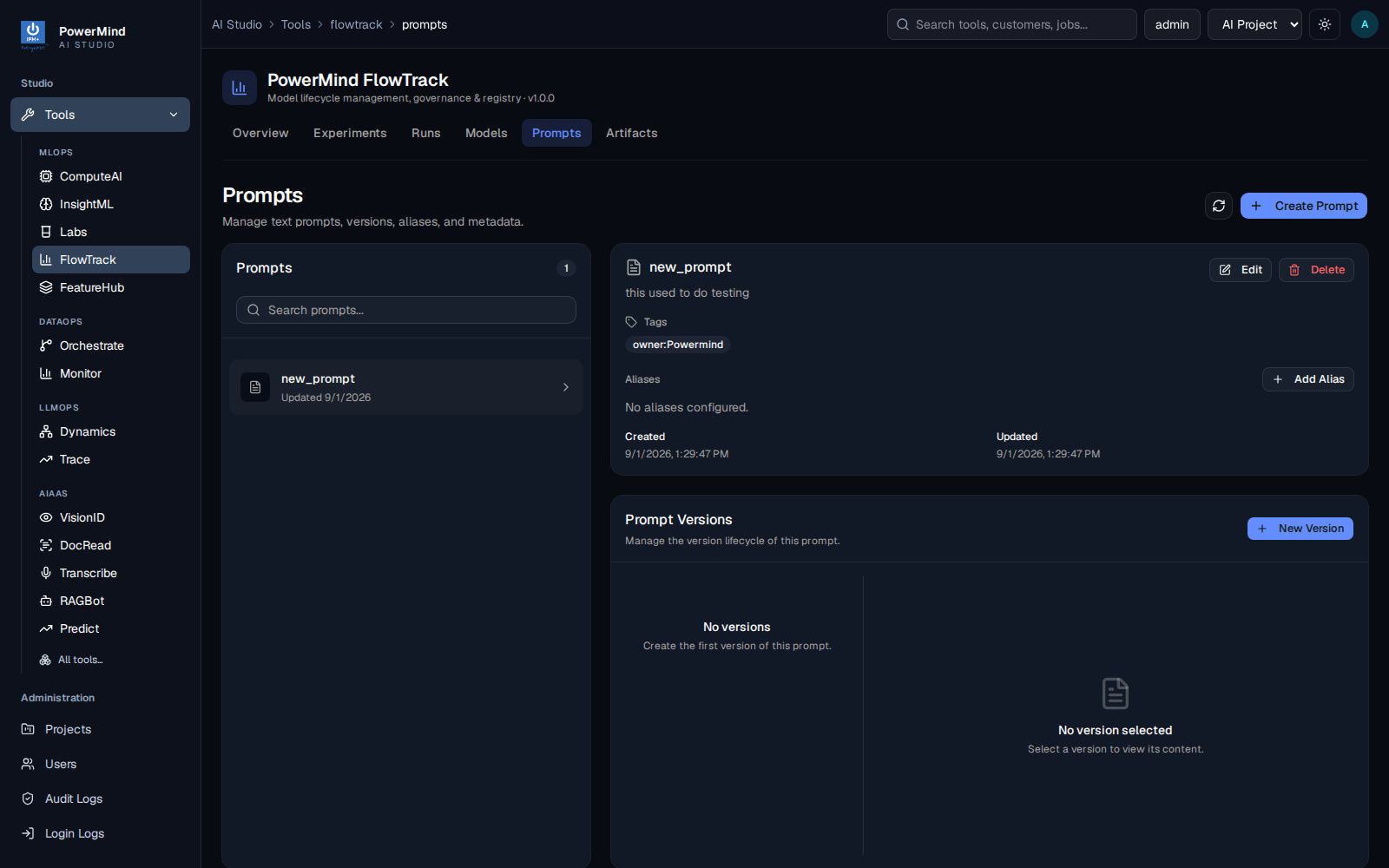
The Prompts page manages named prompt templates and their versions.
Create a prompt
- Open Prompts.
- Select Create Prompt.
- Enter a unique name and optional description.
- Add tags when required.
- Confirm the operation.
Create and inspect prompt versions
Select a prompt to view its versions. A version contains the prompt template, an optional description, and tags. Create a new version when the prompt content changes so earlier versions remain traceable.
Edit prompts and versions
Use the available edit actions to update prompt metadata or version metadata. Do not overwrite historical intent in descriptions; create a new version for a meaningful template change.
Manage prompt aliases
Assign aliases such as production to the version that consumers should use.
An alias can be moved to another version without changing the prompt name used
by the consumer.
Browse and download artifacts
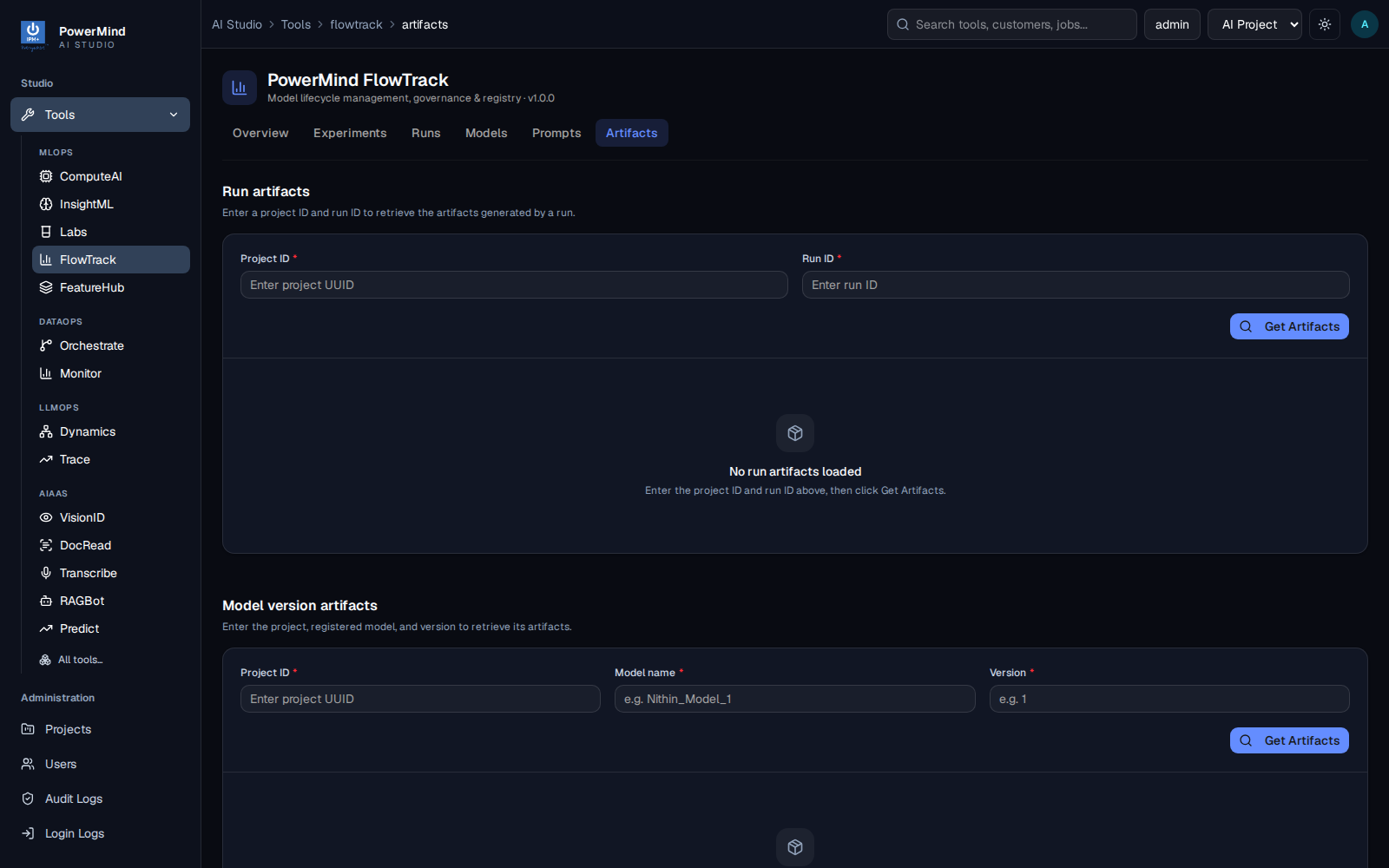
Artifacts are files produced by runs or stored with registered model versions. The Artifacts page provides two separate lookup workflows.
Run artifacts
- Open Artifacts.
- In Run artifacts, enter the project UUID and run ID.
- Select Get Artifacts.
- Browse or search the returned paths.
- Select a file to download it.
Folders organize artifact paths but cannot be downloaded as a single file unless the backend explicitly provides an archive.
Model-version artifacts
- In Model version artifacts, enter the project UUID.
- Enter the registered model name exactly as shown on the Models page.
- Enter the model version number.
- Retrieve the artifact list.
- Browse or search for the required file and select download.
Model-version artifacts are resolved from the model version's source. If no files appear, confirm that the version has a valid source and associated logged model artifacts.
Note
Your browser downloads an artifact file; the FlowTrack tracking-server UI does not maintain a separate download-history panel.
Export data
Where an export action is available, it exports the currently loaded or selected report data. Apply the intended search and filters before exporting, then verify the generated file contains the expected project data.
Authentication and permissions
Studio forwards your authenticated PowerMind identity to FlowTrack. Access is still controlled by project assignment, tool entitlement, and FlowTrack roles. An administrator may be able to see actions that are unavailable to a viewer.
If your session expires, Studio attempts to refresh it. If requests continue to return Unauthorized, sign in to Studio again instead of repeatedly retrying the operation.
Troubleshooting
Unable to communicate with FlowTrack
- Confirm that the correct project is selected.
- Refresh the page once.
- Confirm that FlowTrack is enabled for the selected project.
- Ask an administrator to verify the FlowTrack service and Studio integration if the error persists.
Request failed with 401 or Unauthorized
Your Studio session may have expired, or your account may not be allowed to use FlowTrack. Sign in again. If the issue remains, ask an administrator to verify your project assignment and FlowTrack roles.
Request failed with 502 or Bad Gateway
Studio could not complete the request to the FlowTrack server. Retrying many times will not repair a service or certificate problem. Record the affected page and time, then ask an administrator to check backend and FlowTrack logs.
No experiments, runs, models, or prompts are shown
- Clear search text and filters.
- Confirm that you selected the project where the assets were created.
- Increase the result limit if appropriate.
- Select Refresh.
An empty list is not necessarily an error; the selected project may not have that resource type yet.
Artifact download is empty or fails
- Check the project UUID and run ID or model name/version.
- Confirm that the run actually logged artifacts.
- Confirm that the model version source exists.
- Ask an administrator to verify artifact-store access if metadata loads but files do not.
Recommended practices
- Use consistent names and tags across experiments, runs, models, and prompts.
- Keep model versions linked to traceable runs and artifact sources.
- Use aliases for stable consumers rather than hard-coding changing version numbers.
- Treat delete and alias reassignment operations as governed changes.
- Do not share access tokens, authenticated links, or downloaded sensitive artifacts.
- Verify the selected project before creating, editing, deleting, or exporting data.